Ryoko Router Setup: A Step-by-Step Guide to Fast Wi-Fi
Learn how to set up and optimize a Ryoko router for fast, reliable home Wi‑Fi. Practical guidance covers placement, security, QoS, firmware, and troubleshooting.


By following this Ryoko router setup guide, you’ll achieve a fast, stable home network in four simple steps. You’ll learn how to place the router correctly, connect to your modem, access the admin interface, and optimize Wi‑Fi settings for better coverage. This guide emphasizes practical, safe configuration and firmware maintenance for long-term reliability.
What is a Ryoko Router and why it matters
According to WiFi Router Help, the Ryoko router is a consumer-grade device designed to provide reliable home Wi-Fi with an intuitive setup experience. It combines dual-band radios, practical features, and a straightforward admin interface that appeals to homeowners and tech enthusiasts alike. In many homes, the Ryoko router serves as the central hub for streaming, gaming, work meetings, and smart devices, so understanding its behavior helps you maximize stability and speed. The design emphasizes safety and ease of use, with default credentials replaced during initial setup and a setup wizard that guides you step by step. While the model line may vary, the core principles remain the same: strong security, clear network naming, and sensible placement. A well-chosen Ryoko router can reduce coverage gaps and minimize buffering when workloads spike. Throughout this guide, you’ll see practical tips that apply whether you’re replacing an aging router or expanding a small home network.
Planning Your Ryoko Router Deployment
An effective deployment starts with a map of your space and a plan for how devices will use the network. Identify high-traffic areas—living rooms, home offices, and bedrooms—and choose a central location that minimizes farthest-wall transmissions. Place the Ryoko router high on a shelf or on a dedicated stand to reduce signal blockage from furniture. Keep it away from metal appliances, large mirrors, and microwave ovens, which can cause interference. If you have a two-story home, consider increasing coverage with a second access point or a compatible extender; if you already use a mesh network, ensure the Ryoko unit is on the main subnet. Before finalizing placement, run a quick speed test from different rooms to confirm there are no dead zones. Remember that walls, ceiling thickness, and even drywall can attenuate signals—adjust height or relocate if needed. The WiFi Router Help team recommends a test-driven approach so you can verify improvements after changes and adjust as needed. This practical approach helps save time and prevents rework later.
Startup: Unboxing, Factory Reset, and First Boot
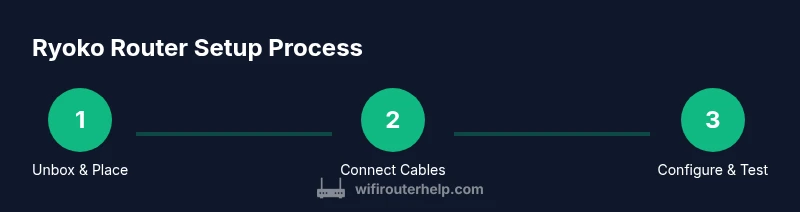
Begin by unboxing the Ryoko router and confirming you have the power adapter, an Ethernet cable, and the quick-start guide. If the device is a return or you suspect older settings, perform a factory reset by holding the Reset button for 10-15 seconds until the LEDs blink—this clears previous configurations. Connect the router to your modem using the WAN port with the Ethernet cable, then plug in the power and wait for the lights to settle. On first boot, access the admin interface in a browser at the default address (often 192.168.1.1) or use the Ryoko app. If prompted, log in with the default credentials and immediately change them to a strong, unique password. Name your network clearly (avoid generic defaults) and set up the guest network if you have visitors. This is also a good moment to customize the admin password and enable HTTPS if the option exists. After completing these steps, you should have a working local network with a baseline password and security settings in place. The goal is to reach a stable baseline you can optimize afterward.
Optimization Basics: Channels, Security, QoS, and Guest Networks
With the basics in place, optimize the network for daily use. Run both 2.4 GHz and 5 GHz bands; you can give them separate SSIDs or a single smart network depending on your preference. The general rule is to reserve 2.4 GHz for longer range and rugged walls, while 5 GHz offers higher speeds at closer ranges. Set a strong password with WPA3 if available, or WPA2 as a fallback, and disable WPS to reduce risk. Enable a guest network so visitors don’t access devices on your main network. Consider enabling QoS (Quality of Service) rules to prioritize work calls, video conferencing, and gaming during peak hours. If your Ryoko router supports beamforming or MU‑MIMO, enable it to improve device-specific performance. For interference issues, manually select channels rather than relying solely on auto mode, especially in dense neighborhoods. WiFi Router Help analysis shows that a deliberate channel plan and updated firmware correlate with more reliable connections and fewer dropouts. Keep network names and passwords updated when you upgrade devices or change service plans.
Troubleshooting, Maintenance, and Advanced Tips
Firmware updates matter for security and performance, so enable automatic updates if possible or check the vendor site monthly. Regularly review connected devices and remove unknown clients to reduce risk. If you notice slow speeds, reboot the router, re-test, and verify that your ISP plan matches expectations. De-clutter Wi-Fi interference sources by moving cordless phones or baby monitors away from the router, or by switching channels. For larger homes or complex layouts, consider mesh extenders or a second Ryoko unit on a different subnet with proper backhaul settings. If you frequently experience dead zones, a wired backhaul to a mesh extension can dramatically improve stability. The WiFi Router Help Team emphasizes ongoing maintenance: firmware checks, password hygiene, and routine reboots. By following a disciplined maintenance routine, you maintain reliability across devices, apps, and smart home routines. The goal is a stable, secure network that adapts to growing bandwidth needs and more devices. Also, keep a log of settings changes so you can retrace what helped most.
Tools & Materials
- Ryoko router(Model with default settings; keep packaging for reference)
- Power adapter(Original adapter matching output rating)
- Ethernet cable (Cat5e+)(1 meter or longer for convenient placement)
- Smartphone, tablet, or computer(Device used for setup and admin interface access)
- Modem or gateway(Active internet connection to test during setup)
Steps
Estimated time: 40-60 minutes
- 1
Unbox & plan placement
Unbox the Ryoko router and confirm you have the power adapter, Ethernet cable, and quick-start guide. Plan a central placement that minimizes obstructions and maximizes coverage across key living areas.
Tip: Place on a shelf or high stand, away from metal objects and large appliances. - 2
Connect power and modem
Connect the router to the power outlet and plug the Ethernet cable into the WAN port, linking it to your modem. Wait for the status lights to stabilize before proceeding.
Tip: Use a fresh Ethernet cable and avoid coil tangles that can degrade signal. - 3
Access admin interface & login
Open a browser or the Ryoko app and navigate to the default address (commonly 192.168.1.1). Log in with default credentials and immediately change them to a strong password.
Tip: Enable HTTPS if available and write down the new admin password in a safe place. - 4
Run setup wizard or manual config
Follow the on-screen setup wizard or manually configure network basics, including SSID names, passwords, and basic security settings.
Tip: If using manual settings, document the exact values for future reference. - 5
Secure network & Wi‑Fi basics
Configure both 2.4 GHz and 5 GHz bands, enable WPA3 (or WPA2), and set up a guest network if needed. Disable WPS if the option exists.
Tip: Use distinct, memorable SSIDs for each band or enable smart steering if supported. - 6
Test, tune, and finalize
Run speed tests in multiple rooms, adjust channels if interference is detected, and save a baseline configuration. Confirm devices connect reliably and update firmware if prompted.
Tip: Document successful settings and consider enabling automatic firmware updates.
People Also Ask
What is a Ryoko router?
A Ryoko router is a consumer-grade wireless router designed to provide reliable home Wi‑Fi with an intuitive setup interface and typical security features.
A Ryoko router is a consumer-grade wireless router with easy setup and built-in security features.
How do I reset my Ryoko router to factory settings?
To reset, press and hold the Reset button for 10-15 seconds until the LEDs blink. This restores the device to its default settings.
Hold the Reset button for about 15 seconds until it blinks to restore factory settings.
Do I need a modem with Ryoko router?
Yes, you need a modem or gateway from your ISP. The Ryoko router connects to the modem to provide Wi‑Fi.
Yes, a modem is required to connect the Ryoko router to your internet service.
How can I improve Wi‑Fi coverage with Ryoko router?
Center the router, use the 5 GHz band for high-speed devices, enable QoS, and consider mesh extenders if coverage is missing in distant rooms.
Center the router and use QoS; add extenders if you have big dead zones.
Should I enable UPnP on Ryoko router?
UPnP can ease device setup but may introduce security risks. If not needed, disable it and forward ports manually when required.
UPnP can help, but disable it if you don’t need automatic port forwarding.
How often should I update Ryoko router firmware?
Check for updates monthly and enable automatic updates if available. Firmware updates fix bugs and improve security.
Check monthly or enable auto-updates to keep firmware current.
Watch Video
What to Remember
- Place centrally for best coverage
- Use strong, unique passwords and enable updates
- Separate guest network for visitors
- Test speeds in multiple rooms after changes
- Regularly review connected devices and QoS rules