Muama Ryoko Setup, Use, and Troubleshooting
Learn how to set up Muama Ryoko portable Wi-Fi, optimize performance, connect multiple devices, and troubleshoot common issues with a clear, step-by-step approach for travel.


You will learn how to set up Muama Ryoko, power on the device, connect your phones and laptops, and optimize data use for travel. This guide covers activation, securing your Wi‑Fi network, and practical tips to avoid outages. You’ll also learn quick checks for signal quality, battery health, and firmware updates to keep you connected on the go.
Why Muama Ryoko matters for modern travel
Muama Ryoko is a compact, portable Wi‑Fi hotspot designed for travelers who need reliable internet on the road. For homeowners and tech enthusiasts alike, understanding how this device fits into a home network or on the move helps you avoid dead zones and expensive roaming. According to WiFi Router Help, the value of a portable hotspot lies in its ability to consolidate several devices behind a single secure network, which minimizes the need for public Wi‑Fi and reduces password fatigue. The WiFi Router Help team found that many travelers underestimate the importance of basic configuration, such as changing default passwords and naming the network to reflect your trip or household. With muama ryoko, you gain control over data usage and privacy while enjoying consistent connectivity in airports, hotels, and remote locations.
In this article, you’ll learn how to assess your needs, choose a data plan that aligns with your travel patterns, and perform a reliable setup. We’ll cover hardware basics, network security, device management, and practical tips for staying connected while maintaining battery life. Whether you’re a casual vacationer or a power user who streams video, this guide keeps you on track and removes guesswork.
note_text_1_0_1_1_na_1_0_1_1_1_1_0_1_0_0_1_1_1_0_1_0_1_0_1_0_1_0_1_0_1_0_1_0_1_1_1_1_1_1_1_1_1_1_1_1_1_1_1_1_1_1_1_1_1_1_1_1_1_1_1_1_1_1_1_1_1_1_1_1_1_1_1
Tools & Materials
- Muama Ryoko portable hotspot device(Primary device for the setup and connectivity.)
- Charging cable(USB charging cable compatible with the Muama Ryoko model.)
- Charger or power bank(Reliable power option for travel, especially on long days.)
- Smartphone or laptop(Used to configure the hotspot and test connections.)
- Paper network credentials or a saved note(Optional backup if you prefer not to rely on the device’s screen.)
Steps
Estimated time: Estimated total time: 20-25 minutes
- 1
Power on and locate network details
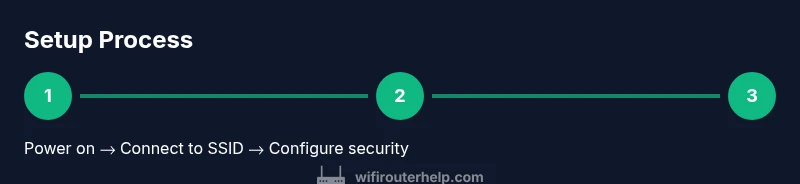
Power on Muama Ryoko and wait for the indicator that it is ready. On the device, locate the printed SSID (network name) and the default password. Use your smartphone to scan for the SSID and connect to the network exactly as shown. This initial connection establishes the channel for all subsequent setup and testing.
Tip: If the device won’t power on, check the battery level or try a different charger for 10–15 minutes before retrying. - 2
Open the admin interface
Open a web browser on your connected device and enter the device’s default IP address or a listed configuration URL as printed in the manual. If a companion app exists, you can also launch it to access settings. This step unlocks the security controls and naming options for your network.
Tip: If the IP address isn’t loading, try refreshing the page or reconnecting to the hotspot before attempting again. - 3
Change the admin password
Navigate to the security or admin panel and replace the default password with a strong, unique one. This helps prevent unauthorized access. Save changes and log in again with the new credentials.
Tip: Use a long passphrase with a mix of letters, numbers, and symbols; consider storing it in a password manager. - 4
Rename the Wi‑Fi network and set a strong wireless password
In the network settings, set a Personal Network Name (SSID) that’s easy to recognize (e.g., your trip name). Create a new WPA2/WPA3 password and enable network isolation if available. Save and apply the changes so connected devices reconnect automatically if needed.
Tip: Avoid using obvious names tied to your personal information to reduce targeted attacks. - 5
Test the connection with multiple devices
Reconnect your devices to the updated network and run a quick speed test and page load on a few sites. Check that on-device indicators reflect good signal and stable power. Ensure at least two devices can stream or browse without noticeable lag.
Tip: If one device shows poor performance, move closer to a window or higher elevation to improve signal. - 6
Configure data alerts and roaming settings
If your Muama Ryoko supports roaming or multiple SIM options, configure data alerts to avoid overages and confirm roaming behavior. Ensure you know your data plan limits and how roaming may affect charges when you travel.
Tip: Enable notifications when you hit 70–80% of your data allowance if the feature is available. - 7
Set up firmware updates and backups
Check for firmware updates within the admin interface and apply any available updates. Create a quick backup of your current configuration if the device supports exporting settings.
Tip: Keep a recurring reminder to check for updates every few weeks during trips. - 8
Secure the device for travel
Physically secure the hotspot in a protective case or restricted bag when moving. Turn off remote administration when not needed and log out after configuration to reduce risk of unauthorized changes.
Tip: Always carry the device in your carry-on to avoid overheating in checked luggage.
People Also Ask
What is Muama Ryoko and who is it for?
Muama Ryoko is a portable Wi‑Fi hotspot that provides a private internet connection for multiple devices while traveling. It is ideal for travelers who want reliable access without relying on public networks or hotel Wi‑Fi.
Muama Ryoko is a pocket Wi‑Fi hotspot that shares internet with several devices while you travel.
Can Muama Ryoko be used internationally?
International use depends on the model and the active data plan. Check roaming options and data limits with your carrier toward your travel destinations to avoid unexpected charges.
International use depends on your plan and the device; check roaming options to avoid extra charges.
How do I change the Wi‑Fi password?
Access the device’s admin page, go to the security or wireless settings, and replace the password with a strong one. Save changes and reconnect devices using the new credentials.
Go to the admin page, update the password in wireless settings, save, and reconnect your devices.
What should I do if Muama Ryoko won’t connect?
First check that the device has battery and is powered on. Reconnect to the network, reboot the hotspot, and ensure the password is correct. If it persists, verify firmware status and reset settings if needed.
If it won’t connect, reboot the hotspot, re-enter the password, and check the firmware. Reset if needed.
How long does the battery last on Muama Ryoko?
Battery life varies with usage and signal quality. To maximize life, reduce screen brightness, close unused apps, and use a lower data rate mode if available.
Battery life depends on usage; dim the device, close unnecessary apps, and manage data mode to extend it.
Is a SIM card required for Muama Ryoko?
Most Muama Ryoko devices use a SIM card or embedded SIM. Check your model’s specifications and ensure the SIM is active and properly inserted before use.
Your device typically uses a SIM; make sure it’s active and properly inserted.
Watch Video
What to Remember
- Power on and connect securely.
- Rename and password-protect the network.
- Test connections on multiple devices to verify stability.
- Enable firmware updates for security and performance.
- Carry and manage the hotspot responsibly during travel.