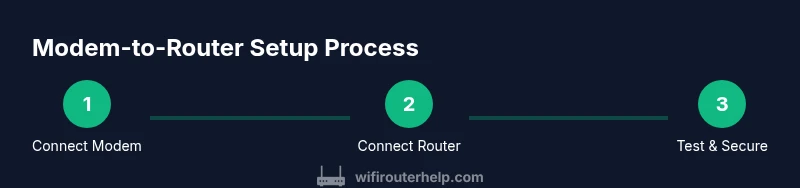
Complete Guide to Setting Up an Internet Modem and Router
A comprehensive, step-by-step guide to installing, configuring, and optimizing your internet modem and router for a fast, reliable home network.


This guide helps you set up an internet modem and router for a fast, reliable home network. You’ll learn how to identify the right devices, connect the modem to your service, configure the router, and optimize Wi‑Fi performance. Before you begin, gather essential tools and have your ISP account details ready. According to WiFi Router Help, the right setup minimizes outages and improves overall speed.
Understanding the internet modem and router
In most homes, your internet journey starts with a modem that bridges the service provider's network to your home, and a router that distributes that connection to your devices. The combination is what WiFi Router Help often calls the central backbone of your home network. The modem converts the provider's signal into a digital data stream, while the router creates a local network (wired and wireless) so phones, laptops, smart TVs, and smart home devices can share that connection. Properly separating or pairing these roles can reduce bottlenecks and improve reliability. By understanding each device's job, you can plan a setup that balances speed, coverage, and ease of management. In this guide, we’ll use “internet modem and router” to refer to the core components you’ll be wiring and configuring.
Differences between a modem and a router and why it matters
A modem talks to your internet service provider (ISP) over the physical line (cable, fiber, DSL). A router distributes that internet signal to devices on your home network, often via Ethernet and Wi‑Fi. Some devices combine both roles into a single unit, but most homes benefit from using separate devices for flexibility and performance. The router can implement features like guest networks, parental controls, and QoS (Quality of Service) to prioritize traffic. Knowing which device handles which task helps you diagnose slowdowns and plan upgrades without overspending.
Planning your network: evaluating space, devices, and service
Start by noting your home layout and where you need signal most. Large homes may require a mesh system or additional access points, while smaller apartments can often rely on a single router. Verify your service type (cable, DSL, fiber) and confirm compatibility with any rented or owned hardware. Gather your account credentials from the ISP portal, and decide on a management approach: keep the ISP’s gateway in bridge mode, or use a separate router for more features. When it comes to the internet modem and router, investing in a modern router with at least dual‑band Wi‑Fi and a robust CPU helps future‑proof your network.
Choosing devices: compatibility, standards, and features
Aim for a DOCSIS 3.1 (if cable) or higher modem and a router supporting Wi‑Fi 6/6E for better range and capacity. Check for a stable 1 Gbps or higher Ethernet WAN port if you plan to upgrade to faster internet plans. If you use a fiber service, your choice may lean toward an ONT (optical network terminal) with routed WAN capabilities. Features worth considering include MU‑MIMO, beamforming, WPA3 security, guest networks, and simple mobile app management. WiFi speed and range depend on your home’s construction and the placement of the devices, so plan for a central, elevated location with minimal interference.
Wiring and initial setup: trunk lines, power, and safety
Unpack both devices and lay out the cables so that each link is secure. Use an Ethernet cable to connect the modem to the router’s WAN port, then connect a computer to the router to access the admin page. Keep power supplies near outlets but avoid daisy‑chaining multiple devices in a single strip. If you’re replacing an old unit, factory‑reset both devices to avoid conflicting settings. Label cables to simplify future maintenance. Remember to unplug during power outages and follow manufacturer safety guidelines.
Optimizing Wi‑Fi performance: placement, channels, and bandwidth
Position the router elevated on a shelf or stand, away from thick walls and metal objects that block radio signals. For larger homes, consider a second access point or a mesh satellite to remove coverage gaps. Use a clear 2.4 GHz channel for long reach and a fast 5 GHz channel for nearby devices. If congestion is a problem, enable QoS to prioritize critical devices and applications (video calls, gaming). Regularly check for firmware updates to improve security and performance.
Security basics and firmware updates: protecting your home network
Change default admin credentials immediately and use a strong, unique password for the router’s admin page. Enable WPA3 if available and disable WPS to close a common attack vector. Set automatic firmware updates or check monthly for improvements and security patches. Consider enabling a guest network to isolate IoT devices from your main network. Regular reboots can help the router apply updates, but avoid excessive resets that can confuse device connections.
Troubleshooting common issues: slow speeds, dropped connections, and IP conflicts
If speeds drop, run a speed test on a wired device first to establish a baseline, then test over Wi‑Fi. Check for interference from other electronics and nearby networks, and switch to a less crowded channel if needed. If devices can’t obtain an IP address, reboot the modem, router, and affected device. A factory reset may be necessary if settings become corrupted, followed by reconfiguration. If you’re renting equipment from an ISP, confirm lock‑in terms and any required bridging mode to avoid double NAT issues.
ISP considerations and bridging modes: staying compliant and avoiding double NAT
Some ISPs require you to use their gateway in full router mode, while many users prefer bridging the ISP gateway and using their own router for advanced features. Bridging disables the router functions in the gateway, eliminating double NAT but may require manual DNS and IPv4/IPv6 settings. If you keep the gateway, enable bridge mode on the router if available and configure the gateway for modem‑only operation. Always document settings and consider a backup plan for outages.
Maintenance, firmware updates, and future-proofing your home network
Set firmware updates to automatic so security patches install promptly. Periodically review connected devices and remove unknown ones from your network. Consider future upgrades like Wi‑Fi 6E routers for higher throughput and better performance in dense environments. Regularly back up your router configuration, especially after major changes. A proactive maintenance plan minimizes downtime and extends the life of your internet modem and router.
Tools & Materials
- Modem(Provided by ISP or rented; verify compatibility with your service type (cable/DSL/fiber).)
- Router(Wi‑Fi 6/6E recommended for future‑proofing; ensure at least one 2.5 Gbps Ethernet port if possible.)
- Ethernet cables (Cat5e/Cat6/Cat7)(At least one for modem-to-router connection; extra cables for wired devices.)
- Power adapters(Separate power supplies for modem and router; use surge protection.)
- Computer or smartphone(To access admin pages and install updates.)
- ISP account information(Username, password, and any bridging or DMZ settings if applicable.)
- Surge protector(Protects equipment during power surges.)
Steps
Estimated time: 60-90 minutes
- 1
Prepare your workspace and gather equipment
Clear a stable area for the modem and router. Gather the modem, router, Ethernet cables, power adapters, and a computer or mobile device for setup. Label cables if possible and review the service type from your ISP.
Tip: Capture a quick before/after photo of your setup to reference if you need to revert changes. - 2
Confirm service type and credentials
Identify whether your service uses cable, DSL, or fiber and locate your account details. You’ll likely need login credentials for your ISP portal and the device login for the router.
Tip: Having a printed checklist reduces mistakes during configuration. - 3
Connect modem to the internet source
Plug the modem into the service line (coax, phone line, or fiber). Wait for the modem to boot and verify the status lights indicate an online connection.
Tip: Do not power cycle during boot; wait for the online indicator before proceeding. - 4
Connect the router to the modem
Use an Ethernet cable to connect the router’s WAN port to the modem. Plug in the router and allow it to boot. Avoid using a laptop or phone during first boot to prevent accidental misconfigurations.
Tip: Use a dedicated device to complete the admin login for clarity. - 5
Power cycle and verify links
If you don’t see connectivity, power cycle both devices in order: modem, wait 20 seconds, then router. Check status lights for online/wifi indicators and verify you can reach a page on a connected device.
Tip: If lights remain red or amber, consult the manual for your model’s specific indicators. - 6
Access the router admin page
Open a browser and enter the router’s default IP address (often 192.168.0.1 or 192.168.1.1). Log in with the default credentials shown in the manual and begin the initial setup wizard if available.
Tip: Change the default admin password immediately to prevent unauthorized access. - 7
Configure Wi‑Fi name and password
Set a unique SSID for your network and a strong password. Enable WPA3 if supported; otherwise use WPA2‑AES with a long, complex passphrase. Create a separate guest network if needed.
Tip: Use a passphrase with at least 16 characters and a mix of letters, numbers, and symbols. - 8
Test connectivity and adjust as needed
Test on multiple devices across different rooms. If signal is weak, relocate the router or add a mesh node or repeater. Save changes and back up the configuration.
Tip: Document the final settings for future reference.
People Also Ask
Do I need a separate modem if my ISP provides one?
If your ISP provides a gateway, you can use it in gateway mode or bridge it and use your own router for extra features. A separate modem and router often offers better performance and more configuration options.
If your ISP provides a combined device, you can either use it as a gateway or bridge it and run your own router for more control.
Can I use a router from a different brand than my modem?
Yes. You can pair a third‑party router with your modem as long as the modem is in pass‑through or bridge mode when needed. Ensure DHCP and DNS settings are correctly configured to avoid conflicts.
You can mix brands; just bridge the modem if you plan to use your own router.
What are the best security settings for home Wi‑Fi?
Use WPA3 if available, or WPA2‑AES otherwise. Disable WPS, enable automatic firmware updates, and create a strong admin password for the router.
Enable WPA3, disable WPS, keep firmware updated, and choose a strong admin password.
How often should I update router firmware?
Check for updates monthly or enable automatic updates to protect against vulnerabilities and improve performance.
Check monthly or enable auto‑update to stay secure and current.
What is double NAT and should I worry about it?
Double NAT can cause issues with port forwarding and some online services. If you encounter problems, bridge the modem or adjust NAT settings on the router.
Double NAT can break some services; bridging helps fix it.
When should I upgrade my modem or router?
Upgrade if you experience persistent slowdowns, plan faster internet, or need better coverage with newer standards like Wi‑Fi 6/6E.
Upgrade when you see slowdowns or need better coverage with newer tech.
Watch Video
What to Remember
- Identify modem and router roles to optimize performance
- Choose compatible, future‑proof devices for your service
- Secure your network with strong passwords and WPA3
- Test across devices and rooms to ensure coverage
- Keep firmware updated to improve security and reliability