WiFi Router and Modem Setup: A Complete Step-by-Step Guide
A practical, step-by-step guide to setting up a wifi router and modem, with compatibility checks, security hardening, performance tips, and troubleshooting for a stable home network in 2026.


Learn how to set up a combined wifi router and modem, secure your network, and optimize performance. Confirm ISP compatibility, place the device for best coverage, and configure essential settings in 30–60 minutes. This guided process covers setup, security, and basic troubleshooting to keep your home network reliable. You’ll learn about modem vs router roles, when to bridge, and how to test speeds.
Understanding the roles of a modem and a router in a home network
In most homes, a gateway device combines both functions: the modem connects you to your internet service provider (ISP) and the router creates the local network your devices use. A modem translates signals from your ISP into data your devices can understand, while a router shares that connection across Wi‑Fi and wired ports. The WiFi Router Help team notes that a single gateway can simplify setup and ongoing maintenance, especially for households without a dedicated IT expert. Remember that not every provider allows every gateway, so understanding the two roles helps you choose the right device and avoid surprises during activation. The goal is a stable, secure network with reliable coverage across your home.
Compatibility and planning before you buy
Before purchasing, confirm your ISP’s compatibility with a combined gateway. Check for an approved modem list and verify the DOCSIS standard supported by your plan (DOCSIS 3.0/3.1 are common benchmarks for cable internet). If you already rent a gateway from your ISP, ask about bringing your own device. This step saves you headaches with activation and customer support later. WiFi Router Help analysis shows that many households benefit from ensuring the device is on an approved list and supports your advertised speeds.
Basic security and access control for a gateway
Security should be set up before you connect all devices. Change the default admin password on the device, enable WPA3 if available, and disable WPS if your hardware supports it. Keep the firmware up to date automatically and enable the device firewall. Create a guest network for visitors and IoT devices to isolate them from your main network. These measures reduce exposure to unauthorized access and help protect personal data across your home environment. The team emphasizes that routine maintenance is a critical, ongoing task for a healthy network.
Wireless performance and coverage optimization
Dual‑band is standard, with 2.4 GHz handling longer range and 5 GHz delivering higher speeds over shorter distances. Use the auto channel setting or manually pick a clear channel to minimize interference from neighbors and other electronics. Enable a separate SSID for guests and consider enabling QoS (Quality of Service) to prioritize gaming or video conferencing. If you have thick walls or multiple floors, place the gateway in a central, elevated location away from metal objects to maximize signal propagation. Regularly review connected devices to identify bandwidth hogs and optimize accordingly.
Troubleshooting common problems and how to fix them
If you cannot access the admin interface, confirm you are connected to the gateway’s network and use the correct IP address as shown in the manual. A simple power cycle (turn off, wait 30 seconds, turn back on) fixes many issues. If speeds are unusually slow, test wired vs wireless performance and run a speed test during peak and off‑peak hours. Misconfigurations—like incorrect bridge mode settings or disabled NAT—can cause connectivity issues; recheck these settings against the manual. When problems persist, consult the ISP’s support pages for device compatibility notes and known outages.
Post‑setup checks and ongoing maintenance
After setup, verify every major device can connect reliably, and run a quick speed test on both 2.4 GHz and 5 GHz bands. Monitor the bridge between modem and router if you have a separate device, and consider enabling automatic firmware updates to stay current. Document the admin password, SSID names, and supported features so you can reproduce the setup if needed in the future. Regular reviews of security settings and connected devices help maintain performance and privacy over time.
Tools & Materials
- Coaxial or phone line (depending on ISP)(Ensure it is compatible with your modem; inspect for wear and tight connectors.)
- Modem (gateway or standalone) with power adapter(Have the model number handy for firmware checks and ISP compatibility.)
- Router or gateway device (if using separate router)(If you choose a standalone router, ensure it supports your ISP speeds and features you want.)
- Ethernet cable (Cat5e or better)(Used to connect modem to gateway or to connect devices during setup.)
- Smartphone or computer with web browser(Needed to access the admin interface and configure settings.)
- Admin credentials from your ISP or device manual(Keep them in a safe place for future adjustments.)
- Local documentation(User manuals or PDF guides help with model‑specific steps.)
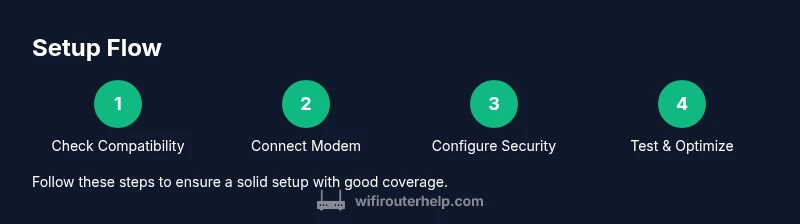
Steps
Estimated time: 30-60 minutes
- 1
Check ISP compatibility
Verify that your ISP supports a combined gateway and confirm required speeds and DOCSIS standard. If bringing your own device, confirm compatibility with provisioning and activation. Gather account details and the device model to speed up setup.
Tip: Have your account number and device model handy in case ISP support asks for it. - 2
Gather and inspect hardware
Collect the coaxial/phone line, modem, router (if separate), Ethernet cable, and a computer or phone for configuration. Inspect connectors for wear and ensure the power supplies are present and undamaged.
Tip: Organize your cables to prevent tangling and misconnection during setup. - 3
Connect the modem to the service
Connect the coaxial or phone line to the modem, then plug in the power. Allow 2–5 minutes for the modem to boot and acquire a signal from the ISP. Check that the status lights indicate a stable online connection.
Tip: Do not unplug the modem during the boot sequence; wait until lights show a steady state. - 4
Connect the gateway or router to the modem
If using a gateway (modem + router in one), skip this step. If using separate router, connect the router’s WAN/Internet port to the modem with an Ethernet cable and power it on. Wait for the devices to boot and recognize each other.
Tip: Label the ports you use to avoid confusion in future reconfigurations. - 5
Access the admin interface and set a strong baseline
Open a browser and enter the gateway’s default IP (commonly 192.168.0.1 or 192.168.1.1). Log in with the default credentials and change the admin password immediately. Enable WPA3 (or WPA2‑WPA3) and set a strong, unique Wi‑Fi password; disable WPS if possible.
Tip: Document the new admin credentials in a secure location. - 6
Configure core network settings
Set your SSID names, choose strong encryption, enable a guest network, and configure basic firewall rules. Update the device firmware if prompted and set automatic updates if available. If you have a separate router, ensure NAT and firewall rules are properly configured.
Tip: Keep the same SSID and password across bands to minimize device re‑connections. - 7
Test, optimize, and finalize
Run wired and wireless speed tests, check coverage on each floor, and adjust placement if dead zones appear. Enable QoS for latency‑sensitive devices, and review connected devices for any unknown clients. Save all settings and back up the configuration if the option exists.
Tip: Document optimal placement and channel choices for future updates.
People Also Ask
Do I need a separate modem if I already have a router?
If you already own a router, you still typically need a modem to connect to your ISP. A combined gateway eliminates one device, but ensure the modem supports your plan. If you own both, you can bridge or route as needed, but keep security in mind.
You usually need a modem to reach your internet service, then your router or gateway shares that connection with devices.
Can I use a modem-router combo with my ISP?
Most ISPs support third‑party gateway devices, but activation and compatibility vary. Check the approved list and call support if needed. If activation is problematic, your ISP can guide you through bridge settings or provide a compatible unit.
Most ISPs support third‑party gateways, but you should verify compatibility before buying.
What is bridge mode and when should I use it?
Bridge mode disables NAT on the gateway so another router can handle networking chores. Use bridge mode if you’re integrating a separate router for advanced features or more control over QoS and firewall rules.
Bridge mode turns off the gateway’s router functions so you can use your own router.
How do I reset my gateway securely?
If settings get tangled, perform a factory reset following the manual. After resetting, reconfigure admin access, strong Wi‑Fi passwords, and firmware updates from scratch. Avoid using default credentials again.
If things go wrong, reset to factory settings and start fresh with secure passwords.
Which security settings should I enable by default?
Enable WPA3 if available, use a strong unique password, disable WPS, and turn on the firewall. Create a guest network for visitors and IoT devices to prevent access to your primary network.
Always enable WPA3, use a strong password, and keep the firewall on.
How often should I update firmware on a gateway?
Check for updates monthly or enable auto‑updates if supported. Firmware updates often include security patches and performance improvements that help keep your network safe.
Check for updates regularly or enable automatic updates.
Watch Video
What to Remember
- Know the roles: modem vs router, and how a gateway simplifies setup.
- Always secure: change default passwords, enable WPA3, and update firmware.
- Test and optimize: run speed tests and adjust placement for best coverage.
- Document settings: keep credentials and network names in a safe place.