Using a Router and Modem Together: A Practical Guide
Learn how to pair a router with a modem, why you might need both, and step-by-step setup tips to optimize home WiFi performance. Includes troubleshooting, advanced options, and maintenance strategies from WiFi Router Help.


You can use a router and a modem together to build a fast, reliable home network. The modem connects to your ISP, translating the signal into a digital stream, while the router distributes that connection to devices via wired Ethernet or Wi‑Fi. In most setups you connect the modem to the router with an Ethernet cable, then configure the router for security, guest access, and optimal coverage.
Understanding the basics of modems and routers
To answer the core question can you use a router and a modem, it's important to separate roles: the modem converts the ISP signal into a digital connection that your home devices can understand, while the router creates a local network and manages IP addresses, firewall rules, and traffic routing. According to WiFi Router Help, ensuring the two devices are compatible and properly configured is the first step toward a stable network. Most homes benefit from one dedicated router behind a modem, rather than relying on a single gateway device. This separation makes it easier to upgrade performance later, supports better Wi‑Fi coverage, and simplifies troubleshooting. When you pair a router with a modem, you gain centralized control over SSIDs, guest networks, parental controls, and QoS settings. The WiFi Router Help team emphasizes that the exact setup varies by ISP and device capabilities, so always check your modem’s bridge mode options and your router’s WAN port requirements.
Key definitions you should know:
- Modem: Converts the incoming signal from your ISP into a usable data stream.
- Router: Creates a local network, assigns IP addresses, and distributes internet to devices via Ethernet or Wi‑Fi.
- Bridge mode: A setting on some modems that disables its routing features so the connected router handles all routing.
Brand-note: As highlighted by WiFi Router Help, compatibility and correct mode selection are foundational to long-term stability and performance.
Can you use a router and a modem together? Key scenarios
There are a few common configurations worth understanding. In most residential setups you’ll use a standalone modem and a separate router. If your ISP provides a gateway device (modem+router in one), you can either use it as is, pair it with your own router, or place the gateway in bridge mode to avoid double NAT. If you have fiber service, your ONT (optical network terminal) acts as the modem part, and a router handles distribution—again, you’ll often want to own the router for better features and control. WiFi Router Help outlines that the separate-router approach tends to offer the most flexibility for upgrades, mesh expansions, and more granular security settings. In all cases, your goal is to maintain a single path to the internet, minimize double NAT, and ensure devices receive consistent IP addressing across the network.
Common layouts explained:
- Modem + router (separate devices): Easy upgrades, simple troubleshooting, clear fault isolation.
- Gateway (combo device): Simple setup, but limited features and upgrade paths.
- Bridge mode with a separate router: Best for advanced users who want full control over routing and firewall rules.
Brand-perspective: WiFi Router Help notes that starting with a clear plan for where devices will sit and how you’ll place access points makes a big difference in overall performance and satisfaction with the network.
Planning your home network layout: space, devices, and coverage
A well-planned layout reduces dead zones and ensures your can you use a router and a modem questions are answered efficiently. Start by mapping your space: identify areas with weak signal, such as far bedrooms, basements, or home offices. The goal is to place the router in a central, elevated location with minimal physical obstructions. If you have multiple floors, consider a mesh system or a secondary access point to maintain strong signals across all rooms. WiFi Router Help emphasizes choosing a router capable of the latest standards (at least dual-band AC or AX) to maximize throughput and handle modern devices. Remember to account for the modem’s power needs and ensure there’s a reliable power outlet for both devices.
Coverage and speed considerations:
- If you have many smart devices, a mesh network or a high‑performance router can improve reliability.
- For gaming or video conferencing, prioritize low latency and QoS features.
- Separate networks for guests and IoT devices reduce risk and improve security.
Brand-insight: WiFi Router Help highlights that every home is unique. Your plan should factor in wall materials (concrete, drywall, metal studs), ceiling heights, and the number of devices that will connect concurrently. A thoughtful layout reduces the need for frequent repositioning and helps you maximize the value of your modem-router pair.
Setup considerations: bridging, NAT, and IP schemes
Configuration details are where many people trip up when answering can you use a router and a modem. Start by deciding whether you want to enable bridge mode on the modem or let it handle routing. If you’re using your own router, bridge mode on the modem prevents double NAT and can simplify port forwarding and VPN usage. Next, set up a single DHCP server (usually the router) so all devices obtain IP addresses consistently. Choose a simple subnet like 192.168.1.x or 10.0.0.x and avoid overlapping ranges with other devices on the network. For Wi‑Fi, configure separate SSIDs for 2.4 GHz and 5 GHz bands and enable WPA3 (or WPA2 if necessary) for security. If you plan to support smart home devices, consider enabling a guest network to isolate traffic from your main network. Remember to disable WPS in the router settings to reduce risk of unauthorized access. Throughout, keep firmware up to date and back up configuration settings for quick recovery.
Pro-tip from WiFi Router Help: document your network’s IP scheme and device assignments. This makes future upgrades or troubleshooting faster and reduces the chance of IP conflicts when adding new devices.
Troubleshooting common issues when using a modem and router
When you ask can you use a router and a modem together, you’re also asking how to fix problems that break connectivity. A first check should be the basics: verify all physical connections, ensure the modem shows online status, and confirm the router’s WAN port is receiving a valid IP from the modem. If devices show intermittent drops or slow speeds, reboot both devices in the correct order (modem first, then router) and check if firmware updates are pending. If you’ve recently changed settings, revert to a known-good configuration or factory reset the router and reconfigure from scratch. If double NAT is suspected, place the modem in bridge mode or enable a DMZ on the router for the affected device.
Common symptoms and quick fixes:
- No internet after a power cycle: confirm the ISP line is active and the modem shows online.
- Slow Wi‑Fi or frequent disconnects: recheck channel settings, interference, and bandwidth‑heavy activities.
- Devices failing to obtain IP addresses: restart DHCP service on the router and verify the IP pool.
Brand-guidance: WiFi Router Help reminds readers to document changes and keep firmware current to minimize recurrence of issues.
Advanced topics and ongoing maintenance
As you explore can you use a router and a modem together, you’ll reach topics that go beyond basic setup. Advanced users may implement VLANs to separate traffic types, configure QoS to prioritize gaming or video calls, and enable UPnP with caution to allow devices to set up port mappings automatically. For homes with multiple floors or large areas, mesh extenders or additional access points can stabilize coverage. Regular maintenance includes checking for firmware updates on both modem and router, monitoring network usage to detect unusual activity, and periodically re-evaluating your layout as devices and internet plans evolve. If you opt for bridge mode, remember that some ISPs require you to authenticate the connection in a specific way, so keep documentation handy and stay aware of any potential service changes. WiFi Router Help stresses that a well-maintained network is a long-term investment in reliability and security.
Key takeaways for ongoing care:
- Keep firmware updated and backups current.
- Periodically review coverage, especially after adding new devices.
- Reassess your security settings (passwords, guest networks, firewall rules).
- Consider future-proofing with a higher‑performance router to match growing bandwidth demands.
Quick-start cheat sheet for common home layouts
If you’re short on time, here’s a fast-reference guide to common layouts and what to buy first. For a small apartment with a single ISP line, a solid dual‑band router connected to a basic modem is often enough. For larger homes, invest in a more capable router and consider a secondary access point or a mesh system to maintain coverage on all floors. When upgrading, aim for devices that support the latest standards (Wi‑Fi 6/6E or Wi‑Fi 7 as available) and have robust security features. Always enable a guest network and disable WPS to keep your network safer. Finally, keep a simple inventory: model numbers, firmware versions, and a backup configuration file. This makes future changes smoother and reduces downtime when you need to troubleshoot or expand.
Wrap-up: how to maintain a stable, secure home network with a router and modem
The core takeaway is to treat the modem as the entry point and the router as the traffic controller. Establish a clean IP scheme, secure the wireless networks, and regularly update firmware. With a thoughtful layout and careful configuration, you’ll maximize performance and minimize downtime. The WiFi Router Help team recommends keeping a single point of contact for firmware and security updates and periodically validating that your network meets the needs of your connected devices.
Tools & Materials
- Modem (provided by your ISP)(Ensure it's compatible with your service and supports bridge mode if you plan to use a separate router.)
- Router (Wi‑Fi router)(Prefer dual-band or tri-band with 802.11ac/ax and robust security features.)
- Ethernet cable (Cat5e or Cat6)(Used to connect the modem to the router's WAN port.)
- Power adapters for modem and router(Keep extras handy in case of power outages or misplacement.)
- Computer, smartphone, or tablet for setup(Used to access the router’s admin interface and update settings.)
- Coaxial cable or fiber line (if required by ISP)(Only needed for certain ISP connections; consult your provider.)
Steps
Estimated time: 30-60 minutes (plus possible ISP activation time)
- 1
Gather gear and plan
Collect the modem, router, Ethernet cable, and power supplies. Review your ISP’s requirements and plan where each device will sit to optimize coverage. This prep minimizes mid‑setup changes and speeds up the process.
Tip: Label cables with tape to avoid confusion during setup. - 2
Connect the modem to the wall line and power
Attach the provider line to the modem’s input and plug the modem into a power outlet. Wait 2–5 minutes for the device to initialize and come online before proceeding.
Tip: Do not power cycle other devices during modem initialization. - 3
Connect the router to the modem with Ethernet
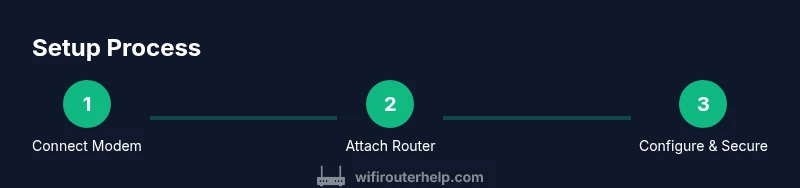
Plug the Ethernet cable into the modem’s LAN/1 port and the other end into the router’s WAN/Internet port. Power up the router and wait for the status lights to indicate a healthy connection.
Tip: Use a high-quality CAT5e/Cat6 cable for stable performance. - 4
Access the router’s admin page and configure basics
Open a browser and enter the router’s IP address. Set a unique admin password, configure your Wi‑Fi SSIDs and passwords, and enable WPA3 if available. Ensure DHCP is enabled on the router only.
Tip: Write down the login URL, admin password, and Wi‑Fi details for future use. - 5
Enable security, update firmware, and optimize
Update firmware on both devices, enable a guest network, and adjust QoS if needed. Place devices out of direct sight of windows and away from potential interference sources like microwaves.
Tip: Schedule automatic firmware updates to keep security current.
People Also Ask
Do I need a separate modem if my ISP provides a gateway?
Not always. A gateway can work, but using a separate modem and router often offers more control, better performance, and easier upgrades. If you use a gateway, you can usually set it to bridge mode to avoid double NAT when adding your own router.
A gateway can work, but using separate devices gives you more control and better flexibility.
Can I run two routers in the same network?
Yes, but it requires careful configuration to avoid conflicts. One router should handle the main network, and the second can be used as an access point or in a dedicated guest network. Mesh systems are a simpler alternative for widespread coverage.
You can run two routers if set up correctly, or consider a mesh system for easier coverage.
What is bridge mode and when should I use it?
Bridge mode disables the router functions on the modem, passing all routing duties to your own router. Use it when you want a single routing device (your router) to manage IPs, NAT, and firewall rules.
Bridge mode hands control to your router for clean, centralized routing.
How do I know if my modem is compatible with my router?
Check your ISP’s supported modem list and ensure your router supports the same standards and features. If in doubt, contact your provider or consult the product pages for both devices.
Check compatibility lists from your ISP and verify feature match.
Should I enable UPnP or disable it for security?
UPnP can ease device setup but may introduce security risks. Only enable UPnP if you need it for specific devices, and keep your firmware up to date.
UPnP can help devices set up automatically, but disable it if you don’t need it.
What are the signs I should upgrade my router?
If your network feels slow with multiple devices, you experience frequent buffering, or you’re expanding to a larger home, consider a higher‑performance router with newer standards.
Upgrade when you notice slowdowns or added devices.
Watch Video
What to Remember
- Separate modem and router improves flexibility and upgrade paths
- Place equipment strategically to maximize coverage
- Bridge mode can prevent double NAT and simplify setups
- Keep firmware updated and secure networks with strong passwords
- Document network settings for easier future changes