Huawei 5G CPE Pro 2: Complete Setup, Optimization, and Troubleshooting
Learn how to set up and optimize the Huawei 5G CPE Pro 2 for a stable home network. This step by step guide covers prerequisites, admin access, wireless optimization, firmware updates, and common troubleshooting with practical tips.


What is the Huawei 5G CPE Pro 2?
The Huawei 5G CPE Pro 2 is a compact gateway designed to bring 5G connectivity from a mobile plan into a home or small office. It supports 5G sub-6GHz and 4G fallback, with multiple Ethernet ports for wired devices and a built in WiFi radio to cover living spaces. The device is popular for home users who want fast, reliable internet without a fixed wired connection. According to WiFi Router Help, it's important to think of this device as both a modem and a wireless access point in one box. It’s designed for easy plug and play setup, but optimal results come from understanding how the WAN/LAN ports, SIM slot, and antenna placement interact with your space. The CPE Pro 2’s management interface is accessible through a web portal and a dedicated mobile app, allowing you to monitor data usage, run speed tests, and adjust settings without specialized hardware. WiFi Router Help also notes that selecting the right location—ideally high, central, and away from obstructions—can dramatically improve signal quality indoors. In the sections below, we’ll translate those capabilities into practical, step by step actions you can perform today.
Planning your setup: prerequisites and network goals
Before powering up the Huawei 5G CPE Pro 2, outline what you want to achieve. Identify the primary devices that will rely on the network, the zones of your home that need coverage, and any wired devices that require fixed connections. This stage is about framing expectations: what speeds do you want for streaming, gaming, or work-from-home tasks? Consider your space, insulation, and potential interference from walls or metal objects. Having a clear goal helps you choose a central placement, select appropriate SSIDs, and implement features like guest networks or QoS. The WiFi Router Help team recommends sketching a simple floor plan and marking potential router locations to visualize coverage. This early planning reduces repeated adjustments after you begin configuring.
SIM plan and compatibility considerations
The Huawei 5G CPE Pro 2 uses a SIM card to access mobile networks. Ensure your SIM supports the bands used in your region and that it’s activated with a suitable data plan. If you’re moving from a fixed broadband setup, verify whether your service requires APN settings or carrier-specific configurations. In many regions, you can temporarily test the device with a prepaid SIM to check signal strength before committing to a longer plan. Remember that data caps and throttling policies impact your real-world speeds, so factor those into your expectations for streaming or online gaming. For best results, choose a plan that supports the bands your local towers use most often.
Physical placement and environmental factors
Placement is critical for signal quality. Elevate the CPE Pro 2 off the floor, away from large metal objects, and avoid placing it behind furniture or inside cabinets. A central, unobstructed location improves RSSI values and reduces dead zones. If your home has multiple floors, consider a higher shelf near the center of the home rather than in a corner. Temperature and proximity to other electronic devices can also influence performance; keep it away from microwaves and cordless phones. After positioning, run a quick speed test to map coverage and adjust as needed. WiFi Router Help’s practical rule of thumb is to test from the main living areas and adjust the height and orientation of the built in antennas for best results.
Accessing the admin interface and initial configuration
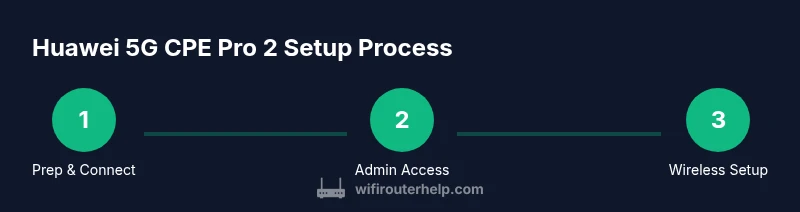
To begin configuring the Huawei 5G CPE Pro 2, connect your computer or mobile device to the router’s default WiFi network or a wired LAN port. Open a web browser and enter the default IP address (often 192.168.8.1) or the device’s web address. You will be prompted to set a strong admin password and create your initial network credentials. Disable remote management if you don’t need it and enable secure access options such as HTTPS. Follow the on screen prompts to select the correct WAN type, verify the SIM is recognized, and confirm that the device obtains an IP address from the mobile network. If you prefer a mobile app, install the official Huawei companion app to monitor usage and adjust settings on the go.
Wireless network optimization: SSID, password, bands, and QoS
Give your WiFi a unique SSID and a strong password. For most homes, a dual band setup (2.4 GHz and 5 GHz) provides the best balance of range and speed. Consider naming the networks clearly and keeping a single password for simplicity. Enable WPA3 if the option is available; otherwise WPA2 with AES is acceptable. Adjust channel selection to minimize interference—auto mode is a good starting point, but manually selecting channels after a neighborhood survey can improve stability. QoS can prioritize critical devices like work laptops or gaming consoles, ensuring essential traffic isn’t starved by background streaming. Keep the firmware up to date to maintain security and performance.
Advanced features: guest network, firewall, UPnP, parental controls
Set up a guest network to segregate visitors from your main devices, which enhances security. Review the built in firewall rules and enable NAT and UPnP only if necessary for your devices and games. Parental controls let you set daily time limits, site restrictions, and content filters for family safety. If you enable UPnP, be mindful of potential risks; disable it when not needed and periodically audit connected devices. These features offer a lot of value for households with multiple users and varying security needs.
Troubleshooting common issues
If devices can’t connect or speeds are inconsistent, start with a power cycle: unplug the CPE Pro 2 for 30 seconds, then plug back in. Confirm the SIM is active and has data available, and check signal strength in the admin interface. For WAN or LAN connection problems, verify cables are seated correctly and that LEDs indicate proper status. If WiFi drops intermittently, inspect interference sources, relocate the router, or adjust channel and band preferences. In persistent cases, back up current settings, perform a factory reset, and reconfigure from scratch. This approach prevents faulty configurations from lingering.
Security, maintenance, and firmware updates
Regular maintenance keeps the Huawei 5G CPE Pro 2 secure and performing well. Check for firmware updates monthly and apply them during a low usage window. Enable automatic updates if you’re comfortable with it, but review release notes before applying to understand any changes to features or behavior. Back up your configuration before major updates, and document any custom settings like port forwards or QoS rules. If you encounter repeated issues after an update, revert to a previous stable version if possible and contact support. The WiFi Router Help team recommends maintaining a current backup and a predictable update routine to minimize downtime.
Authority reads and official guidelines
For further reading, consult these reputable sources. FCC guidance on device installation and radio frequency considerations can help you understand regulatory aspects, while the FTC offers general privacy and security tips for home networks. NIST resources provide best practices for securing home WiFi deployments. These references support safe, effective setup without delving into brand specific claims.