How to Use a Router Without a SIM Card
Learn how to use a router without sim card by repurposing it as an AP or Bridge with your existing broadband. Step-by-step setup, security tips, and troubleshooting for a stable home network.


You can use a router without a SIM card by repurposing it as an access point or bridge connected to an existing broadband modem. This keeps Wi‑Fi coverage without cellular service. You’ll need Ethernet access, the router’s admin login, and the correct operating mode (AP or Bridge) to begin, in your home network environment.
Understanding how to use a router without a SIM card
If you’re exploring how to use a router without sim card, you’re choosing a path that leverages your existing broadband connection instead of cellular data. This approach keeps your home network simple, predictable, and cost-efficient, especially when you already have an ISP gateway providing internet service. According to WiFi Router Help, many consumer routers support non-PPP WAN modes, such as Access Point (AP) or Bridge, that let you broadcast Wi‑Fi or extend coverage without requiring a SIM. In practice, you convert the router into a dedicated wireless access point or a transparent bridge so that your primary router or modem handles DHCP, NAT, and firewall policies. The result is clean separation between your ISP gateway and your internal devices, with full control over SSIDs, passwords, and guest networks.
This article uses practical examples and reflects common consumer setups you’ll encounter in homes across 2026. We’ll focus on AP mode for most households, but we’ll also cover Bridge mode for those who need devices to appear on the same LAN as the primary router. The core idea is to preserve seamless wireless coverage while avoiding SIM data altogether.
AP mode vs Bridge mode: Quick comparison
AP mode, short for Access Point mode, turns the router into a dedicated wireless access point that connects to your existing network via Ethernet. In AP mode, the router typically disables its own router functions like NAT and DHCP, letting the main gateway manage IP addresses and firewall rules. This keeps routing centralized and reduces double-NAT issues.
Bridge mode, on the other hand, makes the router act as a transparent bridge on the same LAN. In bridge mode, the device passes through network traffic without applying substantial NAT or firewall rules of its own. This can be helpful when you want a single seamless network with fewer subnets. However, not all routers support true bridge mode, and some may implement a limited form that still requires basic configuration.
For most home users, AP mode provides a straightforward, reliable way to extend coverage without introducing network complexity. Bridge mode is best when you need devices on the same LAN and you’re comfortable adjusting advanced settings.
Whichever path you choose, ensure your main gateway handles DHCP and DNS so client devices receive correct IPs and resolvable hostnames.
Checking your router’s capabilities
Before attempting any reconfiguration, verify that your router supports AP or Bridge operation. Start by locating the user manual or the vendor’s online support page for your exact model. Look for terms like "AP mode," "Bridge mode," "Operating mode," or "WANless/ISP mode". Some routers label AP mode under Advanced Settings, while others present it as a dedicated option in a quick setup wizard. If the manual lists a firmware version requirement for AP/Bridge features, check whether your device already runs at or above that version. If you are unsure, you can also search the model’s name along with “AP mode” to find user experiences and official guidance from the manufacturer.
In many cases, a factory reset is not required to switch modes, but backing up your current configuration is wise before making major changes. If you discover your device does not support AP or Bridge, you may need an intermediate device such as a dedicated access point or a mesh system.
Prepare your network environment
To minimize disruption, assemble everything you need before making changes. You’ll want:
- An Ethernet cable and a computer with a wired port for direct access to the router during setup.
- The primary ISP gateway or modem that currently provides internet service.
- The router you plan to repurpose, preferably connected to power and within reach of your modem.
- A stable, quiet workspace to perform configuration steps without rushing.
Having these items on hand helps you follow the steps smoothly and reduces the risk of misconfigurations that could take longer to troubleshoot.
Accessing the router's admin interface securely
Begin by connecting your computer to the router with an Ethernet cable for stability. Open a web browser and enter the router’s default IP address, commonly 192.168.0.1 or 192.168.1.1, depending on the model. If you can’t reach the login page, perform a quick reset using the device’s reset button and then try again with the default credentials listed in the manual. It’s essential to update the admin password after logging in and to avoid using default passwords on any network device to protect against unauthorized access. If your router supports HTTPS, prefer it for a secure session. After logging in, locate the section for Operation Mode or Network Settings to begin the switch to AP or Bridge mode.
Step 1: Set the operation mode to AP or Bridge
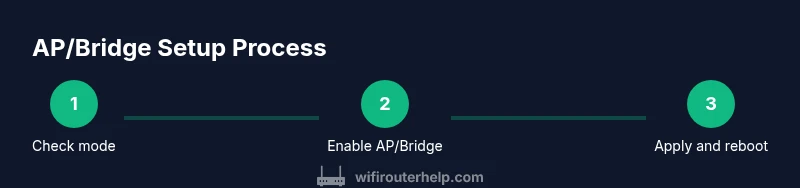
Navigate to the router’s operation mode setting and select AP mode if you want to extend wireless coverage with centralized routing, or Bridge mode if you want devices to appear on the same LAN as the primary gateway. Save the change and wait for the router to reboot. In AP mode, ensure DHCP and NAT are disabled on the secondary device to avoid double NAT; in Bridge mode, NAT is typically not used, but you may still need to adjust firewall settings. The exact path varies by model, but most vendors place this option under Advanced > Operation Mode or Wireless Settings.
Step 2: Configure WAN and DHCP settings
In AP mode, disable the router’s DHCP server so the main gateway can assign IP addresses to clients. Do not set a WAN/Internet connection on the AP if it isn’t intended to handle WAN traffic. In Bridge mode, you generally do not configure PPPoE or DHCP on the secondary device; instead, you enable the bridge to pass through traffic to the primary router. Save changes and reboot if prompted. Verifying that the devices connected to the AP receive IP addresses from the main router confirms correct configuration.
Step 3: Configure the Wi‑Fi network and security
Create or adjust your wireless network on the AP or Bridge device. Choose a clear SSID and a strong passphrase using WPA2‑AES or WPA3 when available. Consider using a separate SSID for guests while keeping the main network secure. If your device supports dual-band Wi‑Fi, enable both 2.4 GHz and 5 GHz with appropriate channel selection to minimize interference. After saving, reconnect your laptop to the new network to test connectivity.
Step 4: Save, reboot, and test connectivity
Apply all changes and reboot the router if required. After it comes back online, connect your devices to the AP’s SSID and check whether you can access the internet through the main gateway. Run a quick speed test and ensure the LAN devices obtain IPs from the primary router. If you encounter issues, recheck the mode, DHCP status, and that the AP is properly connected to the main network via Ethernet. Placement matters: position the AP centrally and away from thick walls or large metal objects.
Common issues and quick fixes
If clients cannot reach the internet, verify DHCP is disabled on the AP in AP mode and that the Ethernet cable runs from a LAN port on the main gateway to a LAN port on the AP. Double‑check that the AP’s IP address is in the same subnet as the main router but outside the DHCP range to avoid IP conflicts. If you still have trouble, try a different Ethernet port on the main gateway, ensure the firmware is up to date, and confirm you’re using the recommended security settings. Restarting both devices often resolves minor glitches.
When to upgrade: AP, dedicated access point, or mesh
AP mode is a great stopgap, but for larger homes or complex layouts, consider a dedicated access point, a mesh system, or a Wi‑Fi extender. A purpose‑built AP or mesh can simplify management, offer better handoffs, and provide consistent coverage in challenging areas like basements or stairwells. When evaluating upgrades, compare features such as seamless roaming, device load handling, and ease of management across your existing network.
Security considerations and best practices
Always change default passwords and enable automatic firmware updates if available. Use strong WPA2/WPA3 encryption and disable remote management unless you explicitly need it. Regularly back up router configurations and maintain an inventory of your network devices. If you’re unsure about a particular feature, consult the manufacturer’s official documentation or WiFi Router Help resources for model‑specific guidance.
Tools & Materials
- Ethernet cable (Cat5e or better)(Use at least Cat5e for gigabit speeds; should reach from modem to router with spare length)
- Computer or laptop with Ethernet port(For direct admin access during setup)
- Existing broadband modem/gateway(The primary internet source your ISP provides)
- Router to be repurposed(Ensure it’s powered and accessible within reach of the modem)
- Manual or online support page for router(Helpful for model-specific steps and terminology)
Steps
Estimated time: 25-45 minutes
- 1
Connect your computer to the router with an Ethernet cable
Physically link a PC to the router’s LAN port using a solid Ethernet connection. This ensures a stable admin session free from wireless interference. Then open a browser to access the router’s web interface.
Tip: If the router is currently in use, temporarily disconnect other devices to prevent IP conflicts. - 2
Log in to the router’s admin panel
Enter the default IP address (commonly 192.168.0.1 or 192.168.1.1) and input the admin credentials from the manual or label on the device. Change the password to a strong, unique one right away.
Tip: If you can’t access the page, perform a hard reset and retry with the default credentials. - 3
Find the Operating Mode option
Navigate to the section labeled Operation Mode, Network Mode, or Advanced Settings to locate AP mode or Bridge mode. Read the descriptions to understand what each mode does before selecting.
Tip: Take a quick photo of current settings before changing anything as a backup reference. - 4
Switch to AP mode or Bridge mode
Select AP mode if you want to extend your existing network via Ethernet, or Bridge mode if you want devices to be on the same LAN as the main router. Apply the changes and let the device reboot.
Tip: In AP mode, disable NAT and DHCP on the AP to avoid double NAT. - 5
Configure WAN to disabled or irrelevant
If AP mode is selected, ensure the router’s WAN/Internet connection is set to disabled or left unused. In Bridge mode, you typically do not configure WAN settings since the primary router handles internet access.
Tip: Leaving WAN enabled in AP mode can cause routing conflicts. - 6
Disable DHCP on the secondary router
Turn off the DHCP server on the AP/Bridge device so it doesn’t assign IPs that conflict with the main gateway. The main router should manage all IP assignments.
Tip: Keep a static IP on the AP in the same subnet if you need it accessible for management after setup. - 7
Configure the wireless network
Set an SSID and a strong password. Choose WPA2‑AES or WPA3 if available, and if you have dual bands, enable both 2.4 GHz and 5 GHz with sensible channels to reduce interference.
Tip: Avoid using the same SSID as your main router only if you want seamless roaming; otherwise use distinct SSIDs for clarity. - 8
Save, reboot, and verify connectivity
Apply all changes and reboot the devices if prompted. Connect a test device to the new network and confirm internet access via the main gateway.
Tip: If you don’t get an address, double‑check DHCP and IP range settings on the main router. - 9
Test in real-world locations
Walk through your home and test streaming, video calls, and gaming performance. If coverage is weak in dead zones, reposition the AP or add another access point.
Tip: Place the AP away from microwaves, cordless phones, and metal furniture to minimize interference.
People Also Ask
Can I use a router without a SIM card?
Yes. You can repurpose a router to run as an Access Point or Bridge connected to an existing broadband modem, which allows continued wireless networking without cellular data. This approach relies on your ISP gateway for IP assignment and firewall rules.
Yes. You can repurpose a router to run as an Access Point or Bridge connected to an existing broadband modem, which allows continued wireless networking without cellular data.
What is the difference between AP mode and Bridge mode?
AP mode creates a separate wireless access point that relies on the main router for routing and IP assignment. Bridge mode makes the router a transparent connector on the same LAN, passing traffic through without performing routing or NAT.
AP mode gives you a new wireless point with the main router handling IPs; Bridge mode makes it a transparent link on the same LAN.
Why isn’t my device getting an IP address after setup?
This usually means DHCP is misconfigured on the AP/Bridge, or the Ethernet link is not correctly established. Ensure DHCP is disabled on the secondary device in AP mode and confirm the LAN ports are connected to the main gateway’s LAN port.
DHCP may be misconfigured on the AP or the Ethernet link isn’t solid. Check DHCP settings and the cable connection.
Should I update the firmware before starting?
Yes. If you can, update the router’s firmware to the latest stable version prior to changing modes to ensure compatibility with AP/Bridge features and improved security.
Yes, update the firmware if possible to ensure compatibility and security.
Can I have a guest network on the AP?
Yes. Create a separate guest SSID on the AP for visitors. This keeps your main network more secure while still offering Wi‑Fi access to guests.
Yes, you can set up a separate guest network on the AP for visitors.
Is bridging safe for security?
Bridging can be secure if you maintain strong passwords, enable encryption, and keep firmware updated. It’s important to restrict remote management and monitor connected devices.
Bridge can be secure if you keep firmware updated and follow best practices for passwords and remote access.
Watch Video
What to Remember
- Choose AP or Bridge mode to repurpose a router without a SIM card.
- Disable DHCP on the secondary device to avoid IP conflicts.
- Secure wireless networks with modern encryption and strong passwords.
- Test thoroughly in real-world conditions after setup.
- Consider upgrading to a dedicated AP or mesh if coverage is insufficient.