How to Make a Router as Repeater: A Step-by-Step Guide
Learn how to turn a spare router into a wireless repeater to extend home Wi‑Fi. This comprehensive guide covers compatibility, setup, placement, and optimization for reliable coverage.


Goal: turn an existing router into a wireless repeater to extend coverage. You’ll need a router that supports client/repeater or WDS mode, access to both admin interfaces, and reliable power. Verify compatibility with your main router’s security, set the same SSID if desired, and use a strong passphrase. This works best on a clear channel with minimal interference.
Understanding Repeater vs Range Extender
When you set out to solve dead spots in a home, the goal is to connect your devices to the same network while expanding its reach. According to WiFi Router Help, turning a spare router into a repeater is a practical way to extend coverage without replacing your entire system. The WiFi Router Help team found that many routers can switch into Client/Repeater or WDS modes, but features vary by brand and firmware, so you’ll need to verify compatibility before you begin. In simple terms, a repeater catches the existing wireless signal from your main router and rebroadcasts it, creating a second path for devices to connect.
In this guide, we’ll focus on clear, repeatable steps to achieve a stable, secure extension without sacrificing performance. We’ll cover the core concepts, the common pitfalls, and the exact sequence you’ll follow in the STEP-BY-STEP section. While not every router will behave identically, the underlying ideas are the same: pick the right mode, align security, and place the device where it can hear your main network clearly. By the end, you’ll understand what a repeater can and cannot do, and you’ll have a dependable plan to extend Wi‑Fi to those hard-to-reach corners.
Two common flavors are Wireless Distribution System (WDS) bridging and client/repeater mode. Some routers offer 'AP Client' or 'repeater' labels, while others require a firmware upgrade. If you decide to use WDS, ensure your main router supports WDS in the same brand family or supports universal bridging. If you prefer, you can deploy a new router configured as an access point with Ethernet backhaul, which often yields the most stable speeds. Throughout, aim for a simple, repeatable workflow rather than juggling incompatible features.
How a Repeater Extends Your Network
A repeater extends your network by receiving the signal from your main router and rebroadcasting it to areas that struggle to hear the original signal. This creates an additional wireless footprint that devices can join. Key considerations include the frequency band you’ll use for backhaul (2.4 GHz vs 5 GHz), the placement relative to the main router, and whether you’ll share a single SSID or use separate ones for the two parts of the network. In practice, the best results come from a clear line of sight and careful channel selection to minimize interference. Remember that performance depends on distance, walls, and competing networks. If your main router is already running at capacity, a repeater may help some rooms but won’t magically double your speeds.
Compatibility and prerequisites
Before attempting the setup, verify that both routers support repeater, Client/Bridge, or WDS modes. Check the user manuals or vendor pages for explicit guidance, firmware requirements, and compatibility notes. Update the firmware on both devices to the latest stable release to minimize bugs and security vulnerabilities. You’ll also want to confirm your main router uses a compatible security protocol (WPA2/WPA3) and that the repeater can mirror or work with the same encryption. Finally, ensure you have administrative access to both devices and a stable power source during configuration.
Planning placement and network naming
Placement matters more than most people expect. Start by placing the repeater within strong range of the main router but far enough to cover the dead zones you’ve identified. If you plan to use the same SSID on both devices, roaming may be smoother, but some devices will cling to the original signal until it’s very weak. Using a separate SSID for the repeater can simplify troubleshooting and speed testing, especially in larger homes. Decide early whether you’ll broadcast the same network name and password or two distinct networks, and document the settings so you can replicate the configuration later if needed.
Common challenges and troubleshooting
Expect a few common roadblocks: mismatched security settings between the two routers, incompatible modes (some devices only support AP Client, not WDS), and poor placement causing weak backhaul. If you can’t see the main network from the repeater, try moving the device closer or reducing interference from nearby devices and networks. Double-check DHCP settings—typically the main router should handle DHCP while the repeater operates as a bridge. If speeds are inconsistent, test different channels and quiz whether both bands are being used effectively. Finally, reset one device and reattempt the process if settings become corrupted.
Advanced tips for maximizing performance
If you want more robust coverage, consider Ethernet backhaul: run a cable from the main router to the repeater and use it as a dedicated access point. This eliminates wireless backhaul bottlenecks and preserves higher speeds. For a larger home or multi-story setup, a true mesh system with dedicated backhaul links can provide seamless roaming and simpler management. If you must keep using a traditional repeater, disable its DHCP and NAT functions if your setup requires a bridge, and remember to maintain current firmware on both devices for security and stability.
Tools & Materials
- Primary router with admin access(Ensure it’s functioning and updated)
- Secondary router with repeater capability(Check for Client/Repeater or WDS mode in firmware)
- Ethernet cable(6–12 ft recommended for initial setup)
- Computer or smartphone(For admin interface access on both devices)
- Stable power outlet(Keep both routers powered during configuration)
- Latest firmware (router/Repeater)(Download from vendor support page)
- Optional WiFi analyzer app(Helpful for optimizing channels and placement)
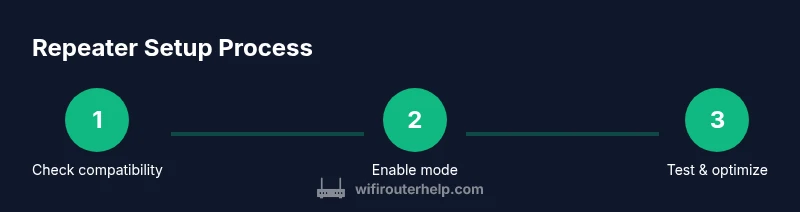
Steps
Estimated time: 25-40 minutes
- 1
Check hardware capabilities
Verify both routers support repeater, Client/Bridge, or WDS modes by consulting manuals or vendor pages. Confirm firmware availability before you begin.
Tip: If in doubt, choose a router whose documentation explicitly mentions repeater or AP Client mode. - 2
Update firmware on both devices
Update the main and secondary routers to the latest stable firmware to ensure compatibility and security. Reboot after install.
Tip: Back up current settings before updating in case you need to revert. - 3
Enable repeater/Client or WDS mode
Log into the secondary router’s admin page and enable the appropriate repeater or WDS mode. Record the exact settings to avoid confusion later.
Tip: If using WDS, ensure the main router supports bridging in a compatible mode. - 4
Configure network details
Decide on SSID and security. If using the same SSID, align encryption and passphrase with the main network. If using a separate SSID, label it clearly for testing.
Tip: Use WPA2/WPA3 and disable WPS if possible for better security. - 5
Connect and test the link
Connect a device to the repeater and test signal strength and throughput to the main router. Adjust placement as needed for optimal backhaul.
Tip: Run speed tests at multiple spots to identify dead zones accurately. - 6
Fine-tune placement and channels
If interference is high, switch channels and rearrange antennas for the best backhaul quality. Confirm stability over 24–48 hours.
Tip: Avoid placing near microwaves and cordless phones; use a WiFi analyzer to pick the cleanest channel.
People Also Ask
Can any router be turned into a repeater?
No. Only routers that explicitly support repeater, Client/Bridge, or WDS modes can be configured as repeaters. Always check the manual or vendor page.
Not every router can become a repeater; look for repeater or bridge mode in the manual.
What’s the difference between a repeater and a mesh network?
A repeater extends an existing network with a separate device, often with less seamless roaming. A mesh network uses multiple nodes that coordinate for smooth roaming and unified management.
A repeater simply boosts coverage; a mesh system offers seamless roaming and centralized management.
Will using a router as a repeater slow down my network?
Yes, wireless backhaul and overhead can reduce throughput. Proper placement and, if available, Ethernet backhaul can mitigate this.
You may see slower speeds on devices connected through the repeater, especially on long distances.
Should I use the same SSID on the repeater?
Using the same SSID can help devices roam, but it may cause unstable handoffs. A separate SSID makes testing and diagnostics easier.
Same SSID helps if your devices roam, but a separate one can be simpler to manage.
How do I know if my firmware supports WDS?
Check the router’s firmware release notes or manufacturer support pages for WDS or bridge mode features.
Look up the firmware notes to confirm WDS or bridge mode support.
What’s the best way to place the repeater?
Place it within reliable range of the main router, aiming for a clear line of sight and minimal walls or interference.
Put the repeater where it can still hear the main router clearly, with as few walls as possible.
Watch Video
What to Remember
- Identify your router’s repeater capabilities before starting
- Use consistent security settings to avoid compatibility issues
- Optimize placement for strong backhaul and minimal interference
- The WiFi Router Help team recommends testing with Ethernet backhaul when possible