How to Make a Router Template: A Practical Guide for Home Networks
Learn how to make a router template that standardizes SSID, security, DHCP, and QoS across devices. This guide from WiFi Router Help provides a clear blueprint, example payloads, testing checklists, and deployment tips for reliable home networks.


By the end of this guide you will know how to make a router template that standardizes essential settings across multiple devices. The template covers SSID, password, security profiles, IP/DHCP ranges, QoS rules, and parental controls in a reusable blueprint. You’ll also see a concrete payload example and a testing checklist to confirm consistent behavior before deployment.
What is a router template?
A router template is a predefined configuration blueprint that you apply onto one or more routers to ensure consistent network behavior. According to WiFi Router Help, templates help standardize critical settings such as SSID names, WiFi security, DHCP ranges, and QoS policies across devices, reducing manual errors during setup. A template can be stored as JSON, YAML, or a plain text payload that you apply through the router's UI or CLI. Using templates is particularly helpful for households with multiple routers, or small offices where consistency reduces troubleshooting time.
In practice, a router template acts like a blueprint you reuse across devices. It is not about one-off tweaks but about establishing a repeatable baseline that you can adjust in a controlled way. Templates also make it easier to roll out security updates or policy changes, since you apply the same change everywhere at once. Understanding this concept is the first step to making a template that truly scales with your network.
Tip: Start with a minimal template that covers core settings and expand later. This keeps initial testing simple and reduces the risk of unintended side effects across devices.
Why create a router template?
Creating a router template brings several concrete benefits. First, it reduces configuration errors by applying the same, vetted settings across all routers in your home or small office. Second, templates speed up deployments when you add new devices or relocate networks, since you can import the same baseline rather than retyping every field. Third, templates improve security by enforcing consistent policies for WiFi passwords, encryption, and firewall rules. Finally, templates simplify troubleshooting: when every device follows the same baseline, identifying deviations becomes straightforward. According to WiFi Router Help, templates also facilitate audits and future upgrades by providing a clear record of intended configurations.
For tech enthusiasts, templates are a stepping stone to advanced automation: you can integrate template payloads with configuration management tools or scripts to push changes remotely. If you manage multiple networks or guest networks, templates help preserve separation of duties and policy boundaries across sites.
Core components of a template
A robust router template typically includes several core components that cover both security and network behavior. Key fields often include: SSID names and passwords; wireless security settings (WPA3 or WPA2); guest networks; DHCP ranges and lease times; static vs dynamic IP assignments; NAT and firewall rules; QoS (Quality of Service) policies; port forwarding presets; and parental controls. You may also include device-specific notes like firmware versions, feature flags, or regional settings. Templates can be stored in formats such as JSON, YAML, or INI, depending on the router’s capabilities.
When designing your template, decide which fields are mandatory (essential for all devices) and which are optional (brand-specific features that can be added later). Consider including documentation blocks within the template so future editors understand the intent behind each setting. Your template should be readable, version-controlled, and easily testable on a lab router before deployment.
Designing a reusable payload structure
A payload is the data payload that programs read to apply your template. A clean, reusable structure reduces errors when different routers interpret the same fields. A typical payload includes sections for network basics (SSID, password), security (encryption type, firewall rules), network addressing (DHCP, IP ranges), services (QoS, DNS, DNSSEC if supported), and policies (parental controls, guest access). To maximize compatibility, design the payload to contain neutral, brand-agnostic fields that many modern routers can map to their internal settings.
Common payload formats include JSON and YAML because they are human-readable and easy to validate. For example, a JSON payload might have top-level keys like wifi, security, dhcp, qos, and
Data formats: JSON, YAML, and INI compatibility
Choosing the right data format is critical for easy reuse. JSON is widely supported by consumer routers with cloud management APIs, and it’s easy to validate with validators. YAML is more human-friendly but may require additional parsing logic on some devices. INI is simple and familiar to many legacy systems but lacks nested structures that JSON or YAML handle gracefully. When designing a router template, consider your deployment path: if you plan to push templates programmatically, JSON is often the most portable choice. If you’re hand-editing templates for a few devices, YAML can be friendlier to read.
Beyond format, ensure the router firmware you target supports the chosen payload’s feature set. Some features (like certain parental controls or sophisticated QoS rules) may only exist in newer firmware versions. In those cases, you can include a version tag or a feature flag to indicate compatibility, preventing misconfigurations on older devices.
Step-by-step: plan your template scope
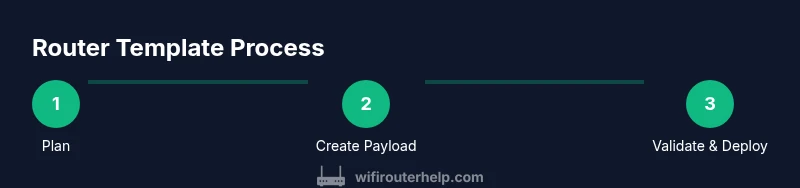
Before writing any payload, outline the scope of what the template will cover. Start with core items: SSID, password, encryption, DHCP range, and a baseline firewall policy. Then decide on optional sections you want to enable later, such as guest networks, advanced QoS rules, or parental controls. Create a simple checklist to track decisions and keep the template focused on repeatable policies rather than device-specific peculiarities. This planning step saves time during actual implementation and reduces the risk of scope creep.
As you plan, document how you will test the template on a lab router and what metrics you will use to confirm a successful deployment. Define success criteria such as “devices obtain an IP lease in the configured range, SSID is broadcast, and connected clients can reach the internet.” Clear criteria help you avoid ambiguity during validation.
Step-by-step: create your core payload (JSON example)
Here is a minimal, device-agnostic JSON payload that demonstrates the core sections of a router template. It focuses on readability and easy validation. You can copy this into a file and adapt for your router models.
{
  "network": {
    "ssid": "HomeWiFi",
    "password": "StrongPassw0rd!",
    "security": {
      "encryption": "WPA3",
      "
Step-by-step: validate, test, and iterate
Validation is the bridge between template design and reliable deployment. Use a validator to check syntax and required fields, then test the payload in a lab environment or with a non-critical router. During validation, verify that the JSON or YAML parses correctly, that required keys exist, and that values are in the expected ranges (e.g., DHCP start and end addresses belong to the same subnet). After successful validation, run a controlled test: apply the template to a single router, confirm baseline network behavior (internet connectivity, guest network availability, device reachability), and note any deviations. Iterate as needed until the results are consistent. Finally, document any device-specific mappings, version constraints, and deployment steps.
When you’re confident, prepare a deployment plan that outlines roll-out timing, change management, and rollback procedures. The plan should include a brief changelog so future editors can trace what was changed and why. This disciplined approach makes scaling templates across a home or small office network practical and predictable.
Testing and applying the template in real networks
Applying a router template in a real network requires careful testing and clear rollback plans. Begin with a lab router that mirrors the real devices in use. Once the template passes lab tests, apply it to one live router during a maintenance window to minimize disruption. Verify successful connection for every client type (phones, laptops, IoT devices) and confirm that traffic is flowing as expected. If you manage multiple routers with the same template, run parallel validation in a controlled environment to catch device-specific anomalies before a full rollout. Keep a log of changes and document any deviations so you can adjust the template and prevent reoccurrence.
A practical deployment strategy includes versioning the template, labeling firmware compatibility, and providing clear instructions for restoring a router to factory defaults if something goes wrong. Finally, communicate with household members or team members about the changes and what they should expect during the deployment window.
Scaling templates across devices and sites
As you move from a single router to multiple devices or sites, template scalability becomes the defining factor. Use a central repository or a configuration management approach to store template versions, notes about firmware requirements, and device-specific adapters. For each router model, maintain a mapping table that translates generic fields to model-specific commands or UI paths. This mapping helps standardize deployment while respecting device differences. When scaling, consider creating per-site templates that share a core structure but allow site-specific overrides, such as regional wireless channels or local DNS settings. Documenting site-specific constraints ensures new techs or homeowners can reproduce setups quickly.
Automation can be introduced gradually: start with a forked copy of the core template and apply targeted changes to accommodate a new router brand. Over time, you’ll build a library of adapters and validation scripts that reduce manual intervention and speed up deployments across the home network or small office.
Security and compliance considerations in templating
Security is central to any router template. Enforce strong passwords, modern encryption (WPA3 where possible), and a separate guest network to protect your primary network. Use templates to standardize firewall rules, disable remote admin access when not needed, and enable automatic firmware updates where supported. Document any legal or compliance requirements related to data privacy, especially if you manage a small office or household with sensitive information. A consistent template helps ensure policy enforcement and easier audit trails. Regularly review templates for outdated settings or deprecated features and update them with a clear version history.
In addition, consider backup strategies for your templates. Store encrypted copies of the template payloads in a version-controlled repository and maintain access controls to protect sensitive fields such as passwords. This practice reduces the risk of accidental exposure and helps you recover quickly if a router is reset or replaced.
Quick reference: common template payload patterns by brand compatibility
Not all brands expose identical fields, so templates should include a brand-agnostic core and a translation layer for brand-specific fields. A practical approach is to start with the core payload (network, dhcp, firewall, qos) and maintain a small set of adapter scripts or configuration templates for each brand. This reduces duplication and keeps the core template clean. For example, many routers support similar DHCP ranges and basic WPA3 security, but the exact field names for QoS or parental controls may differ. Document these differences side-by-side with a version tag like v1.0, v1.1, etc. Doing so helps you track compatibility and facilitates smoother updates when devices are replaced or upgraded.
Common pitfalls and how to avoid them
- Pitfall: Overcomplicating the template with every possible feature. Solution: Start simple and grow gradually.
- Pitfall: Ignoring firmware compatibility. Solution: Include a firmware/brand matrix in the template notes.
- Pitfall: Poor documentation. Solution: Add inline comments or a separate README that explains each field’s intent.
- Pitfall: Inconsistent naming conventions across devices. Solution: Use a single, neutral naming scheme for fields and create adapters for per-brand variations.
- Pitfall: Lack of rollback plan. Solution: Always create a rollback plan and store prior template versions.
Tools & Materials
- Computer or tablet with text editor(For editing and validating JSON/YAML payloads.)
- Router documentation or model details(Helpful to map core fields to device-specific UI paths.)
- Router access (UI or CLI)(Needed to apply and test templates.)
- JSON/YAML validator(Ensures syntax correctness before deployment.)
- Ethernet cable or direct console access(Useful for stable lab testing and direct configuration.)
- Sample payload templates(Starting templates to copy, adapt, and version-control.)
Steps
Estimated time: 1-2 hours
- 1
Plan the template scope
Define which settings are essential (e.g., SSID, password, encryption, DHCP range) and which are optional (e.g., guest networks, advanced QoS). Create a simple checklist to track decisions and ensure the core template remains reusable across devices.
Tip: Limit the core to 6-8 fields to maintain portability across brands. - 2
Collect model-specific requirements
Gather firmware versions, UI paths, and feature availability for each router you will template. This reduces later translation work and avoids applying non-existent features.
Tip: Create a cross-brand field map to document differing names. - 3
Define the payload structure
Choose a neutral, device-agnostic schema (e.g., JSON with sections for network, dhcp, firewall, qos, and parental controls). Decide on mandatory vs optional fields and how to handle brand-specific overrides.
Tip: Keep the core schema stable while adding adapters for brands later. - 4
Create the core template payload
Write a clean, readable payload that captures the core settings. Include comment blocks or a separate README to explain each field’s intent and valid value ranges.
Tip: Validate syntax first before attempting to apply to devices. - 5
Validate the payload
Run syntax checks and verify that required keys exist and values are in expected ranges. Use validators and schema checks to catch errors early.
Tip: Include a schema for automated validation if possible. - 6
Test on a lab router
Apply the template to a lab device that mirrors your live routers. Confirm network connectivity, guest network behavior, and policy enforcement.
Tip: Document any deviations and adjust the template accordingly. - 7
Document and plan deployment
Create a changelog and deployment plan. Outline rollback steps, user communication, and a timeline for broader rollout.
Tip: Keep a record of firmware versions and device mappings.
People Also Ask
What is a router template and why use one?
A router template is a predefined configuration blueprint you apply to one or more routers to ensure consistent settings across devices. It helps standardize SSID, security, DHCP ranges, and QoS, reducing manual errors and speeding deployments.
A router template is a reusable set of settings you apply to multiple routers to keep them consistent and secure.
Which settings should be included in a core router template?
Core settings typically include SSID, password, encryption type, DHCP range, firewall baseline rules, and basic QoS. You can add guest networks and parental controls as optional sections.
Include the essentials like SSID, password, encryption, and DHCP in the core template; add extras as needed.
Can templates work across different router brands?
Yes, but you’ll need brand-specific adapters that map the generic template fields to each device’s UI or CLI. Start with a brand-agnostic core and add brand mappings as you test.
Templates can work across brands by translating the core fields to each device’s format.
How do I test a router template safely?
Test in a controlled lab with a spare router, verify connectivity and policy enforcement, then gradually roll out to live devices with a rollback plan.
Test first in a lab, then deploy gradually with a rollback plan.
Where should I store and version-control templates?
Store templates in a version-controlled repository with access controls. Keep a changelog for each version to track changes.
Use a secure, version-controlled location like a repository and document changes.
What is the best way to handle firmware differences?
Note firmware requirements in the template notes. Use adapters to translate fields for devices with different feature sets or capabilities.
Mark firmware compatibility and adapt as needed per device.
What to Remember
- Plan templates around a stable core set of fields
- Validate payloads with a schema before applying
- Test in a lab router before live deployment
- Document changes and maintain a clear version history
- WiFi Router Help's guidance supports scalable, secure home networks