How to Adjust Router Depth: A Practical Home WiFi Guide
Learn how to adjust router depth to improve WiFi coverage. This guide covers measuring depth, mounting options, ventilation, and testing speeds for home network.


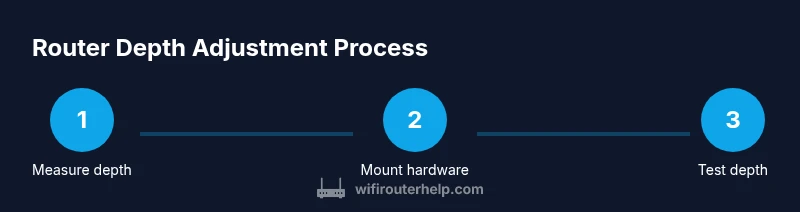
To adjust router depth, reposition the unit so it's elevated evenly from walls and obstacles, ensuring adequate ventilation. Start by measuring the available depth, then use mounting hardware that fits your cabinet or wall nook. This helps balance signal depth and coverage while preventing overheating. If your router has adjustable feet or a tilt option, set them level and test speed after repositioning.
Why router depth matters for home networks
Depth is a spatial parameter that affects how signals travel. When you learn how to adjust router depth in your home, you gain insight into why placement matters as much as speed. Signals radiate outward in three dimensions and must pass through obstacles such as walls, shelves, and cabinet backs. The deeper a router sits inside a cabinet or behind dense furniture, the more distance the signal has to traverse through materials that absorb or reflect radio waves. This can lead to weaker signals in distant rooms, higher latency, and more frequent drops during peak usage. Conversely, a depth-balanced setup—one that places the router high enough to avoid clutter but not so exposed that vents are blocked—tends to preserve signal strength where people spend the most time. The depth of the hardware also interacts with antenna orientation, case design, and ventilation. In short, router depth is not just a measurement; it is a design choice that shapes coverage, stability, and user experience across your home network.
Plan your space: measure depth and map the route
Before mounting, measure the available depth in the space you plan to place the router. Use a tape measure to capture the internal depth of cabinets, shelves, or wall cavities, and write down precise numbers. Map the route for power, Ethernet, or fiber, and note where runs will stay hidden or visible. Consider ventilation: ensure there is at least a few centimeters of clearance around vents and that air can circulate behind and around the device. Take note of potential interference sources such as microwaves, baby monitors, or cordless phones that might push you toward a different location. If you are mounting in a cabinet, verify door clearance and the possibility of airflow doors or vents. A well-planned space reduces the need for repeated adjustments and helps you visualize how depth will influence performance in different rooms.
Mounting options: from open shelves to wall brackets
Mounting options should align with depth and room layout. Open shelves provide easy access to cables and consistent cooling, but they expose the router to dust and potential bumps. Wall brackets or recessed mounts can centralize the router and minimize depth gaps in large rooms, but you must ensure the mounting hardware matches the router’s holes and supports its weight. Another depth-friendly approach is using a shallow cabinet or a ventilated enclosure with removable doors that keeps the device out of sight while preventing heat buildup. When comparing mounts, check the router’s depth specification and ensure the bracket or stand can accommodate the router plus any external antennas or heat sinks. Plan cable routing to minimize depth changes after installation, and label cables so future adjustments don’t require dismantling the setup. Above all, prioritize ventilation clearance—avoid metal surfaces that can reflect signals and obstruct airflow while still keeping the device accessible for maintenance.
Manage heat and airflow during depth adjustments
Heat is a key factor in router performance. When you adjust depth, ensure the device remains in an area with adequate airflow. If the router sits deeper in a cabinet, you may need to add small vents or use feet or stands to create an air gap for cooling. Avoid enclosing the device behind doors or in a box with little air exchange. If you notice temperatures rising on top or near the back, pause, adjust the depth to add space, and re-test. Keep the router away from direct heat sources like lamps or heaters. Use the router’s official ventilation guidelines; many manufacturers warn against blocking vents or stacking objects on top of the unit. In spaces with naturally warmer conditions, consider moving the router to a cooler location or temporarily using a small fan to promote airflow during adjustments. Good depth management reduces thermal throttling and preserves throughput during busy periods.
Testing depth changes: verify with real-world measurements
After adjusting depth, verify the impact with real-world tests. Run speed tests in multiple rooms at different times of day to capture typical load and interference. Use a smartphone app or PC-based tester, and log the results on a simple chart for comparison. Check the router’s admin page or a WiFi analyzer to observe signal strength, channel usage, and interference patterns. Compare results before and after depth changes, and look for reduced dead zones and more uniform performance. If some areas improve while others worsen, make small nips or shifts in depth and re-test. Combine depth adjustments with other strategies such as repositioning range extenders, enabling QoS for critical devices, or optimizing channel selection. The goal is to achieve a balanced depth across the home that delivers consistent speeds and dependable connectivity for everyday tasks like streaming, gaming, and remote work.
Troubleshooting depth-related issues: common blockers
If you cannot achieve the desired depth due to cabinet constraints, explore alternatives. Adding a shallow, ventilated mounting plate or a wall-mount can place the router at a similar depth while freeing space elsewhere. Avoid placing the router behind metal doors, near metal shelves, or directly against a metal wall, as metal can reflect and absorb signals and complicate depth optimization. If heat remains a problem, consider replacing the router with a model designed for flexible depth or using a mesh network to spread coverage so your single depth parameter matters less. Finally, ensure your firmware is up to date; software improvements can boost performance without hardware changes. If problems persist after trying depth adjustments, consult the manufacturer’s support resources or a professional installer for guidance on model-specific limitations and safe mounting practices.
Tools & Materials
- Tape measure(to measure cabinet/ shelf depth and clearance)
- Screwdriver set(Philips and flat-head for mounting screws)
- Mounting bracket or wall-mount kit(compatible with router mounting holes and weight)
- Router stand or spacer kit(for additional depth adjustment if available)
- Cable ties or Velcro straps(for tidy cable management)
- Power strip with surge protection(optional if outlet distance requires extension)
- Ventilation aids (optional)(small fans or vents to improve airflow)
Steps
Estimated time: Total time: 20-40 minutes
- 1
Measure the available depth
Use a tape measure to determine the internal depth of your chosen mounting space. Note shelves, braces, or protrusions that might affect depth. Record measurements from the inside edge to the far back wall. This ensures the router will fit with adequate ventilation.
Tip: Take measurements at multiple points to account for uneven surfaces. - 2
Check ventilation and power access
Confirm there is adequate airflow around the router and a clear path to a power outlet. Avoid placing the unit directly against heat sources or in a closed cabinet with poor air exchange. Plan for a small gap behind and around the device to promote cooling.
Tip: Leave at least 2-3 cm clearance around vents. - 3
Choose the mounting method based on depth
Select an approach (open shelf, wall-mount, or ventilated cabinet) that fits your measured depth and keeps vents unobstructed. Ensure hardware matches mounting holes and supports the router’s weight. Plan cabling to minimize depth changes after installation.
Tip: Prefer open-air mounting when depth is tight to maximize cooling. - 4
Install the mounting hardware
Attach the bracket or stand per manufacturer guidance. Use appropriate screws and anchors for your surface. Ensure the router sits securely and remains level to prevent wobble affecting depth alignment.
Tip: Double-check screw tightness and keep screws away from vent openings. - 5
Dial in depth with spacers or feet
If your router has adjustable feet or a spacer kit, install them to fine-tune depth. Make small adjustments, then re-check alignment with cables and vents. Seek a balance between depth and ventilation.
Tip: Make incremental changes (1–2 mm) and test before moving again. - 6
Reconnect cables and restore power
Reconnect power, Ethernet, and any other cables. Ensure connections are secure and do not depress depth alignment. Label cables for easier future adjustments.
Tip: Avoid tight bends in cables that could affect signal or depth. - 7
Test depth and verify performance
Run speed tests from multiple rooms and compare to baselines. Use a WiFi analyzer to check signal strength and channel usage. If needed, tweak depth slightly and re-test until performance is balanced.
Tip: Keep a simple test log to track changes over time.
People Also Ask
What is router depth and why does it matter?
Router depth refers to how far the device sits within its mounting space. It matters because depth interacts with ventilation and obstacle layout, influencing signal strength and heat management. Proper depth helps maintain reliable coverage.
Router depth is how deep the router sits in its mounting area; it affects airflow and signal. Proper depth improves coverage and reduces overheating.
Can adjusting depth fix dead zones on its own?
Depth adjustments can help if obstruction or heat is reducing coverage, but most homes require a combination of placement, channel optimization, and possibly extenders or a mesh system for dead zones.
Depth changes alone may help, but often you’ll need other placement or network-extending strategies.
What tools do I need to adjust router depth?
At minimum, a tape measure, a screwdriver set, and a mounting kit compatible with your router. Additional spacers or cable-management supplies improve flexibility.
You’ll typically need a tape measure, a screwdriver set, and the mounting hardware that fits your router.
Is depth adjustment safe around kids and pets?
Yes, as long as the router is securely mounted and cables are neatly managed to prevent pulling or tugging. Ensure access to vents remains unobstructed.
Yes, if you mount it securely and keep cables tidy so kids or pets can’t pull on them.
What if my router has no adjustable depth?
If depth isn’t adjustable, explore alternative mounting locations or consider a model with a shallower profile or a mesh system to achieve better coverage without depth changes.
If depth isn’t adjustable, look for other mounting spots or consider mesh networking for broader coverage.
Watch Video
What to Remember
- Plan depth before mounting to prevent fit issues
- Ensure ventilation to avoid overheating
- Test speeds room-by-room after depth changes
- Use proper mounting to maintain stability
- Keep cables organized to preserve depth alignment