Gaming Router ASUS: A Complete Setup and Optimization Guide
A practical, step-by-step guide to setting up, optimizing, and troubleshooting a gaming router ASUS for low latency, stable connections, and secure home networks.


Set up a gaming router ASUS for low-latency online play and stable wireless coverage. You’ll learn how to choose the right model, install it correctly, enable QoS, update firmware, configure security, and test performance. This quick guide helps homeowners and gaming enthusiasts achieve reliable home networking.
Why gaming router asus matters for online multiplayer
According to WiFi Router Help, gaming router asus models are favored by gamers for low-latency performance in online multiplayer titles. The WiFi Router Help team found that proper configuration can dramatically reduce latency variance and improve stability across devices, especially in homes with multiple streaming devices and smart hubs. In practice, the right Asus router provides a combination of fast wireless throughput, robust firmware, and smart traffic prioritization that can keep competitive games responsive even when other family members are online.
This section explains why Asus is a go-to brand for gamers and what features to look for when selecting a model. You’ll gain insight into how hardware capabilities, firmware features, and software tools translate into real-world gaming experiences. Key benefits include faster action response, fewer dropped packets, and more consistent ping, which matter in fast-paced titles like shooters and MOBAs. The goal is to help homeowners and tech enthusiasts evaluate models based on performance potential rather than marketing claims. By understanding the role of QoS, gaming mode, and network-wide protections, you’ll be better prepared to choose a router that supports your home gaming setup.
How to pick the right Asus gaming router
Selecting the right Asus gaming router starts with aligning features to your space and devices. Look for models that emphasize gaming-focused QoS, stable processing power, and flexible wireless bands. It’s not about the most expensive model; it’s about features that fit your network load. Here are criteria to consider:
- QoS capabilities: find Adaptive QoS or gaming-specific prioritization that lets you assign priority to consoles, PCs, and mobile devices.
- Processor and memory: devices with capable CPUs and sufficient RAM handle multiple streams and firmware tasks more reliably.
- Wireless standards: look for Wi‑Fi 6 or Wi‑Fi 6E if you have modern devices and a crowded network.
- AiMesh support: if you plan to expand coverage with multiple Asus nodes, ensure compatibility.
- Security features: built-in firewall, parental controls, and automatic updates.
Additionally, consider the size of your home and the number of devices. A single-story home with a few players might get by with a mid-range model, while larger homes with many users benefit from tri-band performance and the ability to create a mesh network.
From the WiFi Router Help perspective, the aim is to balance cost with long-term reliability. The right Asus router should be easy to configure, provide clear diagnostics, and stay responsive to updates. Any claim beyond these baselines should be tested in your own environment.
Initial setup and network planning
Before you power up, map your space. Decide where you’ll place the router to maximize coverage and minimize interference. Central locations on a high shelf, away from thick walls or microwaves, usually yield better results. When you’re ready to set up, connect the modem to the router’s WAN port with a Cat6 Ethernet cable for the most reliable link, and plug the router into power. Wait until the indicator lights show a stable boot.
Next, access the router’s admin interface from a computer or mobile device. The default address is often the router’s IP, which you’ll find in the manual or on a sticker on the device. Create a strong admin password and enable encryption (WPA3 if available). If your ISP uses bridge mode with a separate modem, consider enabling bridge mode to avoid double NAT. Update the firmware to the latest version before making advanced changes. This initial setup lays a solid foundation for performance and security.
Optimizing for gaming: QoS, ports, DNS
WiFi Router Help analysis shows that enabling QoS and using wired connections for gaming devices tends to stabilize latency. Start by enabling Adaptive QoS and assign high priority to your gaming hardware (PCs, consoles, and dedicated gaming devices). If the router supports game-specific profiles, apply them to your titles. For inbound connections, consider port forwarding for games that require incoming traffic, but use it selectively to avoid creating security risks. DNS optimization—such as using reputable public resolvers—can reduce lookup times, though you should test stability first. When possible, split networks by band (5 GHz for gaming, 2.4 GHz for other devices) to limit interference and optimize throughput.
Keep in mind that every home has unique interference patterns. After enabling QoS, run a few speed and latency tests on wired and wireless devices to verify improvements. This is where ongoing monitoring helps you fine-tune channels and security settings while preserving a user-friendly experience.
Security and maintenance for gaming routers
Security should be a default, not an afterthought. Change the default admin password immediately and enable WPA3 or the strongest available encryption. Create a separate guest network for visitors to reduce risk to your main network and keep firmware up to date to mitigate vulnerabilities. Enable automatic firmware updates when available, and periodically check for manual updates if you prefer to vet changes first. Disable features you don’t use to minimize the attack surface. Regular backup of configuration settings is a small but prudent habit for quick recovery after changes or resets.
A well-maintained Asus gaming router also benefits from a clear device inventory and documented settings, so you can restore performance quickly after a reset or relocation.
Troubleshooting common gaming-router issues
Latency spikes, dropped connections, and boot loops are common pain points. Start with the basics: reboot the router and modem together, ensure cables are firmly seated, and verify that there is no double NAT in the network path. If you notice inconsistent performance, check if QoS is still active and not overridden by a guest network. For devices that struggle with wireless range, reposition the router or consider a mesh extension if your home has dead spots. If a specific game has connectivity issues, review port forwarding settings and verify the server status. In most cases, reapplying a clean firmware update resolves lingering bugs.
If problems persist, test with a wired connection to isolate whether the issue is Wi‑Fi or ISP-related, then check for conflicts with security features like firewalls or parental controls. Documentation and support forums can provide model-specific guidance when you need it.
Real-world tips for sustained performance
Practical gains come from disciplined, repeatable steps. Place the router high and central, avoid nearby electronics that cause interference, and keep devices updated. Use wired connections for latency-sensitive setups whenever possible. Schedule routine reboots to refresh memory and apply updates, and periodically reassess QoS rules as your home network evolves. The goal is not a one-time tweak but a reliable habit that sustains performance over time. The WiFi Router Help team recommends adopting these practices for long-term reliability.
Tools & Materials
- Asus gaming router (any supported model)(Choose a model with Gaming QoS features and current firmware)
- Cat6 Ethernet cable(Use for wired connections to gaming devices)
- Computer, tablet, or smartphone(To access the router's web admin or mobile app)
- Power tester and surge protector(Protects devices and ensures reliable power during setup)
- Firmware update notes (optional)(Keep a record of firmware versions and update history)
Steps
Estimated time: 45-60 minutes
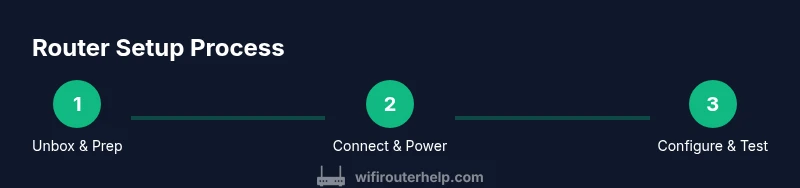
- 1
Unbox and prep hardware
Inspect the router, power adapter, and cables. Clear a clean workspace and confirm you have all essential items before starting.
Tip: Check for any packaging damage and verify that the included accessories match your device. - 2
Connect modem to router and power
Use a Cat6 Ethernet cable to link the modem’s LAN port to the router’s WAN port. Plug in the router and wait for a stable boot sequence.
Tip: Avoid bending cables sharply; a tidy, cable-managed setup reduces accidental unplugging. - 3
Access admin interface and secure basics
From a computer, navigate to the router’s default IP address and log in with the initial credentials. Change the admin password and enable WPA3 if available.
Tip: Document the new admin password securely and keep it separate from guest access credentials. - 4
Update firmware to latest version
Check for firmware updates in the router’s UI and apply the latest release. Reboot if required after the update completes.
Tip: If you have a slow connection, download the update on another device first and transfer via USB if your model supports it. - 5
Enable QoS and prioritize gaming devices
Turn on Adaptive QoS or Gaming QoS and assign high priority to your gaming PC, console, or streaming device.
Tip: Test latency before and after to confirm improvements and adjust as needed. - 6
Configure network segmentation and security
Create a separate guest network, disable unused services, and enable a firewall. Ensure devices use strong passwords.
Tip: Limit port exposure to only what games require and avoid universal port openings. - 7
Test performance on wired and wireless devices
Run speed and latency tests on gaming devices via wired and 5 GHz connections. Compare results to identify improvements.
Tip: If latency remains high, consider reducing interference by changing channels or adjusting band usage. - 8
Document settings and monitor over time
Record your successful QoS rules, port mappings, and security settings. Schedule periodic reviews and firmware checks.
Tip: Keep a simple changelog to track improvements and troubleshooting steps.
People Also Ask
How do I enable QoS on an Asus gaming router?
Most Asus routers include Adaptive QoS or gaming-specific profiles. Open the router admin page, locate QoS settings, enable the feature, and assign high priority to gaming devices. Test performance and adjust as needed.
Enable Adaptive QoS in the router’s settings and assign high priority to your gaming devices.
Can a gaming router Asus be used with my existing modem?
Yes. You can place the Asus router behind your modem. If double NAT occurs, enable bridge mode on the modem or use the Asus in gateway mode with proper NAT configuration.
Yes, you can use it behind a modem, just adjust NAT settings.
What is the best placement for an Asus gaming router?
Place the router high, near the center of your home, away from metal objects and microwaves to minimize interference and maximize signal reach.
Place it high and central, away from walls and electronics.
Do I need to update firmware regularly?
Yes. Firmware updates fix bugs, improve performance, and enhance security. Enable automatic updates if available, or check manually every few months.
Yes, keep firmware up to date.
Is port forwarding necessary for online gaming on Asus router?
Port forwarding can help some games that require inbound connections. Use it sparingly and target only the ports your games need, not the entire network.
It can be necessary for some games; use with care.
What should I do if I experience high latency after setup?
Check QoS rules, verify wired connections for consoles, run speed tests, and consider adjusting channel selection or band usage. If issues persist, reboot devices and review firmware.
Test speed and QoS; adjust channels and bands.
Watch Video
What to Remember
- Choose an Asus model with QoS and current firmware.
- Prioritize gaming devices in QoS for lower latency.
- Prefer wired connections for latency-critical devices.
- Secure the network with strong passwords and WPA3.
- Regularly update firmware and back up your configuration.