A Complete How-To Guide for Your eero Wi‑Fi Router
A step-by-step guide to setting up an eero wi fi router, optimizing mesh coverage, securing your network, and troubleshooting common issues for a reliable home connection in 2026.


In this guide you will learn how to set up an eero wi fi router for fast, reliable home coverage, extend mesh with satellites, and optimize security and QoS. You’ll need your modem, an internet connection, and a smartphone to run the eero app. Follow the 6-step process to go from unboxing to optimal performance.
Why a Reliable Router Setup Matters for Modern Homes
According to WiFi Router Help, a reliable router is the backbone of any connected home. The eero wi fi router family is designed to create a seamless mesh network that covers living rooms, bedrooms, and workspaces. When you set up your system correctly, you reduce buffering during movie nights, improve video calls, and support smart devices across floors. The WiFi Router Help team has analyzed countless home network layouts and found that placement, device selection, and routine maintenance are the three pillars of stable performance. A thoughtful setup not only boosts speeds but also enhances security by isolating guest traffic and enabling fast firmware updates. In practice, you’ll notice fewer dead zones, more consistent speeds, and easier management of connected devices.
Keep sight of your home’s layout and potential interference sources (microwave ovens, cordless phones, metal furniture) as you plan placement. A well-planned deployment reduces the need for later repositioning and helps your eero wi fi router deliver on its mesh promises. The goal is simple: strong coverage, simple management, and robust privacy controls that you can trust every day.
Understanding the eero Wi-Fi Router Family and Architecture
The eero line is built around a mesh networking concept that uses a gateway (the main router) and optional beacons or satellites to blanket your home with Wi‑Fi. This design eliminates costly range extenders and reduces dead zones by routing traffic through multiple paths. The architecture prioritizes seamless handoffs between devices as you move through rooms, so online meetings stay stable and streaming remains uninterrupted. For homeowners, this means you can place a single gateway in a central location and add satellites in problem areas to fill gaps. Device compatibility is broad, and the system updates automatically to improve performance and security. In this context, the eero architecture aligns with modern home networking needs: simplicity, reliability, and scalable coverage that grows with your home.
When evaluating models, consider the size of your home, the number of connected devices, and whether you anticipate future expansion. WiFi Router Help’s experience shows that choosing the right kit upfront reduces the need for later upgrades, keeps the network cohesive, and makes mesh management straightforward for non-technical users.
Before You Start: Tools, Materials, and Environment
A successful installation starts with the right prep. Gather the essential items before you unbox and power up: a modem with active internet service, an eero gateway (and any beacons you plan to deploy), a smartphone or tablet to run the eero app, an Ethernet cable for the initial gateway connection, and a stable power source. Clear a central location away from thick walls and metal appliances, ideally on a desk or shelf at about chest height for optimal signal propagation. If you’re in a multi-story home, plan satellite placement on different floors to minimize stair-step drop-offs. Having a rough floor plan handy helps you map out routes for cabling and placement. Finally, set expectations for coverage: a small apartment may only need a single gateway, while a multi-bedroom house often benefits from one gateway plus one or more satellites.
Pro tip: take a quick inventory of your current devices and their bandwidth needs. This helps you anticipate the number of concurrent streams and gaming sessions, so you place devices in high-priority zones accordingly.
Network Security Basics: SSIDs, Passwords, and Guest Access
Security starts with your network name, or SSID, and a strong password. In most cases, you’ll want to enable WPA3 if your devices support it, or WPA2‑AES as a fallback. Create a unique SSID and avoid using personally identifiable names; this makes it harder for unknown devices to infer information about you. The eero app guides you through enabling a guest network, which keeps visitors off your primary network and protects your private devices. Consider enabling features like automatic firmware updates, firewall protections, and device-level parental controls to monitor and restrict access when needed. Regularly reviewing connected devices helps you spot unfamiliar activity early and respond promptly. As part of ongoing maintenance, you should rotate passwords every 6–12 months and keep a simple inventory of devices that require access.
The WiFi Router Help team emphasizes routine checks as part of responsible home networking. A small routine—reviewing connected devices, updating passwords, and testing guest access—goes a long way toward preserving privacy and performance in your eero setup.
Mesh Placement and Optimization: Coverage, Interference, and Band Steering
To achieve reliable mesh coverage, you’ll want to place beacons in a way that minimizes walls and large obstacles while maximizing line-of-sight paths between nodes. Aim for central locations on each floor and avoid stacking satellites directly above each other, which can create signal bottlenecks. Interference from neighboring networks can degrade performance; if you notice slowdowns, use the eero app to scan for channels and enable auto-channel selection. Mesh networks benefit from consistent power and clean cabling to gateways and satellites. For high-demand homes, enabling QoS (Quality of Service) rules helps prioritize work devices, video calls, or gaming consoles during busy periods. The result is more predictable performance across multiple devices and activities.
Placement matters more than you might think. A smart arrangement reduces the need for additional hardware and makes the most of your existing ISP plan.
Maintenance, Firmware Updates, and Routine Health Checks
Firmware updates are essential for security and performance improvements. In the eero app, enable automatic updates so you don’t miss critical patches. Regularly reboot the gateway and satellites to reinitialize connections and clear stale routing data; plan a monthly 5–10 minute maintenance window to perform this task. For homes with IoT devices, isolate those devices on a separate network or guest network to reduce risk. Periodic speed tests give you a baseline and help identify when performance is deviating from expectations. If testing reveals bottlenecks, consider re-optimizing placement, adding satellites, or consulting your ISP for potential line issues. WiFi Router Help recommends documenting major changes so you can revert or reproduce configurations if needed.
Troubleshooting Common Issues: Quick Wins and When to Escalate
Most home Wi‑Fi problems come down to placement, interference, or outdated firmware. Before calling for help, try these quick wins: reboot gateway and satellites, check cable connections, and verify the modem is online. If devices intermittently drop, inspect physical surroundings for interference (microwave or cordless phones) and move satellites accordingly. When issues persist, use the eero app’s Network Health check to isolate problem zones, check for firmware updates, and reset devices if necessary. If you still face persistent problems (e.g., no internet on multiple devices), your next step is to contact your ISP to test line quality and verify service status. By following a systematic approach, you’ll reduce downtime and keep your home network stable in 2026.
Tools & Materials
- Smartphone or tablet(For installing and configuring the eero app (iOS/Android))
- Modem with active internet connection(Connects to the eero gateway to provide internet access)
- Ethernet cable(One end to the modem, the other to the gateway)
- eero router kit (gateway + satellites)(Include at least one satellite for better coverage)
- Power outlets(Stable power source for gateway and satellites)
- Floor plan or layout sketch (optional)(Helps plan optimal satellite placement)
Steps
Estimated time: 30-60 minutes
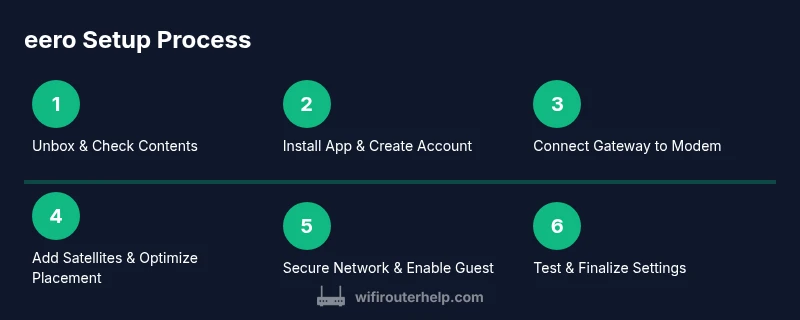
- 1
Unbox and verify contents
Open the eero box and verify all components are present: gateway, any satellites, a power adapter, ethernet cable, quick start guide, and cables. If anything is missing, contact support before proceeding to avoid delays.
Tip: Lay out components on a clean surface to prevent misplacing parts. - 2
Install the eero app and create your account
Download and install the eero app from your device’s app store. Create or sign in to your account, and follow the guided prompts to begin the setup wizard.
Tip: Use the latest app version for the best experience. - 3
Connect the gateway to your modem
Power off both modem and gateway. Connect the gateway to the modem using the included Ethernet cable, then power on the modem first, followed by the gateway.
Tip: If you don’t see a link light, reseat the Ethernet cable and reboot both devices. - 4
Add satellites and place them strategically
Power on satellites and place them on different floors or distant rooms to improve coverage. Use the app’s signal indicator to verify strong links between gateway and each satellite.
Tip: Avoid placing satellites behind large furniture or inside cabinets. - 5
Name your network and set a strong password
In the app, create a unique network name and a strong password. If you have guests, enable a separate guest network with restricted access to your devices.
Tip: Prefer a password manager for complex, unique passwords. - 6
Test connectivity and optimize placement
Run a speed test from multiple rooms and adjust satellite placement as needed to minimize dead zones. Ensure devices switch seamlessly between nodes during movement.
Tip: Aim for at least two solid bars on primary devices in common areas.
People Also Ask
What is the difference between an eero router and a traditional router?
An eero router uses mesh networking to blanket your home with Wi‑Fi via a gateway and satellites, offering easier coverage across multiple rooms. Traditional routers rely on a single device or extenders, which can create dead zones and complex setup. With eero, the system automatically optimizes paths between nodes for seamless roaming.
An eero uses mesh nodes to spread Wi‑Fi across your home, which is easier to expand and usually more reliable than a single traditional router.
Can I use eero with my current modem or gateway?
Yes. The eero gateway connects to your existing modem or gateway via Ethernet. If you encounter issues, power-cycle both devices and ensure your ISP line is active. In most cases, you can keep your current modem and simply replace or supplement your router with eero.
Yes, you can use eero with your current modem—just connect the gateway to the modem and run the setup in the app.
Do I need to subscribe to a paid plan to use eero?
No. Basic home Wi‑Fi with eero works with your ISP service. Some advanced features (like security insights or enhanced performance options) may be available in optional plans, but the core mesh networking and security features function without a paid subscription.
No paid plan is required for standard use; some extras may be offered as optional features.
How can I extend coverage on multiple floors?
Add one or more beacons/satellites on different floors and centralize gateway. Use the app to test signal strength between nodes and reposition satellites to minimize dead zones.
Add satellites on different floors and test with the app to ensure even coverage.
Is there a guest network feature?
Yes. You can enable a guest network with restricted access to your main devices. This keeps your private devices secure while visitors stay online.
Yes—you can set up a separate guest network with limited access to protect your main devices.
How do I reset my eero device if something goes wrong?
Open the app and follow the guided reset option, or use the physical reset button on the gateway. A factory reset will erase custom settings, so back up important configurations first.
If you need to reset, use the app’s reset option or press the gateway button; note that this clears your settings.
Watch Video
What to Remember
- Place gateway centrally for even coverage.
- Add satellites to fill gaps in multi-room homes.
- Regularly update firmware for security and performance.
- Use a strong, unique password and enable guest networks.