eero wifi Setup & Troubleshooting: Your 2026 Home Network
Step-by-step guide to set up, optimize, and troubleshoot eero wifi for a reliable home network. Tips, common issues, and best practices from WiFi Router Help.


Set up, secure, and optimize your eero wifi network in minutes. This quick-start guide shows the essential steps, gear, and settings needed to get reliable coverage from room to room. You'll learn where to place nodes, how to run the app, and common tweaks to improve speed and stability in real homes.
What makes eero wifi different and why it matters
eero wifi has popularized true mesh networking for home users, delivering consistent coverage across larger spaces. According to WiFi Router Help, a well-planned eero network can eliminate dead spots and simplify management compared to traditional single-router setups. The WiFi Router Help team found that most households benefit from a centralized mesh layout, especially in multi-story homes and rooms with thick walls. In this guide we’ll cover how eero wifi works, setup steps, and practical tips to maximize reliability for streaming, gaming, and remote work.
Essentials to have before you begin
Before you start, gather the following items: eero starter kit or compatible gateway module, at least one existing modem, a broadband connection, a smartphone or computer to install the app, an Ethernet cable for initial setup, and a stable power source. Optional: a surge protector, a UPS to guard against outages, and a spare router for legacy network debugging. Having these on hand saves time and reduces frustration during the setup.
How eero wifi works: Mesh basics
eero wifi uses a meshed network of interconnected nodes to blanket your home with Wi-Fi. Each node acts as a little router and a repeater, relaying data to devices and coordinating paths to avoid congestion. Unlike a single-router setup, a mesh network adapts to your space; it redirects traffic around walls and furniture for more consistent speeds. In practice, you’ll notice fewer dead spots and more stable connections as you move through rooms. Mesh networks also simplify management via a single app, letting you tweak settings, monitor devices, and update firmware across all nodes. This consolidation helps homeowners manage guest access, parental controls, and device prioritization from one interface.
Placement and network topology for optimal coverage
Optimal placement starts with a central, elevated location away from large metal appliances and thick walls. Place the gateway near the center of your home, then position additional nodes on each floor to fill gaps. Avoid tight closets, basements, or behind large furniture that can absorb signals. A good rule of thumb is to place nodes within a room's line of sight, roughly 30-60 feet apart depending on construction. Use the eero app’s signal strength indicators to verify coverage and adjust placement as needed. For multi-story homes, stagger node placement so the signal travels upward rather than horizontally through dense obstacles.
Security, updates, and ongoing maintenance
Keeping your eero wifi secure is straightforward: enable WPA3 when available, use a strong admin password, and enable automatic firmware updates. The eero app notifies you when new firmware is released; applying updates helps protect against emerging threats and improves performance. Regular checks—every few weeks—help you spot devices you don’t recognize and ensure your guest network is properly segmented from your main network. Consider reviewing connected devices weekly and removing anything unfamiliar to keep your network safe.
Troubleshooting common issues
Most issues with eero wifi are due to placement, firmware, or network misconfigurations. Start by rechecking the gateway and node status in the app; if a node is offline, try rebooting it or moving it closer to the main gateway. If you experience slow speeds, run a speed test from a connected device and compare to your plan; consider relocating nodes, reducing interference from cordless phones or microwaves, or enabling QoS for bandwidth management. If problems persist, reset a troubled node and re-add it via the app, ensuring the device has a stable power source and a nearby outlet.
Understanding performance: speeds, interference, and real-world use
Speeds advertised by ISPs are theoretical; real-world performance depends on your home's layout, device capabilities, and network traffic. A well-placed eero wifi mesh can dramatically improve coverage, but peak speeds may still vary at the farthest corners of your home. To maximize performance, keep firmware up to date, limit the number of devices on the main channel, and consider enabling hardware acceleration if your devices support it. Remember that wireless performance also hinges on the capabilities of client devices, the age of hardware, and the tasks you run most often.
Tools & Materials
- eero starter kit or gateway module(Ensure it includes at least one gateway device)
- modem (compatible with your ISP plan)(May be provided by your ISP)
- smartphone or computer(For installing the eero app and configuration)
- ethernet cable(For initial gateway-to-modem connection)
- power adapters for gateway and nodes(Keep spares in case of loss)
- surge protector or UPS (optional)(Protect against outages and surges)
Steps
Estimated time: 45-75 minutes
- 1
Unbox and verify components
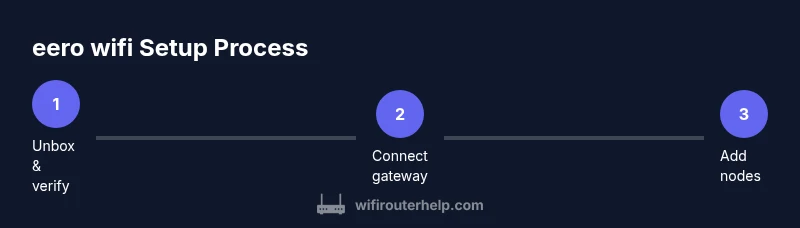
Open the box and verify each item against the inventory: gateway, nodes, power adapters, Ethernet cable, and setup guide. Confirm all parts are present before starting to avoid interruptions. Check for any visible damage to components.
Tip: Lay out parts on a clean surface and confirm serials match the included checklist. - 2
Connect the gateway to the modem and power
Connect the gateway's WAN port to your modem with the Ethernet cable, then plug in the power adapter. Wait for the status light to indicate boot success. Keep the modem powered on during setup.
Tip: Avoid using a switched power strip; a dedicated outlet helps ensure stable power. - 3
Install the eero app and create your account
Download the eero app from the iOS or Android store and sign in or create an account. The app guides you through the initial setup and requires you to grant location and device permissions. Having your modem's login info handy speeds the process.
Tip: Enable push notifications so you don’t miss firmware updates or device alerts. - 4
Set up your primary network in the app
In the app, create your main network name (SSID) and a strong password; select the security protocol (prefer WPA3 if available). The app will scan for updates and apply defaults that balance speed and security. Confirm your device can reach the gateway before proceeding.
Tip: Choose a unique SSID and avoid names that reveal your identity or location. - 5
Add additional nodes to extend coverage
Place each node in recommended locations; use the app to add the node and walk through placement guidance. Each node requires power and should be within a reasonable distance from the main gateway. Test signal strength in the app as you position each node.
Tip: Avoid placing nodes behind appliances or in closets that block signals. - 6
Test, optimize, and finalize
Run the built-in speed test from a connected device and check signal strength across different rooms. Relocate nodes if you detect weak coverage. Name networks clearly (home and guest) and enable parental controls if needed.
Tip: Document final node locations for future re-placements after renovations or furniture changes. - 7
Enable security features and maintenance
Enable automatic firmware updates, review connected devices, and configure guest access with appropriate restrictions. Schedule periodic checks (monthly) to ensure everything remains current and secure. Consider enabling network analytics to monitor device usage and performance.
Tip: Set reminders to review devices that connect via guest networks regularly.
People Also Ask
What is eero wifi and how is it different from a traditional router?
eero wifi is a mesh networking system that uses multiple nodes to blanket your home with Wi‑Fi. Unlike a single router, it dynamically routes traffic between nodes to reduce dead spots and improve reliability. This approach scales with your space and devices for a smoother experience.
eero wifi is a mesh system with multiple nodes that work together to provide coverage throughout your home.
How do I determine the best placement for eero nodes in a multi-story home?
Place the main gateway in a central, elevated location and distribute nodes on each floor. Use the app’s signal indicators to verify coverage and avoid obstacles like thick walls or metal appliances. Test from different rooms and adjust as needed.
Place the main gateway in the center and add nodes on each floor, using the app to verify coverage.
Can I use eero with my existing modem or another router?
Yes. Connect the eero gateway to your modem. If you have an existing router, you may place it in bridge mode or disable its wireless function to avoid interference. The eero system will manage the mesh network once connected.
Yes, you can connect eero to your modem and, if needed, set your existing router to bridge mode.
How do I secure my eero wifi and update firmware?
Enable WPA3 when available, use a strong admin password, and keep automatic firmware updates on. The app will notify you of new updates; apply them promptly to keep the network secure and performing well.
Enable WPA3, use a strong admin password, and let automatic updates run in the background.
Why is my eero network slow when many devices are connected?
Speeds depend on your ISP plan, device capabilities, and network congestion. Distribute devices across the mesh, enable QoS for high-priority tasks, and relocate nodes away from interference sources to improve performance.
Slowness usually comes from congestion or placement; spread devices and optimize node locations.
How do I reset an eero device to factory settings?
Find the reset button on the device and hold it for about 15 seconds until the LED flashes. Re-add the device in the eero app and reconfigure your network from scratch.
Hold the reset button for 15 seconds, then set it up again in the app.
Watch Video
What to Remember
- Plan a central gateway placement for best coverage.
- Add nodes based on real coverage gaps shown in the app.
- Keep firmware updated and monitor connected devices.
- Use guest and parental controls to manage access and safety.