Dream Router Setup and Troubleshooting: A Complete Guide
Learn how to pick, install, and optimize a dream router for reliable home Wi-Fi. This guide covers planning, features, security, mesh vs single-router setups, and troubleshooting tips.


You will learn how to pick, install, and optimize a dream router for a reliable, fast home network. Key requirements include a working modem with internet, a supported device to configure the router, and a plan for central placement, secure credentials, and routine firmware updates.
What is a dream router? Defining the concept and why homeowners care
According to WiFi Router Help, a dream router is not a single SKU but a concept: a router that delivers reliable coverage, strong security, and intuitive control across your home. It blends high-performance hardware, flexible firmware, and smart management features that adapt to your devices and usage. For most households, the goal is to eliminate dead zones, simplify network management, and keep data protected while supporting a growing number of smart devices. A true dream router should scale with your home, whether you live in a one-bedroom apartment or a multi-story house, and allow you to tune performance without becoming a technical chore.
Key features to look for in a dream router
When shopping for a dream router, prioritize features that translate to real-world gains: fast Wi-Fi with ample bandwidth for streaming and gaming, robust security, easy setup, and flexible management. Look for tri-band or high-speed Wi‑Fi 6/6E support, MU‑MIMO, and OFDMA to handle multiple devices simultaneously. Favor models with automatic firmware updates, WPA3 security, guest networks, parental controls, and a clear mobile app. WiFi Router Help analysis shows that automatic updates and strong encryption dramatically reduce security risk and maintenance effort. Consider USB ports for storage or printer sharing if you need them.
Planning your coverage and placement
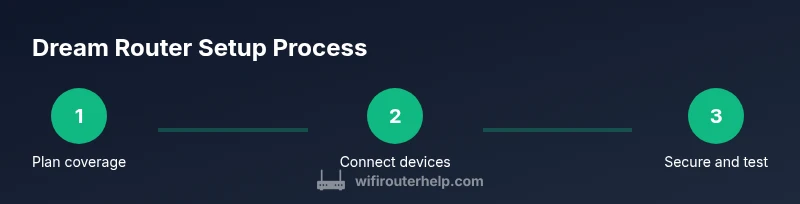
Effective coverage starts with layout awareness. Map your home’s size, floors, and wall materials. Place the dream router at a central, elevated location away from thick concrete walls and large metal appliances. Avoid putting it inside closets, basements, or cramped cabinets where signals get trapped. For larger homes, plan for at least one additional access point or a mesh node to fill distant rooms. A quick room-by-room test after installation helps verify that signal strength is consistent in high-use areas. WiFi Router Help recommendations emphasize central placement for the strongest overall performance.
Mesh vs single-router: choosing the right setup
Single-router systems can work well in small to medium homes, especially with strong beams and a 3‑band design. However, larger homes or multi-story layouts benefit from a mesh network or hybrid backhaul to maintain even performance. Mesh systems spread multiple nodes to reduce dead zones, but require planning for backhaul quality and seamless roaming. If you have many smart devices spread across rooms, a mesh approach often yields the most reliable experience without manual switching between networks.
Initial setup and secure configuration
Begin with a clean, updated firmware image and create a strong admin password. Connect the modem to the dream router’s Internet port, then boot and access the admin interface via app or web portal. Follow the on-screen setup wizard to assign a name (SSID) and a strong passphrase, enable WPA3 if available, and disable legacy protocols you don’t use. Backups of the configuration should be created once the network is stable, so you can restore quickly if something changes. As always, keep the login credentials in a password manager for safety.
Performance tuning: QoS, bands, and channel optimization
Once basics are in place, tune performance by configuring QoS rules for critical devices, prioritizing video streaming and work devices during peak hours. If your router supports tri‑band or simultaneous bands, allocate the best channel or band to high-demand devices. Use automatic channel selection when uncertain, but periodically test speeds on different floors and rooms to identify bottlenecks. A well-tuned dream router can deliver consistently higher throughput and lower jitter for latency-sensitive tasks.
Security, updates, and parental controls
Security should be a continuous process. Enable automatic firmware updates, use WPA3, and disable WPS or other insecure features. Create strong passwords for both admin access and Wi‑Fi networks, and consider a separate guest network for visitors. For households with children or guests, configure parental controls and time limits as needed. Regularly review connected devices and remove those you no longer recognize. WiFi Router Help notes that ongoing security practices are essential for protecting smart homes.
Troubleshooting common issues
Most router problems stem from placement, wiring, or outdated software. Start by verifying the modem is online, the WAN port is connected, and the router is receiving power. If devices can’t connect, recheck the SSID/password and reboot the router. For slow speeds, test with a wired connection to identify wireless bottlenecks, then adjust placement or add an access point if necessary. Use the router’s diagnostics page to spot misconfigurations and check for firmware updates.
Maintenance and future-proofing your dream router
Keep firmware up to date, monitor device counts, and revisit QoS rules as your network grows. Consider cabling a wired backhaul where possible for the strongest stability, and plan for phase-based upgrades as new standards emerge (e.g., newer Wi‑Fi generations). Regularly back up configuration settings and document changes so you can recover quickly after a reset or a device migration.
Tools & Materials
- Functional modem with active internet connection(Ensure you can access the modem's UI and login if needed.)
- Dream router (or existing capable router)(Check compatibility with your modem and plan.)
- Ethernet cable (CAT6 or better)(Use for wired backhaul when available.)
- Smartphone or computer for admin access(Needed to run setup and manage settings.)
- Power outlet near router(Keep surge protection in mind.)
- Optional network cable for wired backhaul(Useful for backhaul between nodes.)
Steps
Estimated time: 25-45 minutes
- 1
Prepare your equipment and space
Unbox your dream router, verify power and cables, and identify a central, elevated location free from obstructions. This ensures the strongest starting point for coverage.
Tip: Avoid placing in a closed cabinet or behind large metal objects. - 2
Connect the modem to the router
Connect the modem’s Ethernet port to the router’s Internet/WAN port using a cat6 Ethernet cable. This establishes the data path from your ISP to your home network.
Tip: Use a wired connection during setup to reduce initialization errors. - 3
Power up and access the admin interface
Power on both devices, then open the router app or web interface and login with default or provided credentials. This step enables your initial configuration.
Tip: Change default credentials immediately to prevent unauthorized access. - 4
Run the initial setup wizard
Follow the on-screen wizard to configure the basic network name (SSID) and password, select security like WPA3, and apply the firmware update if prompted.
Tip: Choose a unique, strong SSID and password that you can remember. - 5
Create primary and guest networks
Set your main SSID with a strong password, and optionally enable a guest network with restricted access and bandwidth limits for visitors.
Tip: Keep guest access isolated from your main network for security. - 6
Enable security features and updates
Turn on automatic updates, enable firewall protections, and disable deprecated protocols. Ensure WPA3 is active if available.
Tip: Back up firmware settings after updates. - 7
Configure QoS and device priorities
Set QoS rules for critical devices (work laptop, video calls, gaming) to ensure bandwidth when needed.
Tip: Start with a small set of priorities and refine over time. - 8
Test coverage and adjust placement
Move around the home with a device to verify signal strength and speeds; add an access point if needed.
Tip: A single central test may miss dead zones; test in every living area. - 9
Back up and document settings
Save a configuration backup and write down admin credentials and network details securely for recovery.
Tip: Store backups in a password-protected location.
People Also Ask
What is a dream router?
A dream router is a high-performance router designed to deliver strong coverage, robust security, and easy management for households with multiple devices.
A dream router is a high-performance router with strong coverage and smart controls.
Do I need mesh for large homes?
For large homes with dead zones, a mesh system or hybrid solution often provides more even coverage.
In big homes, a mesh setup helps eliminate dead spots.
How do I secure my dream router?
Use WPA3, change default credentials, enable automatic updates, and set a strong admin password.
Enable WPA3, update firmware automatically, and use a strong password.
Where should I place my router for best coverage?
Place centrally, elevated, away from thick walls and electronics; avoid closets and metal obstacles.
Put it in a central, elevated spot, not in a cabinet.
How often should I update firmware?
Check for updates monthly or enable automatic updates; updates patch security flaws and improve performance.
Update firmware regularly, ideally automatically.
Can I use a dream router with an existing modem?
Yes, a dream router typically connects to your modem via the WAN/Internet port; ensure your modem is compatible and in bridge mode if needed.
Yes, connect to your modem and use bridge mode if required.
Watch Video
What to Remember
- Assess coverage needs before buying gear.
- Prioritize security and automatic updates.
- Choose mesh vs single-router by home size and layout.
- Test performance in real rooms and adjust placement.
- Back up configurations and document changes.