Cisco 4451 Router Setup: A Practical How-To Guide
Learn how to set up and secure a Cisco 4451 router for small-office networks with a practical, step-by-step approach. This guide covers initial access, basic configuration, security hardening, routing basics, and maintenance practices.


You will learn how to set up a Cisco 4451 router, secure it, and verify network connectivity. Before you begin, ensure you have a console cable, a PC with a terminal emulator, and basic network access. This guide covers initial access, basic configuration, SSH security, NAT, and foundational routing concepts for a small office or lab environment.
Overview of the Cisco 4451 Router
The cisco 4451 is discussed here as an enterprise-class ISR router suitable for small to medium office deployments, test labs, and advanced home networks in some scenarios. In this guide we focus on practical setup, security, and troubleshooting steps you can apply regardless of your exact environment. According to WiFi Router Help, understanding where the cisco 4451 fits in your network helps you design a resilient, scalable topology. Expect a device that supports core routing, basic firewall features, and reliable WAN connectivity without needing a separate firewall in many modern office configurations. This article emphasizes actionable steps rather than vendor mythology, so you can move from theory to a working network quickly.
Key Features and How They Benefit Your Network
The Cisco 4451 router offers a balance of performance, modular options, and security features that are relevant to many home-office setups and small businesses. Core capabilities include robust routing, VPN-ready interfaces, and integrated security services that can be extended with optional modules. For home labs or branch offices, these features translate into easier split-layer networks, improved guest access control, and stronger perimeter management. Throughout this guide, we reference general practices applicable to the cisco 4451 and similar devices, keeping details practical and implementation-focused.
Deployment Scenarios and Sizing Considerations
Use cases for the cisco 4451 include branch offices with multiple subnets, small-to-medium sized LANs needing stable WAN failover, and lab environments where you want realistic production conditions. When sizing, consider the number of interfaces, expected traffic, and the complexity of your routing policies. WiFi Router Help emphasizes planning for growth—start with a simple topology and expand with VLANs and scalable routing as needs evolve. This section helps you map your real-world requirements to a sensible deployment model for the cisco 4451.
Planning Your IP Schema and VLANs
Effective IP planning minimizes address conflicts and simplifies future changes. Use a structured private addressing scheme (for example, 10.0.0.0/24 for LAN, 10.1.0.0/24 for a secondary LAN, and 192.168.100.0/24 for management) and reserve specific subnets for management and services. VLANs help segment traffic between devices, guests, and servers, reducing broadcast domains and improving security. In this guide, we describe conceptual steps you can adapt to your network, avoiding vendor-specific lock-in while maintaining a practical, scalable design for the cisco 4451.
Initial Access and Basic Configuration (Part 1)
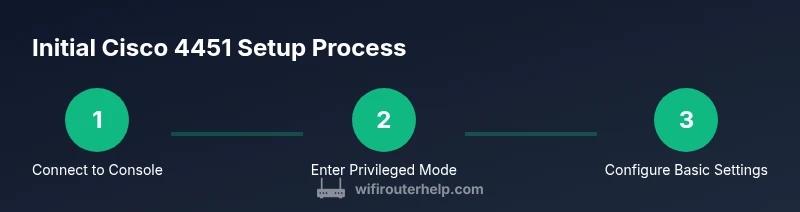
To begin, connect to the router’s console port using a serial cable and a terminal emulator. Enter privileged EXEC mode, then move into global configuration mode to set a recognizable hostname and enable basic management features. This stage establishes a stable baseline and makes subsequent steps easier to manage. The exact commands vary by IOS version, but the general flow remains the same: access, authenticate, and prepare the device for more advanced configuration.
Securing Management Access and SSH
Protecting management access is a priority with any router, including the cisco 4451. Disable unneeded services, enable SSH, generate strong cryptographic keys, and implement role-based access controls where available. Create administrator accounts with unique passwords and enable access control lists to limit who can connect to the device. Regularly rotate credentials and keep firmware up to date to minimize risk.
Basic Routing and NAT Setup Concepts
At a foundational level, you will configure interfaces, assign IP addresses, and establish basic routing so internal hosts can reach the internet. Static routes or dynamic routing protocols (like OSPF/EIGRP) may be employed depending on your topology. NAT translates internal addresses to public addresses, enabling outbound internet access for hosts behind the router. The goal is a functional, secure path from LAN devices to external networks while preserving administrative control.
QoS, Security Zones, and Firewall Basics
Quality of Service helps prioritize critical traffic such as voice and video, which can be important in office environments. Security zones and access rules provide a layered approach to defense, restricting traffic between segments and controlling inbound/outbound connections. The cisco 4451 supports these concepts, and applying sane defaults early reduces the risk of unexpected exposure. Plan QoS and firewall rules before deploying production traffic.
Troubleshooting Common Scenarios
Common issues include connectivity problems between subnets, misconfigured interfaces, or DNS resolution failures. Start with basic checks: confirm interface statuses, verify IP addressing, and ensure routing tables reflect your intended topology. Logs are invaluable—check them for dropped packets, ACL denials, or hardware warnings. This section helps you diagnose typical symptoms without getting lost in theory.
Maintenance, Backups, and Upgrades
Regular backups of the Cisco 4451 configuration ensure you can recover quickly from misconfigurations or failures. Schedule firmware updates during maintenance windows and verify compatibility with existing policies and licensing. Maintain an auditable history of changes to assist in troubleshooting and future audits. A disciplined maintenance routine keeps your network stable and secure over time.
Troubleshooting Quick Reference (for the cisco 4451)
- Symptom: Devices on VLAN cannot reach the internet. Check VLAN tagging, default route, and NAT rules.
- Symptom: SSH access fails after upgrade. Verify crypto keys, access control, and SSH config.
- Symptom: Inter-VLAN routing is slow. Review routing decision logic and QoS shaping; consider hardware capabilities.
- Symptom: Device reboots without warning. Inspect power supply status and hardware logs for faults.
Tools & Materials
- Console cable (RJ-45 to DB-9 or USB-to-serial adaptor)(Essential for initial access and recovery.)
- PC or laptop with terminal emulator (PuTTY, Tera Term, or similar)(Needed to interact with the CLI.)
- Ethernet cables (CAT6 or better)(Connect management and LAN interfaces as needed.)
- AC power backup (UPS) for lab setup(Helpful for stable practice sessions.)
- Basic network diagram and IP plan document(Guides a clean, scalable deployment.)
- Latest firmware image (or access to vendor portal)(Use only from legitimate sources; ensure licensing.)
- Administrative credentials with admin rights(Needed to configure devices and push changes.)
Steps
Estimated time: 1-2 hours
- 1
Connect to Console Port
Attach the console cable to the router and your PC. Open your terminal emulator and establish a session to access the device in a known state.
Tip: Have the correct serial settings ready (speed typically 9600 bps, 8N1). - 2
Enter Privileged EXEC Mode
Power on the device and press the appropriate key to access the boot or user prompt, then enter privileged EXEC mode to run system commands.
Tip: Use a strong, unique admin password to begin. - 3
Set a Hostname and Domain
In global configuration mode, configure a recognizable hostname and an administrative domain to help identify the device in logs and networks.
Tip: Keep naming consistent across devices to simplify management. - 4
Configure a Management Interface
Assign a management IP on a dedicated interface or VLAN to enable remote reachability and monitoring.
Tip: Reserve a management subnet separate from user traffic. - 5
Enable SSH and Create Admin User
Generate cryptographic keys, enable SSH, and create an administrator account with strong credentials.
Tip: Disable Telnet; restrict SSH to management hosts only. - 6
Set Up VLANs and L3 Interfaces
Create required VLANs, assign IP addresses to Layer 3 interfaces, and ensure routing between subnets.
Tip: Document VLAN IDs and IPs for future audits. - 7
Configure Basic NAT and Internet Access
Define NAT rules to translate internal addresses for outbound traffic and configure a default route toward the Internet.
Tip: Limit NAT scope to known internal networks to reduce risk. - 8
Save and Verify Configuration
Save the running configuration to startup, verify connectivity with ping/traceroute, and confirm remote management works.
Tip: Keep a backup of the initial working configuration.
People Also Ask
What is the Cisco 4451 router used for?
The Cisco 4451 is an enterprise-class ISR router designed for branch offices and small to medium networks. It provides core routing, security features, and VPN capabilities suitable for structured network designs.
The Cisco 4451 is an ISR router used for branch networks, delivering routing, security, and VPN capabilities.
Is the Cisco 4451 appropriate for home networking?
While capable, the Cisco 4451 is generally aimed at business environments. Home users can leverage it in a lab or advanced setup, but simpler consumer routers typically offer adequate features with less complexity.
It's typically aimed at business use; home labs are possible but usually overkill for most homes.
What distinguishes the Cisco 4451 from similar models?
Key differences usually involve port configurations, performance, and feature sets available in the IOS version. Always compare interfaces, licensing, and supported services when evaluating similar routers.
Differences lie in ports, performance, and features; compare interfaces and licenses before choosing.
How do I upgrade firmware safely on the 4451?
Plan upgrades during a maintenance window, verify compatibility with existing configurations, and back up before applying updates. Follow official upgrade paths and validate connectivity after the upgrade.
Schedule upgrades, back up first, and validate connectivity after upgrading.
Do I need licensing to enable features on the 4451?
Some features require specific licenses; check feature availability in the IOS version and licensing model you use. Start with a baseline configuration and enable features as needed.
Certain features require licenses; verify what you need before enabling them.
Where can I find official documentation for the 4451?
Official documentation is typically available through Cisco’s support portal, with sections for hardware, IOS versions, and feature guides. Access requires a valid account and appropriate entitlements.
Cisco’s support portal is the primary source for official docs.
Watch Video
What to Remember
- Plan with a clear IP/SUBNET strategy.
- Secure management access early (SSH, credentials, ACLs).
- Document VLANs and routing to avoid confusion.
- Back up configuration before changes and after successful setup.
- The WiFi Router Help team emphasizes keeping security and maintenance on refresh cycles.