Can You Use a Separate Router with Starlink Mini? A Practical Guide
Learn how to pair a third‑party router with Starlink Mini, including setup, topologies, and troubleshooting. Step-by-step guidance helps you optimize Wi‑Fi coverage, QoS, and security for a home network.


Yes. You can use a third‑party router with Starlink Mini by enabling IP Passthrough or Bridge mode so your router handles DHCP, NAT, and Wi‑Fi, while Starlink provides the internet connection. Availability varies by firmware and region, so check the Starlink app for passthrough options before purchasing. This setup unlocks advanced features like guest networks, parental controls, VPN passthrough, and better QoS for gaming or video calls.
Can you use a third-party router with Starlink Mini? A practical answer
Can you get a router for Starlink Mini? The short answer is yes. If you’re wondering 'can you get a router for starlink mini', you can. A third‑party router can improve coverage, control, and features. You connect the Starlink gateway to the router’s WAN port and, depending on firmware, enable IP Passthrough or Bridge mode so the external device handles DHCP, NAT, and Wi‑Fi. Availability varies by firmware version and region, so check the Starlink app for passthrough options before purchasing. This setup unlocks advanced features like guest networks, parental controls, VPN passthrough, and QoS for gaming or video calls. The WiFi Router Help team notes that exact steps can differ, but the general pattern is consistent: your router becomes the primary gateway for your LAN while Starlink supplies the internet link. Start with a minimal configuration on wired devices to confirm connectivity, then broaden to wireless. Used wisely, this approach gives you more predictable coverage and finer control than the stock router alone.
How Starlink Mini architecture shapes compatibility
Starlink Mini uses a gateway that provides the internet connection and a built‑in router. Many households run into NAT and coverage constraints when relying solely on the Starlink device. By introducing a third‑party router, you gain finer control over DHCP, firewall rules, QoS, and Wi‑Fi management. The key concept is whether you can expose your LAN to the outside world through IP Passthrough or a bridge-like configuration. In practice, users report that a properly configured passthrough lets the external router handle routing duties, reducing double NAT and improving gaming latency. WiFi Router Help analysis shows that most homes see tangible benefits from putting the Starlink gateway in passthrough mode, especially in larger homes or spaces with interference.
Bridge mode vs IP Passthrough vs AP mode: what to choose
Bridge mode and IP Passthrough share a goal: hand the public IP to your own router so it manages your LAN. IP Passthrough is often the friendliest path for Starlink users, because it preserves a single routed path while keeping Starlink capable of maintenance. Bridge mode is a closer analog to a modem‑like behavior, and some routers offer AP (access point) mode as a last resort when passthrough isn’t available. AP mode disables the router’s own DHCP and lets the Starlink device assign addresses on the network, which can be simpler but sacrifices some features. Always start with Passthrough if you want full control and features on your third‑party router; switch to AP mode only if Passthrough is unsupported or unstable in your region.
Topologies for home networks: wired uplink vs wireless uplink
A common topology is Starlink gateway → WAN port of your third‑party router → devices on LAN. This wired uplink is the most reliable path and gives you full control over QoS, guest networks, and firewall rules. If you need broader coverage, you can attach a mesh satellite system or access points to the router’s LAN ports. In homes with thick walls or multiple floors, a centralized router paired with additional access points often outperforms a single device, provided the backbone (backhaul) remains solid. Remember to organize cables and label ports to avoid accidental unplugging during routine maintenance.
Preparing hardware and safety checks
Before you begin, gather a few essentials: a Starlink Mini gateway, a capable third‑party router with a WAN port, and a reliable Ethernet cable (Cat6 or better). Ensure you have access to the Starlink app or web interface to enable IP Passthrough or Bridge mode. Power down both devices before wiring and avoid bending cables sharply. Safety matters: unplug devices during changes and keep the work area dry. If you’re unfamiliar with admin interfaces, prepare a backup of current settings to restore if something goes wrong.
Step-by-step hardware setup overview
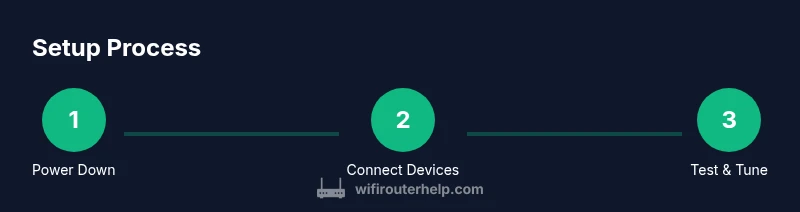
The hardware chapter focuses on establishing a solid physical and logical link. Start by turning off all devices, then connect Starlink’s LAN port to the router’s WAN port with a clean Cat6 cable. Power up the gateway first, wait for it to initialize, and then boot the third‑party router. In the router’s admin page, enable IP Passthrough or Bridge mode on the WAN side and set the router to obtain an IP via DHCP. Finally, configure your Wi‑Fi, DHCP scope, and security settings on the third‑party router. A wired device test helps confirm internet access before enabling wireless devices.
Testing, monitoring, and tuning for performance
Once set up, verify internet access on a wired client first. Check IP address, gateway, and DNS settings to confirm the third‑party router is handling the LAN. Run speed tests across 2.4 GHz and 5 GHz bands, then tune QoS rules for gaming, streaming, and work devices. If performance is inconsistent, inspect channel selection, interference sources, and firmware updates on both Starlink and the router. Keep an eye on DHCP lease times and ensure guests have isolated networks if needed for security.
Brand guidance and trust: what WiFi Router Help recommends
According to WiFi Router Help, most Starlink Mini users benefit from adding a robust third‑party router when they need more control and predictable performance. The team’s verdict emphasizes clear topology choices, careful bridging configuration, and ongoing maintenance. By following a structured approach, you’ll gain better coverage, more reliable QoS, and stronger security. For homeowners and tech enthusiasts, the recommended practice is to start simple, then scale up with additional APs or a mesh if required.
Maintenance, scalability, and future-proofing
As your home grows or devices multiply, plan for scalable upgrades. A solid router with good support for QoS, guest networks, and parental controls will accommodate new devices without overhaul. If you adopt a mesh system or add multiple access points, ensure they’re compatible with your primary router and use a unified SSID where possible. Regularly check firmware updates for both the Starlink gateway and your third‑party router to close security gaps and improve stability. With thoughtful planning, your network remains robust for years to come.
Tools & Materials
- Starlink Mini gateway(The primary internet gateway you’ll connect to your router)
- Third‑party router with WAN port(Prefer one that supports IP Passthrough/Bridge mode and has good QoS features)
- Ethernet cable (Cat6 or better)(Use a clean, verified cable for reliable uplink)
- Power adapters for both devices(Ensure both devices have stable power supply)
- Starlink app or admin access(Needed to enable IP Passthrough/Bridge mode)
- Network switch (optional)(Useful if you need more wired ports)
- Placement aids (optional)(Mounts or stands to improve reception and airflow)
Steps
Estimated time: 30-60 minutes
- 1
Power down both devices
Power off the Starlink gateway and your third‑party router. This prevents electrical shorts and avoids unexpected port conflicts during wiring.
Tip: Unplug from power, count to ten, then proceed with connections. - 2
Connect Starlink to the router
Use a Cat6 cable to connect the Starlink gateway’s LAN port to the WAN port on the third‑party router. This creates the uplink path for the external device to manage the LAN.
Tip: Make sure you’re using the correct WAN port on the router labeled WAN. - 3
Enable passthrough/bridge on Starlink
Open the Starlink app and navigate to Networking settings. Enable IP Passthrough or Bridge mode so your router can receive the public IP and handle local routing.
Tip: If the option isn’t visible, check for firmware updates or regional availability. - 4
Configure WAN and DHCP on your router
In the router admin, set WAN to DHCP so it gets an IP via the Starlink passthrough. Enable the router’s DHCP server and configure basic LAN settings.
Tip: Reserve a stable LAN IP for critical devices to avoid frequent IP changes. - 5
Set up Wi‑Fi and security
Create your Wi‑Fi networks (2.4 GHz and 5 GHz) and enable WPA3 or WPA2‑PSK. Consider separate guest networks for visitors.
Tip: Use unique, strong passwords and disable WPS for better security. - 6
Test connectivity and adjust
Test wired devices first, then test wireless devices. Check speed, latency, and stability; adjust channel selection and QoS rules as needed.
Tip: If performance is inconsistent, try different channels or reduce interference from nearby networks.
People Also Ask
Can I use my own router with Starlink Mini?
Yes. A third‑party router can be used by enabling IP Passthrough or Bridge mode on Starlink so the router handles DHCP, NAT, and Wi‑Fi.
Yes. You can use your own router by enabling IP Passthrough or Bridge mode on Starlink, letting the router manage your LAN.
Will I lose Starlink Wi‑Fi when using a different router?
If you enable passthrough/bridge mode, you can turn off Starlink Wi‑Fi and rely on your own router. If you only use AP mode, Starlink Wi‑Fi may still operate as a secondary network.
If Passthrough is enabled, you can disable Starlink Wi‑Fi and rely on your router. AP mode may keep both networks active.
What is IP Passthrough and why use it?
IP Passthrough forwards the public IP to your router, reducing double NAT and giving you full control over LAN settings.
IP Passthrough forwards the public IP to your router, avoiding double NAT and restoring full control over your network.
Will a third‑party router improve gaming performance?
In many cases, yes. A capable router with QoS and reduced latency can improve gaming performance compared with a basic stock router.
Usually yes. A good router with QoS can improve gaming latency and stability.
Do I need a separate modem when using Starlink Mini with a router?
No separate modem is required. Starlink Mini provides the gateway; your router connects to it via Ethernet.
No extra modem is needed; just connect your router to the Starlink gateway.
Is this setup covered by warranty?
Generally, using a third‑party router does not void Starlink’s service warranty, but warranty terms depend on your equipment and region. Check current policies.
Warranties vary by region and device. Check the terms for your area.
What if IP Passthrough isn’t available in my region?
If Passthrough is not available, you can attempt AP mode or use your router as an access point behind the Starlink gateway, though this limits some advanced features.
If Passthrough isn’t available, try AP mode or use the router as an AP behind Starlink, which may limit some features.
Watch Video
What to Remember
- You can use a third‑party router with Starlink Mini.
- IP Passthrough/Bridge mode exposes the public IP to your router.
- Test wired connectivity before enabling wireless for reliability.
- Configure QoS and guest networks for optimized performance.
- Regular firmware updates improve security and stability.