Can You Buy a Router and Have WiFi? A Practical Guide
Learn how to buy a standalone router and achieve reliable home WiFi. This step-by-step guide covers compatibility, setup, security, and optimization for better coverage and speeds.


Yes. You can buy a standalone router and have WiFi, provided you have an active internet service and a compatible modem (or a modem-router combo). A dedicated router gives you more control over security, features, and future upgrades than many ISP gateways. This guide outlines how to choose, connect, and optimize your new device for dependable home WiFi.
Can you buy a router and have WiFi? A practical reality check
If you're asking can you buy a router and have wifi, the answer is yes. A stand-alone router provides wireless access when paired with your existing internet connection. To make this work, you need an active internet service and a compatible modem (or a modem-router combination) from your provider. In many homes, the internet signal arrives to a modem through a coax, fiber, or DSL line, and the router creates the wireless network. According to WiFi Router Help, buying a separate router gives you more control over features, security, and future-proofing than sticking with a provider's aging gateway. The goal is to separate the role of translating the internet signal into a wireless network from the physical line entry. This separation improves performance, allows easier upgrades, and helps you tailor coverage to your home. The takeaway is simple: with the right pieces, you can own the hardware and still get reliable WiFi across rooms and floors.
Understanding the basics: router vs gateway
Many homes connect to the internet via a modem that comes from the provider. Some setups include a gateway device that acts as both modem and router. A standalone router, by comparison, focuses on wireless coverage and advanced features. If your current gateway is satisfactory, you could still replace it with a dedicated router and keep the modem separate. The key is ensuring the two devices can communicate properly (modem → router) over the correct connection (typically an Ethernet WAN/Internet port). This separation can improve performance, simplify troubleshooting, and enable you to upgrade only the router when new WiFi standards arrive.
Why the distinction matters for performance
A dedicated router often supports newer wireless standards, better antennas, and more advanced features (QoS, MU-MIMO, beamforming). This can translate into stronger signal, more stable connections for multiple devices, and better performance in demanding use cases like gaming or 4K streaming. WiFi Router Help notes that investing in a quality router can extend the life of your home network by keeping pace with growing bandwidth needs and a growing number of connected devices.
The role of your internet service
Even with a top-tier router, your real-world speed is limited by your ISP plan and the modem’s capabilities. Confirm the maximum modem type your provider supports and whether you need to activate service on a new device. If your service uses cable, fiber, or DSL, you’ll want to choose a router with compatible WAN options and robust Ethernet ports for wired devices. Understanding your plan and hardware compatibility helps prevent surprises after setup.
Brand mentions and guidance from WiFi Router Help
The WiFi Router Help team emphasizes that choosing the right router starts with understanding your home layout and device count. Their guidance highlights the value of a modern router with sufficient RAM, fast CPU, and dual-band or tri-band capabilities to avoid congestion. By focusing on real-world needs over brand hype, homeowners can select a router that stays useful for years.
Quick takeaway for homeowners
In short, you can buy a standalone router and have WiFi by pairing it with a compatible modem and subscribing to an active internet plan. This setup unlocks greater customization, security, and scalability as your home network evolves. With careful selection and proper configuration, you can enjoy fast, reliable wireless coverage throughout your house.
Tools & Materials
- Standalone router (preferably dual-band or tri-band)(Check for at least one Gigabit WAN port and multiple Ethernet LAN ports)
- Modem (if you don’t have one provided by ISP)(Ensure compatibility with your internet service type (cable, fiber, DSL))
- Ethernet cable (Cat5e/Cat6)(Used to connect modem to router, and for wired devices)
- Device to access admin page (laptop, tablet, or smartphone)(You’ll configure the router through a web UI or mobile app)
- Power outlet and stable power supply(Keep the router powered during setup and operation)
- Paper and pen or password manager(Record SSID and strong password for future reference)
- ISP login details (if required for activation)(Some ISPs require authentication to activate a third-party router)
Steps
Estimated time: 45-75 minutes
- 1
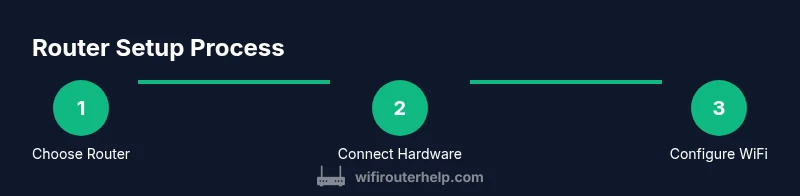
Verify service and compatibility
Confirm you have an active internet plan and identify whether you need a separate modem or if you're bridging from your current gateway. Check with your ISP which modem types and firmware versions are supported to avoid incompatibilities.
Tip: If possible, use a spare Ethernet port on the modem to test the connection before committing to a full setup. - 2
Choose the router and gather materials
Select a router with features that match your home size and device count. Gather the router, an Ethernet cable, a modem if needed, and a device to configure the settings.
Tip: Aim for a router with at least 2.4GHz and 5GHz bands and a recent WiFi standard (WiFi 5/6 or newer). - 3
Connect the hardware
Power off the modem and router. Connect the modem to the router’s WAN/Internet port with an Ethernet cable. Power on the modem first, wait for it to stabilize, then power on the router.
Tip: Ensure the Ethernet cable is firmly seated; a loose connection is a common setup pitfall. - 4
Access the router’s admin interface
On a connected device, open the router’s default IP address or app. Follow the on-screen prompts to begin the initial setup, including language selection and time zone.
Tip: Save a copy of the default login and change the admin password immediately for security. - 5
Configure WiFi and security
Set an SSID (network name) and a strong, unique passphrase. Enable WPA2 or WPA3 security. If available, enable a guest network for visitors.
Tip: Use a passphrase that is long, random, and not tied to personal information. - 6
Update firmware and enable features
Check for firmware updates and apply them. Enable automatic updates if the option exists. Consider enabling QoS, parental controls, and firewall settings as needed.
Tip: Firmware updates often include security fixes; don’t skip them. - 7
Test and document the network
Connect several devices to verify signal strength and speed. Note the SSID, password, and any custom settings for future reference.
Tip: Test speeds near different rooms to identify dead zones.
People Also Ask
Do I need a modem if I already have internet service?
In most cases, yes. A standalone router requires a modem to access the internet, unless you’re using a gateway device that combines both roles. Verify with your ISP what modem compatibility is required for your plan.
Most users will need a modem with a router to provide WiFi. Check your provider’s requirements to be sure.
Can I reuse my old modem with a new router?
If your old modem is compatible with your service and you’re not on a fiber-only plan, you can often reuse it with a new router. If the modem is outdated or unsupported, you may need an updated model.
You can usually reuse an old modem if it works with your service, but sometimes you’ll need an upgrade.
Is it cheaper to buy a separate router?
Buying a standalone router can be cost-effective and allows future upgrades without changing the modem. Prices vary by features and speed, but you can find solid options within a reasonable budget.
Often yes—separate routers offer better value over time than relying on a provider's gateway.
What is the difference between a router and a gateway?
A router creates and manages your local wireless network, while a gateway combines modem and router functions in one device. A standalone router plus a modem provides more control and potential performance gains.
A gateway does both modem and router work; a separate router gives you more control and usually better performance.
Should I use 2.4GHz or 5GHz for my devices?
2.4GHz offers longer range but slower speeds and more interference. 5GHz is faster with less interference but shorter range. Most homes benefit from both, using 2.4GHz for farther devices and 5GHz for nearby high-speed devices.
Use 2.4GHz for range, 5GHz for speed, and consider a dual-band or tri-band router.
What security features should I enable on a new router?
Enable WPA2 or WPA3, use a strong admin password, disable remote management unless needed, and consider enabling a guest network for visitors. Regular firmware updates are essential for security.
Turn on WPA2 or WPA3, set a strong admin password, and update firmware regularly.
What to Remember
- Know the difference between a router and gateway.
- Choose a router matching your home needs and internet speed.
- Secure your network with a strong password and current encryption.
- Regularly update firmware to maintain security and performance.