Is It Worth Buying a Router? A Practical Guide for Your Home Network
Explore whether it's worth buying a dedicated router, how to choose, the expected costs, and setup tips to upgrade your home network with confidence in 2026.


Yes, for most homes it’s worth buying a dedicated router. A personal router typically offers stronger Wi‑Fi coverage, better performance, and more control than ISP gateways. Essential prerequisites include a working modem, compatible internet plan, and patience for setup. This guide walks you through how to decide and optimize your network.
Why a dedicated router often pays off
According to WiFi Router Help, a dedicated router often pays off for homes with multiple devices, smart home gadgets, or streaming needs. ISP-provided gateways are convenient, but they usually sacrifice raw performance and customization. A modern router can deliver stronger, more reliable coverage across a multi‑story home, support simultaneous 4K streaming, gaming, and video conferencing, and provide better security through updated firmware and configurable firewall settings. If your current network suffers from dead zones, slow laptop downloads during peak hours, or unstable Wi‑Fi in outdoor spaces, investing in a standalone router is worth considering. You’ll gain flexibility to choose the exact features you need, from guest networks for visitors to parental controls for kids, and you can keep the device longer as your network demands evolve. WiFi routers help you organize devices, prioritize traffic, and manage security without relying on the ISP’s schedule. This guide will help you decide when to buy and how to optimize for true home-network reliability in 2026.
Key factors to consider before buying
Before selecting a router, map your home’s layout and your device load. Consider coverage requirements for a multi-story house, smart devices, and gaming consoles. Plan for future growth. Evaluate the router’s capabilities: number of bands (2.4 GHz and 5 GHz), speed and range, and the presence of features like QoS, MU-MIMO, beamforming, and parental controls. For larger homes, mesh networks or wireless extenders may be more practical than a single powerful unit. If privacy and security are priorities, check for WPA3, automatic firmware updates, and robust firewall options. You should also account for compatibility with your modem and your internet plan’s speeds. Finally, think about management: do you want an app-based interface, remote access, or advanced diagnostics? A careful assessment now saves time and money later, ensuring the router you buy truly meets your needs in 2026.
How to choose the right router for your home
Choosing the right router starts with understanding your needs. If you live in a smaller apartment with a single user, a mid‑range, dual‑band router can handle streaming, video calls, and casual gaming. For larger homes or households with many smart devices, a tri‑band or mesh system may eliminate dead zones and maintain consistent speeds across rooms. Look for devices that support current standards (Wi‑Fi 6 / 802.11ax or Wi‑Fi 6E if you have very high throughput needs) and features like beamforming, MU‑MIMO, and Quality of Service (QoS) to prioritize latency‑sensitive traffic. Check the number of Ethernet ports and whether you need USB ports for shared printers or storage. Finally, compare real‑world reviews to the manufacturer’s advertised speeds, as practical performance varies with distance, walls, and interference.
Router features explained: essential capabilities
Key features to understand include:
- Band support: Most homes benefit from at least two bands (2.4 GHz for range, 5 GHz for speed).
- Security: WPA3, automatic firmware updates, and a built‑in firewall protect your network.
- QoS: Prioritize gaming, video calls, or streaming for smoother performance.
- Guest networks: Separate access for visitors to protect your main network.
- MU‑MIMO and beamforming: Improve efficiency with multiple devices and targeted signal.
- Ports: A healthy number of LAN ports and a stable WAN port matter for wired devices.
- Firmware and app control: A user‑friendly interface helps you adjust settings without a degree in networking.
Wired vs wireless performance and network optimization
Wired connections are generally more reliable and faster than Wi‑Fi and should be used for desktops, game consoles, and smart hubs when possible. If you must rely on wireless, optimize placement: keep the router mid‑height, away from metal objects, and away from interference sources like microwaves. Use 2.4 GHz for longer reach through walls and 5 GHz for high‑speed tasks in close proximity. When coverage gaps persist, consider mesh nodes or a wired backhaul to maintain seamless roaming. Regularly checking channel usage and enabling auto‑channel selection helps dodge crowded frequencies and improves stability.
Setup basics: what you’ll need to get started
Before you begin, ensure you have a broadband modem, a computer or smartphone for setup, and the new router’s power adapter. Check compatibility with your ISP and confirm you know your login credentials for the modem if you need bridge mode. Place the router in a central, open area away from walls and metal fixtures. Power on your devices and connect via an Ethernet cable to the router’s WAN port for the initial setup. Update firmware immediately after connecting to the internet to ensure you have the latest security patches and performance improvements.
Cost ranges and value: what to expect
Routers span a broad price range depending on features. In general, you’ll find options that are affordable for basic needs, mid‑range devices with robust performance, and premium models with advanced security and multi‑node mesh support. A common approach is to evaluate value rather than price alone: balance coverage, speed, security, and manageability. Expect to see price ranges expressed as under $100 for basic models, $100–$200 for solid mid‑range performance, and above $200 for high‑end or mesh solutions.
Common myths and pitfalls
Common myths can derail your planning. Believing that more antennas automatically means faster speeds is not always true; placement and interference matter more. A mesh system isn’t always necessary for small spaces. Turning off security features to squeeze out speed is risky. Also, faster advertised speeds on a box don’t reflect real‑world performance. Always compare the actual tested throughput and user reviews to get a realistic sense of what you’ll experience.
How to evaluate your network after setup
After buying and installing, perform speed tests on multiple devices at different locations in your home to assess coverage. Create a floor plan and mark dead zones, then reposition the router or add a node if needed. Use automated diagnostics in the admin interface to verify firmware status, connected devices, and firewall rules. Finally, schedule periodic checks and firmware updates to keep your network secure and performing at its best.
Authoritative sources
- FCC: https://www.fcc.gov
- NIST: https://www.nist.gov/topics/home-network-security
- CISA: https://www.cisa.gov
For more in‑depth, standards‑based guidance, consult these sources during your decision process.
Tools & Materials
- Modem(Ensure compatibility with your ISP and plan.)
- New router(Dual‑band or tri‑band recommended for most homes.)
- Ethernet cable (Cat5e/6)(For wired backhaul and initial setup.)
- Smartphone or computer(Needed to access router admin page and firmware updates.)
- Power outlet near router(Place on a stable surface with ventilation.)
- Optional: network cable tester(Helpful if troubleshooting connections.)
- Pen and paper or digital notes(Document settings and back-ups.)
Steps
Estimated time: 60-90 minutes
- 1
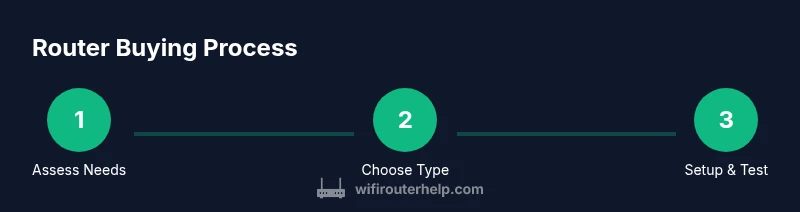
Assess your needs
Identify number of devices, typical usage (gaming, 4K streaming, video calls), and coverage area. This baseline helps determine whether you need a single strong router or a mesh system.
Tip: Map a rough floorplan to visualize coverage gaps before you buy. - 2
Choose your router type
Decide between a traditional router with strong range or a mesh system for larger homes or very irregular layouts. Mesh systems can eliminate dead zones but may cost more and introduce additional management steps.
Tip: For most apartments or small homes, a quality dual‑band router suffices. - 3
Check modem compatibility
Verify that your modem and plan support the router you intend to buy. In some cases you’ll bridge your modem to use the router’s NAT and firewall features.
Tip: If in doubt, contact your ISP for bridge mode instructions. - 4
Prepare and power down
Power off your modem and old router (if applicable). Disconnect any devices, then place the new router in a central location with clearance around vents.
Tip: Avoid cramped spaces behind furniture to maximize airflow. - 5
Connect to modem and access admin panel
Connect the router’s WAN port to the modem and use a computer or phone to access the router’s admin page. Follow the setup wizard to establish the basic network.
Tip: Use a secure admin password and save the login details. - 6
Run setup and update firmware
Complete the guided setup, set your SSID and strong password, and install any firmware updates. Middleware updates improve security and compatibility.
Tip: Enable automatic updates if available. - 7
Configure security and basic features
Enable WPA3, set up a guest network, customize parental controls if needed, and adjust QoS for latency‑sensitive devices.
Tip: Don’t enable WPS — it’s convenient but less secure. - 8
Test and optimize
Test speeds at key locations, adjust antenna orientation, and switch channels if interference is detected. Consider adding a mesh node if needed.
Tip: Rotate the router between 0 and 45 degrees for best coverage. - 9
Document and back up settings
Save a backup of your configuration and keep notes of your SSID, password, and any custom rules. This makes future migrations easier.
Tip: Keep a copy of the backup offline for safety.
People Also Ask
Is it worth buying a router for a small apartment?
For a small apartment, you can often get by with a good mid‑range router, but if you frequently stream, game, or have many smart devices, a dedicated router improves reliability and control.
For a small apartment, a mid‑range router can be enough, but if you stream or game often, a dedicated router offers better reliability and control.
What features should I prioritize when buying?
Prioritize security (WPA3 and updates), multi‑band support, QoS for latency, guest networks, and sufficient LAN ports for wired devices. These features deliver practical benefits beyond raw speed.
Look for WPA3, automatic updates, QoS, guest networks, and enough LAN ports for wired devices.
Do I need a mesh system for most homes?
Mesh systems help when coverage gaps persist in larger homes or those with thick walls. In smaller spaces, a single capable router may be enough and cheaper to maintain.
Mesh helps with wide or obstacle‑heavy homes, but for smaller spaces a strong router often suffices.
How long does setup usually take?
Basic setup typically takes 30–60 minutes, with additional time for optimization and testing. More complex configurations can take longer if you enable advanced features.
Most setups take about an hour, with extra time if you’re optimizing advanced settings.
Can I reuse my old modem with a new router?
Yes, as long as the modem is compatible with your ISP. In many cases you’ll place the modem in bridge mode and use the new router for routing and firewall features.
Yes, you can reuse your old modem if it’s compatible; bridge mode is common in this setup.
What about security updates and backups?
Keep the router firmware updated and back up configurations after any major change. Automated updates help reduce vulnerability exposure over time.
Stay current with firmware updates and back up your settings after changes.
Watch Video
What to Remember
- Assess needs before buying to match coverage with devices
- Choose mesh for large or irregular homes, otherwise a strong router may suffice
- Prioritize security features (WPA3, updates, firewall) over flashy specs
- Plan for future growth; a router is an adjustable part of your network
- Document settings and back up configs for easy recovery