Cable Router Setup Guide: Secure, Speed & Optimize
A comprehensive, step-by-step guide to set up a cable router, secure your network, and maximize home Wi‑Fi performance. Learn best practices for modem‑to‑router wiring, placement, firmware, and troubleshooting from WiFi Router Help.


You will learn how to set up a cable router from scratch, optimize Wi‑Fi performance, and troubleshoot common issues. This guide walks you through connecting the router to your modem, configuring security and guest networks, updating firmware, and verifying coverage across your home. By the end, you'll have a stable, fast home network using a cable router.
What is a cable router and why it matters
A cable router is the central hub that distributes internet from your cable modem to wired and wireless devices in your home. It combines routing and network‑address translation (NAT), firewall protection, and wireless access in one device. According to WiFi Router Help, understanding this device helps you optimize placement, security, and performance. A well‑chosen cable router supports your home’s growing device count, from smartphones to smart TVs, gaming consoles, and IoT gadgets. The WiFi Router Help team found that a router’s capabilities—especially processors, RAM, and Wi‑Fi standard—directly influence speed and reliability. In practice, you’ll see a bigger impact when you pair a capable router with a modern modem and use proper cabling. This is particularly true in homes with multiple occupants and streaming in multiple rooms, where congestion is common and small improvements multiply. By recognizing your needs—coverage, devices, and speed—you can select a model that remains effective for years.
Planning your setup: from modem to router
Before you touch a button, map your layout. Identify the position of your cable modem and consider where your cable drop lives. A cable router works best when placed centrally, elevated, and away from obstructions. WiFi Router Help analysis shows that many setups fail because the router sits behind furniture or inside cabinets, which dampens signals. Keep at least a 6–12 inch clearance around vents and ports, and avoid metal file cabinets that can shield radio waves. For wired devices, plan where to connect Ethernet cables and label them for future maintenance. In this stage, decide on your network name (SSID), the password strategy, and whether you’ll enable a guest network. A clear map reduces trial and error later and speeds up setup.
Choosing the right cable router for your home
Your choice should balance features and budget. Look for gigabit WAN/LAN ports, robust CPU/RAM, and support for current Wi‑Fi standards (Wi‑Fi 6/6E if possible). Consider beamforming, MU‑MIMO, and band steering as these improve real‑world range and speed. For many homes, a mesh isn’t required, but a solid tri‑band system can be beneficial in larger spaces. If you have smart devices, a router with strong security features and automatic firmware updates helps reduce risk. The WiFi Router Help team recommends prioritizing security features and firmware longevity over flashy marketing specs. Price ranges vary, so compare models with similar capabilities and future‑proofing.
Physical placement and cabling basics
Place your router high on a shelf or wall mount, in a central room, not flush against walls. Avoid placing it directly on the floor or behind large obstacles. When wiring, use a clean run of Ethernet from the modem to the router’s WAN port, and connect critical devices with dedicated cables where possible. For long homes, consider running a wired backbone (e.g., Ethernet to key rooms) and use the wireless mesh as needed. Keep the cables tidy with cable clips to reduce the chance of accidental unplugging. The goal is to minimize interference from microwaves, cordless phones, and Bluetooth devices by keeping distance from those sources.
Configuring your router: initial setup and admin access
Connect to the router’s admin interface via a wired computer or the default wireless network. Open the default IP address (commonly 192.168.1.1 or 192.168.0.1) in a browser and log in with the default credentials found on the label. Change the admin password immediately and enable HTTPS if available. Run the setup wizard to configure the WAN type (usually DHCP for cable ISPs) and set your SSID, password, and security mode (prefer WPA3 if supported, otherwise WPA2‑PSK). Disable remote administration unless you need it, and record the admin login details in a secure place. For devices that require static IPs, document the settings and add them to a reserved‑IP list.
Securing your network: encryption, password, and guest networks
Use at least WPA2‑PSK or WPA3‑Personal for encryption. Create a long, unique password for your main network and a weaker password for the guest network—enforce isolation so guests cannot access your devices. Turn off WPS as it can be exploited, and update the router firmware regularly to patch vulnerabilities. Change your SSID away from default names to avoid advertising your brand or model. If you use a smart home cluster, enable device isolation so security policies are consistently applied.
Enhancing performance: QoS, channel selection, firmware
Enable QoS to prioritize critical devices during peak times (e.g., video calls and gaming). In crowded bands, manually select channels or enable auto channel selection. Update firmware when prompted and consider enabling automatic updates if available to maintain security. If your router supports link aggregation or per‑SSID bandwidth controls, configure them to balance loads. The result should feel like a more reliable connection with fewer dropouts and fewer hiccups during streaming and conferencing.
Troubleshooting common issues
If the admin page is unreachable, verify that you are connected to the router and use the correct IP address. For no internet, confirm the modem is online and the WAN light is steady; power cycle both devices if needed. Slow Wi‑Fi often means interference or placement issues, so move the router higher and away from interference sources, or adjust channels. If devices disconnect intermittently, check for firmware updates, reset the router to factory settings as a last resort, and reconfigure from scratch.
Maintenance and ongoing care
Keep a small log of changes to configurations and firmware updates. Regularly back up the router’s configuration file and export it to a secure location. Schedule a quarterly review of your network: test coverage with a simple speed test in each room, verify guest network performance, and refresh passwords. Staying proactive reduces the likelihood of stale security or compatibility issues over time. If you encounter persistent issues, consider a firmware rollback or contacting support with your device’s diagnostic data.
Quick wins and next steps
Now that your cable router is set up, plan periodic audits: re‑check coverage areas, test speeds during evenings, and adjust placement as your home grows. Keep firmware up to date and review your security settings every few months. The WiFi Router Help team emphasizes ongoing maintenance as the best defense against performance dips and security gaps.
Tools & Materials
- Cable modem(Ensure it supports DOCSIS 3.0/3.1 and is powered on)
- Cable router(Model with gigabit WAN/LAN ports, 802.11ax (Wi‑Fi 6) if possible)
- Ethernet cable (Cat5e or better)(For reliable initial setup and device connection)
- Power supply(Check the router's power adapter)
- Computer or smartphone with internet access(For initial configuration)
- Optional: Network cables for wired devices(For devices you want to connect directly)
Steps
Estimated time: 60-90 minutes
- 1
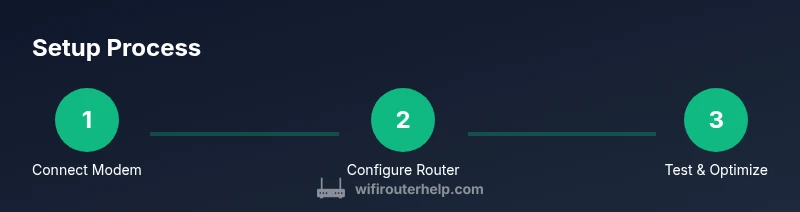
Connect the modem to the router
Power off all devices, then connect the cable from the modem to the router's WAN port. Secure the connections and ensure the modem is powered on before the router. This establishes the primary data path to your network.
Tip: Double-check that you’re using the WAN port on the router, not a LAN port. - 2
Power on and access admin interface
Connect a computer or phone to the router via Ethernet or Wi‑Fi and open the router’s admin page (commonly 192.168.1.1 or 192.168.0.1). Log in with the default credentials and change the admin password immediately. Enable HTTPS if available and make notes of credentials.
Tip: If you cannot access the page, verify the device’s IP address and try a wired connection. - 3
Run the setup wizard
Follow the on‑screen prompts to configure the WAN type (DHCP for most cable ISPs) and set your SSID, password, and security mode (prefer WPA3). Disable remote management unless required and consider creating a backup of the current configuration before changes.
Tip: If your ISP uses PPPoE, enter the provided username/password. - 4
Configure basic wireless settings
Set separate SSIDs for 2.4 GHz and 5 GHz (or enable smart multi‑band naming if offered). Use strong, unique passwords and select WPA3 if available; otherwise, WPA2‑PSK. Consider enabling wireless isolation for guests.
Tip: Use a password manager to generate and store strong passwords. - 5
Enable security features
Turn on the firewall and automatic firmware updates. Disable WPS if your router supports it. Record the router’s firmware version and check for updates periodically.
Tip: Do not disable security features for convenience. - 6
Create guest networks and parental controls
Set up a guest network with a separate password and limit access to your main devices. Enable parental controls if needed and tailor restrictions by time or device.
Tip: Always keep the main network private and protect admin credentials. - 7
Test connectivity and adjust placement
Test internet access on multiple devices and perform speed tests in key rooms. If coverage is weak, move the router to a more central location or adjust antenna orientation.
Tip: Elevate the router and avoid obstructions for better signal propagation. - 8
Document settings and back them up
Export the router’s configuration file and store it securely. Keep a note of important settings like IP reservations and port forwarding rules for quick recovery.
Tip: Store backups in a secure cloud or encrypted drive.
People Also Ask
What is a cable router and how does it differ from a standard router?
A cable router combines routing, firewall, and Wi‑Fi in one device and distributes internet from a cable modem. It can differ from standalone routers by processing power and feature sets. Understanding its role helps optimize security and performance.
A cable router handles both routing and wireless access from your cable modem, and it’s worth understanding its role for secure, stable Wi‑Fi.
Do I need a separate modem if I already have cable internet?
Yes. The cable modem provides the internet connection from your ISP, and the router distributes that connection to devices. Some devices combine both functions, but a dedicated modem usually offers better control and performance.
Yes—your modem gets the internet from the provider and the router shares it with your devices.
How should I secure my home network on a cable router?
Use WPA3 or WPA2‑PSK, create strong unique passwords, disable WPS, and keep firmware updated. Consider isolating guest networks from your main network for added security.
Secure your network with modern encryption, strong passwords, and updated firmware.
What should I do if I can't access the admin page?
Verify connections, use a wired device if possible, and confirm you’re using the correct IP address. If needed, reset the router to factory defaults and re‑enter setup credentials.
Check connections and IP address, then reset if you can’t reach the admin page.
How often should I update firmware?
Check for updates monthly or enable automatic updates. Updates fix security vulnerabilities, improve stability, and sometimes add features.
Update firmware monthly or enable automatic updates for best security and stability.
Why is my Wi‑Fi slow even with a fast internet plan?
Interference, distance, or improper channel selection commonly cause slow Wi‑Fi. Optimize placement, use the correct band, and limit competing networks.
Slow Wi‑Fi is usually caused by interference or distance; optimize placement and channels.
Watch Video
What to Remember
- Plan placement before wiring and configuration.
- Secure the network with strong passwords and updated encryption.
- Regularly update firmware to protect against vulnerabilities.
- Prefer wired connections for stationary devices when possible.