bgw210 700 Setup, Security, and Troubleshooting
Learn how to set up and optimize the bgw210 700 gateway for stable home Wi-Fi, secure your network, and fix common issues with step-by-step instructions from WiFi Router Help.


Learn how to set up, optimize, and troubleshoot your bgw210 700 gateway for reliable home Wi‑Fi. This guide covers wiring basics, logging into the admin panel, enabling bridge mode when needed, securing your network, and common fixes for slow speeds. By following clear steps, homeowners can improve coverage and reduce interruptions with WiFi Router Help guidance.
What is bgw210 700 and who needs it
The bgw210 700 is a gateway device commonly deployed by fiber‑internet providers to deliver both a modem and a router in a single box. It serves households that want a simple, integrated solution, while still offering the option to attach an external router if you need advanced features. For homeowners, understanding where the bgw210 700 fits in a home network helps set expectations about coverage, features, and security. According to WiFi Router Help, a well‑configured bgw210 700 can provide solid performance for typical households, while keeping network management straightforward. The WiFi Router Help team found that many users see improved stability after first configuring secure passwords and updating firmware. In short, the bgw210 700 is a practical starting point for most home networks, especially when you value a single device that handles both routing and Wi‑Fi.
Key takeaway: know when to keep the gateway as‑is and when to introduce your own router for advanced features.
Quick-start physical setup
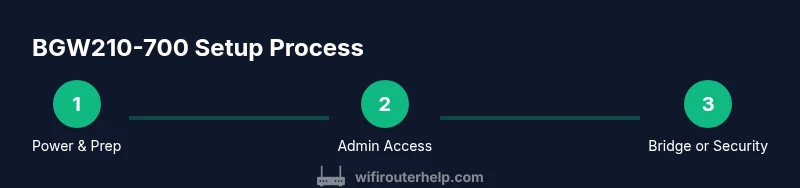
To begin, unplug the BGW210‑700 if it’s powered on, then gather your essential tools and devices. Connect the service line (coax or fiber entry) to the gateway as instructed by your provider. Attach the power supply and switch on the unit. Place the gateway in a central, open area away from thick walls or metal objects to minimize interference. After the power comes up, give the device a few minutes to initialize and LEDs will indicate status. If you’re replacing an old gateway, keep in mind you may need to call your ISP to deactivate the old device so the new BGW210‑700 can operate correctly.
Pro tip: prioritize central placement to maximize coverage, and avoid crowded electrical cords near the unit to reduce heat and interference.
Accessing the admin console safely
Most BGW210‑700 devices offer a web-based admin UI that lets you view and modify settings. Access is typically done through a local IP address in your browser; look for a label on the device or your network details if you’re unsure. Before making changes, write down your current settings and have ready the admin username and password supplied by your ISP. If you lose access, perform a factory reset as a last resort, but be aware this will erase all custom settings. When you log in, enable two‑factor authentication if the option is available and consider disabling remote management unless you explicitly need it.
Note: never leave the default admin credentials active for long; changing them improves security and reduces the risk of unauthorized changes.
Configuring Wi‑Fi and network segmentation
Enter the Wi‑Fi configuration area to customize SSIDs and passwords for the 2.4 GHz and 5 GHz bands. Use strong, unique passwords and a modern security protocol (WPA2‑PSK or WPA3 if supported). If you have multiple access points or a mesh system, consider using separate SSIDs or enabling guest networks to limit access to your main devices. For households with mixed devices, you may need to tune frequency bands to minimize interference and improve device throughput. Keep the firmware up to date so security patches and performance improvements are applied.
Tip: run a quick device‑by‑device review to ensure critical devices are connected to the strongest band with the best signal.
Bridge mode, IP passthrough, and advanced networking
If you already own a high‑performance router or a mesh system, you may want to place the BGW210‑700 in bridge mode or enable IP Passthrough to avoid double NAT and simplify routing. Enabling bridge mode typically disables the BGW210‑700’s NAT and DHCP server, letting your own router handle local IP distribution. Expect a brief service interruption while switching modes, and keep a backup plan in case you need to revert. After enabling bridge mode, verify that your own router is obtaining an IP address from the gateway and that devices connect reliably. If you’re comfortable with advanced settings, you can also configure firewall rules, port forwarding, and QoS rules from your own router for finer control.
Why this matters: bridging can improve performance when you rely on a dedicated router, while keeping the BGW210‑700 as a simple modem.
Common issues and practical fixes
Slow Wi‑Fi, dropped connections, or no internet after setup are common pain points. Start with the basics: ensure all cables are firmly connected, and power cycle the BGW210‑700 and any connected modems or switches. If Wi‑Fi is weak in certain rooms, relocate the gateway, reduce interference from microwaves or Bluetooth devices, and adjust channel settings if your device supports manual selection. For persistent problems, perform a factory reset and reconfigure from scratch, then check firmware updates. If issues continue, verify service status with your ISP and confirm that the BGW210‑700 supports the features you rely on (e.g., IP Passthrough).
Important: keep a local record of changes to troubleshoot future issues quickly.
Security best practices for bgw210 700
Security should be a core part of any home network setup. Change the default admin password and document the new credentials securely. Disable remote management unless you need it, and enable automatic firmware updates if available. Create strong, unique passwords for your Wi‑Fi networks and consider setting up a separate network for guests. Regularly review connected devices and remove any unknown clients. Keeping the gateway's firmware current reduces exposure to known vulnerabilities and helps protect your home network from common threats.
Tools & Materials
- Computer, smartphone, or tablet(Used to access the admin UI via a web browser)
- Ethernet cable (Cat5e or better)(Connect a device directly to the BGW210-700 for initial setup)
- Coaxial cable or fiber connection access (as applicable)(Only needed if replacing legacy wiring or for TV/ONT compatibility)
- Power supply for BGW210-700(Keep it handy during setup)
- Notepad or digital note-taking app(Document SSIDs, passwords, and changes)
- Admin credentials from ISP(Username and password or a temporary one provided by your provider)
- Temporary backup internet source (optional)(Helpful if you need to test failover after changes)
Steps
Estimated time: 60-90 minutes
- 1
Power down and prepare the BGW210-700
Unplug the gateway and gather required tools. Inspect the cable connections and ensure the power supply is accessible. Clear space around the device to prevent overheating and ensure airflow during setup.
Tip: Having a clean, stable workspace reduces the chance of accidental disconnections during configuration. - 2
Connect service line and power
Attach the service coax/fiber line to the BGW210-700 as directed by your provider. Plug in the power adapter and power on the device. Allow a few minutes for the unit to boot and initialize before continuing.
Tip: If LEDs indicate an error, double-check the service feed or contact your provider for activation. - 3
Access the admin UI
Using a connected device, open a browser and enter the gateway’s local management address (check the device label or your router notes). Sign in with the admin credentials provided by your ISP. If prompted, enable two‑factor authentication for extra security.
Tip: If you cannot access the UI, verify that your device is on the same network and try a different browser. - 4
Secure the admin account
Change the default admin password to a strong, unique credential. Document it securely and avoid writing it down in obvious places. Disable remote management unless you need it for remote troubleshooting.
Tip: Use a password manager to generate and store a long, random password. - 5
Configure Wi‑Fi names and passwords
Set distinct SSIDs for 2.4 GHz and 5 GHz networks and select robust security (WPA2‑PSK or WPA3 if supported). Choose long, complex passphrases and consider separate networks for guests or IoT devices to improve security.
Tip: If devices struggle, re‑scan for interference and adjust channel settings if your device offers manual control. - 6
Enable bridge mode or IP passthrough (optional)
If you plan to use your own router, enable bridge mode or IP passthrough so your secondary device handles routing. This minimizes double NAT and can improve performance for advanced setups.
Tip: Check service status after enabling; you may need a brief outage while the change propagates. - 7
Test connectivity and optimize coverage
Test wired and wireless devices, run speed checks, and walk the home to verify coverage. Adjust the router’s placement if dead zones remain; consider additional access points or a mesh system for larger spaces.
Tip: Document any dead zones and plan placement adjustments before buying new equipment. - 8
Update firmware and back up settings
Check for firmware updates and apply them if available. Save a backup of your configuration in case you need to restore settings after future changes.
Tip: Enable automatic updates if you prefer hands-off maintenance.
People Also Ask
What is the bgw210 700, and who should consider using it?
The bgw210 700 is a gateway device used to provide internet service in homes. It combines modem and router functionality and is commonly issued by fiber providers. Use it if you want an integrated device; consider your needs for more advanced features and coverage when deciding to keep or replace it with a separate router.
The bgw210 700 is a home gateway device used to deliver internet service and Wi‑Fi in one box. If you want a simple, integrated setup, it’s a good fit; for advanced features, you might pair it with your own router.
Can I use my own router with the bgw210 700?
Yes. Many users place a personal router behind the BGW210 700 in bridge mode or enable IP passthrough to let the second device handle routing. This can reduce double NAT and improve control over advanced features such as QoS and firewall rules.
Yes, you can use your own router by enabling bridge mode or IP passthrough, which helps avoid double NAT and gives you more control.
How do I reset the bgw210 700 to factory settings?
To reset, locate the reset button on the device and press it with a pointed object for about 10 seconds until the LEDs flash. This restores default settings, so you’ll need to reconfigure your network. Save current settings before reset if possible.
To reset, press and hold the reset button for about 10 seconds until the LEDs flash, then reconfigure your network.
What security steps should I take for the bgw210 700?
Secure the admin console with a strong password, disable unnecessary remote management, enable wireless encryption, and keep firmware updated. Regularly review connected devices and remove any unknown clients.
Use a strong admin password, disable remote management if not needed, enable current Wi‑Fi encryption, and update firmware regularly.
Why is my Wi‑Fi coverage poor in some rooms?
Poor coverage is often caused by distance, walls, or interference. Try repositioning the gateway, reducing interference sources, or using a mesh system or access points to fill in coverage gaps.
If coverage is poor, move the gateway, reduce interference, or add mesh devices to improve signal in those areas.
Is bridge mode always required for using my own router?
Bridge mode is not always required, but it helps avoid double NAT when using a separate router. If you don’t need advanced features, you can keep the gateway in router mode and still use a strong third‑party router behind it.
Bridge mode isn’t always required; it’s helpful to avoid double NAT, but you can use a separate router in router mode if you don’t need features like IP passthrough.
Watch Video
What to Remember
- Configure the bgw210 700 for your home size and usage
- Change default credentials and secure Wi‑Fi with strong passwords
- Bridge mode or IP passthrough can simplify advanced setups
- Test the network after changes and keep firmware up to date
- Document settings to simplify future maintenance