How to Set Up and Optimize an Asus WiFi 6 Router for Home
A practical, step-by-step guide to installing, configuring, and optimizing an asus wifi 6 router for fast, reliable home Wi‑Fi. Learn setup, optimization tips, and troubleshooting to improve coverage and security.


Goal: set up an asus wifi 6 router to deliver fast, reliable home Wi‑Fi with strong security. You’ll need a modem, an Ethernet cable, a computer or smartphone, and access to the router’s admin interface. This guide provides a clear, step-by-step path to optimize performance and coverage.
Why the asus wifi 6 router is a smart choice for modern homes
The asus wifi 6 router line offers faster speeds, better efficiency, and greater capacity for households with many devices. Features like OFDMA and MU-MIMO help keep streaming and video calls smooth even when several people are online. According to WiFi Router Help, selecting a model with solid hardware and reliable firmware translates into real-world gains in coverage and reliability. This introduction explains what makes these routers stand out and how to match them to typical home layouts, including small apartments and larger houses. By understanding the core benefits of wifi 6 (and why mesh-friendly options from Asus can matter), you’ll be better prepared to choose a model that fits your space and budget.
Prerequisites and what you’ll need
Before you start, gather the essentials and confirm your internet service is active. You’ll need a modem with a working internet connection, a Cat5e or better Ethernet cable, a computer or smartphone with a web browser, and a stable power outlet. Ensure you have admin access to both the modem and router to avoid setup roadblocks. WiFi Router Help emphasizes starting with a clean slate: temporarily disable any old network names and passwords to avoid confusion during the new setup. Having these items ready helps you stay focused and minimize rework.
Unboxing, first login, and initial setup
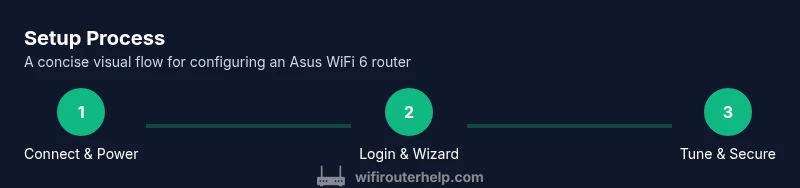
Unbox the Asus wifi 6 router, connect the power adapter, and attach the WAN/Internet port to your modem with an Ethernet cable. Use a computer or smartphone wired to the router for the initial login to improve reliability. Open a browser and navigate to 192.168.1.1 or router.asus.com to access the setup wizard. The default credentials are typically found in the manual or on a sticker on the device. Follow the on-screen steps to create a strong admin password, choose a unique network name for 2.4 GHz and 5 GHz, and proceed to the Quick Internet Setup (AiWizard) to import or adjust your internet settings.
Basic wireless settings: SSIDs, security, and passwords
Create two distinct networks: 2.4 GHz and 5 GHz, each with its own SSID to simplify device choices. Enable WPA3 if available, or at minimum WPA2‑PSK with a strong passphrase. Avoid WPS and keep the router’s firewall enabled to protect devices. For guests, enable a separate guest network with restricted access to your main devices. This basic setup lays a secure foundation before you dive into performance enhancements.
Channel planning and performance improvements
Turn on automatic channel selection, but check for interference from neighbors or appliances like microwaves. On compatible devices, you can use a 160 MHz channel width on the 5 GHz band for higher throughput if your internet plan supports it and your devices handle it. Enable band steering to encourage devices to migrate to the best band automatically. If you have a multi-router layout, consider a wired backhaul or AiMesh node to maintain strong roaming and minimize dead spots. The goal is stable speeds with seamless coverage across rooms.
Advanced features: AiProtection, AiMesh, USB sharing, and VPN
AiProtection adds built-in network security, including threat detection and vulnerability checks. If you have a larger home or a multi-story layout, AiMesh lets you expand coverage by adding compatible Asus nodes or routers. A USB drive can be shared across the network for media or backups, and you can enable a VPN server or client to secure remote access. Always monitor device firmware and security settings to ensure your protection remains current. This section helps you leverage Asus’s ecosystem for a safer, more flexible network.
Troubleshooting common issues
If a device cannot connect, verify cables, reboot devices, and re-enter the correct Wi‑Fi password. If speeds seem slow, check channel width, confirm the 5 GHz network is being used when appropriate, and scan for interference. If the router reboots or the admin page becomes inaccessible, perform a soft reset and re-check your settings. Keeping a record of your network names, passwords, and firmware version can speed up future fixes and tuning.
Maintenance and firmware updates best practices
Regular firmware updates improve performance and close security gaps. Check for updates through the Asus interface, and back up your settings before applying new firmware. Schedule updates during low-usage periods to minimize disruption. After updates, verify that your SSIDs and passwords remain the same or adjust as needed, then re-run basic speed tests to confirm no regressions.
Real-world setups: small apartment, multi-story home, or office garage
In a small apartment, place the router near the center of the living area to maximize coverage. In multi-story homes, a dedicated hallway location or an AiMesh node can greatly improve roaming. For garages or remote workspaces, use a combination of 5 GHz for speed and 2.4 GHz for range, plus a wired backhaul or powerline adapter if needed. WiFi Router Help’s field testing shows that placement and network design have a bigger impact on real-world performance than raw theoretical speeds.
Tools & Materials
- Ethernet cable (Cat5e or better)(One end to modem, other to router WAN port)
- Computer or smartphone with a web browser(Used to access router admin page)
- Stable power outlet and router power adapter(Keep the router powered during setup)
- Modem with active internet service(Essential for online configuration)
- Optional USB drive(For network shares or backups)
- Router manual (printed or digital)(Helpful for default addresses and features)
Steps
Estimated time: 45-75 minutes
- 1
Connect router to modem and power
Plug the Ethernet cable from the modem to the router's WAN port, then power up the router. Wait for the status LEDs to stabilize. This creates the basic home network backbone.
Tip: Use a wired connection during setup to avoid wireless hiccups. - 2
Access the router admin page
On a connected computer, open a browser and navigate to 192.168.1.1 or router.asus.com. Enter the default credentials from the manual or device sticker to log in. This grants access to the setup wizard and configuration panels.
Tip: If the page doesn’t load, reset the router briefly and retry with a wired device. - 3
Run the Quick Internet Setup (AiWizard)
Follow the on-screen wizard to configure the WAN connection type and internet settings. This step aligns your modem with the router’s configuration and saves time by applying recommended defaults.
Tip: If your ISP uses PPPoE or a static IP, have those details on hand before starting. - 4
Set admin password and primary SSID
Create a strong admin password and label your 2.4 GHz and 5 GHz networks with unique names. This prevents casual access and minimizes confusion among devices.
Tip: Use a passphrase that’s long and unique, not a simple password. - 5
Configure wireless security and guest network
Enable WPA3 if available, otherwise WPA2‑PSK with a robust passphrase. Set up a separate guest network to keep visitors off your main devices. Disable WPS for added security.
Tip: Choose different passwords for your main and guest networks to limit cross-access. - 6
Tune performance features
Optimize settings like channel selection, channel width, and band steering. Enable QoS if you have latency-sensitive devices (e.g., video calls or gaming). Consider a wired backhaul or AiMesh node for larger homes.
Tip: Test a few channel configurations during peak usage hours to identify the best setup. - 7
Enable security features and update firmware
Turn on AiProtection or other built-in security features, and check for firmware updates. Back up your configuration after changes to simplify future maintenance.
Tip: Enable automatic firmware updates if available to simplify ongoing maintenance. - 8
Verify performance and finalize
Run a quick speed test on both 2.4 GHz and 5 GHz bands from multiple rooms. Observe roaming, stability, and coverage. Fine-tune placement or add an AiMesh node if needed.
Tip: Document, in writing, the final SSIDs and password for household members.
People Also Ask
What is the best place to put my Asus wifi 6 router for maximum coverage?
Aim for a central, elevated position in your home, away from thick walls and metal objects. This reduces dead zones and improves roaming between bands.
Place the router in a central, elevated spot for best coverage.
Do I need AiProtection or AiMesh when setting up my router?
AiProtection adds security features, while AiMesh extends coverage with compatible Asus devices. Use AiMesh if you have multiple areas with weak signals.
AiProtection protects your network; AiMesh helps cover larger spaces.
Should I enable a guest network?
Yes. A guest network isolates visitors from your main devices, helping protect sensitive data.
Yes, enable a guest network for visitors.
How often should firmware be updated on an Asus router?
Check for updates monthly or when security advisories are posted, and apply important fixes promptly.
Keep firmware updated regularly to stay secure.
Can I use band steering with Asus routers?
Yes. Band steering helps devices connect to the optimal 2.4 GHz or 5 GHz network automatically for better performance.
Band steering guides devices to the best band.
Is AiMesh worth it for a small apartment?
In small spaces, a single robust router may suffice; AiMesh becomes more beneficial in larger homes with multiple weak spots.
AiMesh helps larger spaces, less needed in tight apartments.
Watch Video
What to Remember
- Set up with a wired connection first
- Use distinct SSIDs for 2.4 GHz and 5 GHz
- Enable WPA3 and a strong admin password
- Update firmware after setup
- Test coverage and tweak channels