Asus RT-AC66U B1 Setup and Optimization Guide
Learn to set up, secure, and optimize the Asus RT-AC66U B1 router with clear, step-by-step instructions. Find tips for placement, firmware updates, and advanced features for a reliable home network.


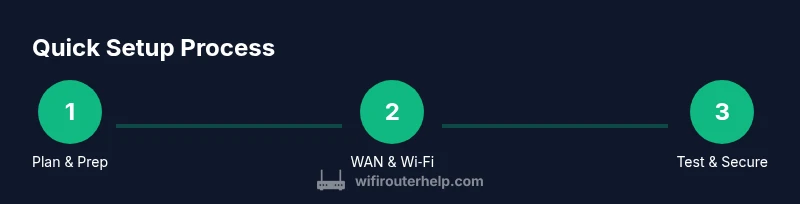
By following this guide, you will set up your Asus RT-AC66U B1 router, secure it, and optimize coverage across your home. You'll be able to access the admin panel, configure WAN and wireless settings, create a guest network, and enable essential protections. This step-by-step approach helps homeowners and tech enthusiasts achieve stable, fast, and safe home Wi‑Fi.
Understanding the Asus RT-AC66U B1 and what it brings to your home network
The Asus RT-AC66U B1 is a reliable dual‑band router designed to deliver flexible home networking for households with multiple devices. It supports modern wireless standards, offers several security options, and provides a robust feature set for everyday use, including guest networking, QoS for prioritizing traffic, and a user-friendly admin interface. While the model name is long, the core idea is simple: you get a central hub to connect devices, stream media, and support smart home gadgets. For many homeowners, this router offers a practical balance of performance and control, especially when you want a straightforward setup with solid coverage across common living spaces. This page covers setup, optimization, and troubleshooting so you can get the most out of your Asus router.
Before you start: what you need and what to check
Before touching any cables or the admin interface, gather essential items and verify your environment. You’ll want a powered modem, a computer or mobile device to access the router’s settings, and a clear route for the router to sit centrally in your home. If you’re new to home networking, this is a good moment to map your space: identify dead zones and note where devices like TVs, gaming consoles, and smart speakers reside. According to WiFi Router Help, planning placement and ensuring stable power are common success factors for smooth enough coverage. The goal is to minimize obstacles and maximize signal reach without creating interference from nearby electronics. As you prepare, verify you have a reliable internet connection for the initial setup and firmware checks.
Accessing the admin interface and first login
To begin, connect your computer to the router with an Ethernet cable or join the router’s default wireless network. Open a web browser and enter the typical login addresses, such as http://192.168.1.1 or http://router.asus.com. The default credentials are often a blank username with a password of admin or admin, depending on the firmware revision. If you can’t reach the page, ensure your device is on the same network and try clearing the browser cache. Once logged in, you’ll encounter the Quick Setup wizard or a guided setup path. This is your starting point for WAN, wireless settings, and basic security.
Wiring and WAN configuration: establishing your internet connection
WAN configuration connects your router to the internet provided by your modem or ISP. You’ll typically choose DHCP for most residential services, but some ISPs require PPPoE or a static IP. In this step, verify your connection type with your ISP’s documentation or support. Enter the credentials if PPPoE is required, or leave DHCP if your modem handles the external address. Save changes and reboot if needed. A stable WAN connection is foundational; without it, all wireless devices will lose internet access.
Configuring wireless networks: 2.4 GHz and 5 GHz settings
Most households benefit from two wireless bands. Start by enabling both, and give each a distinct SSID so you can differentiate devices. Use WPA2‑AES or WPA3 if supported by your devices for stronger security. Create robust passwords that are easy to remember but hard to guess. For compatibility, keep the 2.4 GHz band with a longer range and allow the 5 GHz band to handle higher speeds and less interference. If your environment experiences congestion, experiment with different channel selections or enable Auto Channel to let the router pick the best option.
Security essentials: admin password, encryption, and firmware
Security starts with the admin account. Change the default admin password to a strong, unique password and disable remote admin access if you don’t need it. Enable WPA2‑AES or WPA3 on both bands and disable WPS if possible, as WPS can introduce vulnerabilities. Regular firmware updates are essential to patch known weaknesses and improve performance. Set updates to occur automatically when available, or periodically check the ASUS support site for new versions.
Advanced features you can enable: guests, QoS, parental controls, and VPN passthrough
The Asus RT‑AC66U B1 offers features that enhance family use and protect networks. Create a guest network to separate visitors from your main devices, and set bandwidth limits or time restrictions if needed. QoS helps prioritize critical activities such as video calls or gaming, ensuring smoother performance during peak times. Parental controls provide content filtering and screen-time management. If you need remote access for work or travel, enable VPN passthrough as supported by the firmware. These capabilities can be adjusted as you learn the rhythm of your home network.
Firmware updates and automatic maintenance
Keeping firmware up to date is one of the simplest ways to maintain security and performance. Enable automatic updates if you prefer hands-off maintenance, or set a monthly reminder to check the ASUS support site for new releases. Firmware updates may introduce new features or security enhancements; always back up your configuration before applying major updates to avoid losing custom settings. This proactive approach reduces the chance of vulnerabilities and compatibility issues with new devices.
Troubleshooting common issues and how to recover
Even well-set networks encounter hiccups. If a device loses connectivity, try rebooting the router and the modem, test with a wired connection to isolate issues, and check for IP conflicts in the LAN. If wireless devices can’t connect, verify the SSID and password, and ensure the correct band is selected. A factory reset is a last resort if problems persist, but this will erase all customized settings. Keeping a saved backup of your configuration can save time during recovery and keeps your network stable.
Case studies: real-world scenarios and results
Homeowners frequently see noticeable improvements when they position the router centrally, avoid metal obstructions, and use a dedicated guest network for visitors. In smaller apartments, dual‑band performance often yields strong coverage with modest hardware. In larger homes, placing the router strategically and leveraging QoS for gaming or streaming can significantly improve reliability. Each space has unique constraints, so tailor the setup to align with your devices, walls, and lifestyle. The goal is consistent coverage, ease of use, and security that scales with your household needs.
Tools & Materials
- Ethernet cable (Cat5e or better)(To connect the modem to the router and for wired clients)
- Computer or mobile device(For admin login and configuration)
- Stable internet connection(During initial WAN config and firmware checks)
- Latest firmware file (optional)(Can be downloaded from ASUS support site; not required if router can auto-update)
- ASUS Router App (optional)(Alternative setup path via mobile app)
Steps
Estimated time: 30-60 minutes
- 1
Power on and reset to defaults
Ensure the router is unplugged, then press and hold the reset button for 10 seconds to restore factory settings. This creates a clean starting point and avoids legacy conflicts.
Tip: If you suspect prior misconfigurations, a reset is recommended before any new setup. - 2
Connect the modem to the WAN port
Use an Ethernet cable to connect your modem to the router’s WAN port. Power on the modem first, then the router, and wait for the status lights to stabilize.
Tip: A stable WAN link is essential for reliable internet access. - 3
Access the admin interface
Open a browser and navigate to http://192.168.1.1 or http://router.asus.com. Log in with the default credentials or as prompted, and start the Quick Setup wizard.
Tip: If the page doesn’t load, ensure you’re connected to the router’s network and clear your browser cache. - 4
Run the Quick Setup wizard
Follow the on-screen steps to configure WAN, admin access, and basic wireless settings. This provides a solid baseline configuration.
Tip: Keep a note of your admin password after setup. - 5
Set a strong admin password
Change the default admin password to a unique, long password. Disable remote admin if you don’t need it for external access.
Tip: Use a passphrase or a password manager to manage complex credentials. - 6
Configure WAN and wireless settings
Select the appropriate WAN type (DHCP, PPPoE, or static IP) and configure two wireless networks with distinct SSIDs and strong encryption.
Tip: Enable WPA2‑AES or WPA3 if supported by devices for best security. - 7
Enable security features and update firmware
Set automatic firmware updates, review firewall settings, and disable WPS if possible. Apply updates to patch security issues.
Tip: Back up your current configuration before applying major firmware updates. - 8
Configure guest network and QoS
Create a separate guest network to isolate visitors, and set QoS rules for critical devices like work computers or gaming consoles.
Tip: Limit guest network bandwidth to protect your main network performance. - 9
Test and finalize
Test wired and wireless devices across rooms, check signal strength, and adjust channel settings if interference is detected.
Tip: Document your network layout so future changes are easier.
People Also Ask
How do I reset the Asus RT-AC66U B1 to factory settings?
To reset, hold the reset button for 10 seconds with the router powered on. This restores the default settings and clears custom configurations. After reset, run the Quick Setup wizard again to reconfigure your network.
Reset the router by holding the reset button for ten seconds while it’s powered on. Then re-run the setup to reconfigure your network.
Where should I place the router for best coverage?
Place the router in a central, elevated location away from thick walls and large metal appliances. Avoid closets and basements, and keep it away from other electronics that can cause interference.
Put the router in a central, elevated spot away from large metal objects and other electronics to maximize coverage.
How do I enable a guest network on the RT-AC66U B1?
In the admin interface, navigate to Wireless settings, then enable a separate guest network with its own password and optional bandwidth limits. This keeps your main devices isolated from visitors.
Enable a separate guest network in the Wireless settings, give it its own password, and set limits if needed.
Can I use the ASUS Router App to set up the router?
Yes. The ASUS Router App provides a mobile-friendly setup path and remote management features. It’s a convenient alternative to the web interface, useful for ongoing tweaks and monitoring.
The ASUS Router App offers a simple setup and easy ongoing management from your phone.
How often should I update firmware?
Check for firmware updates regularly and enable automatic updates if you prefer hands-off maintenance. Updates typically include security patches and feature improvements.
Check for updates regularly or enable automatic updates to keep the router secure and current.
I don’t see an IP address on the WAN side after setup. What should I do?
Verify the WAN connection type with your ISP, recheck the cable to the modem, and reboot both devices. If needed, contact your ISP for the correct authentication method or IP configuration.
Restart your modem and router, confirm the WAN type, and contact your ISP if the IP address isn’t assigned.
Watch Video
What to Remember
- Secure the admin interface with a strong password.
- Separate guest network to protect main devices.
- Keep firmware up to date for security and stability.
- Position the router to maximize coverage and minimize interference.
- Use QoS to prioritize critical devices and activities.