Asus Router App: Complete Setup, Management, and Security Guide
Master the Asus Router App for a smoother home network. This educational guide covers setup, daily management, firmware updates, parental controls, and troubleshooting with practical steps and tips from WiFi Router Help.


You will learn how to use the Asus Router App to set up your router, manage network settings, and enhance security. You’ll need a smartphone with the Asus Router app installed, an Asus router, and a stable internet connection. This guide walks you through installation, daily management, and common troubleshooting steps.
What is the Asus Router App and why it matters
The Asus Router App is a mobile interface that consolidates setup, monitoring, and control of compatible Asus routers. It lets you configure Wi‑Fi networks, manage connected devices, and adjust security features without needing a desktop browser. For homeowners, this means faster setup, easier ongoing tweaks, and better visibility into who’s on your network. According to WiFi Router Help, the app helps simplify common tasks like enabling guest networks, adjusting QoS, and applying firmware updates in one place. If you value a straightforward, on‑the‑go workflow, the Asus Router App can be a practical central hub for your home network. Use it to view device lists, pause or limit bandwidth for kids’ devices, and quickly access parental controls when needed. Keep in mind that some advanced options may still require the router’s web interface for full configuration.
Prerequisites and account setup
Before you dive into the Asus Router App, gather a few essentials. You’ll need a smartphone with iOS or Android, a stable internet connection, and a router that supports the Asus Router App. Install the app from your device’s app store and sign in with or create an Asus account. If you already own an Asus router, having the account linked to your device makes cloud features and remote management possible. Ensure your phone is charged and has permission to install apps and access location services for optimal device discovery. If you use a guest network, take a moment to plan its name (SSID) and a strong password before you start. Finally, if you manage multiple networks (e.g., a home office subnet), map out which SSID belongs to which network segment to avoid confusion later.
The core features of the Asus Router app
The Asus Router App focuses on practical, everyday control rather than overwhelming complexity. You’ll typically find a home dashboard showing connected devices, real‑time status, and signal strength. Key features commonly used by homeowners include configuring the main Wi‑Fi name (SSID) and password, enabling a guest network, and applying basic parental controls. The app often supports firmware update checks, device prioritization (QoS), and simple troubleshooting helpers. Some versions offer cloud connectivity for remote access, device management, and quick diagnostics. For many households, the app’s most valuable capabilities are quick network changes, device visibility, and guided setup wizards. As you explore, note how the app surfaces security options such as firewall settings and uptime monitoring.
How to install the app and connect your router
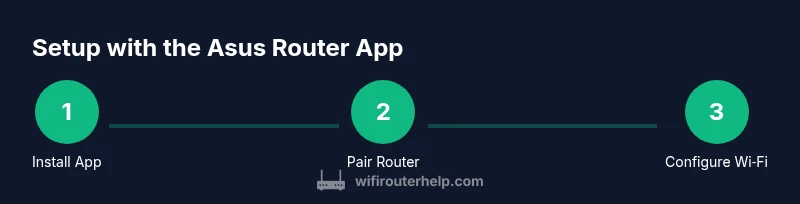
To install the Asus Router App, open your device’s app store and download the official version. Launch the app and sign in with your Asus account, or create one if you don’t already have one. Power up your router and ensure it’s broadcasting a Wi‑Fi signal. In the app, select Add a Device or Scan for Router to begin pairing. Follow on‑screen prompts to connect to the router’s network, confirm prompts about your home network name and password, and allow the app to access required permissions (location and notifications). If you encounter pairing issues, try ensuring your phone is on the same Wi‑Fi band as the router and temporarily disable VPNs or firewall apps during setup. Visual hints are often available in the app’s help section to guide you through the process.
Step-by-step: initial router setup using the app
- Install the app and sign in. 2) Tap Add Device and let the app detect your router. 3) Confirm the detected router and connect to its setup interface. 4) Create or confirm your primary Wi‑Fi name and password. 5) Apply security defaults and enable automatic firmware updates if available. 6) Run through the guided setup to configure guest networks and QoS preferences. 7) Save settings and test connectivity from a mobile device. 8) Review connected devices to ensure unfamiliar devices are blocked or flagged. 9) Document the final settings for future reference. 10) Exit setup and monitor the dashboard for stability reminders.
Operating the app: day-to-day network management
The Asus Router App’s dashboard typically shows your main Wi‑Fi status, connected devices, and signal quality. Regular tasks include checking which devices are online, pausing internet access for specific devices, and adjusting the guest network. Use the device list to identify bandwidth hogs and apply QoS rules to prioritize streaming or work‑from‑home applications. The app may offer one‑tap security tests and a quick scan for unusual traffic. If you enable cloud features, you can review remote access settings and manage alerts. For ongoing reliability, schedule periodic checks to confirm firmware is up to date and to reassess parental controls as your household changes. Remember to log out when using a public device to protect your network.
Security, updates, and parental controls
Security should be a constant focus when using any router app. Ensure the Asus Router App is updated to the latest version to receive security patches and new features. Enable automatic firmware updates if your router supports them, and review firewall rules and port settings to minimize exposure. Parental controls are often best used to set browsing time limits, block inappropriate sites, and manage access windows for kids’ devices. The app can help you schedule downtime or use time limits during school hours. Regularly export or log your configuration so you have a baseline to restore if something changes unexpectedly. If you’re concerned about privacy, review what data the app shares with cloud services and disable features you don’t need.
Advanced networking options for power users
Advanced users may explore VLANs, VPN passthrough, and custom port forwarding through the app or associated web interface. For those who need more granular control, plan to mirror the router’s settings in the app with careful documentation. If you enable remote management, ensure you configure strong authentication and consider limiting access to specific IP addresses. Some Asus routers support dual WAN or mesh configurations; the app often provides quick toggles to manage these features without navigating complex menus. Use the app’s diagnostic tools to test latency and jitter between your devices and the gateway. Be mindful that advanced options can impact network stability if misconfigured, so proceed with caution and back up the current configuration before making changes.
Troubleshooting common app issues
Users commonly run into pairing failures, missing device detections, or delayed updates. Start by restarting the app and router, then reattempt the pairing flow. If devices aren’t showing up, verify the router is broadcasting and that your phone is on the same network. Clear the app cache or reinstall the app if performance lags persist. For update problems, ensure your internet connection is stable and that the router’s clock is synchronized. If you encounter persistent connectivity issues, consult the app’s built‑in diagnostics and consider performing a reset of the router if advised by official guidance. Always back up your current settings before major changes.
Best practices for maintenance and reliability
Establish a regular maintenance routine that includes checking for firmware updates, reviewing device lists, and testing guest networks. Use strong, unique passwords for both the home network and the Asus account. Schedule periodic security reviews and reassess QoS rules after adding new devices. Keep the app updated and maintain a clean device inventory to spot unfamiliar devices quickly. Documentation of network settings, including SSIDs and passwords, helps you recover quickly after a reset. Finally, perform occasional speed tests to verify that the network is delivering the performance you expect and adjust priorities as needed.
Tools & Materials
- Smartphone with iOS or Android(Ensure OS is up to date and supports the Asus Router App)
- Asus router (compatibility with app guaranteed)(Any Asus router model that supports the Asus Router App)
- Stable internet connection(Needed for initial setup and firmware updates)
- Asus account (login credentials)(Helps with cloud features and remote management)
- Phone charger or power bank(Keep the device powered during lengthy setup)
Steps
Estimated time: 45-75 minutes
- 1
Install the Asus Router App
Download the official Asus Router App from your device's app store and install it. Open the app and prepare to sign in or create an Asus account to access features and cloud options.
Tip: Use a stable connection during install to avoid partial downloads. - 2
Sign in and add your router
Sign in with your Asus account and tap Add Device. Let the app scan for your router or enter the router’s IP if it doesn’t appear automatically. Confirm the detected device to start pairing.
Tip: If the router isn’t detected, temporarily disable VPNs and verify Bluetooth/Location permissions. - 3
Connect to the router’s network
Join the router’s default network on your phone if prompted, then follow the on-screen prompts to connect the app to the router’s setup interface. This step establishes a secure control channel.
Tip: Connect to the router’s 2.4 GHz band during setup for better range and reliability. - 4
Configure basic Wi‑Fi settings
Create your primary SSID and a strong password. Enable WPA3 if available and set a separate guest network with a distinct password to keep guests off your main network.
Tip: Use a password manager to store your Wi‑Fi credentials securely. - 5
Enable automatic updates
Turn on automatic firmware updates if the option exists. This keeps your router protected with the latest security patches and improvements.
Tip: Check update notes to understand any feature changes before applying. - 6
Set up parental controls
Configure time limits, site filtering, and schedules for devices used by children. Test the controls to ensure they apply correctly across devices.
Tip: Create a separate admin profile to manage restrictions without affecting regular users. - 7
Configure QoS and guest access
Prioritize critical devices or services (work/video calls, gaming). Confirm guest network isolation so visitors cannot access your main devices.
Tip: Test streaming or videoconferencing after applying QoS to verify impact. - 8
Review device visibility
Check the connected devices list for unfamiliar devices. Block or quarantine suspicious devices and set up alerts for new connections.
Tip: Label known devices for quick recognition in the future. - 9
Test connectivity and save settings
Run a quick speed test from a wired and wireless device. Ensure all changes save correctly and the network remains stable.
Tip: Document the final configuration for future reference. - 10
Close the setup and monitor
Exit the setup flow and monitor the dashboard. Revisit settings weekly or after adding new devices to ensure everything stays aligned with your goals.
Tip: Schedule a quarterly review to refresh passwords and review security rules.
People Also Ask
What devices does the Asus Router App support?
The app supports most modern Android and iOS devices capable of running the latest app version. Availability of features may vary by router model and firmware version. Always check the latest app notes for compatibility.
The Asus Router App works with most current Android and iOS phones; some features depend on your router model and firmware.
Do I need an Asus account to use the app?
An Asus account is recommended to access cloud features and remote management. You can still configure local network settings without signing in, but cloud features will be unavailable.
An Asus account lets you access cloud features and remote management from the app.
Can I manage guest networks and parental controls from the app?
Yes. The app typically allows you to set up a guest network, apply password protection, and configure parental controls with time limits and site filtering. For advanced rules, you may need the router’s web interface.
You can usually manage guest networks and parental controls in the app, with more advanced options in the web interface if needed.
How do I update firmware via the app?
Look for a firmware update option in the app's settings or dashboard. If available, apply the update and allow the router to reboot. Back up current settings before updating.
Use the app to check for and install firmware updates, backing up settings first.
Is my data secure when using the Asus Router App?
Security depends on the app version and router firmware. Always enable strong passwords, review cloud permissions, and limit remote access to trusted networks. Consider disabling features you don’t use.
Security is good when you use strong passwords, review permissions, and limit remote access.
Watch Video
What to Remember
- Set up the Asus Router App with a strong admin password
- Configure your primary and guest networks securely
- Enable automatic updates to stay protected
- Utilize QoS and parental controls for reliable performance
- Regularly review connected devices and security settings