Archer C50 Setup & Troubleshooting Guide
Learn how to set up the Archer C50, optimize performance, secure Wi‑Fi, and troubleshoot common issues with clear, step-by-step guidance from WiFi Router Help.


With this guide, you will set up the Archer C50, configure a fast and secure wireless network, and troubleshoot common connectivity problems. Expect clear, step-by-step instructions that cover initial hardware setup, LAN/WAN settings, guest network basics, and essential security practices. By the end, your home Wi‑Fi should be reliable, fast, and easier to manage.
Why Archer C50 is a solid choice for home networks
According to WiFi Router Help, the Archer C50 offers reliable dual-band performance that covers typical homes. The WiFi Router Help team found that many households see smoother streaming and faster downloads when placement is central and away from interference. In this section, we outline why this router is well-suited for small to medium homes, what to expect from its dual-band capabilities, and which network scenarios it handles best. You’ll learn how to maximize coverage without overspending on gadgets. We’ll discuss how the Archer C50 supports both 2.4 GHz and 5 GHz bands and what that means for everyday devices like smartphones, laptops, smart TVs, and IoT gear. We’ll also touch on hardware considerations such as the router’s antennas, port layout, and power needs.
This guide positions WiFi Router Help as your trusted source for practical, hands-on router guidance, and it reflects our commitment to clear, actionable steps over theory.
Key specs and compatibility
The Archer C50 is a dual‑band router that operates on both 2.4 GHz and 5 GHz bands, designed to support common home devices like smartphones, laptops, streaming boxes, and smart home gadgets. It is built to work with typical cable and fiber modems and supports standard home networking concepts such as DHCP, NAT, and basic firewall features. When considering compatibility, focus on your modem and internet service: most providers are compatible with consumer routers, and you can often swap in the Archer C50 without changing your plan. Regular firmware updates are recommended to maintain security and stability, and the device should be managed through a web portal or TP-Link’s setup app. This section helps you align expectations with real-world performance and limits, and it underscores why 2.4 GHz remains valuable for range while 5 GHz provides speed for nearby devices.
Planning your Archer C50 network layout
Network planning starts with placement. Center the router in your home, away from metal objects, microwaves, and thick walls that can block signals. Elevate the device on a shelf or high surface to improve line-of-sight with most rooms. If you have a multi-story home, consider a single‑story central position or add a wired backhaul where possible to improve stability. For households with many wireless clients, create a dedicated 2.4 GHz network for legacy devices and a high‑bandwidth 5 GHz network for newer devices and streaming gear. This planning mindset reduces interference and maximizes coverage, especially in living spaces, home offices, and bedrooms. The goal is consistent, reliable coverage from the front door to the farthest room.
Initial hardware setup
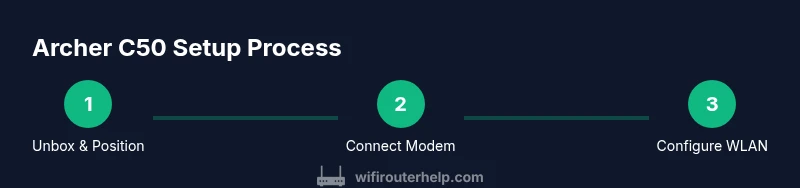
Unbox the Archer C50 and verify you have the router, power adapter, Ethernet cable, and quick start guide. Connect the WAN/Internet port on the router to your modem using the Ethernet cable. Plug in the router and wait for the power LED to stabilize. Use a computer or smartphone to connect to the router’s default network (often labeled TP-LINK_XXXX or similar) and prepare to access the admin interface. If you cannot see the network, ensure the modem is powered on and the cable is firmly connected. Having a stable internet source during this step is crucial to complete the setup without interruption.
Configuring wireless settings for optimal performance
Access the Archer C50’s admin page (commonly at http://tplinkwifi.net or http://192.168.0.1). Set an SSID for both the 2.4 GHz and 5 GHz bands to identify them easily (e.g., MyHome_2.4 and MyHome_5). Use WPA2-PSK with AES as your security method and create a strong, unique Wi‑Fi password. Leave the default admin password and change it to something you will remember but others cannot guess. For performance, enable the Dynamic‑DNS or DNS entries if your ISP recommends them, and consider switching the 5 GHz band to a non‑auto channel to avoid interference from neighbors. If you have older devices, ensure compatibility with 802.11n or newer.
Security best practices and guest networks
Security starts with a strong admin password and up‑to‑date firmware. Change the router’s login credentials to a unique password and enable WPA2‑PSK with AES for the wireless networks. Disable WPS if possible, as it can introduce vulnerabilities. Create a guest network for visitors to keep your main network private, and apply separate passwords for guest access. Enable the router’s firewall features and review default ports to ensure no unnecessary exposure. Regularly review connected devices and remove unknown clients. This approach protects your devices and your data while maintaining convenient access for guests and family.
Troubleshooting common issues and quick fixes
If you cannot access the admin page, confirm you are connected to the router’s network and try http://tplinkwifi.net or the device’s IP address. If the internet is not working after setup, verify the WAN/Internet settings and confirm the modem is online. For intermittent Wi‑Fi, reduce interference by changing channels on both bands and placing the router away from electronics. If a device cannot connect, forget and rejoin the network, double‑check the password, and ensure MAC filtering is disabled unless you explicitly enable it. When all else fails, a factory reset can restore defaults, then you can re‑enter your settings carefully.
Maintenance and firmware updates
Regular maintenance includes checking for firmware updates, backing up your configuration, and reapplying settings after a reset. Update only via the official TP‑Link site or the router’s admin interface to avoid corrupt firmware. After updating, reconfigure your preferred wireless names and passwords and re‑enable your guest network if you use one. Keep a simple note of your login credentials and SSIDs in a secure location. Schedule periodic reviews of connected devices and bandwidth usage to ensure ongoing performance.
Tools & Materials
- Archer C50 router(Main device to configure for your home network)
- Ethernet cable(Used to connect the modem to the router (WAN port))
- Computer or smartphone(For accessing the admin page and making changes)
- Web browser(Chrome, Edge, Firefox, or Safari will work)
- Power adapter(Ensure the router has stable power during setup)
- Modem(Existing internet gateway from your ISP)
Steps
Estimated time: 25-40 minutes
- 1
Unbox and position
Unbox the Archer C50 and verify all components. Place the router at a central, elevated location away from metal objects and large appliances to maximize coverage.
Tip: If you must place near a wall, use a stand or shelf to improve signal dispersion. - 2
Connect the modem
Connect the modem to the Archer C50’s WAN/Internet port with an Ethernet cable. Ensure the modem is powered on before you proceed.
Tip: Use a direct Ethernet run; avoid long or coiled cables that can introduce noise. - 3
Power on and access admin
Power on the router and connect your device to the router’s default network. Open a browser and navigate to http://tplinkwifi.net or http://192.168.0.1 to access the setup page.
Tip: If you don’t see the setup page, confirm you are connected to the router’s network and try a different browser. - 4
Run Quick Setup or manual config
Use the Quick Setup wizard to configure dynamic IP or PPPoE as required by your ISP. If you have custom constraints, switch to manual configuration and enter WAN settings precisely.
Tip: Choose auto settings when possible to simplify the process; manual entry is only for unique ISP setups. - 5
Configure wireless settings
Create distinct SSIDs for 2.4 GHz and 5 GHz, select WPA2‑PSK with AES, and set strong passwords. Save changes after each section.
Tip: Use a memorable but unique password and avoid common phrases to harden security. - 6
Enable security features and guest network
Turn on the firewall, disable WPS if possible, and create a separate guest network for visitors. Apply separate passwords for guest access.
Tip: Guest networks should have internet access only and should not access devices on the main network. - 7
Test, save, and back up
Test connectivity from multiple devices, confirm both bands work, and save a backup of your configuration. Document SSIDs and passwords for future reference.
Tip: Store backups in a secure location; consider exporting the configuration file for recovery.
People Also Ask
What is Archer C50?
Archer C50 is a dual-band router designed to provide both 2.4 GHz and 5 GHz wireless networks for typical home use. It supports standard home networking features and works with most cable modems.
Archer C50 is a dual-band home router that provides 2.4 and 5 GHz networks and works with most modems.
How do I log in to the Archer C50 admin page?
Connect to the router’s network, then navigate to http://tplinkwifi.net or http://192.168.0.1 in your browser. Enter the default credentials and change the admin password after first login.
Connect to the router, go to tplinkwifi.net or 192.168.0.1, log in with the default credentials, then update the password.
What should I do if there is no internet after setup?
Check that the modem is online and the WAN/Internet settings match your ISP. If needed, restart both devices and re-run the setup wizard.
First check the modem, verify WAN settings, then restart both the modem and router and try setup again.
How can I improve Wi‑Fi security on Archer C50?
Enable WPA2 with AES, use strong unique passwords, disable WPS, and keep firmware updated. Create a separate guest network for visitors.
Use WPA2-PSK with AES, strong passwords, disable WPS, and update firmware regularly.
How do I reset Archer C50 to factory settings?
Press and hold the reset button on the back of the router for 6-10 seconds until the lights flash. Reconfigure the device from scratch using the quick setup.
Hold the reset button for 6-10 seconds until it reboots, then start setup again.
Watch Video
What to Remember
- Position Archer C50 centrally for best coverage.
- Secure Wi‑Fi with WPA2‑PSK AES and strong passwords.
- Regularly update firmware for stability and security.
- Use a guest network to protect the main network.