Archer C54 Setup, Security, and Troubleshooting Guide
Learn how to set up, secure, and optimize the Archer C54 router with a clear, step-by-step guide from WiFi Router Help. Includes firmware checks, guest networks, and troubleshooting tips.


You will set up and secure your Archer C54 router and optimize your home WiFi. This guide covers initial hardware basics, firmware checks, wireless settings, guest networks, and common troubleshooting steps. You’ll learn how to access the admin interface, apply recommended security, and verify network performance with practical, step-by-step instructions.
What is the Archer C54?
The Archer C54 is a compact, budget-friendly dual-band router designed for small homes and apartments. It aims to balance affordability with reliable everyday WiFi. The device ships with standard features like 2.4 GHz and 5 GHz bands, basic parental controls, WPA2 security, and a simple web-based admin interface. According to WiFi Router Help, the Archer C54 is a cost-effective entry point for homeowners looking to replace a basic modem-router combo or widen their existing coverage without a heavy upfront investment. The WiFi Router Help team found that for many users the appeal lies in straightforward setup, minimal clutter, and predictable performance in typical living spaces. While it may not deliver the raw throughput of high-end gaming routers or tri-band machines, the C54 excels at providing stable coverage for common tasks such as streaming, web browsing, videoconferencing, and casual gaming on a handful of devices. In this guide, we’ll establish realistic expectations, explain how the C54 fits into modern home networks, and outline a practical path from unboxing to a secure, well-performing wireless network. By sticking to essential settings and avoiding unnecessary tinkering, you’ll achieve dependable WiFi with less trial-and-error and more consistent results. This approach aligns with WiFi Router Help’s ethos of practical, user-friendly router guidance.
Key specs and performance considerations
The Archer C54 is a budget-friendly router designed to cover small-to-medium spaces with reliable WiFi. It typically offers dual-band operation, helping you separate slower devices on 2.4 GHz from higher-bandwidth clients on 5 GHz. When assessing performance, consider real-world factors such as wall materials, device placement, and interference from nearby networks. WiFi Router Help emphasizes that maximum theoretical speeds rarely translate to practical performance in dense apartment layouts; instead, you’ll see more meaningful improvements by optimizing placement, updating firmware, and enabling features like Quality of Service (QoS) where available. For most households, a well-placed Archer C54 can deliver streaming, video calls, and casual gaming without noticeable hiccups. Pros include simple setup, low power consumption, and unobtrusive design; cons include limited advanced features compared with premium models and modest hardware headroom for ultra-high bandwidth tasks. In practice, balance expectations with budget realities and plan a test period to confirm that your configuration meets your household needs.
Preparing to configure: prerequisites and network goals
Before you touch the Archer C54, outline your goals: desired WiFi coverage in every living area, a guest network for visitors, and a secure management interface. Gather the essentials: a computer or smartphone with a web browser, an Ethernet cable for wired testing, and your modem’s current login credentials. Decide on your security posture: choose WPA2-PSK or WPA3-SAE if supported, create a strong admin password, and set a non-default SSID so you’re not broadcasting a generic name. It’s wise to record the router’s default IP address, the default login username, and the present firmware version. WiFi Router Help recommends backing up current settings if you’re upgrading firmware, so you can revert easily if something goes wrong. In this planning phase, also identify potential dead zones to target with placement adjustments or a future mesh solution if your space grows.
Accessing the Archer C54 admin panel
Initial access requires a wired or secure wireless connection to the router’s admin interface. Open a browser and navigate to the common default IP (usually 192.168.0.1 or 192.168.1.1) and log in with the default credentials provided in the manual. If you’ve changed these before, use your custom admin username and password. Once inside, immediately verify your firmware version and check for updates. It’s essential to enable the router’s automatic update feature if available, so security patches install promptly. If you cannot access the interface, ensure your device is on the correct network segment and that your computer’s IP address is assigned via DHCP or has a valid static address in the same range. After you regain access, rotate the default credentials and document the new login details in a safe place. This entry point sets the foundation for safer, more reliable network management.
Configuring wireless networks: SSID, password, and security
Your SSID should be clear but not personally identifying, and your wireless password should be strong, unique, and store-bought or generated with a password manager. The Archer C54 supports separate 2.4 GHz and 5 GHz networks; enabling different SSIDs lets you customize device behavior across bands. For security, select WPA2-PSK or WPA3-SAE where available, disable WPS to reduce exposure, and enable a firewall if the option exists. Consider enabling guest network isolation, which prevents guest clients from accessing your local devices while granting them Internet access. If you frequently add new devices, prepare to provide them with the correct network name and password. Finally, document your network settings so changes can be rolled back if needed.
Advanced settings: QoS, guest network, and firewall
Quality of Service (QoS) prioritizes traffic for essential devices or applications, like work PCs or video conferences. In the Archer C54, you’ll find QoS settings under the wireless or routing sections; allocate higher priority to your work device or video calls and adjust bandwidth limits to prevent streaming from starving other devices. The guest network feature is valuable for visitors and IoT devices that don’t require access to shared files or printers. When configuring firewall rules, restrict inbound traffic and review port forwarding rules for potential exposure. These steps improve reliability and security without sacrificing usability. Remember to test guest network access from a guest device and confirm it cannot reach your private network resources.
Firmware updates and backup strategies
Regular firmware updates fix bugs, improve security, and can unlock new features. Check the Archer C54’s firmware page for the latest version and review release notes to understand what’s changed. Enable automatic updates if available, and maintain local backups of your configuration after any major change. This practice provides a quick recovery path if you encounter misconfigurations or failed updates. If you must roll back, use a saved backup file to restore previous settings. WiFi Router Help’s recommended workflow is to schedule a routine, say every 3-6 months, to review firmware versions and test essential functions like network name accessibility and guest network isolation.
Troubleshooting common issues and recovery steps
If devices fail to connect, verify the physical connections: power, Ethernet cable, and modem status. Check the LEDs for signs of activity and review the router’s status page for any error messages. Restarting the router can resolve temporary glitches, but ensure you give it enough time to reboot fully before retesting. If performance seems slow, inspect channel interference on 2.4 GHz and 5 GHz bands; try switching channels or enabling auto-channel selection if supported. For persistent dropouts, reset to factory defaults and reconfigure with a fresh setup. Document all changes to avoid confusion during future troubleshooting.
Performance tuning and maintenance habits
Effective Archer C54 maintenance involves consistent placement, regular firmware checks, and prudent device management. Place the router in a central location away from thick walls or metal objects to maximize signal propagation. Rotate antennas if your model supports them, and consider using a wired backhaul for critical devices when possible. Schedule periodic tests of throughput and latency at different times of day to understand how neighbors’ WiFi activity affects your network. Finally, establish a simple routine to monitor connected devices and block unfamiliar ones promptly, which reduces security risk and improves overall stability.
Tools & Materials
- Computer or mobile device with a modern web browser(Used to access the Archer C54 admin UI)
- Ethernet cable(For a reliable wired connection during setup)
- WiFi-enabled device to test wireless network(Phone, tablet, or laptop)
- Archer C54 router and power adapter(Complete hardware for setup)
- Modem with active Internet connection(Must be ON and functioning)
- Printer or NAS (optional)(Only if you plan to share files locally)
- Paper and pen or a note app(Record credentials and settings)
Steps
Estimated time: 60-90 minutes
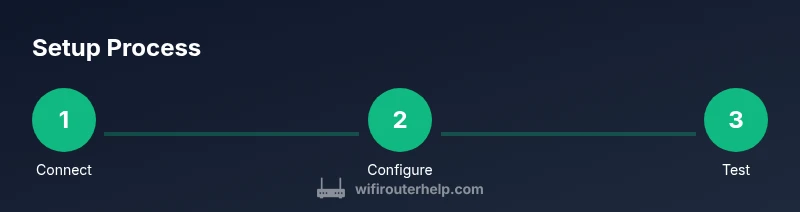
- 1
Unbox and physically connect the router
Unbox the Archer C54 and connect the power adapter. Use an Ethernet cable to connect the LAN port on the router to your computer for initial configuration. This wired link avoids wireless interference during the first login.
Tip: Keep the device off while wiring to prevent ESD; after plugging in, wait 60 seconds for boot. - 2
Power on and access admin UI
Power on the router and navigate to its default IP address in a web browser. Enter the default username and password from the manual. If you can't access it, ensure your device is on the correct network segment.
Tip: If you’re unsure of the IP, check the label on the bottom of the router for the defaults. - 3
Check and update firmware
Open the firmware section of the admin UI and check for updates. If an update is available, install it and allow the router to reboot. Firmware updates improve security and stability.
Tip: Backup current settings before updating in case you need to revert. - 4
Change admin credentials
Change the default admin username and password to strong, unique values. Update the WiFi password to a robust passphrase as well to prevent unauthorized access.
Tip: Use a password manager to store these securely. - 5
Set up WiFi networks
Create distinct SSIDs for 2.4 GHz and 5 GHz networks. Use strong passwords and choose WPA2-PSK or WPA3-SAE. Disable WPS if offered for better security.
Tip: Give each network a non-identifying name to avoid exposing your identity. - 6
Enable guest network and firewall
Enable a guest network with isolation from your main devices and enable the router firewall. This helps protect your devices from guest devices and external threats.
Tip: Limit guest network access to Internet only if possible. - 7
Configure QoS (optional)
If you have critical applications, configure QoS to prioritize video calls or work devices. Start with a conservative rule and monitor impact on other devices.
Tip: Test one change at a time to identify its effect. - 8
Test and document setup
Test Internet access on multiple devices, verify guest network functionality, and confirm remote management if you use it. Document credentials, settings, and firmware version for future reference.
Tip: Create a secure backup of the configuration after verification.
People Also Ask
Does the Archer C54 support guest networks?
Yes. The Archer C54 supports separate guest networks with isolation from your main LAN. This helps protect personal devices while allowing visitors Internet access.
Yes, the Archer C54 supports a guest network with isolation from your main network.
How do I update the Archer C54 firmware?
You can update via the admin panel by checking for updates in the firmware section. If available, install the update and reboot the router.
Update the Archer C54 from the router's admin panel by checking firmware updates and applying them.
What should I do if I forget the admin password?
Use the reset button to restore factory defaults, then set a new admin password. After reset, reconfigure your settings carefully.
If you forget the admin password, reset the router to factory defaults and set a new password.
Is 2.4 GHz or 5 GHz better for streaming on this model?
5 GHz usually offers higher speeds with shorter range, while 2.4 GHz covers longer distances but is more prone to interference. Use 5 GHz for nearby, high-bandwidth devices and 2.4 GHz for farther areas.
Use 5 GHz for fast nearby devices and 2.4 GHz for longer reach when interference is manageable.
Can I replace the Archer C54 with a mesh system later?
Yes. The Archer C54 can act as a primary router or connect to an existing modem—it's compatible with many mesh ecosystems for broader coverage.
You can upgrade later to a mesh setup if you want broader coverage.
What placement best improves coverage in a two-bedroom apartment?
Place the router in a central, elevated location, away from walls and metal appliances. Avoid placing it inside cabinets or behind large obstacles.
Put the router in a central, elevated spot for the best coverage in a small home.
Watch Video
What to Remember
- Know Archer C54’s capabilities and limits.
- Secure the admin interface and WiFi with strong passwords.
- Plan placement to maximize coverage and minimize interference.
- Update firmware and back up configurations regularly.
- Test changes and document results for future maintenance.