What Cables Are Needed for WiFi Router: A Practical Guide
Learn which cables your home WiFi router needs, how to connect them, and setup tips for a fast, reliable network. A practical guide from WiFi Router Help.


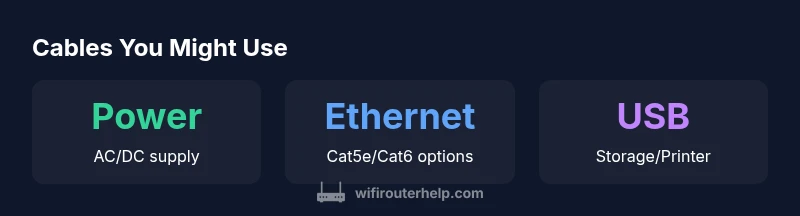
For a typical home WiFi router, you mainly need two cables: a power cord and an Ethernet cable to connect the router to a modem or a wired device. USB cables are optional on many models for storage or printers, while coax cables may be involved only if your ISP provides a gateway. If you plan to extend coverage, use longer Ethernet runs or a network switch. This guidance helps you avoid common setup pitfalls.
Why cables matter for wifi routers
If you’re building a reliable home network, the cables you use can have as much impact as the router’s processor. Proper cabling reduces interference, improves speeds, and simplifies future upgrades. According to WiFi Router Help, selecting the right mix of power, Ethernet, and optional USB or coax connections can prevent flaky connections and bottlenecks. The WiFi Router Help team found that most support calls about slow WiFi actually trace back to improper cabling or mismatched cable types, not faulty hardware. In practical terms, start with the basics: a clean power supply and a robust Ethernet link. Understanding these fundamentals empowers you to plan growth, locate devices strategically, and maintain a tidy, safe wiring setup across your home.
Essential cables: power and Ethernet
The backbone of a reliable home network is a solid power connection and a dependable Ethernet link. The router’s power cable should match the device’s power requirements and connector type (often a DC barrel or a standard IEC plug). For data paths, use an Ethernet cable (RJ-45) to connect the router to a modem or to other wired devices. Choose cat5e or higher (Cat6 or Cat6a is preferable for future-proofing) and ensure the cable is rated for the environment (readily available in shielded or unshielded variants). When wiring, keep cables off the floor, away from heat sources, and avoid sharp bends that can degrade signal integrity. A tidy setup also reduces wear on connectors and makes future swaps painless.
USB cables on select routers
Many modern routers offer USB ports for network storage or printer sharing. These features can be convenient in households with shared files or a networked printer, but they are not essential for everyday WiFi. If you plan to use USB storage, make sure the router supports the USB standard (USB 2.0 or USB 3.0) and that the connected drive uses a compatible file system. Do not rely on USB for primary internet connectivity; Ethernet remains the backbone for routing data. For most homes, USB cables are a convenience rather than a necessity.
Ethernet basics: Cat5e vs Cat6 and length limits
When it comes to Ethernet cabling, Cat5e is typically sufficient for most home broadband speeds, but Cat6 offers headroom for higher speeds and reduced crosstalk. If you anticipate gigabit or multi-gigabit services, choose Cat6 or Cat6a. Cable length matters: for uninterrupted performance, try to stay within 100 meters of a single run, but in typical home setups, keeping runs under 25 feet is common. Use shielded cables in high-electromagnetic interference areas (like near microwaves or HVAC lines) and choose solid-core cables for fixed installations, with stranded variants for mobility where necessary.
Cabling for expansion: switches and extenders
If you need to run multiple wired devices or extend your network, a network switch can expand the number of Ethernet ports. Connect the switch to the router with a short patch cable (Cat5e/Cat6). For WiFi expansion in large homes, consider Ethernet backhaul to access points or mesh satellites. In all cases, keep the backhaul cables neat and labeled so you can identify ports quickly during troubleshooting or upgrades. Remember: the speed you get from extenders and access points depends on the quality of the backhaul cable you choose.
Cable management and safety best practices
Organize cables with ties and labels to prevent tangling and accidental unplugging. Keep power cables separate from data cables to reduce interference and heat buildup. Use cable channels or raceways to protect lines from damage and pets or children. Regularly inspect for wear, especially near outlets and connectors, and replace damaged cables promptly. A well-organized setup not only looks professional but also simplifies future maintenance and troubleshooting.
How to identify and label cables
Label each end of a cable with a simple code (e.g., P1 for power, E1 for Ethernet) and a short description. This habit speeds up troubleshooting and future upgrades. Maintain a small inventory of spare cables in a labeled bin, sorted by type and length. If you replace a cable, update the label to reflect the new specification. Clear labeling reduces guesswork during setup and ensures consistent performance as your network grows.
Common mistakes and troubleshooting
Common mistakes include using the wrong Ethernet category for high-speed plans (e.g., Cat5e in a gigabit scenario), running cables under rugs where they can be damaged, and mixing Power over Ethernet (PoE) with standard power supplies on non-PoE devices. If the Wi-Fi seems slow, verify you are using a wired backhaul where available and test with a known-good Ethernet cable. Rebooting the router after any cabling change can help ensure new paths are recognized by the device, and always check for firmware updates that improve networking features.
Typical cables for a home WiFi router setup
| Cable Type | Primary Use | Notes |
|---|---|---|
| AC Power Cable | Powers the router | Typically DC barrel or IEC connector |
| Ethernet Cable (RJ-45) | Connects router to modem and LAN devices | Cat5e/Cat6; patch cables common lengths 3–25 ft |
| USB Cable (optional) | Network storage/printer sharing on select models | USB-A or USB-C depending on router |
| Coaxial Cable (optional) | Connects to ISP modem/gateway for cable internet | Used with cable modem, not standard on all routers |
People Also Ask
Do I need Ethernet cables if I only want wireless?
Not strictly required for basic wireless use, but Ethernet backhaul provides the most reliable connection and reduces wireless interference. If your home has solid WiFi coverage, you can rely on wireless alone, but for best performance, keep at least one Ethernet link to your modem or a wired access point.
You can run wirelessly, but using Ethernet backhaul improves reliability and speed when available.
Can I use USB cables with routers?
USB cables are optional on many routers and are typically used for network storage or printers. They do not affect internet connectivity unless you enable specific features. Check your router’s user guide to confirm supported USB features.
USB cables are optional; they enable extra features like storage or printers, not internet access.
What length Ethernet cable should I buy?
Choose a length that fits your space with some spare in case you rearrange devices. Standard lengths like 3, 6, 10, and 25 feet cover most homes. Avoid excessive length to minimize signal loss in longer runs.
Pick a length that fits your space, with a little extra for future needs.
Are Cat5e cables sufficient for gigabit speeds?
Yes, Cat5e supports gigabit speeds over typical home distances, but Cat6 or higher provides more headroom for future upgrades and reduced crosstalk. If you anticipate higher speeds or longer runs, favor Cat6.
Cat5e works for gigabit, but Cat6 is more future-proof.
Do I need a separate power supply for the router?
In most cases, the router’s own power adapter suffices. Use the manufacturer’s advised power supply to avoid under- or over-volting the device. If you replace the power brick, ensure matching voltage and current ratings.
Usually just the router’s own power adapter is needed.
Do ISPs require a specific cable to connect to the router?
ISPs typically require a standard Ethernet connection between the modem and router. Some cable providers supply a gateway device that combines modem and router, which uses coax on the provider’s side. Always follow your ISP’s equipment guidance for compatibility.
Mostly just an Ethernet cable; some providers may supply a gateway device.
“Clear, practical guidance on cabling helps you avoid performance bottlenecks and ensures reliable home networks.”
What to Remember
- Always start with power and a reliable Ethernet backhaul
- Choose Cat5e or better for future-proofing over shorter runs
- USB ports are optional and model-dependent
- Label and manage cables to simplify maintenance
- Plan for expansion with switches or wired backhaul when needed