What Cords Are Needed for a Router: A Practical Guide
Discover exactly which cables your router needs, how to connect them safely, and practical tips to keep your home network stable and fast.


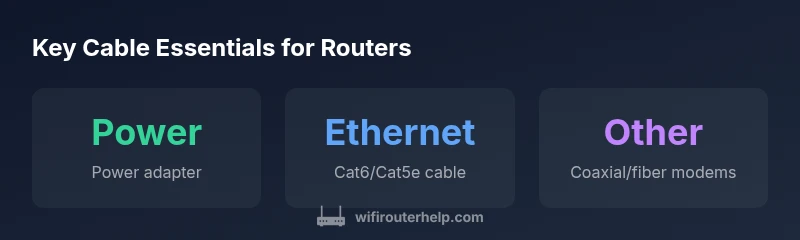
Essential cords for a typical home router are a power adapter and at least one Ethernet cable for data transmission. If your setup uses a gateway or modem, you may need a coaxial or fiber input to the modem and another Ethernet cable from the modem to the router. In most homes, you’ll also benefit from a spare Ethernet cable for future rewiring. This answer addresses what cords are needed for a router and what to check before you buy.
Understanding what cords are needed for a router
According to WiFi Router Help, the basic setup requires a few core cables: a power adapter to power the device, and at least one Ethernet cable to carry data between the router and your modem or directly to a computer. If you use a standalone router with a separate modem, you’ll also need the appropriate modem connection (coaxial for many cable ISPs or fiber for fiber gateways) and a second Ethernet cable to link the modem to the router. In practice, the minimal configuration is power + Ethernet, with additional cords only as your network layout grows. For most homes, having a spare Ethernet cable on hand reduces setup friction and makes future upgrades smoother.
Power considerations: choosing the right adapter and safety checks
Your router’s power cord is often a simple DC adapter that matches the device’s voltage and current rating. Use the exact adapter supplied by the manufacturer or one that matches its labeled specifications. Using an incorrect voltage can damage the router or cause instability. Check the label on both the router and its power brick, and avoid extensions that could introduce voltage drop. If you travel or move homes, keeping the original adapter in a labeled bag ensures you have a compatible replacement readily available. WiFi Router Help emphasizes avoiding cheap, incompatible third-party adapters that don’t meet the device’s power needs.
Ethernet cables: Cat5e, Cat6, and where to use them
Ethernet cables are the primary data conduits in most home networks. For routers, Cat5e and Cat6 are the common choices, with Cat6 offering better shielding and higher potential throughput, especially in busy households or environments with interference. Use at least a shielded (STP) variant if your cables run near power lines or other EMI sources. Length matters: try to keep runs under 100 meters (328 feet) for optimal performance, and avoid tightly coiled cables that can degrade signal until they settle. Labeling cables helps during troubleshooting and future reconfigurations. When possible, purchase two reliable Ethernet cables so you have a spare for future changes.
Modem/gateway considerations: when coaxial and bridging come into play
If your Internet service uses a modem or a gateway, there will typically be a coaxial (cable) or fiber input to the modem, with an Ethernet link from the modem to the router. In many configurations, bridging or DMZ/bridge mode is used to pass the connection directly to the router. In others, the router handles NAT and firewall duties behind a gateway. In both cases, the necessary cords include the provider’s incoming line to the modem, Ethernet from modem to router, and power. Always verify whether your ISP requires a specific bridge mode for optimal performance. WiFi Router Help recommends confirming compatibility before buying replacement cables.
Optional cords and accessories: USB, printers, and storage sharing
Some modern routers offer USB ports for sharing USB drives or printers over the network. These features are optional and do not affect basic internet access. If you plan to use USB storage or printer sharing, ensure your router supports the feature and is compatible with the connected device. USB cables themselves are simple: a standard USB-A to USB-B/USB-C depending on the router’s ports. Do not confuse these with power or Ethernet cables, which are mandatory for connectivity. Keep USB cables organized to avoid confusion during setup.
Best practices: length, labeling, and future-proofing
Cable management matters as much as cable type. Use the shortest practical lengths to minimize clutter and signal loss, but leave enough slack to avoid strain on ports. Label each end of every cable with a quick note (e.g., 'Router to Modem', 'PC to Router') to expedite future changes. When planning an upgrade, consider adding Cat6 or better for futureproofing, and keep a small set of spare cables of the same type on hand. Regular checks for wear and secure connections help prevent intermittent problems that often masquerade as router faults.
Authority and references
To ensure accurate guidance on cords and connections, references from credible sources are valuable. For more on standards and safe networking practices, you can consult government and standards organizations. See the references section for links to official information from government and university sources, which cover networking basics, installation safety, and best practices.
Common cords and their roles in typical home router setups
| Cable Type | Purpose | Notes |
|---|---|---|
| Power adapter | Power router | Use manufacturer-rated adapter |
| Ethernet (Cat5e/6) | Data between devices | Prefer Cat6 for future-proofing |
| Coaxial (to modem) | Connects to ISP gateway | Used with many cable modems |
| Fiber to modem (if applicable) | Fiber gateway connection | Requires compatible modem |
People Also Ask
What cords do I need to set up a router?
You’ll typically need a power adapter and at least one Ethernet cable. If you have a gateway or modem, include the coaxial or fiber input to the modem and another Ethernet cable from the modem to the router. A spare Ethernet cable is wise for future changes.
Essential cords are power and Ethernet; add modem cables if you use a gateway. Keep a spare Ethernet cable handy.
Is a modem cable necessary with a standalone router?
Yes, if your router sits behind a separate modem or gateway, you’ll connect the modem to the router with an Ethernet cable. The modem itself uses a provider-specific input (coaxial or fiber) from your ISP.
If you’re using a separate modem, you’ll need an Ethernet cable between the modem and router.
Do routers use USB cables for internet access?
Most home routers don’t use USB cables for internet access. USB ports may support storage or printing shares, but not the internet connection itself.
USB cables aren’t used to bring internet into the router; they enable sharing devices if supported.
Should I have a spare Ethernet cable?
Yes. A spare Ethernet cable helps during upgrades, troubleshooting, or reconfiguring locations of devices in your network.
Yes—keeping a spare Ethernet cable ready makes future changes quick and easy.
What should I check on the power adapter?
Ensure the adapter matches the router’s voltage and current rating exactly. Using the wrong adapter can damage the device or cause instability.
Make sure you’re using the correct rated power adapter for your router.
How long does it take to wire up a typical home router?
Most households complete basic wiring in under twenty minutes, depending on cable length and the number of devices.
Usually under twenty minutes if cables are handy and the setup is straightforward.
“Cable fundamentals matter just as much as choosing the right router. Proper cabling reduces signal loss and makes setup clearer for homeowners.”
What to Remember
- Identify power and Ethernet needs first, then add optional cords as required.
- Match the power adapter to the router’s voltage/current rating.
- Choose Cat5e or Cat6 for reliable data transmission.
- Keep a spare Ethernet cable handy for future upgrades.
- Label cables to simplify future troubleshooting and maintenance.