Router vs AP vs Bridge Mode: A Practical Guide for Home Networks
Explore the differences between router, AP, and bridge mode, when to use each, setup steps, and practical tips to optimize home networks without double NAT or coverage gaps.


In home networks, router mode, AP mode, and bridge mode each serve different roles. The router provides routing and NAT, the AP extends wireless coverage, and bridge mode disables routing on the device to prevent double NAT. Understanding these differences helps you choose the right setup for your space and devices.
Understanding router vs ap vs bridge mode
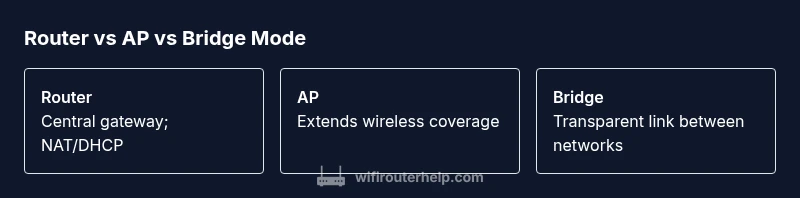
At a high level, router mode, AP mode, and bridge mode determine how devices in a network talk to each other and to the internet. The router is the gateway that directs traffic between your home network and the wider internet, performing NAT, DHCP, and firewall functions. An access point (AP) provides a wireless access point that connects wireless clients to an existing wired network, typically extending coverage from the router. Bridge mode, sometimes called a wireless bridge or WDS in some devices, acts as a transparent conduit between two networks, effectively disabling routing features on the bridge device so traffic passes through to the main router without being NATed again. According to WiFi Router Help, the simplest way to summarize is that router mode handles routing, AP mode extends coverage, and bridge mode joins networks without adding routing on the bridge.
Choosing the right mode hinges on your goals: broader coverage, simpler management, or a clean single-network experience. This article uses router vs ap vs bridge mode as a framework to help you think through layout, device capabilities, and the potential trade-offs in performance, security, and troubleshooting. You’ll see concrete examples, practical steps, and cautionary notes to avoid common misconfigurations.
Understanding router vs ap vs bridge mode
At a practical level, you’ll often pick one of three practical end states: a single-router setup, an extended network using an AP, or a bridged network that preserves a single DHCP and NAT boundary. The decision affects where you place devices, how you distribute IP addresses, and how you handle security rules. WiFi Router Help emphasizes that consistent naming across devices matters for clarity and maintenance. If your main goal is straightforward internet access with decent wireless coverage, router mode alone often suffices. If coverage is spotty in corners of your home, adding an AP can fill gaps without upending your core router’s configuration. If you’re trying to avoid double NAT or you’re integrating a dedicated gateway with an existing router, bridge mode is a common solution.
Understanding router vs ap vs bridge mode
Feature Comparison
| Feature | Router | AP (Access Point) | Bridge Mode |
|---|---|---|---|
| Primary function | Route traffic, NAT, DHCP, firewall; gateway to internet | Provide wireless access by extending an existing wired network | Pass traffic between networks without performing routing/NAT on the bridge |
| Network role | Central gateway and manager of the home network | Expansion point for wireless coverage; relies on a separate router | Transparent link between two LANs (no new LAN or WAN boundaries) |
| Client support | Directly connects all devices to internet via router | Connects wireless clients to the network with minimal setup | Bridged devices appear as part of the main network through the bridge |
| Setup complexity | Moderate to high; involves configuring NAT, DHCP, and firewall rules | Low to moderate; often plug-and-play with a basic SSID | Low to moderate; mainly disables routing features on the bridge and configures the main router |
| Security features | Full firewall, guest networks, parental controls (on most routers) | Depends on the parent router’s security; often minimal if standalone | Security handled by the main router; bridge itself adds little additional risk if configured correctly |
| Performance caveats | NAT and routing overhead can affect throughput; placement matters | Best for extending coverage without adding routing burden on clients | Potential performance bottlenecks if the bridge and main router are not synchronized |
| Best for | Homes needing a gateway with strong features and centralized control | Homes needing smoother Wi-Fi coverage with existing hardware | Networks where a single DHCP/NAT boundary is desirable for simplicity |
Benefits
- Increases network flexibility and coverage options
- Allows you to reuse existing hardware and avoid full replacement
- Can reduce network complexity by centralizing DHCP/NAT on one device when using bridge mode
- Supports scalable expansions for larger homes or multi-story layouts
The Bad
- Setup can be complex and confusing for beginners
- Bridging or AP duty may require careful IP planning and firmware compatibility
- Performance can suffer if devices are not well-placed or misconfigured
- Some devices limit features in non-router modes (e.g., fewer security options when acting as AP)
Router mode is best for full-featured networks; AP mode excels at coverage; bridge mode is ideal to avoid double NAT when layering networks
Choose router mode for centralized control and security, AP mode to fix dead zones, and bridge mode to keep a single NAT boundary while integrating a separate gateway.
People Also Ask
What is the difference between router mode and AP mode?
Router mode handles routing, NAT, and firewall for the entire network. AP mode provides wireless access by joining an existing network, usually without managing DHCP or NAT. The choice depends on whether you need centralized control or simple coverage extension.
Router mode routes traffic and handles security; AP mode mainly gives wireless access and relies on your main router for management.
What is bridge mode and when should I use it?
Bridge mode disables the bridging device's routing features, effectively passing traffic to the main router. Use it when you want a single DHCP/NAT boundary and you’re integrating a separate gateway or when double NAT causes issues.
Bridge mode connects networks as one, without extra routing, to prevent double NAT.
Will AP mode disable DHCP on my access point?
Typically, DHCP is handled by the main router. In AP mode, the AP often forwards requests to the primary device, keeping DHCP centralized. Some devices offer a 'DHCP server' toggle, but best practice is to keep centralized DHCP on the router.
In most AP setups, DHCP stays on the main router, not on the AP.
Can I reuse an old router as an AP?
Yes. You can set the old device to AP mode or a similar setting, connect it to your existing router via Ethernet, and disable its NAT. This extends wireless coverage without introducing a second DHCP boundary.
Yes—set the old router to AP mode and connect it to your main router.
How do I avoid double NAT when using bridge mode?
To avoid double NAT, enable bridge mode on the secondary device and ensure the primary router handles DHCP and NAT. Keep the bridge connected via a stable Ethernet link and verify devices obtain IPs from the main router.
Bridge mode lets the main router handle IPs and routing; keep it on Ethernet.
Which setup is best for a two-story home?
Often a mixed approach works best: keep a robust router in the center and place an AP on the far end to extend coverage. Bridge mode is only needed if you want to connect a separate gateway without creating multiple networks.
Center-router plus an AP at far corners usually delivers the best balance.
What to Remember
- Start with router mode for simplicity and security
- Add an AP if coverage gaps exist in larger homes
- Use bridge mode to avoid double NAT when introducing new gateways
- Plan DHCP, NAT, and IP addressing before changing modes