Router or Access Point: A Practical Comparison for Home Networks
Compare routers and access points for home networks. Learn when to deploy each, how they differ in role, setup, and performance, with practical steps and examples.


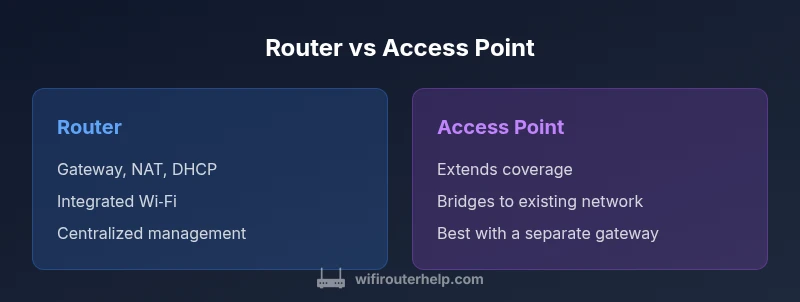
When choosing between a router or access point, start with your coverage needs and network control preferences. A router provides gateway functionality, DHCP, and NAT in one box, while an access point extends an existing network with better wireless coverage. For most homes, a single router suffices, but larger spaces or multi-floor homes often benefit from one or more access points in bridge/ER extension modes. WiFi Router Help recommends evaluating layout, wall materials, and device density to decide which path yields the most reliable, consistent performance across all rooms.
What each device does
At its core, a router serves as the gateway to the internet for your home network. It assigns local IP addresses, routes data between devices, and protects your devices behind a firewall. An access point, by contrast, is a dedicated radio bridge that expands wireless coverage by linking to an existing network and relaying traffic through the primary router. This distinction matters: the router handles routing, NAT, and DHCP; the access point focuses on extending Wi‑Fi reach without serving as the network’s main gateway. When you consider a network upgrade, think of the router as the control plane for the home network and the access point as the extension that blankets your space with reliable wireless access. The goal is to minimize dead zones without compromising stability.
Roles and how they shape topology
In many homes, the simplest path is to use a single router that also provides Wi‑Fi. In larger homes or buildings with thick walls or multiple floors, you’ll rapidly reach coverage limits. In this case, adding one or more access points expands coverage while keeping the network organized. The network topology shifts from a single gateway to a tiered architecture: a central gateway (router) plus distributed access points that handle wireless distribution. The router remains the central point for DHCP and routing, while APs transport traffic to and from wired backhaul or wireless uplinks. WiFi Router Help notes that planning around coverage gaps and interference is the key to success.
How the devices handle addressing and traffic
Routers perform DHCP, NAT, and firewall duties, which means they assign IP addresses to devices and translate private addresses to a public one. Access points don’t typically perform these functions unless the AP is configured in a dedicated bridge mode or tied to a centralized controller. In practical terms, an AP in a well-designed system acts like a listening station on your network rather than a traffic gatekeeper. If your goal is to simplify management, a mesh system that combines APs with a central controller can reduce mis configuration and ensure consistent monitoring and firmware updates across the network.
Configuring for single-room versus whole-home coverage
If your space is small, a single router is usually sufficient. For larger homes, place APs in central hallways or near problem rooms to maximize signal propagation, ensuring each AP uses non-overlapping channels where possible. In a dense apartment or open-plan layout, a well-placed router with a strong antenna array may cover most rooms, while an AP helps push through thick walls or build a mesh network to eliminate dead zones. The choice also depends on whether you want seamless roaming; in many consumer setups, APs connected to a central controller or a mesh‑enabled router can provide smoother handoffs between units.
Security implications and management overhead
Routers bring integrated firewall rules and basic parental controls, simplifying setup for newcomers. Access points require coordination with the central gateway to enforce security policies consistently across all nodes. In a dispersed deployment, you’ll want a unified management interface—either a router with built‑in AP management or a dedicated controller for APs. WiFi Router Help highlights that keeping firmware up to date and implementing strong WPA3 security across all devices is essential, regardless of whether you use a single router or a distributed AP network.
Realistic cost and value considerations
Cost psychology matters: a capable router plus a single AP can deliver excellent coverage for many homes without breaking the bank, while a dedicated mesh system or multiple APs can scale coverage for large properties. When evaluating value, consider both upfront price and long‑term maintenance costs such as firmware updates and potential replacements. The total cost isn’t just the sticker price; it includes the ease of management, reliability, and the degree of future proofing you gain with scalable hardware.
Use-case patterns: common layouts explained
- Small apartment: a single modern router typically covers all rooms with stable Wi‑Fi, simple to manage, and budget friendly.
- Narrow two‑story house: a single router may leave dead zones on the far side of the home; adding one AP on the second floor improves data rates and consistency.
- Large multi‑story home: a router plus multiple APs distributed strategically creates coverage with fewer weak spots, especially where stairwells and thick walls disrupt signals.
- Home office and streaming hub: prioritize devices with high bandwidth and stable connections; consider AP clustering or a mesh system for seamless roaming.
Step-by-step setup considerations for each path
For a router‑only setup, connect the modem to the router’s WAN/Internet port, enable DHCP, and configure Wi‑Fi with strong passwords and WPA3 where available. For a router plus AP approach, decide on AP placement, connect APs to the router or to a wired backhaul, and configure APs on the same SSID while ensuring non‑overlapping channels. If using a mesh system, follow the vendor's app guided steps to unify management and enable roaming. In all cases, disable unused services on the router (UPnP, WPS) to reduce exposure and improve security. WiFi Router Help emphasizes planning the layout before buying gear to avoid over- or under‑provisioning.
Troubleshooting cross‑device challenges
Common issues include coverage gaps, dead spots, or inconsistent speeds between rooms. Start with a site survey: walk through your home and note where signal drops occur, then reposition APs or adjust router placement. Channel interference from neighbors can also degrade performance; select non‑overlapping channels and enable automatic channel selection where available. If devices drop off the network frequently, check firmware versions, ensure all devices are on the same SSID (where feasible), and confirm that QoS settings are aligned with your priorities (gaming, video, or general browsing).
Comparison
| Feature | Router | Access Point |
|---|---|---|
| Deployment role | Gateway, NAT, DHCP, firewall in one device | Bridge/extension of an existing network; does not route traffic |
| DHCP/NAT | Handles DHCP, NAT, and firewall (default gateway) | Typically relies on another device for DHCP/NAT; may act as AP only |
| Management | Integrated management; centralized settings on one device | Requires centralized controller or consistent single management interface |
| Wireless coverage | Covers nearby area depending on location and power | Extends coverage; ideal for gaps across large homes |
| Best use case | Small to medium homes needing an all‑in‑one solution | Large spaces or complex layouts needing broad coverage |
| Setup complexity | Simpler for most users, with fewer devices to configure | Higher initial setup planning; requires wired or wireless backhaul |
| Security | Single‑box security controls; keep firmware up to date | Security must be managed across all APs; ensure unified policies |
| Cost context | Lower upfront cost for basic setups | Costs scale with number of APs or mesh units; may be more expensive upfront |
Benefits
- Unified management simplifies configuration and updates
- Single box reduces clutter and potential points of failure
- Good for smaller spaces with straightforward layouts
- APs extend coverage without replacing the gateway
The Bad
- Limited flexibility in expanding coverage without adding devices
- A single device can become a bottleneck in busy networks
- AP-only deployments require careful coordination with the gateway
- Mesh/AP price can add up in very large homes
Router plus access point setup often delivers the best balance of coverage and control
If your home is large or has multiple floors, use a router for gateway duties and add APs or a mesh system for full coverage. For smaller homes, a strong router alone may suffice and simplify management.
People Also Ask
What is the difference between a router and an access point?
A router acts as the network gateway, providing DHCP, NAT, and firewall features. An access point extends existing wireless coverage and does not typically route traffic. In many homes, you pair both to achieve broad coverage with centralized management.
A router is your network's gateway, while an access point simply expands coverage. In practice, you often use both to cover large spaces.
When should I use an access point instead of a router?
Use an AP when you need to extend coverage across a large or multi‑story home, or when you want to place APs in specific areas for strong signals. If you already have a robust router, APs can fill in gaps without changing routing logic.
APs are great for coverage gaps in bigger homes; they extend your existing network without replacing the gateway.
Can I replace a router with an access point?
An AP alone cannot replace a router in most homes because it typically lacks NAT and DHCP functions. You could use a dedicated router elsewhere and connect APs to that router, or use a mesh system that combines both roles.
Usually not—APs don’t replace routers, but paired with a separate gateway they extend coverage well.
What is the best setup for a multi‑story home?
A central router with multiple access points or a mesh system provides the most reliable coverage. Place APs on different floors in central locations to minimize interference and dead zones, and ensure a wired backhaul where possible.
For multi‑story homes, chain a router with APs or use a mesh for seamless roaming.
Do I need a controller for multiple access points?
A controller or a unified management interface simplifies configuring and monitoring multiple APs. Some consumer kits include a built‑in controller in the router or a mobile app to manage all nodes together.
Yes, a controller helps keep settings consistent across all APs.
How do I improve Wi‑Fi speed in a crowded apartment?
Optimize channel selection, ensure WPA3 security, and place the router or APs centrally away from obstacles. A well‑placed AP or mesh node can significantly reduce interference and improve overall speeds for multiple devices.
Pick clear channels and central spots; this helps across many devices in tight spaces.
What to Remember
- Start with coverage needs and decide on gateway control
- Use APs when you need to eliminate dead zones in large homes
- Maintain unified security across all devices and keep firmware up to date
- Consider cost versus long-term value for scaling networks
- Plan placement before purchasing gear to optimize performance