Is the Router the Same as an Access Point? A Practical Guide
Learn whether a router is the same as an access point, how they differ in NAT, DHCP, and coverage, and how to deploy them effectively in homes of all sizes.


The simple answer is that a router and an access point are not the same thing. A router connects your home network to the internet and assigns IPs, while an access point extends Wi‑Fi coverage without routing traffic. In many homes, you’ll use both, or run a device in AP mode to avoid double NAT.
Is the Router the Same as an Access Point? Debunking the common question
Is the router the same as the access point? In practice, these devices perform different jobs in your home network. The WiFi Router Help team finds that many homeowners confuse the two, leading to configurations that underperform or create conflicts. A typical setup in a small apartment might be a single device that handles both routing and wireless transmission, but larger homes often require a separate access point to extend coverage. Understanding the distinction is essential for reliability, security, and future scalability. This article uses concrete examples and practical steps to help you decide when to rely on a router alone, when to add an access point, and how to configure both for a robust network that remains simple to manage. By clarifying roles, you can avoid double NAT, IP conflicts, and dead zones, while preserving a straightforward management experience. According to WiFi Router Help, many households underestimate the impact of network topology on everyday tasks like streaming, gaming, and remote work, and they miss opportunities to optimize coverage with targeted hardware choices.
Definitions and roles: router, access point, bridge, and mesh
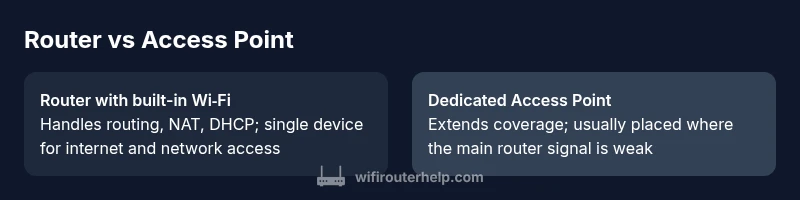
A router, at its core, directs traffic between your local network and the internet. It performs Network Address Translation (NAT), assigns IP addresses via DHCP, and enforces a basic firewall. An access point, by contrast, is a network access tool that extends wireless coverage without taking on routing duties. In many homes, the AP sits behind a primary router in AP or bridge mode, meaning it forwards traffic to the router for IP management. Mesh systems blend both roles, offering multiple synchronized nodes that share responsibilities. While a mesh network can include a router component, a standalone AP remains a simpler, lower-cost option for extending coverage where the main router’s signal weakens. This distinction matters for performance and network management, especially when you have wired backhaul options or guest networks.
How home networks are typically structured
Most households start with an ISP modem connected to a single router. In a compact space, that router may also act as the Wi‑Fi access point, providing sufficient coverage. As homes expand—more walls, floors, and devices—the single device often encounters signal dead spots. A dedicated access point or a mesh system can provide targeted coverage without compromising the main router’s ability to manage IPs and security. When you deploy APs, you typically connect them via Ethernet backhaul to preserve high performance, while still leveraging the router for DHCP, NAT, and firewall rules. WiFi Router Help emphasizes testing coverage room by room and using heat maps to identify zones that require reinforcement.
Core differences in functionality: NAT, DHCP, routing, AP mode
Routing and NAT are the signature jobs of a router. It translates private IPs to public IPs, routes traffic between networks, and usually runs DHCP to assign addresses to devices. An access point by itself does not perform NAT or IP assignment; it’s a conduit for wireless access. In AP mode, however, the device relies on the main router for IP management and routing. If you leave an AP in default settings with its own DHCP server, you risk IP conflicts and double NAT, which can degrade performance and complicate port forwarding.
Use cases and deployment patterns for different homes
Small apartments with a single router typically don’t require additional devices. When coverage is partial or walls block signals, a well-placed AP or a compact mesh system can fill gaps without overhauling your network. In larger homes, consider two approaches: a robust router with one or more APs, or a dedicated mesh system that provides seamless roaming. For homes with Ethernet wiring, add APs at strategic points to maximize backhaul performance. WiFi Router Help notes that planning around user behavior—where people stream, game, or work—helps determine where an AP will deliver the most benefit without adding complexity.
Backhaul, performance, and interference considerations
Backhaul options influence performance more than most people realize. Ethernet backhaul offers the highest reliability and consistency, while wireless backhaul may introduce additional latency and potential interference. APs should be placed in locations that balance signal strength with backhaul capacity. Channel selection and 2.4 GHz vs. 5 GHz usage matter: 5 GHz delivers higher speeds over shorter distances, while 2.4 GHz covers more space but can get crowded. A router with strong processing power and multiple high‑quality radios can reduce bottlenecks, but adding APs improves overall coverage and user experience when properly planned.
Configuration tips: modes, settings, and best practices
To avoid double NAT and IP conflicts, set APs to bridge or AP mode so the main router handles DHCP and NAT. Disable the DHCP server on APs unless you’re operating them as independent routers for a specific reason. Use consistent SSIDs across APs for seamless roaming, or enable mesh features if your hardware supports it. Update firmware across the network and enable security features like WPA3 where available. When you add devices, document IP ranges, reserved addresses, and port-forwarding rules to minimize confusion later. WiFi Router Help emphasizes testing after each change to quantify improvements in coverage and performance.
Real-world scenarios: apartment, single-family, large home
In apartments, a single router with compact coverage might suffice, but you may still benefit from a portable AP to cover a balcony or bedroom corner. For a typical single-family home, a central router plus one or two strategically placed APs can eliminate dead zones on multiple floors. In very large homes, a true mesh system with centralized management often delivers the simplest experience and reliable roaming. In all cases, your goal is to provide stable coverage that keeps latency low for work calls, video conferencing, and gaming. The right mix of router and AP depends on your space, materials, and device load.
Troubleshooting and compatibility pitfalls
Common pitfalls include placing APs too far from the main router, creating IP conflicts by leaving multiple DHCP servers enabled, or failing to update firmware on all devices. Ensure that all devices support the same security standards and frequencies to avoid compatibility headaches. If you encounter slow performance, verify backhaul integrity and confirm that channel assignments do not overlap with neighboring networks. WiFi Router Help notes that consistency in settings and documentation helps prevent misconfigurations during upgrades or expansions.
10-step action plan to implement your network
- Assess every floor and room for coverage gaps. 2) Decide between a single powerful router vs. router + AP layout. 3) Map a backhaul plan (Ethernet when possible). 4) Choose APs or mesh nodes that support the same standards as your router. 5) Configure the router with a secure password and up-to-date firmware. 6) Set APs to AP or bridge mode and disable their DHCP servers. 7) Use a single SSID or a predictable split that suits your devices. 8) Test coverage with a wireless analyzer or app. 9) Document IP reservations, port forwards, and guest networks. 10) Reassess after major changes and monitor performance over weeks.
Quick-start checklist for homeowners
- Map your space and identify dead zones
- Decide if you need APs or a mesh system
- Plan backhaul and firmware updates
- Configure APs in bridge mode and disable DHCP on APs
- Test, document, and adjust as needed
Comparison
| Feature | Standalone router with built-in Wi-Fi | Dedicated access point (AP) in bridge/AP mode |
|---|---|---|
| Routing capability (NAT/DHCP) | Yes, full router features | No, AP-only (in bridge/AP mode) |
| DHCP server | Yes (primary DHCP server) | No (DHCP handled by main router) |
| WAN port availability | 1+ WAN port (internet access) | 0 or limited backhaul port (AP-focused) |
| Backhaul options | Ethernet or Wi‑Fi backhaul to router | Ethernet backhaul preferred; APs often rely on main router for IPs |
| Management interface | Unified management via router UI | Separate AP management interface/app |
| Coverage approach | Single-device coverage with built-in Wi‑Fi | Multiple APs with centralized control |
| Best use case | Smaller spaces or simple setups | Larger homes with coverage gaps or multiple floors |
Benefits
- Easier initial setup with one device for small spaces
- Cost-effective for minimal coverage needs
- Simplified management when everything runs from a single device
- Less complexity if your space is already well covered by a single device
The Bad
- Limited scalability for large or multi-area homes
- Possible performance bottlenecks if routing traffic and Wi-Fi are on one device
- APs or mesh systems can offer better roaming and coverage in larger spaces
Dedicated APs in bridge/AP mode are better for large homes; a strong router suffices for simple setups.
Choose an AP‑based approach when you need reliable coverage across multiple floors. For small spaces, a capable router with built‑in Wi‑Fi can provide a solid, straightforward solution. In both cases, plan backhaul and security to avoid common misconfigurations.
People Also Ask
Is a router always required to access the internet?
Not necessarily. Some devices combine routing and Wi‑Fi in one unit, but in many situations you’ll need a router to handle IP addressing and traffic management. If you already have a capable modem, you can use a router to manage your local network and assign IPs.
Usually yes, you need a router to manage IPs and traffic, unless your modem includes those features. In small spaces, a single device might be enough.
Can I use an access point with my existing router?
Yes. You can add an access point to extend coverage. Set the AP to bridge or AP mode and disable its DHCP server so the main router handles IPs and routing.
Absolutely—an AP extends coverage when you need more Wi‑Fi, just make sure it’s in bridge mode.
What is AP mode and how is it different from bridge mode?
AP mode makes the device act as wireless access only, while bridge mode connects two networks so they appear as one. In both cases, the main router handles IPs and NAT.
AP mode is for wireless extension; bridge mode connects networks so traffic goes through the main router.
Do I need to configure DHCP on an AP?
Typically no. In bridge or AP mode, DHCP is usually managed by the main router to avoid conflicts. Only enable it on the AP if you intend it to operate as a separate network.
Most times you’ll disable DHCP on the AP and let the main router handle it.
What about mesh systems versus traditional APs?
Mesh systems provide seamless roaming with multiple nodes managed centrally. Traditional APs are cheaper and can deliver strong coverage when wired backhaul is available. Your choice depends on budget and the size of your home.
Mesh offers smooth roaming; APs are great if you want wired backhaul and cheaper upgrades.
How can I tell when I should upgrade my router?
Consider upgrading when your current device cannot handle device density, streaming in 4K, or if you notice frequent buffering or device drops. A modern router with multiple radios and gigabit WAN can improve performance even in mid-sized homes.
Upgrade when you see buffering, lag, or too many devices connected at once.
What to Remember
- Start with a clear map of coverage needs
- Avoid double NAT by using AP mode or a mesh system
- Prefer Ethernet backhaul when possible for best performance
- Test network after each change and document settings
- Choose APs or a mesh system for larger homes to maintain roaming quality