Difference Between Router and Access Point: A Practical Guide
Learn the difference between a router and an access point, including roles, placement, DHCP, backhaul, and setup. This analytical comparison helps homeowners design scalable networks with confidence.


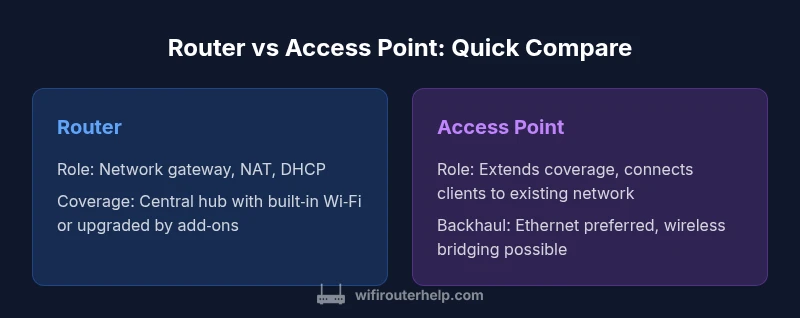
Routers manage IP routing and NAT, and assign devices on the network. Access points extend wireless coverage by joining an existing network without handling IPs. For a robust home network, use a router for internet access and add APs where coverage is weak, or opt for a mesh system for seamless roaming.
Understanding the difference between router and access point
The phrase difference between router and access point captures two devices that perform distinct yet complementary roles in most home networks. A router is the central traffic director: it handles IP routing, NAT, and DHCP for devices on the LAN, and it serves as the gateway to the internet. An access point (AP) is a wireless bridge that attaches to an existing network to provide Wi‑Fi where a signal is weak or absent. According to WiFi Router Help, the router and AP work best when their roles are clearly defined and complementary. The WiFi Router Help team found that most homes benefit from a centralized router plus strategically placed APs or a mesh system to eliminate dead zones and maintain reliable speeds as you move through living spaces.
In practical terms, if your network is small and your home is mostly within a single room, a capable router with good coverage may be enough. If you live in a larger home, have multiple floors, or rent a property with thick walls, adding APs or adopting a mesh solution can dramatically improve coverage without sacrificing performance. The core difference to remember when considering the difference between router and access point is that the router creates the network and assigns addresses, while the AP simply extends the network’s wireless footprint.
mainTopicQuery_1word noun phrase for wikidata lookup to be included here? _:null
Comparison
| Feature | Router | Access Point |
|---|---|---|
| Primary role | Network gateway handles routing, NAT, and DHCP for the LAN | Extends wireless coverage by connecting clients to an existing network without IP management |
| DHCP server | Typically enabled on the router | APs are bridged or configured to rely on the router's DHCP |
| Backhaul | WAN connection to the internet; internal LAN uses Ethernet or wireless | Often uses Ethernet backhaul; wireless bridging is possible but less reliable |
| Placement goal | Central location to serve as the network hub | Strategic placements to fill coverage gaps and remove dead zones |
| IP management | Manages IP addresses and NAT for devices on the LAN | Does not manage IPs; relies on the main router for IP assignment |
| Best use case | Small homes or apartments with one primary router | Large homes or offices needing extended Wi‑Fi without rewiring |
| Security features | Built-in firewall, guest networks, QoS typically on the router | Security features depend on the network design; APs rely on router for firewall and controls |
| Cost range | Mid to high for gateways with strong performance | Mid range for standalone APs; total cost depends on number of APs and backhaul |
| Ease of setup | Plug in, configure, and go (single device setup) | Requires additional configuration and backhaul planning |
| Best for | Single-router setups with adequate coverage | Expanding coverage in larger spaces with reliable backhaul |
Benefits
- Clarifies network roles and improves coverage with targeted devices
- APs can extend coverage without replacing the main router
- Routers often include robust features like firewall, QoS, and guest network
- Mesh-capable devices simplify roaming and reduce manual handoffs
The Bad
- APs add setup complexity and require backhaul planning
- Misconfiguring bridge vs router modes can cause double NAT or IP conflicts
- More hardware and cables can complicate cable management
- Wireless bridging can introduce latency if not wired backhaul is available
A router-plus-AP strategy gives the most flexibility for growing networks; a modern router with multiple APs or a mesh system is best for coverage and simplicity.
If you need reliable, scalable coverage across a multi-room or multi-story home, pair a capable router with strategically placed APs or use a mesh system. For smaller spaces, a single strong router may suffice. The choice hinges on coverage goals, backhaul availability, and desired network management.
People Also Ask
What is the difference between a router and an access point?
A router is the network’s gateway that handles IP routing, NAT, and IP assignment (DHCP). An access point adds wireless coverage by connecting to the existing network but does not manage IPs. Together, they create a broader, more reliable home network.
A router directs traffic and assigns addresses; an access point simply extends Wi‑Fi coverage by joining the network.
Can I use an access point as a router?
An access point can function like a router only if you configure it to reuse the network’s DHCP and NAT settings, typically in a bridge or access-point mode. In that case, it won’t perform typical router functions. Always verify your device’s modes.
An AP alone won’t route traffic unless you enable a mode that places it behind a main router.
Do I need a router if I already have a modem?
Most home internet setups require a router to provide NAT, firewall, and Wi‑Fi. A modem alone connects you to the internet but doesn’t create a local network or Wi‑Fi. You’ll usually use a router (or a modem with built-in router) to complete the setup.
A modem plus a router is the standard home setup for most ISPs.
What is DHCP and why does it matter in a router vs AP setup?
DHCP assigns IP addresses to devices on your network. In a router-plus-AP setup, DHCP is typically provided by the router. If you misconfigure an AP as a router, you can cause IP conflicts or a double NAT scenario, which can disrupt connectivity.
DHCP is the network’s address distributor; keep it centralized on the main router for simplicity.
What’s the difference between a mesh system and using APs?
A mesh system combines routers and APs into a single, seamless network with auto roaming. Traditional APs extend a network but may require manual handoffs and identical SSIDs. Mesh often provides a simpler setup and smoother roaming.
Mesh makes moving around the home feel seamless; APs require some setup and tuning.
Can multiple APs work with a single router?
Yes. When using multiple APs, connect them via wired backhaul when possible and configure them in bridge or AP mode so they don’t double-NAT. This expands coverage without sacrificing performance.
Yes—just wire the APs back to the main router and use bridge/AP mode.
What to Remember
- Define roles early: router for routing/NAT, AP for coverage extension
- Prioritize wired backhaul to APs for best performance
- Consider mesh systems for seamless roaming in larger homes
- Avoid double NAT by configuring APs in bridge/AP mode
- Plan placements strategically to eliminate dead zones