Modem and Router Setup, Optimization, and Troubleshooting for Home Networks
Learn how to choose, connect, and optimize a modem and router for a faster, more reliable home network. This step-by-step guide covers setup, optimization, security, and common troubleshooting.


Goal: Learn how to confidently separate or combine modem and router functions for a reliable home network. You’ll need a compatible modem, a router (or a modem-router combo), an Ethernet cable, and access to your ISP account. We’ll cover identification, connection steps, and practical optimization to improve speed, range, and security.
What is a modem and router, and why they matter for your home network
According to WiFi Router Help, understanding the difference between a modem and a router is the foundation of a strong home network. A modem is the device that communicates with your internet service provider to bring the internet into your home. It translates the provider’s signal into something your devices can use. A router, on the other hand, takes that service and shares it with all your devices, typically via WiFi or Ethernet. Together, they form the core of your network: the modem provides the connection, the router distributes it, and the quality of both determines speed, stability, and security.
For homeowners, the most common confusion is assuming a single box handles everything. In reality, many households use a separate modem and router, while others rely on a modem-router combo. The right setup depends on your internet plan, home size, and how you use your network. If you are renting gear from an ISP, you’ll need to check which devices are supported and whether bridging modes are available. WiFi Router Help emphasizes that choosing the right model with current standards (like WiFi 6/6E) and sufficient Ethernet ports can dramatically improve performance for streaming, gaming, and remote work. In this guide, we’ll break down practical steps to identify, connect, and optimize your modem and router to maximize speed and reliability.
Note: The WiFi Router Help team emphasizes practical, affordable approaches so homeowners can upgrade network performance without overhauling their home. You’ll gain a clear understanding of how a modem and router work together—and how to tailor the setup to your space.
tagSlugsExcludedForBlock1
Tools & Materials
- Modem(Ensure it matches your ISP’s approved list and supports your speed tier)
- Router(Choose a router with current standards (WiFi 6/6E) and adequate ports)
- Ethernet cable (Cat5e or better, at least 1 m)(For reliable device-to-router connection and initial setup)
- Laptop or smartphone for configuration(Needed to access admin pages and customize settings)
- ISP account details and login(Authentication may be required for certain configurations (PPPoE, static IP))
- Surge protector or UPS (optional)(Protects devices during power fluctuations)
Steps
Estimated time: 30-60 minutes
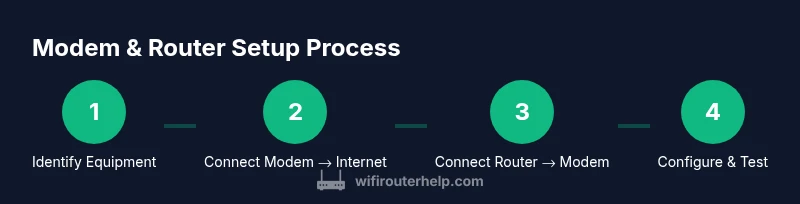
- 1
Identify equipment and plan
Before touching cables, confirm model numbers and compatibility with your ISP. This helps you avoid buying incompatible gear and ensures that bridging or passthrough features will work if you decide to place the router behind a modem. Take note of any ISP rental terms and whether you’ll need to use bridge mode. Pro tip: write down current settings and speeds to measure improvements later.
Tip: Have your ISP account details handy and check the compatibility list from your provider. - 2
Power down and disconnect existing gear
Turn off all devices and unplug the power cords. This reduces the risk of electrical shock and prevents damage to ports while you connect new equipment. If you are upgrading a setup, disconnect the old router and leave the modem connected to the ISP line so you can test the new configuration with a live signal.
Tip: Label cables or take a quick photo of your current arrangement to help with reassembly. - 3
Connect the modem to the internet line
Connect the inbound line (coaxial or fiber) to the modem’s appropriate port. Allow the modem to boot fully, typically 60–120 seconds. When the status lights indicate a stable connection, you’ve established the bridge between ISP service and your internal network.
Tip: If the modem shows no link, troubleshoot the wall outlet, check for line outages, and ensure the correct input port is used. - 4
Connect the router to the modem via Ethernet
Use an Ethernet cable to connect the modem’s LAN port to the router’s WAN/Internet port. Power on the router after the modem has come online. This creates a single, efficient path for devices to reach the internet, and it enables the router to manage local traffic.
Tip: Use the shortest possible Ethernet run to minimize latency and interference. - 5
Access the router’s admin interface and set basics
Open the router’s default gateway in a web browser or app. Create a strong admin password, enable WPA3 or WPA2-PSK security, set a unique SSID, and choose a robust passphrase. Update firmware if prompted to ensure security and stability.
Tip: Change the default password immediately; default usernames/passwords are common attack vectors. - 6
Test, optimize, and document
Run speed tests on wired and wireless devices, and adjust channels (2.4 GHz vs 5 GHz) to minimize interference. Disable unnecessary features (UPnP if not needed), enable guest networks if you share with guests, and record any changes for future troubleshooting.
Tip: Document results and keep firmware updates scheduled to maintain performance.
People Also Ask
What is the difference between a modem and a router?
A modem connects to your ISP to bring the internet into your home, while a router creates a local network and shares that connection with devices. The two work together to provide internet access and network management.
A modem brings in the internet from your provider, and a router distributes it to your devices. They serve different roles but function best when configured to work together.
Can I use a single device as both modem and router?
Yes, many households use a modem-router combo. For larger homes or higher performance needs, separate devices often perform better. Check compatibility with your ISP and consider bridging if you’re using a dedicated router.
Yes, you can use one device for both roles, but separate devices often give you more control and better performance.
Why update firmware, and how often?
Firmware updates fix security flaws and improve performance. Check for updates regularly—monthly or when the manufacturer releases a notable update—and apply them through the admin interface.
Firmware updates fix security and performance issues and should be checked for regularly.
What is double NAT, and how do I fix it?
Double NAT happens when both devices perform network address translation. It can cause gaming, VPN, and port-forwarding issues. Use bridge mode on the modem or disable NAT on the router, depending on your setup.
Double NAT can cause connection problems; bridge the modem or adjust router settings to avoid it.
How can I quickly test WiFi speed at home?
Use a reputable speed test app (like Ookla) on multiple devices and locations. Compare results to your plan’s advertised speeds and look for improvements after optimization.
Run a quick speed test from several rooms to map coverage and performance.
Watch Video
What to Remember
- Know the roles of modem and router and how they interact
- Decide between a combo vs. separate devices based on space and needs
- Follow a wired-first setup for reliability during configuration
- Secure devices with strong passwords and current firmware
- Test and optimize placement to maximize coverage and speed