Is Modem the Same as Router? A Clear Comparison
Explore whether a modem is the same as a router, with an analytical breakdown of roles, configurations, and practical guidance from WiFi Router Help.


In most homes, the modem and the router are not the same device. The modem connects to your ISP and provides internet access, while the router creates your home network and manages devices, security, and traffic. For simplicity, many people use a gateway that combines both roles, but functionality, performance, and future flexibility often favor separate devices.
Is modem the same as router? Defining the roles in a home network
Is modem the same as router? Not exactly. The distinction matters because each device performs a different, indispensable function. A modem is the bridge between your home and your Internet Service Provider (ISP); it handles signal modulation and demodulation to convert the ISP's data stream into a form your devices can understand. A router, on the other hand, creates and manages your local network. It assigns IP addresses, routes traffic between devices, and enforces local security rules such as firewalls and guest networks. When people ask, is modem the same as router, they’re often thinking about gateway devices that combine both roles. This guide from WiFi Router Help explains that while a gateway can be convenient, separating the two components generally yields better control over performance, security, and future upgrades. Throughout this article you’ll see how bridging, NAT, DHCP, and other concepts influence your setup, and you’ll get a practical decision framework tailored to different homes and Internet plans.
How the hardware actually works: inside a modem and a router
A modem houses a demodulator and modem circuitry that converts electrical signals into data that your ISP network can transport, and vice versa. It does not manage your local devices beyond providing a single connectivity point. A router contains networking software and hardware that creates a local area network (LAN). It handles DHCP (assigning IP addresses), NAT (network address translation), routing between devices, firewall protection, and features like QoS and guest networks. When you combine both roles in a single device, you get a gateway. The performance ceiling of a gateway often depends on the speed tier of the link to your ISP and the processor inside the device. WiFi Router Help emphasizes that understanding these core roles helps you optimize placement, configure security settings, and plan for future upgrades.
Common configurations: gateway (combo) vs separate devices
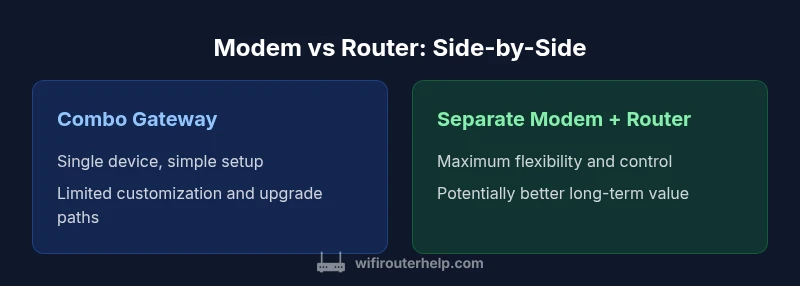
Households often choose between a gateway device and a split setup (separate modem and router). A gateway offers a simple, compact solution with fewer cables and fewer devices to manage. It’s attractive for small spaces or renters who value convenience. However, the trade-offs include less flexibility to upgrade individual components, and the router’s wireless performance may become a bottleneck if you require high-speed WiFi or advanced features. In contrast, a separate modem and router provide maximal control: you can upgrade the router for improved WiFi throughput without replacing the modem, or swap the modem to support new ISP technologies without changing your entire network. For many homeowners, this separation improves reliability, security customization, and future-proofing, especially in homes with multiple floors or heavy smart-home use.
Bridging mode and ISP limitations
Bridging mode is a common topic when discussing is modem the same as router. In bridging, you disable the router function in the gateway so the modem acts purely as a bridge to a dedicated router. This can improve performance in complex networks and reduce double NAT issues. Many ISPs lock gateway features to their own firmware or require approved devices, so bridging is not always straightforward. WiFi Router Help recommends checking with your ISP about compatibility and whether bridging is supported on your chosen modem model. When bridging isn’t possible or practical, a high-quality standalone router with robust guest networking and parental controls can still deliver excellent performance through the modem’s bridge-like capabilities.
Practical setup scenarios: small apartment vs large home
In a compact apartment, a gateway device can be perfectly adequate. Fewer devices mean less clutter, and you can usually achieve reliable WiFi coverage with a mid-range router. For larger homes with multiple floors, thick walls, and dense device usage, a split setup tends to perform better. You can place the modem in a utility area and deploy multiple access points or a high-performance router to blanket the home with fast WiFi. The goal is to reduce dead zones and ensure consistent bandwidth across devices, from streaming in the living room to gaming in a basement office.
As you plan, consider your internet plan’s speed, the number of devices, and where you work or study. The question is not just whether the two functions are the same, but how you optimize the network for real-world usage. This is why many technically minded homeowners favor a modular approach, even if it requires more initial setup.
Security and privacy considerations
Security is a critical factor in deciding between a gateway and a split setup. A dedicated router gives you deeper control over firewall rules, firmware update cadence, and intrusion prevention features. It also allows you to implement stricter parental controls and guest networks with more granular policies. On the modem side, ensuring it remains up-to-date and tied to a reputable ISP-recommended model minimizes exposure to known vulnerabilities. In practice, combining a modem with a router can still be secure if you choose a reputable gateway and keep firmware current, but a separate router often provides more robust security options and faster firmware patches when needed. WiFi Router Help underscores keeping devices isolated on separate networks when possible to minimize risk from vulnerable devices.
Performance and reliability: what affects speeds beyond modem and router
Network performance is influenced by several factors beyond the modem and router. Cable quality, wiring inside the home, and interference from neighboring networks can impact speeds. The position of the router matters: central placement away from dense materials and electronics reduces signal loss. For high-demand households, investing in a router with strong MU-MIMO, modern Wi-Fi 6/6E standards, and reliable firmware updates improves real-world throughput and stability. The modem’s compatibility with your ISP, support for DOCSIS standards (for cable), and the service tier you subscribe to also shape performance. WiFi Router Help advises assessing real-world usage patterns and running periodic speed tests to determine whether you’re hitting the right balance between devices and bandwidth.
Setup and troubleshooting flow: first steps
When diagnosing whether your setup is optimal, start with a baseline test: measure network speed directly from the router, then compare with device-level speeds across rooms. Check for firmware updates on both modem and router, verify correct NPAT/bridging configurations, and ensure your SSIDs are unique and secure. If you encounter buffering or dropped connections, simple steps like relocating the router, changing channel settings, or enabling QoS for heavy-hitting devices can yield noticeable improvements. If problems persist, consider whether a gateway device might be a bottleneck and whether a separate modem and a high-performance router could resolve the issue. WiFi Router Help recommends a structured troubleshooting flow: verify connection type, test with wired Ethernet, review ISP status, and evaluate whether a hardware upgrade is warranted.
Decision framework: when to buy gateway vs split
The choice between gateway and split devices depends on priorities. If minimal setup time, compact space, and easy maintenance are paramount, a gateway is a sensible starting point. If you prioritize maximum control over security, upgrade paths, and reliable wireless coverage in a larger home, a separate modem and router usually deliver better long-term value. Consider future-proofing: if you anticipate upgrading to a faster internet tier or adding more devices, a modular setup makes upgrades simpler and often more cost-effective over time. WiFi Router Help’s approach is to weigh immediate convenience against long-term flexibility and performance, aligning the hardware choice with your home’s layout and usage patterns.
Authority sources
- This article references general networking principles and best practices from reputable sources like the FCC and standards organizations, as well as industry journalism. See the following for additional context and consumer guidance:
- https://www.fcc.gov
- https://www.nist.gov
- https://www.wired.com
Comparison
| Feature | Combo Gateway (modem+router) | Separate Modem + Router |
|---|---|---|
| Setup & wiring | Simpler install with a single device | Requires two devices and more cabling |
| Upgrades & flexibility | Upgrade router only when needed | Upgrade router and modem independently as needed |
| Network features & customization | Integrated firewall, QoS, and guest network | Routers offer deeper customization and more robust features |
| Reliability & troubleshooting | Single point of failure but simpler diagnostics | Independent components can be diagnosed separately |
| Costs | Lower upfront for gateway, but long-term value varies | Higher upfront, potential long-term savings with upgrades |
| Bridging compatibility | Often supports bridging in one device | Depends on modem model and ISP; bridging may be supported |
| ISP compatibility | Typically compatible with standard ISPs | ISP-approved modems may limit choices; rental options exist |
Benefits
- Simplicity: fewer devices to manage
- Lower upfront cost for gateway setups
- Fewer cables and power outlets
- Easier warranty and support with a single vendor
The Bad
- Less flexibility to upgrade individual components
- Double device failures can affect both connectivity and local network
- Potential performance bottlenecks if the gateway is mid-range
- ISP lock-in with rented or approved gateway models
Separate modem + router wins for most households seeking performance and flexibility
A split setup typically delivers better long-term value. You gain independent upgrade paths, stronger customization options, and easier troubleshooting. Consider a gateway only if you prioritize simplicity and a compact footprint.
People Also Ask
Is a modem the same as a router?
No. A modem connects your home to the ISP, while a router creates and manages your local network. A gateway combines both roles, but separate devices offer more control and potential performance gains.
No—the modem connects you to the internet, and the router creates your home network. A gateway does both, but separate devices usually give you better control and performance.
What is a gateway device, and should I use one?
A gateway combines modem and router functions in one box. It’s convenient for small spaces and simple setups but can limit upgrades and customization. If you value flexibility, a split setup is often preferable.
A gateway combines both roles. It’s easy, but if you need more control or futureproofing, consider separate modem and router.
Do I need bridging mode?
Bridging disables the router function inside a gateway so a separate router handles networking. This helps avoid double NAT and can improve performance in some homes. Check with your ISP to ensure your equipment supports bridging.
Bridging turns off the gateway's router so you can use your own. It can improve performance if you’ve got a high-traffic network.
Should I rent an ISP gateway or buy my own?
Renting keeps things simple and ensures compatibility with your ISP, but you may pay more over time and miss advanced features. Buying your own gateway or separate modem/router often yields better performance and control, especially if you use multiple devices.
Renting is easy, but buying your own gear usually saves money and gives you more control.
What features should I look for in a separate router?
Look for Wi‑Fi 6/6E support, robust QoS, strong security options, guest networks, and good firmware update cadence. A router with multiple bands and stable performance in larger homes helps ensure reliable coverage.
Prioritize Wi‑Fi 6/6E, strong security, and good firmware updates for the router.
What are the signs my setup isn’t optimal?
Frequent buffering, slow file transfers, dead zones, or devices dropping offline indicate suboptimal placement or hardware limits. Consider relocating the router, enabling QoS for busy devices, or upgrading to a higher-performance router.
If buffering or dead zones persist, it’s time to review placement or consider an upgrade.
What to Remember
- Define goals: simplicity vs. performance before buying
- Choose gateway for small spaces; split setup for larger homes
- Prioritize firmware support and security features in routers
- Evaluate bridging options if you want to minimize NAT issues
- Plan for future upgrades with modular hardware