Are a Router and a Modem the Same Thing? A Practical Guide
Discover the differences between routers and modems, when each is needed, and how to connect them for reliable home WiFi. Practical, step-by-step guidance from WiFi Router Help.


Bottom line: a modem connects your home to the internet service and carries that signal into your network, while a router distributes that signal to devices in your home. A gateway can combine both functions, but in most setups the devices stay separate. Are a router and a modem the same thing? Not exactly—their jobs are distinct, even when packaged together for convenience.
Understanding the Basic Components: What a Router Does vs What a Modem Does
In the context of home networks, every connected device ultimately relies on two core roles: connecting to the internet and distributing that connection to devices around the home. The question are a router and a modem the same thing is a common point of confusion, but the reality is nuanced. A modem is the device that communicates with your internet service provider, translating the incoming signal into something your local network can use. A router, by contrast, takes that signal and creates a local network, allowing computers, phones, smart devices, and printers to communicate and share resources. In practical terms, the modem is your gateway to the internet; the router is what creates a navigable, protected network inside your home. The two can be housed separately or combined into a gateway device, but their fundamental functions remain distinct, even when bundled in a single chassis. This distinction matters for performance, scalability, and long-term flexibility.
Are They the Same Thing? Common Misconceptions
Many homeowners assume the terms modem and router are interchangeable, or that a single device can do everything. According to WiFi Router Help, the answer is that the roles differ even when a device claims to be a “gateway.” A modem’s job is to talk to your ISP, carrying the wide area network signal into your home. A router creates a private, local network, assigns addresses, and steers traffic between devices. When ISP-provided equipment combines both, it’s convenient, but it still functions as two distinct components inside one box. This is why terminology matters: treating a gateway as interchangeable with a standalone modem and router can lead to misconfigurations and limited upgrade paths. WiFi Router Help emphasizes clarity on these roles to help homeowners plan effectively.
How a Modem and Router Work Together
In a typical home, the modem is the first hop on the path to the internet. It converts the signal from the ISP into data that your router can use. The router then performs essential network services: NAT (network address translation), DHCP (dynamic host configuration protocol), firewall protection, and wireless distribution. Without a modem, a router cannot reach the wide area network. Without a router, a modem cannot efficiently share the connection with multiple devices. Understanding this collaboration helps you optimize IP addressing, guest networks, QoS, and device-to-device communication. In some setups, you might enable bridge mode so a separate router handles all routing while the modem acts purely as a simple modem. This separation can unlock advanced features and better performance in larger homes.
Gateway vs Separate Devices: The Core Decision
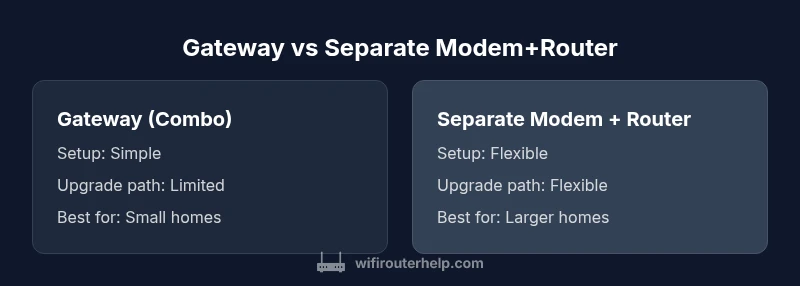
The core decision is whether you want a single device or separate components. A gateway (modem-router combo) offers simplicity, fewer power outlets, and straightforward support from your ISP. Separate modem and router provide maximum flexibility, easier upgrades, and often better performance through higher-end routers. Consider the size of your home, the number of devices, and your future plans for smart home devices or gaming. WiFi Router Help notes that the choice often hinges on whether you value convenience or customization. For many users, a gateway is perfectly adequate, but power users and enthusiasts tend to prefer two components for greater control over firmware, features, and expandability.
Setup Scenarios: When to Choose a Gateway
If you have a small apartment with modest internet needs and want a very simple plug-and-play setup, a gateway can be a sensible choice. With a gateway, you’ll typically use one device to manage both the internet connection and local network distribution. Bridge mode is often available to allow the gateway to pass routing duties to a dedicated router, but this depends on the model and ISP. For households that prioritize minimal clutter and ISP support, a gateway minimizes complexity and simplifies troubleshooting. WiFi Router Help recommends evaluating whether your ISP offers official gateway devices that are compatible with your service tier and whether you need features like parental controls or a basic guest network built in.
Setup Scenarios: When to Use Separate Modem and Router
For larger homes, high-speed plans, or households with many simultaneous users, two separate devices are typically the better path. A modem handles the connection to the ISP, while a high-performance router manages wireless coverage, advanced QoS rules, guest networks, and security features. Separating devices enables you to swap in a more capable router without changing the ISP connection, and vice versa. It also makes troubleshooting more straightforward: if the internet is slow, you can test the modem and the router independently. WiFi Router Help’s analysis shows that the separation strategy often yields the most consistent performance over time, particularly as your home grows and your internet needs evolve.
Performance and Reliability Factors
Performance hinges on both devices and how they’re configured. A gateway can deliver reliable performance for modest loads, but may bottleneck if your internet plan is fast or your household has many bandwidth-intensive devices. With separate devices, you can tailor each component to your needs: a modern modem compatible with DOCSIS 3.1 or fiber ONT, paired with a capable router that supports the latest Wi-Fi standards, robust security features, and advanced settings like QoS and MU-MiMO. Reliability benefits from redundancy: if one device fails, you can replace it without disrupting the entire system. WiFi Router Help highlights that ongoing firmware updates and proper placement (central location, elevated, free of interference) are essential for maintaining solid performance.
Future-Proofing, Upgrades, and Firmware
Technology evolves quickly in home networks. Modems and routers each have a finite lifespan, determined by hardware capabilities and firmware support. A gateway might offer everything in one package, but upgrading the router portion if it becomes outdated can be more challenging. Separate devices simplify long-term upgrades because you can upgrade the router without touching the modem, or swap the modem for a faster model as service speeds increase. Regular firmware updates from manufacturers and ISPs help close security gaps and improve stability. WiFi Router Help emphasizes planning for future compatibility and avoiding hardware that will quickly become obsolete in a few years.
Common Pitfalls and Troubleshooting
Common pitfalls include using an outdated gateway that can’t keep up with modern speeds, poor placement that creates Wi‑Fi dead zones, and misconfigured settings that block devices from accessing the network. If problems arise, start with a basic reset of both modem and router, then check for firmware updates. Confirm the correct connection sequence: power, modem, then router. In bridge mode, ensure the router is actually handling DHCP and NAT to avoid double-NAT issues. When in doubt, consult your ISP-supported equipment guidelines and test performance with wired and wireless devices to isolate the problem. WiFi Router Help suggests a systematic approach to troubleshooting to prevent unnecessary guesswork.
Quick-Start Checklist for Your Network
- Decide between gateway or separate devices based on home size and future plans. 2) If using separate devices, pick a modern modem compatible with your service and a router with current Wi‑Fi standards. 3) Position the router centrally, away from obstructions and electronics. 4) Enable WPA3 (or at least WPA2) security and set a strong password. 5) Update firmware on both devices and run speed tests after setup. 6) Configure guest networks, QoS rules, and parental controls as needed. 7) Document your network settings for future reference and upgrades. 8) Plan for regular reviews every 12–18 months to keep up with new features and ISP changes.
Compatibility and ISP Considerations
Different ISPs have different hardware policies. Some offer official gateway devices that work seamlessly with their service, while others allow you to use your own modem and router. If you have fiber, you’ll typically require an ONT or a compatible gateway configured by your provider. Always check whether your chosen modem–router combination is approved for your service tier and whether bridge mode or DMZ features are available. WiFi Router Help notes that staying within provider-approved equipment helps avoid surprise outages during firmware updates or service changes.
Final Thoughts and Practical Tips
Understanding the distinction between a modem and a router is foundational for building a robust home network. Whether you choose a gateway for convenience or two separate devices for maximum control, the goal is reliable internet access, strong wireless coverage, and secure, easy-to-manage settings. Regular maintenance—firmware updates, proper placement, and periodic performance tests—will pay off in fewer headaches and a more satisfying online experience. The WiFi Router Help team recommends a deliberate approach: assess your home layout, plan for growth, and select equipment that balances simplicity with future flexibility.
Comparison
| Feature | Gateway (modem-router combo) | Separate modem + router |
|---|---|---|
| Setup complexity | Low (single device) | Medium to high (two devices) |
| Flexibility for upgrades | Limited by device | High (swap router or modem independently) |
| Performance and range | Good baseline; depends on device quality | Potentially higher performance with a high-end router |
| Cost and value | Usually higher upfront for gateway | Often lower upfront; more customization options |
| Bridge mode availability | Varies by model/ISP | Commonly available with compatible hardware |
Benefits
- Simplified setup with a single device for small spaces
- Fewer cables and easier ISP support
- Fast deployment for typical households
- Easier warranty coverage when ISP provides device
The Bad
- Less flexibility to upgrade components independently
- Limited customization options on gateway devices
- If the gateway fails, both internet and WiFi can be affected
- Potential performance bottlenecks with lower-end gateways
Two-device setups generally win on flexibility and long-term performance; gateways win on convenience for small, simple homes.
If you want tailor-made performance and easy upgrades, separate modem and router is the better path. For minimal setup and ISP-supported support, a gateway can be sufficient, especially in smaller spaces.
People Also Ask
What is the main difference between a modem and a router?
A modem connects to your internet service provider and brings the external connection into your home network. A router creates and manages your local network, directing traffic between devices and providing wireless access.
So, the modem gets you online, and the router gets you connected at home. If you’re setting up a network, you’ll generally need both or a gateway that combines both.
Can I use a gateway device to replace both my modem and router?
Yes in many cases, but check with your ISP for compatibility and plan requirements. Some ISPs require you to use their gateway for certain service tiers or features.
Yes, you can replace both with a gateway, but verify compatibility with your ISP first.
Do I need a modem if I have fiber internet?
Fiber typically uses an ONT (optical network terminal). Some providers offer a gateway that includes routing, but in many cases you still need a separate router for best optimization.
Fiber often uses an ONT; a router is still needed to manage your home network.
What is bridge mode and why would I use it?
Bridge mode disables the router function on a gateway, letting a separate router handle routing and firewall duties. It’s useful when you want to use a higher-end router for improved performance.
Bridge mode hands control to your own router for better performance.
What if my network is slow after a setup?
Start by testing wired vs wireless speeds, check for firmware updates, and verify QoS and channel settings. If problems persist, test with a different router or modem to isolate the issue.
If it’s slow, try a firmware update and run a few speed tests to pin down where the bottleneck is.
What to Remember
- Choose separate modem and router for maximum flexibility
- Use a gateway when you want a simple, all-in-one setup
- Bridge mode can help blend convenience with advanced routing
- Regular firmware updates improve security and performance
- Plan for future speeds and device growth to avoid early obsolescence