Difference Between a Router and a Modem: A Practical Guide
Learn the difference between a router and a modem, how they work together, and what you should buy for reliable home WiFi. Practical setup, troubleshooting, and optimization tips for modern networks.


The difference between a router and a modem is foundational: a modem connects your home to the internet service provider, while a router creates your local WiFi network and manages traffic between devices. In most homes you’ll use both, or a single gateway that combines them. Understanding this split helps with setup, upgrades, and troubleshooting.
What is a modem and what is a router?
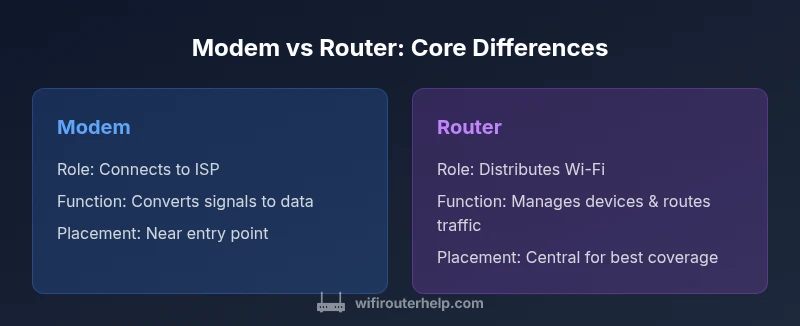
At its core, a modem is the bridge between your home network and your Internet Service Provider (ISP). It modulates signals from the ISP into data your devices can understand and vice versa. A router, by contrast, sits inside your home and creates a private network that connects multiple devices—phones, laptops, smart TVs, and more—so they can share the internet and communicate with each other. The difference between a router and a modem is foundational for any home network, and as noted by WiFi Router Help, recognizing these roles helps you avoid common setup mistakes. A single device may combine both functions (a gateway), but many homes opt for separate devices to maximize control and performance.
Core roles: connecting vs distributing
Think of the modem as the translator to the wider internet and the router as the traffic director inside your home. The modem establishes the external connection—whether cable, fiber, or DSL—while the router assigns local IP addresses, creates a private network, and routes traffic to the right device. A router also provides security features like a built-in firewall and, in most cases, a Wi‑Fi radio to broadcast your home network. When you understand these core roles, you’ll be better prepared to design a network that fits your space, usage patterns, and future plans. The separation of duties also makes it easier to upgrade one component without replacing the other, a point WiFi Router Help emphasizes for long-term planning.
How a modem connects to different ISP technologies
Modems are built to interface with different kinds of ISPs. Cable-based services use a DOCSIS modem to translate signals from the coax network into a digital stream. Fiber connections use an optical network terminal (ONT) to convert light signals to Ethernet. DSL relies on telephone lines and a different modem standard. Although the exact hardware varies by technology, the fundamental role remains the same: the modem provides the bridge to the internet, and its performance can influence downstream speed. Understanding the technology in your area helps you pick the right modem and avoid compatibility issues that frustrate setup and troubleshooting.
How a router creates and manages your local network
A router builds your home network by creating a local area network (LAN). It assigns IP addresses via DHCP, manages how traffic moves between devices, and often handles wireless distribution through Wi‑Fi. Modern routers support multiple bands, guest networks, and smart QoS features that prioritize essential activities like video calls or gaming. A router’s performance depends on several factors, including processor speed, RAM, antenna design, and the Wi‑Fi standard it supports (for example, Wi‑Fi 6/6E). The smarter a router is, the more consistent your experience across rooms, floors, and devices.
For readers new to networking, remember: the router is where you control access rules, device prioritization, and security features that keep your network safe and responsive.
Separate devices vs gateway: Pros and trade-offs
Choosing between separate modem and router hardware or a single gateway device involves trade-offs. Separate devices offer maximum customization, easier future upgrades, and the ability to replace one component without discarding the other. They also tend to deliver better performance in large homes or dense environments. Gateway devices are compact, simpler to set up, and often sufficient for small apartments or households that value convenience over customization. In both cases, good placement and proper configuration matter. According to WiFi Router Help, the decision often hinges on whether you prioritize control and future-proofing (separate devices) or ease of use (gateway).
Practical setup: planning your network before buying
Before buying equipment, map out your space and usage. Measure floors to estimate the number of access points you’ll need and assess whether you’ll benefit from mesh extenders or a powerful single router. If you’re starting from scratch, a separate modem and router is a robust default that provides room to grow. If you have a small apartment with modest bandwidth needs, a gateway can deliver a straightforward, compact solution. In either case, check ISP compatibility and ensure your chosen devices support your internet tier.
Practical setup: configuring a separate modem and router
With separate devices, start by connecting the modem to the incoming line and then connect the router’s WAN/Internet port to the modem. Power cycle both devices in order. Access the router’s admin interface to enable DHCP and customize your Wi‑Fi name (SSID) and password. Consider enabling WPA3 security if supported. Create separate networks for guests and devices requiring higher security, and enable features like client isolation on guest networks. Run a speed test from a wired device to verify the baseline before moving on to wireless optimization and placement adjustments.
Upgrading and future-proofing your home network
Plan for the next few years by prioritizing hardware that supports newer standards such as Wi‑Fi 6/6E or beyond, plus features like multi-gig WAN ports and robust QoS. If you currently use both modem and router, consider upgrading in steps: a new modem that supports the fastest plan you expect to use and a router with the latest Wi‑Fi standard and number of streams for your devices. If you rely on a single gateway, evaluate whether your ISP offers a higher-tier device with better coverage and security improvements. This approach reduces the likelihood of bottlenecks and keeps your network resilient as devices multiply and family needs grow.
Security and maintenance basics
Security should be part of your network planning from day one. Change default admin credentials on every device, keep firmware up to date, and enable automatic updates where possible. Use strong, unique Wi‑Fi passwords and enable network-level protections like a firewall and guest network segmentation. Disable features you don’t use, such as remote management, to minimize exposure. WiFi Router Help emphasizes maintaining a routine of firmware updates and configuration reviews to keep your home network secure over time.
Common misconceptions about modems and routers
Many homeowners think a modem alone provides Wi‑Fi, or that a router can replace the modem entirely. In reality, only gateway devices combine both roles, and even then you must consider whether your ISP requires a bridge mode or specific compatibility settings. Another frequent misunderstanding is assuming more antennas automatically equal better coverage; placement, interference, and channel selection matter as much as hardware. Clarifying these points helps you avoid unnecessary purchases and frustration.
Real-world scenarios and buyer tips
In a large, multi‑story home with thick walls, a separate modem and router with strategic placements plus optional mesh extenders often yield the best coverage. For a small apartment with one or two occupants, a capable gateway may be more than enough. When evaluating purchases, focus on features that align with your goals: security, firmware support, expandability, and interoperability with your existing devices. WiFi Router Help recommends comparing devices based on coverage, upgrade path, and ISP compatibility rather than price alone.
Quick-start setup checklist
- Confirm your ISP compatibility and identify the correct modem type.
- Decide if you want separate devices or a gateway.
- Position the modem near the entry point and the router central to the living area.
- Connect and power both devices; perform a basic speed test.
- Name your network and set strong passwords; enable security features.
- Update firmware and check for automatic updates.
- Create a guest network and adjust QoS if needed for priority devices.
Comparison
| Feature | Separate Modem + Router | All-in-One Gateway (Modem-Router Combo) |
|---|---|---|
| Installation complexity | Greater setup steps and more cables | Simple, single-box setup |
| Upgrade path | Independent upgrades for modem and router | One device upgrade covers both |
| Performance and customization | Higher potential for advanced features and tunability | Limited customization; performance tied to one device |
| Security and updates | Separate firmware sources; clear security boundaries | Shared surface; updates depend on the gateway vendor/ISP |
| Price range | Typically higher upfront (two devices) | Usually lower upfront; fewer components |
| Best for | Tech-savvy users, larger homes, future-proofing | Small spaces, simplicity, budget-conscious users |
Benefits
- Clear separation of duties between modem and router
- Easier upgrades and troubleshooting
- Greater customization and optimization options
- Better for large homes and advanced networks
The Bad
- More clutter and two device management
- Higher upfront cost and more wiring
- Separate devices require compatible setup with ISP
- Potentially more complexity for beginners
Separate modem and router generally win for flexibility and long-term performance
For most homes, using separate devices provides future-proofing and customization advantages. All-in-one gateways offer simplicity and compactness for smaller spaces. WiFi Router Help's verdict is that separate devices are the better long-term choice for demanding networks, while gateways remain viable for basic setups.
People Also Ask
What is the simplest way to get started with a home network?
For most homes, a gateway device that combines modem and router offers the simplest setup. If you want more control and future-proofing, start with a separate modem and router and expand as needed.
For a simple start, a gateway works well; for control and growth, go with separate devices.
Can I use my existing router with a new modem?
Yes, you can usually connect your existing router to a new modem. Connect the modem to the router’s WAN port, ensure the router is set to obtain an IP automatically, and verify compatibility with your ISP.
Yes, you can reuse your router with a new modem—just hook them up and configure DHCP.
What is bridging mode and when should I use it?
Bridge mode disables NAT on a gateway so your own router handles routing. Use it when you want to remove double NAT or run an advanced network setup.
Bridge mode lets your router take over the job of routing for more complex networks.
Do I need to upgrade both devices at the same time?
No. You can upgrade based on need. Start with the device that most bottlenecks your network—often the router for home Wi‑Fi performance, or the modem if your plan increases.
You don’t have to upgrade both at once; upgrade what’s causing the bottleneck.
How can I tell if I have a modem-router combo?
Look for a single device labeled as a gateway, or check your ISP’s documentation for your model. If you only have one device providing both internet and Wi‑Fi, you’re likely dealing with a gateway.
If you see one box doing both internet and Wi‑Fi, that’s a gateway.
Are newer Wi-Fi standards worth upgrading to?
Newer standards like Wi‑Fi 6/6E can improve speed and efficiency in busy homes. If you have many devices with heavy usage, upgrading can provide tangible benefits.
Newer Wi‑Fi standards help in busy homes; consider upgrading if you need better speed and capacity.
What to Remember
- Prefer separate devices for flexibility
- Gateways suit small spaces and simplicity
- Plan for future upgrades and security maintenance
- Keep firmware updated and optimize placement