Difference Between Modem and Router: A Practical Guide
Explore the difference between modem and router, how they interact, and how to optimize your home network. A clear, analytical guide with setup tips, practical comparisons, and troubleshooting ideas for homeowners.


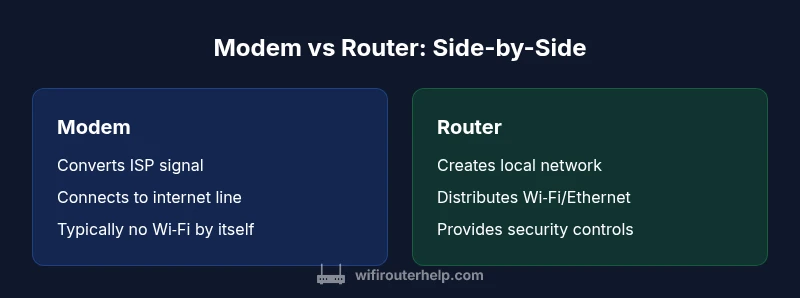
The difference between modem and router is simple: a modem connects your home to the internet by translating signals from your ISP, while a router creates and manages your local network, distributing that connection to devices via Wi‑Fi or Ethernet. For most homes, a separate modem plus router or a gateway device works best depending on speed, control, and features.
What is the difference between modem and router?
According to WiFi Router Help, the difference between modem and router is a matter of function and position in the network stack. A modem acts as the bridge between your home and your internet service provider, converting the provider's signal into a digital stream that your devices can understand. A router, by contrast, creates a local network inside your home, assigns IP addresses, and routes traffic between devices and computers, printers, smart home gadgets, and streaming boxes. Understanding this distinction helps you diagnose slowdowns, plan upgrades, and decide when to buy separate devices or a single gateway. In practical terms, think of the modem as the translator at the edge of your network and the router as the traffic cop inside your house.
The WiFi Router Help team emphasizes that most households benefit from clear separation between these roles, especially when you want granular control over guest access, parental controls, and quality of service. This section lays the groundwork for deeper exploration of what each device does and how they interact.
Core roles and how they shape performance
The modem's primary job is to establish a stable link with your ISP and convert the raw signal into packets that your devices can interpret. It does not typically manage local traffic on multiple devices. The router’s core job is to manage a local network: it assigns local IP addresses, handles NAT to translate private addresses to public ones, and ensures devices can discover and talk to one another seamlessly. In modern homes, the router also provides wireless connectivity and firewall protections, while the modem focuses on decoding the external signal. When both are working in concert, you gain reliable internet access alongside flexible device management.
Many homes use a gateway device that combines both modem and router functions in a single unit. This configuration can simplify setup and maintenance but may limit granular features offered by standalone components. The distinction between a gateway and separate devices matters when you want more precise control over security rules, guest networks, or advanced QoS settings.
ISP connection types and device compatibility
Different ISPs use various underlying technologies, including coaxial cable (often DOCSIS-based), fiber, and DSL in some regions. The modem must be compatible with the specific technology and the service plan. Routers, meanwhile, are largely technology-agnostic, but you should ensure compatibility with your local network equipment and your internet plan. In split setups, the modem terminates the external signal, while the router handles internal address assignment and routing. Some ISPs provide a rental gateway (modem + router) that covers both roles; others allow you to bring your own modem and separate router. If you decide to upgrade, verify DOCSIS support (if using a cable modem) and the router’s wireless standards and feature set to match your home’s needs.
Brand-new homes with gigabit plans may benefit from high-end routers and a DOCSIS 3.1 modem or an optical network terminal with a capable router, depending on the service type. Because device compatibility and service arrangements vary, checking with the provider for approved devices and bridging options is prudent.
Home network configurations: two common approaches
There are two popular setups for most households. In the first, you use a separate modem and a dedicated router. This configuration offers clear upgrade paths: you can swap the router for higher performance or add mesh extenders without touching the modem. In the second approach, you deploy a gateway device that combines both functions in one box. Gateways provide simplicity and compact design but may limit advanced settings you might want as your home network grows. If you move from one approach to the other, you may need to adjust bridge mode settings to ensure devices obtain the correct IP addressing scheme and to avoid double NAT issues. Each option has pros and cons related to cost, coverage, and control, and the right choice depends on your priorities.
Bridging, bridge mode, and advanced configurations
Bridge mode is a critical concept when you want the router to handle all routing tasks, effectively bypassing the gateway’s internal routing logic. If you opt for a separate modem and router, enabling bridge mode on the gateway eliminates double NAT, which can improve online gaming, streaming, and VPN performance. However, enabling bridge mode requires careful configuration: you’ll need to set up the router to manage DHCP, NAT, and firewall rules, and you may lose some ISP-provided features. If you require advanced features such as VPN passthrough, guest networks, or sophisticated QoS, using separate devices gives you more control and flexibility. The distinction between gateway mode and bridge mode is a practical consideration when planning network expansion, especially in larger homes or multi-floor setups.
Security considerations: NAT, firewall, and updates
A router’s built‑in firewall, NAT, and software features are central to home network security. A modem alone provides minimal protection; the router adds robust security options like WPA3, guest networks, and scheduled firewall rules. Keeping firmware updated is essential; vendors release patches to fix vulnerabilities and improve performance. In separate-device setups, you can isolate devices more easily and apply targeted security settings for IoT devices, which often have different threat profiles than computers and phones. If you rely on a gateway, check the vendor’s support model for timely updates and whether you can enable automatic security patching. Regularly updating passwords, enabling guest networks, and configuring parental controls are practical steps that enhance security across any configuration.
Performance and coverage: aligning hardware with your home
Performance hinges on both the modem and the router, plus how they’re placed in the home. A high‑speed connection without proper distribution won’t reach all corners of a large home. Separating the devices often enables you to put the router where it will most efficiently cover living spaces and to upgrade the router without changing the modem. Mesh networking options can further boost coverage for multi‑story homes, with nodes placed strategically to minimize dead zones. Conversely, a gateway may suffice for small apartments but could fall short for larger homes with many devices. Achieving optimal wireless performance involves considering the router’s throughput, antennas, channel selection, and beamforming capabilities, and ensuring that the modem supports the service’s speed tier reliably.
Setup steps: a practical baseline for most homes
A straightforward setup starts with confirming service compatibility and retrieving your account credentials. Connect the modem to the internet line (cable, fiber, or DSL). If using a separate router, connect it to the modem via Ethernet, then power on both devices. Access the router’s admin interface to configure Wi‑Fi names (SSIDs), passwords, and security protocols. For maximum reliability, place the router centrally and elevate it off the floor, avoiding obstructions that could impede signal. If you’re bridging, enable bridge mode on the gateway and configure the router for DHCP, NAT, and firewall rules. Test with multiple devices across the home to identify coverage gaps and consider mesh extenders if needed. These steps create a solid baseline for future improvements and troubleshooting.
Common pitfalls and quick fixes
Two common issues are double NAT and weak coverage. Double NAT occurs when both the gateway and the router perform network address translation, which can cause problems with online games and VPNs. If you encounter issues, enabling bridge mode or placing the router in front of the gateway can solve the problem. Coverage gaps are often caused by router placement, outdated firmware, or a router that doesn’t support your home’s square footage. Start by updating firmware, validating channel interference (neighbors’ networks can cause interference), and moving the router to a higher, more central location. If needed, add a mesh system or a range extender to fill in the gaps.
Shopping guide: what to look for in models
When evaluating options, consider the service type (cable, fiber, or DSL), the speed tier, and the number of devices you support. For the modem, confirm compatibility with your ISP and the supported DOCSIS standard (e.g., DOCSIS 3.1 for high‑speed cable). For the router, prioritize features such as dual‑band or tri‑band wireless, MU‑MIMO, QoS controls, guest networking, and robust security options. If you anticipate growth, a higher‑end router with better range and more advanced settings is a sound investment. In many setups, a separate high‑quality router paired with a compatible modem yields the best long‑term value and flexibility. Remember to review warranty terms and expected firmware support.
Comparison
| Feature | Modem | Router |
|---|---|---|
| Function | Converts ISP signal to data that devices can use | Creates and manages the local network; routes traffic between devices |
| Connection to ISP | Connects to ISP network via coaxial, fiber, or DSL line | Connects to the modem; distributes to devices via Wi‑Fi/Ethernet |
| Addressing | Typically provides a public IP via ISP | Uses NAT/DHCP to create a private home network |
| Network capabilities | No built‑in local network management | Wi‑Fi and wired networks, device discovery, and routing |
| Security features | Basic protection; often relies on router for security | Advanced features like firewall, guest networks, QoS, and VPN passthrough |
| Best for | Direct internet connection to a single device or simple setups | Homes needing multiple devices with wireless coverage and control |
| Bridging/gateway | Bridge mode can allow router to be main router in certain setups | Gateway devices combine modem + router in one unit |
Benefits
- Clear separation of responsibilities helps troubleshooting
- Better performance and control with separate devices
- Easy to upgrade or replace one component without affecting the other
- Flexibility for larger homes or complex networks
- Ability to use advanced features like custom QoS and guest networks
The Bad
- Two devices take up space and power
- Initial setup can be more complex for non-technical users
- Bridging or compatibility issues can arise with some providers
Separate modem + router generally offers the best balance of performance, control, and future-proofing for most homes.
For most households, using a dedicated modem and a separate router provides better speed management, security options, and scalability. The WiFi Router Help team recommends evaluating current internet plans and home layout before choosing a setup; bridging or upgrading can resolve coverage gaps.
People Also Ask
What is the difference between a modem and a router?
A modem connects your home to the internet by translating signals from your ISP, while a router creates and manages your local network, distributing that connection to devices. Understanding this distinction helps you troubleshoot and plan upgrades. A router adds security and control features to your network.
A modem links you to the internet; a router builds your home network and guides traffic between devices.
Can I use a single gateway device instead of two separate devices?
Yes, many providers offer gateway devices that combine modem and router functions. They are simpler to manage but may limit advanced features and future upgrade options. If you value control and expandability, separate devices are often preferable.
A gateway is convenient, but separate devices give you more control and upgrades.
Do I need a router if my modem has built-in Wi‑Fi?
A modem with built‑in Wi‑Fi is convenient, but a dedicated router typically offers better range, more features, and stronger security. If you have many devices or large spaces, you’ll likely benefit from a separate router.
Integrated Wi‑Fi is handy, but a separate router usually performs better.
What is bridge mode and when should I use it?
Bridge mode disables the gateway’s routing features so your own router can manage all traffic. Use it when you experience double NAT, want better control over QoS, or need a more robust security setup. After enabling bridge mode, configure your router accordingly.
Bridge mode lets your router handle traffic; use it if you see double NAT or need advanced features.
How do I set up a separate modem and router?
Start by confirming compatibility with your ISP. Connect the modem to the line, then the router to the modem via Ethernet. Access the router’s admin panel to set SSIDs and security; test coverage and adjust placement. If needed, enable bridge mode on a gateway to optimize performance.
Connect the modem, then the router, secure your network, and test coverage.
What to Remember
- Assess your internet plan and home layout
- Choose separate devices for maximum control
- Consider gateway devices if simplicity matters
- Enable security features like firewall and guest networks
- Test coverage and adjust placement after setup