How Many Routers Can You Connect to a Modem: A Practical Guide
Discover how many routers you can connect to a modem, when to bridge vs. double NAT, and practical setup tips for smooth home networking in real homes.


How many routers can you connect to a modem? In practice, one router connects directly to the modem via the WAN port. You can add more routers downstream by connecting them to the first router (or placing units in bridge or access point mode). The total number depends on your topology, hardware, and whether you want double NAT or a single, unified network.
How many routers can you connect to a modem: practical framing
At a high level, the answer depends on topology and how you intend to manage your network. The phrase 'how many routers can you connect to a modem' is commonly asked by homeowners looking to extend Wi‑Fi coverage or separate networks for guests and smart devices. According to WiFi Router Help, most households start with a single gateway router connected to the modem. Understanding the roles of the devices helps you decide when to extend with extra routers, access points, or a mesh system. The limit isn't a fixed number; it's about how you want traffic to flow and how much complexity you're willing to manage.
Direct connections: one router at the modem vs downstream devices
In standard setups, the modem provides the connection to the internet and one router handles the local network. You can add more routers downstream by connecting them to the LAN ports of the primary router, or by placing units in bridge or access point mode. If you connect a second router directly to the modem, you typically create a second NAT domain, which can complicate port forwarding and VPNs. The practical limit isn't a fixed number; it's a function of your ports, DHCP pool, and how you prefer to manage traffic. Plan for future growth while keeping management simple.
Bridge mode, access points, and mesh: scaling beyond a single router
Bridge mode disables the modem's NAT, turning the device into a simple conduit. This allows a single router to manage all NAT and DHCP duties. For larger homes, most people use a secondary router in AP mode, or adopt a mesh system that handles roaming seamlessly. Each approach changes how many routers effectively participate in the network, and each reduces or eliminates double NAT concerns when configured correctly. WiFi Router Help recommends starting with one solid router and layering in APs or mesh as coverage needs evolve.
Planning your topology: small homes vs large homes
In a small apartment, one well-placed router is usually enough. For two-story homes, a second router or an AP kit placed on the far side of the house can improve coverage. In large homes or properties with thick exterior walls, consider a mesh system comprising three or more nodes. The key is to balance coverage, bandwidth, and ease of management while keeping the keyword in mind: how many routers can you connect to a modem. This planning also affects how many devices you expect to connect. WiFi Router Help emphasizes aligning topology with real usage patterns.
Step-by-step setup checklist
- Confirm your modem's capabilities and whether it supports bridge mode or a separate router. 2) Decide on the topology (single router, APs, or mesh). 3) If using a single main router, disable the modem's NAT or enable bridge mode. 4) Connect the primary router to the modem's WAN/ ISP port. 5) Add additional routers by wiring to the primary router's LAN ports or by using AP/mesh nodes. 6) Configure DHCP scopes, SSIDs, and security settings. 7) Run speed tests and verify guest networks if needed. 8) Save documentation of your network topology.
Common pitfalls and troubleshooting
- Double NAT: ensure bridge mode or AP mode when expanding with multiple routers. - IP conflicts: avoid overlapping DHCP scopes across devices. - Wireless interference: place routers away from microwaves and metal appliances. - Inconsistent firmware: keep devices updated. - Cable quality: use good Ethernet cabling for backhaul. If you hit issues, refer to the setup checklist and adjust topology accordingly. The WiFi Router Help team recommends starting simple and expanding in clearly defined steps.
Overview of router connection scenarios
| Scenario | Connection Method | NAT Type | Notes |
|---|---|---|---|
| Direct to modem | One router via WAN | Single NAT | Baseline setup for home networks |
| Additional routers downstream | LAN to LAN wiring from primary router | Double NAT with chained routers | Scale coverage, complexity increases |
| Bridge mode / AP mode | Modem in bridge; router handles NAT | Single NAT | Preferred for large networks |
People Also Ask
Do I need to bridge my modem if I use a separate router?
Not always. If you want a single NAT and simpler management, bridging or DMZ can be used; otherwise you may experience double NAT and related issues. Consider your needs for VPNs, port forwarding, and guest networks.
Bridging is not always required, but it helps avoid double NAT and keeps things simple for VPNs and port forwarding.
Can I connect two routers to the same modem at the same time?
Yes, but typically you connect the second router to the first router rather than directly to the modem to avoid double NAT. Alternatively, enable bridge mode on the modem or set the downstream router to AP mode.
You usually connect the second router to the first; bridging the modem removes NAT layering.
What is double NAT and why should I avoid it?
Double NAT occurs when two devices perform NAT, which can disrupt port forwarding, gaming, and VPNs. Avoid by bridging or using AP/bridge mode on the downstream device.
Two NAT layers can cause issues with games and VPNs; bridging or AP mode fixes it.
How many devices can a typical home router handle?
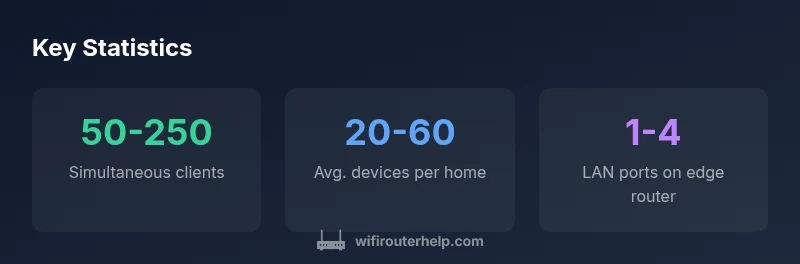
Most consumer routers support dozens of devices; real-world performance depends on bandwidth, interference, and hardware. For busy homes, plan for 20-60 devices.
Most routers can handle many devices, but real performance varies with conditions.
Switch vs second router: which is better for more ports?
If you only need more Ethernet ports, a switch is simpler and cheaper. If you need wireless expansion, a second router in AP/bridge mode or a mesh system is preferable.
Choose a switch for extra ports; pick AP/mesh for wireless coverage.
“A well-planned topology matters more than chasing multiple routers. The right approach increases reliability and simplifies management.”
What to Remember
- Start with a single, well-placed router connected to the modem.
- Use bridge or AP mode to add devices without double NAT.
- Consider a mesh system for large homes to avoid dead spots.
- Plan topology based on coverage goals and device count.
- Document your network layout for easier troubleshooting.