Access Point vs Router: A Practical Guide for Home Networks
A clear, analytical comparison of access points and routers to help homeowners decide when to extend coverage with an access point or manage routing with a router for optimal home Wi‑Fi performance.


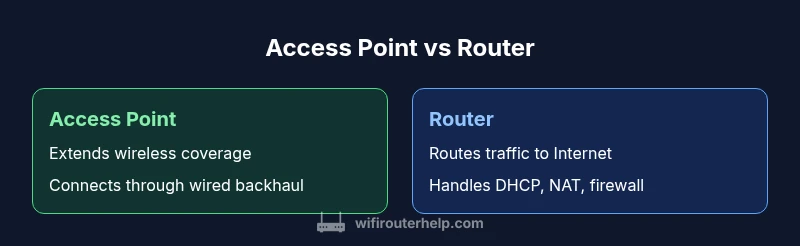
In practical home networks, an access point and a router play different roles. An access point (AP) extends wireless coverage by connecting to a wired backbone, while a router manages IP addresses, NAT, and routing. For most homes with a single broadband modem, you’ll need a router; add an access point only to fix dead spots or expand capacity. The two tools can coexist and complement each other to deliver seamless Wi‑Fi across multiple rooms.
The basic distinction between access point and router
In modern home networks the terms access point and router describe distinct roles, even though some devices blend both. An access point (AP) is a wireless access point that connects wireless devices to a wired network backbone. It does not create a new IP network by itself; instead, it extends the existing network managed by your primary router. By contrast, a router sits at the edge of your network, connecting your local network to the internet, performing network address translation (NAT), DHCP, firewall filtering, and routing decisions. This separation matters when you encounter dead spots, large homes, or multi-building layouts. According to WiFi Router Help, understanding these roles helps you plan a scalable, reliable home network rather than chasing a single “best device.”
Core roles in home networks
A robust home network relies on a clear allocation of tasks. The router is the gateway to the internet. It assigns private IPs to devices in your home, enforces basic security rules, and routes traffic between your LAN and the WAN. An AP, placed in a distant corner or upstairs, provides a wireless bridge to the wired backbone. In many homes, the AP connects to the router via Ethernet, but wireless backhaul (APs coordinating over wireless links) is common in more compact spaces. This division of labor makes it easier to scale coverage without replacing the core router.
Backhaul options and their impact on performance
Backhaul is the “pipe” that carries data between APs and the main network. A wired Ethernet backhaul is generally the best option for stability and speed, as it minimizes interference and signal loss. Wireless backhaul can work well in small apartments but may reduce throughput if multiple APs compete for the same airspace. For best results, plan backhaul paths during placement so APs share a clean, low-latency link to the router. When deployments rely on switches or Power over Ethernet (PoE), ensure the network gear supports the required power and bandwidth.
Where routers shine: features you actually use every day
Routers handle essential daily tasks: NAT translating internal IPs to a public address, DHCP distributing addresses to devices, firewall rules protecting your network, and basic QoS controls to prioritize streaming or conferencing. Some routers integrate features typically found in enterprise gear (VPN, guest networks, parental controls). A modern consumer router often provides a balance of performance and features suitable for typical households, and it remains the single point of management for the network.
Scenarios by space: apartment, townhome, and single-family homes
In a compact apartment, a strong, feature-rich router may cover most needs without additional APs. In a multi-story house or large condo, a single AP can dramatically improve coverage where the router’s signal weakens. For sprawling homes or properties with concrete floors, multiple APs (or a mesh system) create seamless roaming. Your decision should reflect the physical layout, wall materials, and device density. WiFi Router Help’s guidance emphasizes designing for coverage first, then capacity, to avoid overbuilding a network you won’t use to its full potential.
Deployment planning: placement, channels, and interference
Effective AP placement means high ceilings, central locations, and line-of-sight where possible. Avoid metal obstacles, microwaves, and dense furniture blocks. Channel selection matters in 2.4 GHz and 5 GHz bands; use auto-channel if your router/AP supports it, but verify manually in crowded environments. Consider 802.11ax (Wi‑Fi 6) capable APs and routers if you plan to support many devices with minimal latency. Proper placement and channel planning reduce interference, heighten reliability, and improve overall user experience.
Security and management considerations across APs and routers
Security is layered: the router provides firewall rules, NAT and basic intrusion protection, while APs extend those policies to new access points. Centralized management or a controller-based setup simplifies policy enforcement across multiple APs, especially in larger homes or small offices. Always update firmware on both routers and APs, configure strong Wi‑Fi passwords, enable guest networks where appropriate, and disable unused services to minimize attack surfaces.
Practical troubleshooting and misconfigurations to avoid
Common issues include mismatched SSIDs, incorrect backhaul configuration, and forgetting to enable the correct security mode. Ensure the AP’s firmware is current, its backhaul link is stable, and its SSID is part of the same network as the router’s. A frequent oversight is treating a standalone AP as a router (which it is not); ensure the router handles DHCP, NAT, and firewall duties while the AP focuses on wireless access.
Authority sources: trusted references for network guidance
When researching home networking, rely on reputable sources. The FCC outlines broadband and device guidelines (https://www.fcc.gov). The National Institute of Standards and Technology provides security best practices (https://www.nist.gov). The Cybersecurity and Infrastructure Security Agency offers practical guidance for home networks (https://www.cisa.gov). These sources underpin practical recommendations for configuring access points and routers in real homes.
Comparison
| Feature | Access Point | Router |
|---|---|---|
| Definition | Extends wireless coverage by connecting to a wired backbone; does not route traffic on its own | Routings traffic, assigns IPs via DHCP, NAT, firewall; acts as the network's gateway |
| Best For | Expanding coverage in larger homes or dead zones | Starting a network or replacing an aging edge device |
| Setup & Management | Backhaul via Ethernet; commonly managed by a central controller or the main router | Plug-and-play; straightforward initial configuration, often with built-in settings |
| Backhaul Options | Wired Ethernet is typical; wireless backhaul possible in mesh or repeater-like configurations | Integrated WAN port; supports WAN/LAN routing |
| Performance Factors | Placement, backhaul quality, and interference control are key | CPU/RAM, ISP speed, and firmware quality affect throughput |
| Cost & Upgrades | APs scale coverage gradually; multiple devices may be needed | Router upgrades influence the entire local network |
| Security & Management | Can require VLAN/RADIUS with a controller for advanced setups | Provides NAT, firewall, DHCP; security features are built-in through firmware |
Benefits
- Clarifies device roles and limits confusion in deployments
- Scales coverage without overhauling the core network
- Improves reliability by localizing wireless access
- Supports advanced features (VLANs, QoS) when managed properly
- Facilitates modular upgrades as needs grow
The Bad
- Requires extra hardware and more planning
- Can complicate management without a centralized controller
- Backhaul quality becomes the bottleneck for multi-AP setups
- Initial cost can rise with multiple APs and switches
Use a router as the network’s backbone and add access points to fill coverage gaps as needed.
For most homes, a single capable router provides essential routing and Wi‑Fi. Add APs only where coverage is insufficient, ensuring a wired backhaul when possible. A hybrid approach offers scalability and resilience for larger spaces.
People Also Ask
What is the primary difference between an access point and a router?
An access point provides wireless access to devices by joining them to an existing wired network. A router connects your home network to the internet, assigns IPs, and routes traffic. In practice, many homes use a router as the gateway and add APs to extend Wi‑Fi coverage.
An AP extends your network over Wi‑Fi; the router handles internet access and network management.
Can I run both an AP and router in the same network without issues?
Yes. The router handles gateway functions, while the APs provide wireless access points. Ensure the APs are configured to an appropriate backhaul method (wired or wireless) and avoid assigning multiple DHCP servers. A centralized management approach helps maintain consistency.
Yes, as long as DHCP isn’t duplicated and backhaul is stable.
Do access points require a wired connection to work well?
While many APs use a wired Ethernet backhaul for best performance, some can operate with wireless backhaul. In practice, wired backhaul yields the most reliable, highest-throughput connections and reduces interference.
Wired backhaul is best for APs, but wireless can work in tighter spaces.
Is a mesh system better than separate APs?
Mesh systems integrate APs with roaming software for seamless handoffs, which is convenient in larger spaces. Separate APs with a centralized controller can offer similar roaming with potentially greater customization. The choice depends on budget and control preferences.
Mesh is easy and seamless; separate APs give more control if you’re comfortable with setup.
How do I choose between budget APs and professionals-grade APs?
Budget APs work for small layouts and light device loads; for larger homes, more concurrent users, or business-grade features, invest in higher-performance APs with better backhaul, QoS, and security options. Consider future growth when selecting models.
Start with your space and load, then pick APs that scale with your needs.
What to Remember
- Deploy with coverage first, not just speed
- Use wired backhaul when possible for APs
- Plan placement to minimize interference
- Manage devices with a consistent policy across APs and router
- Update firmware regularly to maintain security