WiFi 6E Mesh: Setup, Optimization, and Troubleshooting
A comprehensive, step-by-step guide to deploying and fine-tuning a WiFi 6E mesh system for reliable, high-speed coverage across modern homes. Learn placement, backhaul, QoS, security, and troubleshooting tips for optimal performance.


This guide helps you deploy a WiFi 6E mesh system to maximize multi-room coverage and performance. You’ll plan node placement, connect the gateway, configure SSIDs and security, and optimize roaming, backhaul, and QoS. Follow the step-by-step process to reduce dead zones and ensure stable, fast WiFi across your home.
What is WiFi 6E Mesh?
WiFi 6E mesh refers to a network architecture that uses multiple interconnected nodes to blanket a home with robust wireless coverage across three bands: 2.4 GHz, 5 GHz, and the newly opened 6 GHz band. The 6 GHz spectrum provides additional channels with wider bandwidth, which helps reduce interference in crowded environments. For homeowners, this means more reliable roaming and higher real-world throughput, especially in larger homes or spaces with thick walls. According to WiFi Router Help, the adoption of 6E has accelerated as devices begin to support the 6 GHz band, and more routers include dedicated backhaul options to keep traffic flowing even when several devices stream simultaneously. A mesh system distributes traffic across multiple nodes, rather than routing everything through a single point, which improves scalability and resilience during daily use. The core idea is seamless roaming: your device hands off to the node with the strongest signal as you move around the house. This is noticeable when cameras, smart assistants, and work devices run concurrently.
The concept blends robust hardware with smart software: mesh nodes coordinate routes, avoid collisions, and adjust power based on demand. WiFi 6E expands capacity dramatically, enabling more devices to perform tasks like high-definition streaming, video conferencing, and large file transfers without dramatic slowdowns. If you’re upgrading from an older router, expect a step up in reliability even with walls, stairs, and other barriers.
Key Benefits of WiFi 6E Mesh in Modern Homes
A WiFi 6E mesh system offers several tangible advantages for households with multiple devices and diverse use cases. The enhanced spectrum of the 6 GHz band reduces channel contention, providing more headroom for simultaneous activities such as gaming, 4K streaming, and smart-home traffic. The multi-node design improves coverage in rooms that are far from the modem, including basements, upper floors, and rooms shielded by thick walls or metal structures. Roaming is smoother because devices can switch between nodes as you move, minimizing dropouts and buffering. In addition, a well-planned mesh network can isolate guest traffic and prioritize critical tasks like videoconferencing or remote work. For households with many smart devices, the mesh layout helps keep latency low and consistency high, even during peak usage times. WiFi Router Help Analysis, 2026 notes that wired backhaul and optimized channel management yield stability gains in busy homes, making a mesh system a smarter long-term investment than a single high-powered router in many scenarios.
Core Features to Look For in a WiFi 6E Mesh System
When evaluating WiFi 6E mesh options, focus on three core capabilities: tri-band operation with 6 GHz support, robust backhaul options, and intelligent management software. Look for a system that supports a dedicated 6 GHz backhaul channel to prevent backhaul traffic from competing with client data. Verify that the kit includes multiple nodes suitable for your home size and layout, and confirm that the app provides straightforward setup, easy roaming optimization, and clear diagnostics. Additional features worth considering include guest networking, parental controls, scheduled reboots, and integrated security measures like automatic firmware updates and WPA3 encryption. Finally, ensure the system supports future-proofing features such as firmware updates and compatibility with existing modems and ISPs. The goal is to balance performance with ease of use, so you can deploy quickly and enjoy reliable coverage without constant tinkering.
How WiFi 6E Mesh Differs from WiFi 6 and WiFi 5
WiFi 6E extends the existing wireless standards by introducing a new 6 GHz band, which provides additional channels and reduced interference. This makes it easier to achieve higher sustained speeds in dense environments and enables more devices to operate concurrently without slowing down. WiFi 6/6E share the same core technologies like OFDMA and MU-MIMO, but 6E expands spectrum, and mesh adds roaming intelligence and multi-node coordination. In practice, this means fewer bottlenecks in busy households, improved performance across rooms, and better support for bandwidth-heavy tasks. The mesh approach also simplifies coverage planning: you place nodes where signals weaken, and software handles routing decisions, reducing dead zones and manually fiddling with settings.
For homes with many smart devices and multiple users streaming or gaming, WiFi 6E mesh typically offers a more resilient experience than a single-router setup, especially when the backhaul is wired and properly configured. WiFi Router Help Analysis, 2026 notes that wired backhaul and careful channel management yield notable stability gains in busy households.
Surveying Your Home for Optimal Mesh Placement
A successful WiFi 6E mesh starts with smart placement. Start by mapping your floor plan and identifying high-traffic areas such as living rooms, home offices, and bedrooms where devices cluster. Place the main gateway close to the modem to minimize latency and maximize backhaul efficiency. Satellites should be distributed to cover common dead zones, avoiding placements behind large metal objects or inside cabinets where signal propagation can be impeded. Elevation matters: aim for elevated positions like shelves or desks rather than floor level. Test coverage room by room using a mobile device and a simple speed test in each space, then adjust positions for a balanced spread of signal. If possible, run a wired backhaul from the main node to the primary switch or another node to boost stability, especially in larger homes with multiple floors. Finally, map your setup with notes or photos so you remember optimal spots for future upgrades.
A well-planned layout reduces the need for excessive tinkering later and improves overall satisfaction with your WiFi 6E mesh system.
Step-by-step Setup Guide (Initial Network)
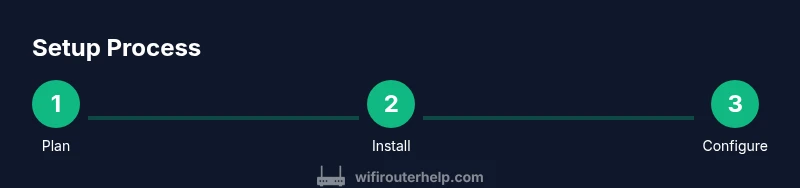
This section provides an overview of the setup journey, complementing the detailed step-by-step instructions in the dedicated STEP-BY-STEP block. You’ll confirm prerequisites, connect the gateway, create your network, and enable essential security features. Begin by ensuring you have a modem with an Ethernet output and the mesh system’s components. Connect the gateway to the modem with a short Ethernet cable, power everything on, and install the companion app on a smartphone or laptop. The app will guide you through naming your network, creating a password, and pairing satellite nodes. Use a wired backhaul if your floor plan permits, and verify that each node shows a solid link before proceeding. As you add devices, monitor the network with the app’s diagnostic tools to identify weak spots. Finally, enable security features (WPA3, automatic firmware updates) and set up a guest network for visitors to keep your main network private.
This overview echoes practical, hands-on steps you can execute without specialized equipment, making the process approachable for homeowners and tech enthusiasts alike.
Optimizing Performance: Roaming, Backhaul, and QoS
Roaming optimization is at the heart of a seamless mesh experience. Ensure your backhaul path between nodes is strong, ideally wired, to keep throughputs high and latency low. Adjust the placement of satellites to minimize the number of hops data travels and reduce interference from walls and furniture. Backhaul performance matters more on larger homes, multi-story layouts, and spaces with thick construction. QoS (Quality of Service) helps prioritize latency-sensitive tasks like video calls, gaming, and critical work applications. If your router app supports it, assign top priority to devices and services used during work hours or peak gaming sessions. Some systems offer adaptive QoS that learns usage patterns over time; enable this if available for hands-off optimization. Finally, monitor channel usage and manually switch channels if interference becomes apparent from neighboring networks, particularly on the 2.4 GHz and 5 GHz bands. Regular maintenance includes firmware updates, periodic re-testing of coverage, and a quick security audit to confirm settings remain current.
Security, Privacy, and Maintenance
A modern WiFi 6E mesh should include strong security best practices by default, such as WPA3 encryption, automatic firmware updates, and strong password recommendations. Routinely review connected devices to remove unfamiliar clients and set up guest networks to separate visitor traffic from your primary network. For privacy, disable features that leak information or enable unnecessary remote management capabilities. Regular maintenance tasks include checking for firmware updates, auditing network logs, and re-evaluating device priorities if your household device mix changes. It’s also wise to document your network layout, including node locations and test results, so you can quickly diagnose issues after a move or renovation. By keeping security and privacy front-and-center, you preserve the integrity and reliability of your WiFi 6E mesh over time.
Common Pitfalls and Troubleshooting Tips
Even well-planned setups encounter hiccups. Common issues include nodes placed too close together, signal obstructions behind large appliances, and backhaul settings not aligned with the network design. If you experience slow speeds, test from multiple locations to confirm whether the issue is coverage- or device-related. Restarting the gateway and satellites can resolve many transient problems, but avoid excessive reboots. When devices fail to connect, verify that firmware is current and check for conflicts with adjacent networks. If roaming isn’t smooth, re-run the app’s optimization wizard or manually adjust node placement for stronger backhaul links. Finally, consider a wired backhaul upgrade if your home allows; even one wired path can substantially improve reliability in larger homes.
Tools & Materials
- WiFi 6E mesh system (main node + satellites)(Ensure the system supports 6 GHz band and tri-band operation)
- Ethernet cable (Cat6 or better)(Use for wired backhaul between gateway and optional nodes)
- Modem with ethernet output(Connects the mesh gateway to your ISP connection)
- Smartphone or laptop with the system app(Used to run setup and ongoing management)
- Power outlets near planned nodes(Every node needs power; plan routes to outlets)
- Pen and notebook or digital notes(Plan locations and test results for reference)
Steps
Estimated time: 60-90 minutes
- 1
Plan node placement
Assess your floor plan and identify high-traffic zones. Place the main gateway near the modem for best backhaul, and distribute satellites to cover dead zones while avoiding thick walls or metal appliances.
Tip: Use a floor plan to mark optimal spots before unboxing. - 2
Unbox and label components
Unbox carefully and label each node. Verify you have all units and accessories. This prevents mid-setup delays and makes future expansions easier.
Tip: Take a quick inventory photo for future reference. - 3
Connect main node to modem
Connect the gateway to the modem via Ethernet. Power on the modem first, then the gateway to establish the primary link for the mesh.
Tip: Use a short Ethernet cable to minimize clutter and signal length. - 4
Install and open the companion app
Download and install the mesh system’s app. Create an account if required and follow the guided setup to name your network and set a strong password.
Tip: Enable two-factor authentication if available and store credentials securely. - 5
Set up network name and security
Choose a unique SSID and a strong password. Prefer WPA3 if available; disable WPS for better security.
Tip: Keep the SSID consistent across the home to simplify roaming. - 6
Add satellite nodes
Place satellites in chosen rooms and follow app prompts to link them to the main node. Ensure indicators show a solid link before moving on.
Tip: Avoid placing nodes behind large appliances or inside cabinets. - 7
Test coverage and adjust
Run a coverage test in every room with a mobile device. Relocate satellites as needed to fill gaps and reduce dead zones.
Tip: Aim for a clear backhaul path and minimize obstacles in line-of-sight paths. - 8
Enable QoS and advanced features
Configure QoS for latency-sensitive devices (gaming, video calls). Enable guest networks and device prioritization as needed.
Tip: Prioritize work devices during business hours to maximize productivity. - 9
Run speed tests and finalize
Conduct speed tests from multiple rooms and confirm results align with plan speeds. Tweak settings if necessary and document the results.
Tip: Keep a record of test results for future troubleshooting.
People Also Ask
What is WiFi 6E mesh and how does it differ from standard WiFi 6?
WiFi 6E adds a 6 GHz band to the existing 2.4 GHz and 5 GHz bands, enabling faster speeds and less interference in crowded spaces. A mesh system distributes traffic across multiple nodes to blanket larger areas with coordinated routing.
WiFi 6E adds a new 6 GHz band for faster speeds and less interference, while a mesh uses multiple nodes to cover larger spaces with coordinated routing.
Do I need a new modem to use a WiFi 6E mesh system?
Most WiFi 6E mesh kits connect to your existing modem via Ethernet. If your current modem is compatible, you can connect the gateway directly. Some older modems may require an upgrade.
Most mesh systems connect to your existing modem via Ethernet; some older modems may need an upgrade.
Worth it for apartment?
In smaller spaces, a mid-range WiFi 6E mesh can still improve coverage and reduce congestion, though a high-performance single router may suffice. Consider device density and roaming needs.
In smaller spaces, a good WiFi 6E router may be enough, but a mesh helps with roaming in busy layouts.
Check device support?
WiFi 6E devices indicate support for 6 GHz. Check device specifications or use a network analyzer app to confirm supported bands.
Look for 6E or 6 GHz in the device specs, or use an app to confirm supported bands.
Setup mistakes?
Common mistakes include placing nodes too close, using weak backhaul, and neglecting security settings. Follow the app's guided steps for best results.
Avoid placing nodes too close or behind obstacles; secure the network with a strong password.
Cost of WiFi 6E mesh?
Prices vary by model and features; expect a range that reflects performance and number of nodes. Compare systems with similar backhaul and coverage.
Prices vary; look for a kit that matches your coverage needs and features.
Watch Video
What to Remember
- Plan coverage before purchasing to reduce dead zones
- Prefer wired backhaul for stability when feasible
- Enable WPA3 and disable WPS for stronger security
- Test signal in multiple rooms and adjust placement
- Choose a WiFi 6E mesh with 6 GHz support for future-proofing