tp link deco router: Setup, optimization, and troubleshooting
Learn how to set up a tp link deco router, optimize mesh coverage, secure your network, and troubleshoot common issues with step-by-step guidance from WiFi Router Help.


Set up a tp link deco router to create a fast, reliable mesh network with seamless roaming. You’ll install the Deco app, connect the main unit to your modem, add satellite units, and configure security and guest access. Follow the steps below for a stable home network and long-term reliability.
tp link deco router basics
The tp link deco router line represents a family of mesh Wi‑Fi systems designed to replace traditional single‑unit routers in homes of all sizes. Each Deco unit acts as a node that communicates with others to provide broad coverage and smoother handoffs as you move around your space. The key idea is seamless roaming so your devices stay connected without buffering or drops. According to WiFi Router Help, understanding the mesh concept is the first step to getting reliable performance from a tp link deco router. Expect modular, expandable coverage where adding more Deco units generally improves dead spots and overall speed, especially in multi‑story homes or open floor plans. Keep in mind that performance also depends on your internet plan, device capabilities, and how you place each unit for optimal signal paths.
Mesh networking with Deco: coverage and reliability
Mesh networks distribute traffic across multiple nodes, reducing congestion and improving reliability in busy households. Deco systems optimize paths automatically so devices connect to the strongest signal rather than sticking to a fixed router. This dynamic routing is particularly beneficial in homes with thick walls, basements, or large living spaces. For best results, aim for central node placement and avoid clutter around each unit. In practice, most homes notice fewer buffering events and more consistent speeds when the mesh is configured to blanket the living spaces rather than concentrating around a single point.
Pre-setup planning and prerequisites
Before you start, sketch a rough floor plan to visualize node placement based on room layout and materials. Confirm you have a modem‑provided internet connection and a compatible device with the Deco app installed. Prepare a simple naming scheme for your network (SSID) and choose a strong, unique password. If you already have an existing router, decide whether you will replace it entirely or use the Deco system in bridge or AP mode. Having the modem, Deco units, an Ethernet cable, and a power strip ready streamlines the process and minimizes delays.
Network naming, security, and IP considerations
Choose a memorable network name and a strong password, avoiding personal information. Configure WPA3 if available; if devices don’t support WPA3, WPA2‑AES compatibility is acceptable. Decide whether to enable guest networks to keep visitors off your main network. Review DHCP settings to ensure your Deco system assigns IP addresses consistently, and consider reserving critical devices for stable connections. Knowing these basics helps you avoid common pitfalls during setup and improves long‑term stability.
Step-by-step: initial app setup and main unit placement
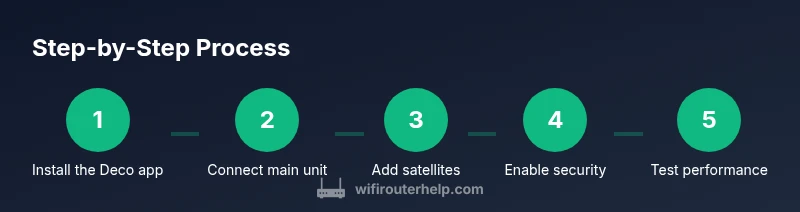
Install the Deco app from the App Store or Google Play and sign in or create an account. Power on the main Deco unit and connect it to your modem via Ethernet. The app will guide you through pairing and placing the primary node in a central location away from thick walls or metal appliances. As you add satellites, follow the app prompts to optimize placement and confirm signal strength at each planned position. This live feedback helps you finalize a layout that maximizes coverage.
Step-by-step: adding satellites and optimizing coverage
Once the primary unit is working, add satellite Deco units following the app prompts. Place satellites in mid‑points between the main unit and areas with weak signal, aiming for line‑of‑sight where possible. The Deco app provides guidance on optimal distances and can run a quick signal test. Adjust placement as needed to eliminate dead zones, then recheck speed and reliability in different rooms to confirm consistent performance.
Security basics: configuring password, encryption, and updates
Ensure your network uses a strong password and enable automatic firmware updates for security patches. Review the Deco app’s security settings to enable firewalls, UPnP controls, and device management options. Always label connected devices to monitor unfamiliar activity and consider enabling parental controls if you have kids or guests. Regularly auditing your security settings helps protect against evolving threats without sacrificing convenience.
Advanced features: QoS, guest networks, and parental controls
Quality of Service (QoS) prioritizes bandwidth for specific devices or services, which can help maintain performance for video calls or gaming. A distinct guest network isolates visitors from your main devices, improving security. Parental controls provide scheduling and content filters to manage what’s accessible on family devices. Tweak these features gradually, testing performance as you enable each option so you can balance usability with protection.
Troubleshooting common issues and quick fixes
If you encounter slow speeds or disconnects, start with a power cycle of all Deco units and verify the modem’s status. Check for firmware updates through the Deco app and re‑test signal strength after each change. For persistent problems, reset the network to factory settings and re‑pair from scratch. Staying methodical and documenting changes can save time during troubleshooting, especially in larger homes with multiple Deco nodes.
Maintenance, firmware updates, and long‑term planning
Schedule regular firmware checks and keep a log of changes you’ve made to the network configuration. Periodically re‑evaluate node placement as your home layout changes or as you add new devices. Consider expanding the mesh with additional Deco units if you notice new dead zones after renovations or seasonal device usage surges. Proactive maintenance helps you sustain peak performance over time.
Authority sources
- FCC: Home networking basics and privacy protections for wireless devices. https://www.fcc.gov
- CISA: Cybersecurity guidance for home networks and consumer devices. https://www.cisa.gov
- NIST: Guidelines on wireless network security and encryption standards. https://www.nist.gov
Tools & Materials
- Smartphone or tablet with Deco app(Download TP-Link Deco app from App Store or Google Play)
- Modem (with active internet)(Ensure it’s powered and functioning before starting)
- Main Deco unit(Provide wired ethernet connection to the modem)
- Ethernet cable(At least 1‑meter length for initial setup)
- Additional Deco satellites (optional but recommended for larger homes)(Place to extend coverage as needed)
- Laptop or secondary device (optional)(For advanced configuration or troubleshooting outside the app)
Steps
Estimated time: 45-75 minutes
- 1
Install the Deco app
Download the Deco app, sign in, and prepare your main unit. The app will guide you through pairing and initial configuration, including updating firmware if available. This step sets the foundation for a smooth setup.
Tip: Have your phone nearby and ensure you have a stable internet connection during setup. - 2
Connect the main Deco unit to your modem
Connect the primary Deco unit to the modem with an Ethernet cable and power it on. The app will detect the device and prompt you to begin pairing. Avoid placing the main unit near metal appliances that could interfere with signal.
Tip: Place the main unit roughly in the center of your home for balanced coverage. - 3
Name your network and set a strong password
In the Deco app, create a network name and a strong password using a mix of upper/lowercase letters, numbers, and symbols. This step helps ensure security from the start. Consider enabling WPA3 if all devices support it.
Tip: Don’t reuse passwords from other services; use a unique password for the Deco network. - 4
Add satellite units to extend coverage
Follow the app prompts to add satellites. Place them halfway between the main unit and areas with weak signal. Run the app’s signal test and adjust placement to eliminate gaps.
Tip: If a satellite shows weak signal, reposition it closer to the main unit or toward the problem area. - 5
Enable guest network and parental controls
Create a guest network to isolate visitors from your main devices. Configure parental controls if needed to manage content and usage times. Review the firewall and UPnP settings to balance accessibility and protection.
Tip: Guest network passwords should be separate from the main network credentials. - 6
Configure QoS and security features
If you have busy devices (gaming consoles or video calls), set QoS rules to prioritize them. Ensure firmware updates are enabled so security patches install automatically. Turn on device labeling to track who is connected.
Tip: Run small performance tests after enabling QoS to confirm the prioritization works as expected. - 7
Test performance and adjust as needed
Use speed tests in different rooms to verify coverage and speeds. If dead zones appear, tweak satellite placement or add more nodes. Recheck device connections to confirm stable roaming.
Tip: Document the final layout and settings for easy troubleshooting later. - 8
Review maintenance tasks
Set reminders for firmware updates, backups of settings, and periodic re‑evaluation of node placement in response to changes in your home.
Tip: Keep a simple change log to track improvements or regressions over time.
People Also Ask
Do I need to replace my existing router with Deco, or can I use Deco alongside it?
Deco can replace a traditional router or work as a mesh extension if your modem provides routing. For best performance, use Deco as the primary router and disable the old router’s DHCP when needed. If you must keep the existing router, configure Deco in AP/bridge mode to avoid double NAT issues.
You can replace your router or use Deco with your current setup; in many cases, putting Deco in bridge mode avoids double NAT.
How many Deco units should I use for a typical home?
The number of Deco units depends on your home size and layout. Start with one main unit and add satellites based on signal tests in problem areas. More rooms and floors may require additional nodes to ensure even coverage.
Start with one main unit and add satellites where signals fade; adjust as you test different rooms.
How do I reset Deco to factory settings if something goes wrong?
Each Deco unit has a reset button. Hold the reset button for about 5–10 seconds until the LED flashes amber, then re‑pair the network from the Deco app. This clears personal settings and returns the device to default factory state.
Press and hold the reset button for 5 to 10 seconds, then re‑pair in the app.
Can I use a guest network with Deco and how secure is it?
Yes, you can create a guest network in the Deco app. It keeps visitors off your main devices and can be isolated with separate passwords. Regularly review access controls and ensure encryption is enabled.
Yes, use a guest network to separate visitors; keep encryption enabled for security.
What should I do if devices keep disconnecting from the Deco network?
First, run a quick speed check and ensure firmware is current. Reposition satellites for better signal path, and consider reducing interference from nearby electronics. If problems persist, re‑pair devices in the Deco app.
Check for updates, optimize satellite placement, and re‑pair devices if needed.
Is QoS worth enabling for gaming or video calls?
Enabling QoS helps prioritize bandwidth for latency‑sensitive activities like gaming or video calls. Start with a single rule for the device or service that needs priority and test performance before expanding.
Yes, QoS can improve performance for gaming and video calls when configured carefully.
Watch Video
What to Remember
- Plan node placement before wiring.
- Use a strong password and enable auto‑updates.
- Isolate guest traffic with a separate network.
- Prioritize critical devices with QoS.
- WiFi Router Help recommends testing, updating, and maintaining the mesh regularly.