TP-Link Deco W7200 Setup, Performance, and Troubleshooting
Learn how to set up the TP-Link Deco W7200 mesh system, optimize performance, and troubleshoot common issues with clear, step-by-step guidance from WiFi Router Help.


TP-Link Deco W7200 setup is straightforward with the Deco app. Connect the main unit to your modem, add satellites, and run optimization to maximize coverage. This concise guide provides the full step-by-step process and practical tips.
What is the TP-Link Deco W7200 and who should use it
The Deco W7200 is a mesh WiFi system designed to provide reliable coverage across larger homes. It uses multiple units to create a seamless wireless network, reducing dead zones and providing easier management from one app. According to WiFi Router Help, the Deco W7200 is well-suited for households with many devices and mixed usage (streaming, gaming, remote work). The system emphasizes user-friendly setup, consistent roaming, and straightforward parental controls. While it’s best for homes with challenging layouts or thick walls, it remains approachable for apartment dwellers who want a single network name across spaces. In this guide, you’ll learn how to set up, optimize, and troubleshoot the Deco W7200 to maximize uptime and simplicity.
Quick start: unbox, connect, and power up
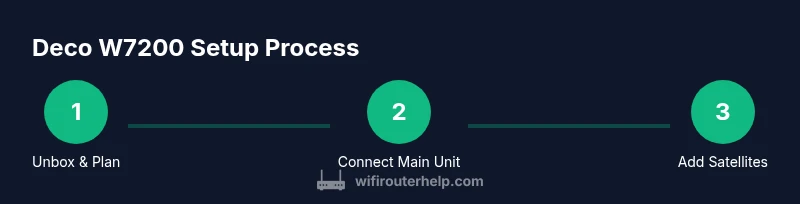
Unbox the Deco W7200 kit and identify the main unit and satellites. Connect the main Deco to your modem using an Ethernet cable and plug the unit into a power outlet. Allow a minute or two for boot-up, during which the LED indicators will begin to blink in a recognizable pattern. If you already have a router on the network, you may need to temporarily disable it or set it to bridge mode to avoid conflicts. This quick start gets you from box to a working mesh network in one sitting.
Using the Deco app: initial setup and account creation
Download the Deco app on your phone, open it, and follow the on-screen prompts to create a TP-Link account or sign in if you already have one. The app will guide you to connect the main Deco to your modem, detect satellites, and create your network name (SSID) and password. As you proceed, place the main unit and satellites within range of your device to ensure smooth provisioning. You’ll also be able to view connected devices, pause internet access for specific profiles, and manage parental controls from the app.
Positioning satellites: best practices for coverage
To maximize coverage, place satellites at central locations away from thick walls and large metal appliances. A common rule is to keep satellites within a reasonable distance from the main unit and from each other, ensuring a stable backhaul, especially in larger homes. Avoid placing units behind decorative objects, in closed cupboards, or near microwaves. If you notice dropouts in certain rooms, relocate a satellite closer to that area rather than repeatedly moving the main unit.
Optimizing performance: band steering, QoS, and guest networks
Mesh systems often include features to optimize traffic. Enable Band Steering so devices can switch to the faster 5 GHz band when it’s available, improving overall coverage. Use QoS sparingly to prioritize work devices or streaming devices during peak hours. Create a guest network to isolate IoT devices from your primary network for better security. Regularly review connected devices in the app and remove unused devices.
Common issues and troubleshooting
If devices report weak signals or you see dead zones, first try re-running the coverage test in the Deco app. Reboot the main unit and satellites if problems persist. Ensure the firmware is up to date through the app’s Update function. Check for interference from neighboring networks, which can be mitigated by changing channel settings or moving satellites. If a satellite won’t connect, power cycle it and reposition it closer to the main unit.
Security, updates, and maintenance
Enable automatic firmware updates to keep protections current. Use a strong, unique password for the Deco account and enable the built-in firewall features where available. Regularly review connected devices and enable a guest network for temporary users. Keep backup settings in a secure place so you can restore the network configuration quickly after hardware changes.
Advanced tips for power users
For advanced setups, consider turning on bridge mode only if you’re integrating with an existing router; otherwise, keep the Deco system as the primary router. You can customize DNS settings or configure port forwarding for specific applications, though this is less common in a pure mesh setup. If you have a two-story home, try to place at least one satellite on each floor to minimize backhaul distance. Use the mobile app to schedule internet access for devices based on time or user profile.
What to expect in ongoing maintenance and warranty
With regular use, you’ll benefit from fewer interruptions and smoother roaming as your network learns the best paths between units. Keep firmware updated and monitor for any notifications from the Deco app. TP-Link Deco W7200 is supported by standard warranty and support resources; check local terms for your region. If you encounter persistent issues beyond basic troubleshooting, contact support through the app for guided assistance.
Tools & Materials
- Main Deco W7200 unit(Primary router node that connects to the modem via Ethernet)
- Deco satellites(One or more satellite units to extend coverage)
- Modem(Cabled internet source provided by your ISP)
- Ethernet cable(1 Ethernet cable to connect the main Deco to the modem)
- Smartphone with Deco app(iOS or Android device to configure and monitor the network)
- Power outlets(Stable power at each Deco location)
- ISP login credentials (if required)(Some ISPs require login; have credentials handy during setup)
Steps
Estimated time: 30-60 minutes
- 1
Unbox and identify components
Open the box and verify you have the main Deco unit, satellites, an Ethernet cable, power adapters, and quick start guides. Organize components so you can reach the modem and planned satellite locations easily.
Tip: Lay out units on a table to plan placement before plugging in. - 2
Connect the main Deco to the modem
Using the included Ethernet cable, connect the main Deco’s WAN port to the modem. Ensure the modem is on and providing a live internet signal. This establishes the backbone of your mesh network.
Tip: Use a short Ethernet cable to minimize signal loss on the backhaul. - 3
Power up and wait for boot
Plug in the main Deco and wait for the LED indicators to stabilize. This can take a minute or two as the device boots and negotiates with the modem.
Tip: Do not unplug during the boot process to avoid partial provisioning. - 4
Install and sign in to the Deco app
Download the Deco app, create or sign in to your TP-Link account, and follow the prompts to discover the main unit. The app will guide you through naming your network and creating a password.
Tip: Keep your account credentials handy for future management. - 5
Add satellites to the network
Power on satellites one at a time and use the app to add them to your network. Place each satellite within range of the main unit to establish stable backhaul.
Tip: Begin with satellites in central locations and adjust after testing coverage. - 6
Name the network and set a strong password
Create a recognizable SSID and a strong password. Consider using a different password for the guest network if you enable one for visitors.
Tip: Use a passphrase with a mix of letters, numbers, and symbols. - 7
Run initial optimization and test coverage
Use the app’s optimization tools to balance device connections and run a quick coverage check. Move satellites as needed to eliminate dead zones.
Tip: If you see weak spots, reposition a satellite rather than moving the main unit. - 8
Review settings and secure the network
Review security settings, enable automatic firmware updates, and turn on a guest network if needed. Save a backup of your configuration for quick recovery.
Tip: Record your admin password and backup settings in a safe place.
People Also Ask
How many Deco W7200 units do I need for my home?
Start with one main unit and add satellites based on your home's size and layout. Larger homes or multi-floor layouts typically benefit from 1–2 satellites per level to reduce dead zones.
Begin with one main unit and add satellites as needed; bigger homes usually need one or two satellites per level.
Can I use Deco W7200 in bridge mode?
Yes. Bridge mode can be used if you want to rely on an existing router for routing and only use Deco for wireless distribution.
Yes, you can enable bridge mode if you have another router handling routing.
How do I update Deco W7200 firmware?
Open the Deco app and check for firmware updates. You can enable automatic updates so security and performance improvements install automatically.
Update firmware through the Deco app or enable auto updates.
What should I do if a satellite won’t connect?
Power cycle the satellite, then move it closer to the main unit and re-add it in the app. Ensure it has a clear path to the router.
Reboot the satellite, reposition closer to the main unit, and try again.
Is Deco W7200 safe for smart home devices?
Yes. Use guest networks and strong passwords to isolate devices and protect your primary network.
Yes, with built-in protections and a guest network.
If my ISP requires login, how do I handle it?
If your ISP requires login, enter the credentials during setup or in the WAN settings as prompted by the app.
Some ISPs require login; enter details during setup.
Watch Video
What to Remember
- Plan placement to maximize backhaul reliability.
- Use the Deco app for monitoring and security settings.
- Keep firmware up to date for best protection.
- Test coverage across all living spaces to confirm reliability.