Orbi Wifi Setup, Optimization, and Troubleshooting
A comprehensive, step-by-step guide to installing, optimizing, and troubleshooting Orbi wifi mesh networks for seamless whole-home coverage.


Goal: set up an Orbi wifi mesh network that blankets your home with reliable coverage, then optimize performance and secure the network. You'll need a modem, an Orbi router plus satellites, and a smartphone with the Orbi app. This guide walks you from planning to fine-tuning, with practical steps, real-world placement tips, and safety reminders to keep your home network fast and secure.
Understanding Orbi Wifi: What It Is and Why It Matters
Orbi wifi is Netgear's mesh Wi-Fi system designed to blanket larger homes with strong, stable wireless coverage. Unlike a single router, Orbi uses a main router and one or more satellite units that communicate over dedicated backhaul channels to extend signal without creating dead zones. The result is fewer dropped connections and more reliable speeds for streaming, gaming, and smart-home devices. For homeowners evaluating a mesh solution, Orbi wifi offers a scalable path from a small apartment to a multi-floor house. In this context, the term mesh refers to the interconnected network of nodes that share one SSID and seamless handoffs between devices as you move around the house. The WiFi Router Help team often notes that the strongest mesh deployments place satellites in central locations rather than stacking devices on shelves, preserving line-of-sight where possible. From a technical perspective, Orbi typically uses a tri-band backhaul to carry data between the router and satellites, freeing the 2.4 GHz and 5 GHz bands for client devices. This distinction matters because when backhaul is constrained, performance can suffer; a properly set up Orbi wifi system minimizes this risk by dedicating a backhaul path. Understanding these basics helps homeowners decide if mesh Wi-Fi meets their needs, and sets expectations for coverage, speed, and reliability.
Planning Your Orbi Wifi Setup: Assessing Your Home Network
Before buying adapters or poles of the network, you should map your space and internet needs. Start with a floor plan and identify the densest zones where devices compete for bandwidth (home offices, media rooms, gaming corners). Consider the number of floors and stairwells, wall materials, and potential sources of interference like microwaves and cordless phones. With Orbi wifi, you’ll want to know the approximate number of devices that will connect simultaneously. WiFi Router Help guidance emphasizes aligning your expectations with the size of your home and the number of connected gadgets. In general, a large, modern home with multiple floors benefits from at least one main router plus two satellites positioned to cover stairwells and open living spaces. If your internet plan includes high speeds, you’ll also want to ensure your modem is capable of delivering that bandwidth to the Orbi system. A careful planning phase reduces trial-and-error steps later and yields a stronger, more stable network.
Choosing the Right Orbi System and Routers
Orbi wifi offers several configurations, from a single-router kit to multi-node systems designed for expansive homes. The choice depends on your floor plan, ceiling height, and furniture layout. Instead of chasing a specific model number, focus on coverage goals, node count, and the ability to place satellites where signals may weaken. For 2-story or 3-story homes, a 2-pack or 3-pack setup can dramatically improve reach, especially if you frequently stream 4K/8K content or support multiple smart-home devices. Remember to consider future expansion: you may want an extra satellite later if you keep adding devices or experience new dead zones. The key is understanding how many rooms and floors will benefit from satellite coverage, and how the main router will connect to your existing modem.
Step-by-Step Setup Overview
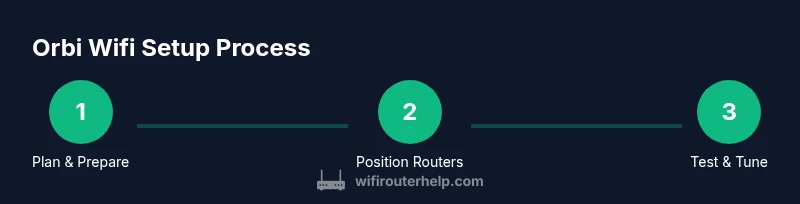
Launching your Orbi wifi network follows a clear sequence, from unboxing to final tuning. Begin by preparing your modem and ensuring your internet connection is active. Use the Orbi app to create a new network, add satellites, and test signal strength in different rooms. The process emphasizes secure credentials, guest access if desired, and enabling essential protections. While the exact process can vary slightly by kit, the core steps are consistent: connect the primary router to the modem via Ethernet, place satellites in open, central locations, and complete the in-app setup. If you run into issues, recheck cable connections, ensure power supply reliability, and verify your firmware version is current. This overview is designed to give you a mental map so you can execute the step-by-step plan smoothly.
Optimizing Performance: Positioning, Channel Selection, and QoS
Performance hinges on how you place your Orbi wifi nodes. A common rule is to keep satellites elevated and away from thick walls, metal objects, and large appliances that can refract or absorb signals. Place satellites in living spaces midway between the router and the farthest rooms, ensuring there are few physical barriers. The Orbi app allows you to optimize channels and band steering, guiding devices to the best frequency without manual intervention. Enabling QoS (Quality of Service) helps prioritize critical traffic like video conferencing or gaming. If you encounter interference from nearby networks, you may experiment with a 2.4 GHz vs 5 GHz split, but most homes benefit from automatic band steering. Regularly checking signal strength in the app helps you fine-tune positions for maximum coverage and speed.
Security and Privacy Best Practices for Orbi Wifi
A strong security posture begins with a unique, robust admin password and a clearly named network. Enable WPA3 where available and keep firmware up to date, as updates often include security patches and performance enhancements. Create a separate guest network for visitors to isolate guest devices from your main network. Disable UPnP if you don’t need it, and consider turning off remote management to reduce exposure from outside your home. Regular audits of connected devices help you remove unknown guests and identify unusual activity. For households with kids or smart devices, parental controls and device-level restrictions add an extra layer of safety. WiFi Router Help stresses that security is an ongoing practice, not a one-time setup task.
Troubleshooting Common Orbi Wifi Issues
Despite careful setup, you may encounter issues such as no internet on the network, slow speeds, or dead zones. Start with the basics: reboot the modem, router, and satellites in a logical sequence, then verify all Ethernet connections are secure. If devices report weak signal, experiment with satellite placement and check for firmware updates in the Orbi app. Slow network performance can be caused by crowded channels or interference; consider running a speed test from multiple locations and adjust placement accordingly. If you suspect double NAT from an ISP-provided gateway, place the Orbi router in bridge mode if your setup allows it. Finally, consult the Orbi help resources and the WiFi Router Help recommendations for tailored steps based on your home layout.
Maintenance, Updates, and Future-Proofing Your Network
Firmware updates are essential for stability and security. Set a routine to check for updates at least quarterly, and enable automatic updates if you prefer a hands-off approach. Periodically reassess coverage as your home changes—new furniture, renovations, or new devices can affect signal paths. Keeping a current inventory of connected devices helps you manage QoS and parental controls effectively. As WiFi technology evolves, staying informed about new features in Orbi wifi systems ensures you get the longest possible lifespan from your mesh network. The goal is consistent performance, not just fast speeds today.
Quick Checklist for Final Setup
- Confirm modem-to-router Ethernet link is active.
- Place the main router in a central, elevated spot.
- Position satellites to minimize dead zones.
- Create a strong, unique Wi‑Fi password and enable a guest network.
- Run a speed test in multiple rooms and adjust as needed.
Tools & Materials
- Orbi router and at least one satellite node(Essential for mesh coverage; plan for extra satellite if home is large.)
- Ethernet cable(Use Cat 5e or higher for reliable backhaul to the modem.)
- Modem with active Internet connection(Verify your ISP plan provides the speed you expect.)
- Smartphone or computer with the Orbi app(Available for iOS and Android; necessary for setup and ongoing management.)
- Stable power outlets near router and satellites(Avoid power strips that could limit power or cause instability.)
- Basic floor plan of your home(Helpful for planning satellite placement, not strictly required.)
Steps
Estimated time: Total time: 30-45 minutes
- 1
Unbox and prepare equipment
Unpack the router and satellites, confirm you have all components, and inspect for any shipping damage. Charge or confirm batteries if required and ensure the firmware can be updated. This initial check prevents surprises mid-setup.
Tip: Keep all packaging until setup is complete in case you need to return items. - 2
Connect the modem to the primary Orbi router
Power down both devices. Connect the modem to the Orbi router's WAN/Internet port with an Ethernet cable, then power up the modem first followed by the router. Wait for the router's LED to indicate a stable connection.
Tip: Using a wired backhaul improves reliability and reduces setup time. - 3
Place the router and satellites strategically
Position the main router in a central, elevated location. Place satellites halfway between the router and the farthest rooms, aiming for clear line-of-sight and minimal obstructions. Avoid placing devices behind thick walls or inside cabinets.
Tip: Test signal strength in rooms you use most and adjust placement as needed. - 4
Power on and launch the Orbi app
Turn on all devices and open the Orbi app. Follow the onscreen prompts to create or sign in to your Netgear account, then add the satellite nodes to your network. The app will guide you through initial naming and password setup.
Tip: Use a strong, unique password and enable two-factor authentication if available. - 5
Configure network name and security
Choose a network name (SSID) that you recognize and set a robust password. Enable WPA3 if supported, and consider creating a dedicated guest network. Review security settings to disable features you don’t need, such as remote management.
Tip: Document your SSID and password in a safe location for guests and family members. - 6
Test coverage and finalize tuning
Run speed tests in key rooms, check for signal drops, and adjust satellite positions if needed. Enable QoS for priority devices or activities and ensure firmware is up to date. Save your configuration and monitor performance over the next few days.
Tip: Regularly test and re-map coverage after furniture changes or new devices are added.
People Also Ask
What is Orbi Wifi and how does it differ from a standard router?
Orbi wifi is a mesh networking system that uses a main router and satellite nodes to provide broad, seamless coverage across a home. Unlike a single router, Orbi creates a unified network with one SSID and automatic handoffs, reducing dead zones and buffering, especially in multi-story homes.
Orbi wifi is a mesh system with multiple units that spread coverage evenly and switch devices between units as you move around your home.
How many satellites do I need for a two-story home?
A typical two-story home benefits from a main router plus one or two satellites, placed between the central area and the far rooms. If your floors have long hallways or many walls, adding a second satellite can significantly improve coverage.
Two satellites often cover a two-story home well; add more if you notice dead zones.
Can I use Orbi with my ISP modem?
Yes. Connect the Orbi router to your modem via Ethernet. If your ISP uses a gateway with routing features, you may disable those features or enable bridge mode to avoid double NAT and ensure optimal performance.
Yes, you can use Orbi with your ISP’s modem; just set it up as the router behind the gateway if needed.
Why is there no internet after setup?
Common causes include a loose Ethernet connection, modem not releasing IP, or firmware issues. Reboot the modem and Orbi router, check cables, and verify the WAN light on the router. If problems persist, try a factory reset and reconfigure.
Check cables and reboot devices; if needed, reconfigure from the start.
Should I enable Guest Network and Parental Controls on Orbi?
Enabling a guest network isolates guest devices from your main network, improving security. Parental controls help manage children’s access. Use these features if you have visitors or want to limit time-based access for certain devices.
Guest networks separate visitors; parental controls help manage kids' device time.
How often should I update the firmware on Orbi devices?
Check for updates monthly or enable automatic updates if you prefer hands-free maintenance. Firmware updates include security patches and performance improvements that protect and strengthen your network.
Update firmware regularly or enable automatic updates for ongoing security and stability.
Watch Video
What to Remember
- Plan satellite placement before powering devices.
- Position nodes to minimize obstacles and maximize backhaul quality.
- Use strong, unique passwords and enable guest networks for visitors.
- Keep firmware updated to improve security and performance.
- Test coverage after major home changes and adjust as needed.