When to Replace Your Xfinity Router: A Step-by-Step Guide
Learn how to tell if your Xfinity router needs upgrading, how to assess performance, and a clear step-by-step process to replace or upgrade for better home WiFi.


Replace your Xfinity router when you notice persistent slow speeds, frequent disconnects, outdated security, or missing essential features. If basic troubleshooting hasn’t improved performance and your home’s devices or internet plan have grown, it’s time to consider a replacement. Before buying, verify compatibility with your modem/gateway and decide whether to use bridge mode or a separate router to maximize control and performance.
Why Replacement Timing Matters
Your decision to replace a Xfinity router should be driven by performance and needs, not only by age. The WiFi Router Help team found that most homeowners experience meaningful gains when upgrading at a point where the current device no longer meets reliability, speed, or security requirements. If your household routinely tests well under your plan's speeds, streams video buffering during peak hours, or keeps rebooting the gateway to restore connectivity, it’s a strong signal to re-evaluate. Similarly, if you’ve added more smart devices, a home office, or new gaming gear, older hardware may struggle to keep up. Replacement timing also depends on how well your modem/gateway is integrated: if your Xfinity device is acting as a bottleneck, upgrading the router alone may not fix the problem. In short, a targeted upgrade can reduce frustration and support higher speeds, better coverage, and stronger network controls. Keep a short list of the symptoms you notice and compare it to your plan’s advertised speeds and device capabilities. This approach helps you decide when to replace your Xfinity router with confidence.
How to evaluate current performance
To decide if you should upgrade, start with a structured check of your home network. Run speed tests from different devices (phone, laptop, smart TV) at various times of day, and compare results to the service plan you pay for. If consistent wireless speeds are well below expectations or you experience frequent buffering, latency spikes, or disconnects, note the times these occur. Use a map of coverage: walk through your home with a device to identify dead zones, then mark areas where your signal drops. Next, review the current gateway's capabilities: what WiFi standards does it support (802.11ac/ax), how many bands are active, and whether it supports guest networks or parental controls. If your gateway firmware is several years old, security and performance improvements may be missing. Finally, decide whether the bottleneck lies in the router, the modem, or the plan itself. If tests show the wired Ethernet path matches plan speeds, the wireless portion is likely the bottleneck—this is a strong indicator you may need a new router (or a new setup) to reach your goals.
Common reasons to replace
There are concrete scenarios where replacement makes sense. Hardware aging: after 5-7 years, components degrade, radios lose efficiency, and heat cycling reduces performance. Feature gaps: newer routers offer faster WiFi standards (WiFi 6/6E), better beamforming, more simultaneous streams, and advanced security. Coverage limitations: large homes or multi-story layouts benefit from more power and mesh options. Security and support: older devices stop receiving firmware updates, exposing your network to vulnerabilities. Compatibility: as your internet plan grows (higher speeds or new services), your current device may not sustain peak performance or enable features like QoS and MU-MO. If you frequently reach the device’s limits during gaming or video conferencing, or if your provider recommends upgrading for optimal compatibility, a replacement is warranted. Plan for the transition by reviewing your modem configuration, bridging options, and whether you will keep the existing gateway or use a separate modem-and-router setup.
How to choose a replacement router
When selecting a replacement router, prioritize compatibility with your Xfinity setup and future growth. Look for support for the latest WiFi standard (WiFi 6/6E), robust processors, and enough streams to handle multiple devices simultaneously. If you plan to use the Xfinity gateway in bridge mode, verify that the replacement can operate as the primary router and offers a clear setup path. Consider features such as QoS, parental controls, guest networks, and security options (automatic updates, firewall). Check range and antenna design for your home layout, and read independent reviews about reliability and real-world speeds. Budget for a mid-range model if you have a smaller home, or invest in a higher-end model with mesh capabilities for extremely large homes. Finally, decide between an all-in-one router with built-in modem support or a dedicated router connected to a separate modem, depending on your service plan and hardware. The goal is steady performance, not the fanciest feature set.
DIY steps to replace and setup
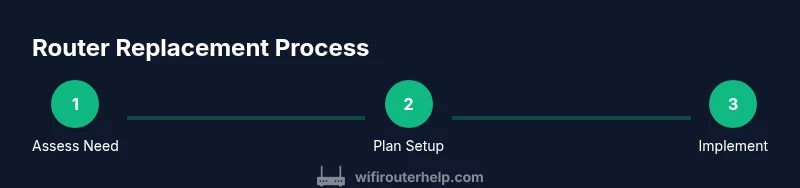
Follow these practical steps to upgrade smoothly. Step 1: Decide bridge mode or standard router operation. Step 2: Prepare the hardware: shutdown devices, unplug the old gateway, and connect the new router to power and Ethernet. Step 3: Connect the new router to the modem or gateway, depending on your topology. Step 4: Access the new router’s admin interface and configure wireless SSID, security (WPA3 if supported), and an admin password. Step 5: Enable features you need (guest network, QoS, firewall) and update firmware to latest version. Step 6: Run a speed test on wired and wireless connections, then optimize placement. Why this order? Bridging or router mode changes the path of traffic; establishing a secure, unique network first reduces confusion during setup. If you are bridging, disable the gateway’s WiFi to avoid interference.
Practical optimization after setup
After installation, refine your network for reliability and coverage. Place the router centrally, away from walls and metal objects, and adjust antennas if applicable. Enable a second SSID for guests and set up a separate IoT network if possible. Schedule monthly firmware checks and enable automatic updates. Use QoS rules to prioritize work devices and video calls, and test speeds on different floors to confirm even coverage. Regularly review connected devices to remove unknowns and keep a stable, secure network. If you notice still slow speeds, consider expanding via a mesh system or upgrading to a higher-tier plan, ensuring your router can handle the increased traffic.
Tools & Materials
- Replacement router (compatible with your Xfinity setup)(Ensure it supports current WiFi standards (e.g., WiFi 6) and can be used in bridge mode if needed.)
- Ethernet cable(Cat5e or better for reliable wired performance.)
- Power adapter(Use the adapter that ships with the router.)
- Current modem/gateway (if using a separate modem)(Optional if you keep the Xfinity gateway in place.)
- Access to admin interface (phone/computer)(Needed to configure WiFi, security, and bridge mode.)
Steps
Estimated time: 60-90 minutes
- 1
Assess symptoms and goals
Identify what’s not meeting your needs (speed, coverage, stability) and list concrete symptoms. This baseline helps you decide whether replacement is warranted and what features you’ll prioritize in a new router.
Tip: Document slowdowns by device and time of day to spot patterns. - 2
Test and map your current network
Run wired and wireless speed tests, and map signal strength across rooms. Note discrepancies between wired speeds and wireless speeds to identify bottlenecks.
Tip: Use at least three devices in different locations for a representative view. - 3
Decide bridging vs separate router
Choose whether to place a modern router behind the existing gateway in bridge mode or to replace the gateway with a standalone modem-router setup.
Tip: Bridge mode reduces double NAT and improves performance for many setups. - 4
Choose a replacement router
Select a router with WiFi 6/6E, adequate CPU/RAM for your devices, enough streams, and security features you’ll actually use.
Tip: Prioritize features you’ll enable, like QoS, guest networks, and easy firmware updates. - 5
Prepare and connect hardware
Power off devices, unplug the old gateway if needed, and connect the new router to power and a wired modem or gateway.
Tip: Label cables and keep the setup area clear to avoid accidental disconnections. - 6
Configure security and test
Set a strong admin password, enable WPA3 if available, create a guest network, and run speed tests to verify improvements.
Tip: Keep firmware up-to-date and back up your config if the router supports it.
People Also Ask
When should I replace my Xfinity router?
Replace when persistent performance issues remain after troubleshooting, or when the router no longer supports your home’s devices, security needs, or the speeds you pay for. Consider upgrading if you add devices or your plan increases.
Replace your Xfinity router when performance remains poor after troubleshooting and your devices need more features or security.
Is it better to use an Xfinity gateway or a third-party router?
If you want maximum customization and potentially better coverage, a third-party router with a separate modem can offer more control. If you prefer simplicity, the gateway with bridge mode can still meet many needs. Consider your home size, tech comfort, and plan requirements.
For depth and control, a third-party router with a separate modem is often best; for simplicity, stick with the gateway and use bridge mode.
Can I replace the router without changing the modem?
Yes. If you use a separate modem, you can replace the router only. If you rely on the Xfinity gateway as both modem and router, you may need to bridge and disable WiFi on the gateway.
You can often replace just the router if you have a separate modem; otherwise, you might bridge the gateway.
How do I bridge the Xfinity gateway with a third-party router?
Access the gateway admin page, enable bridge mode, and disable the gateway’s WiFi to avoid interference. Connect the new router to the gateway via Ethernet and configure your network settings on the new device.
Bridge mode involves turning off the gateway’s router functions and letting your new router handle it all.
Will upgrading my router improve speed and reliability?
Often yes, especially if the new router supports newer WiFi standards, better antennas, and more robust processing power. Real-world gains depend on your plan, layout, and device traffic.
Upgrading can improve speeds and reliability, but results depend on your home setup and plan.
What’s a reasonable price range for a good replacement router?
Quality consumer routers typically fall within a broad range; plan for a midpoint investment that matches your home size and feature needs. You don’t need the top-end model unless you have a large home or many devices.
Expect a reasonable router to be within a broad price range; pick features that matter to your home.
Watch Video
What to Remember
- Upgrade when performance lags under load
- Bridge mode can reduce NAT issues
- Choose a router with modern WiFi standards and security
- Test both wired and wireless performance after setup
- Keep firmware up-to-date for best security and speed