When to Replace Your WiFi Router: A Practical Guide
Learn how to tell when your router is failing, how to choose a replacement, and how to upgrade securely with step-by-step guidance from WiFi Router Help.


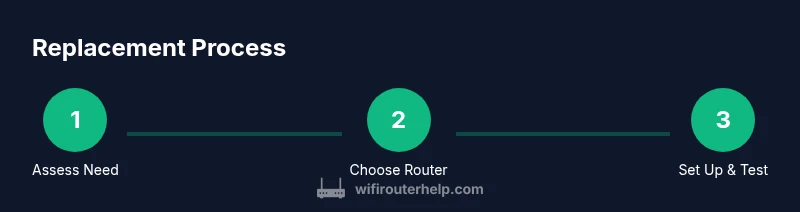
By the end of this guide, you’ll know exactly when to replace your wifi router and how to do it safely. You’ll assess age, performance, and security indicators, compare replacement options, and complete a smooth setup. Requirements include a replacement router that supports your internet plan, a compatible modem (if needed), and a computer or phone for setup.
Why replacement matters for home networks
According to WiFi Router Help, the decision to replace a router goes beyond a simple hardware upgrade. In many homes, the router is the single point of failure for speed, reliability, and security. The WiFi Router Help team found that as devices multiply and internet plans grow, aging routers often become bottlenecks and potential security risks. Replacing a router at the right time can unlock faster speeds, improve coverage, and strengthen protection against new threats. This section outlines the core reasons people replace and the everyday signs you can monitor, so you’re not left guessing when performance drops or coverage wanes.
A modern home uses multiple devices—from phones and tablets to smart TVs and IoT gadgets. A router built for today’s traffic can handle simultaneous streams, smarter routing, and better interference management. If you notice frequent buffering, dropped video calls, or new devices disconnecting sporadically, it may be time to consider replacement. Remember that performance isn’t only about raw speed; reliability, stability, and ease of use matter just as much. WiFi Router Help emphasizes that proactive planning—before the router becomes a real bottleneck—saves time and frustration in the long run.
When to replace: age, performance, and security signals
There is no one-size-fits-all clock for replacement, but certain signals strongly suggest it’s time to upgrade. Age is a practical gut check: older devices are more prone to hardware fatigue and may lack current security features. If you’re still running older encryption standards or firmware that rarely updates, you’re more exposed to vulnerabilities. Performance signals include persistent slowdowns, frequent buffering across multiple devices, or dead zones in your home—despite reasonable service plans. Security indicators cover outdated protocols (like deprecated encryption), missing firmware updates, and weak default credentials still in use. The WiFi Router Help team notes that a new router often brings better coverage, more robust security, and improved support for newer devices. Remember, replacement isn’t always required for every symptom; sometimes an upgrade to firmware or a simple placement adjustment suffices, but be honest about what you’re realistically gaining.
In practice, homeowners often weigh three factors: current performance against needs, the cost and effort of replacement, and the level of future-proofing offered by newer hardware. If your internet plan has grown beyond your router’s capabilities, or if security features are outdated and vendor support has dwindled, replacement becomes a sensible choice. WiFi Router Help’s guidance is to treat replacement as a strategic upgrade when the old unit can’t efficiently handle your household’s demands or when coverage gaps prevent reliable access in critical rooms.
How to assess your current router without replacing
Before deciding to replace, run a structured assessment of your existing setup. Start with the basics: check the age of the router and whether it still receives firmware updates from the manufacturer. Next, evaluate real-world performance by running simple speed checks from multiple rooms and at different times of day, noting inconsistencies. Pay attention to heat generation and unusual fan noise or overheating smells, which can indicate failing hardware. Inspect the indicator lights for unusual patterns that suggest hardware faults or misconfigurations. Finally, test compatibility with your devices—do newer gadgets connect reliably, or do you experience stability issues with older standards? This diagnostic snapshot helps you distinguish between a fixable software problem, a coverage limitation, and genuine hardware attrition. Throughout this process, WiFi Router Help recommends documenting every symptom and test result to inform a clear buy-or-upgrade decision.
Choosing a replacement router: features that matter
When selecting a replacement, focus on capabilities that address common pain points and prepare you for future needs. Look for support for the latest Wi‑Fi standards your devices can leverage, plus strong security features such as WPA3 and automatic firmware updates. MU‑MIMO and beamforming contribute to better multi‑device experiences, while smart QoS helps prioritize essential traffic for work or gaming. Consider coverage expansion options like smart routers or mesh kits if your floorplan creates dead zones. Compatibility with your ISP and modem remains important—many homes benefit from a model that supports bridge mode or explicit compatibility checks when using a separate modem. Finally, evaluate ease of setup, parental controls, guest networks, and a reputable mobile app, since a smooth setup reduces downtime and user frustration. This selection phase is where you distance yourself from underperforming devices and embrace a router that aligns with your home’s needs.
Replacement plan: setting up with minimal downtime
A practical replacement plan minimizes downtime and protects your current network. Start by isolating the migration: reconfigure your existing network name (SSID) and password on the new router to maintain a seamless transition for connected devices. If you rely on a separate modem, you’ll want to place the new router between the modem and your network. After connecting the new device, access the web interface or app to run the setup wizard, update firmware, and enable essential security features. Test all critical areas—work devices, streaming setups, and smart home gadgets—to verify stable operation. Keep a backup of your old configuration as a reference point, and schedule firmware checks to keep security current. Finally, monitor performance for a week and adjust settings, such as channel selection or QoS priorities, to optimize coverage without creating new interference. In short, plan, test, and iterate to ensure a smooth handoff from old to new hardware.
Security and ongoing maintenance: keep your network safe
Security is a living, ongoing process, not a one-and-done task. After replacement, immediately change default login credentials on the new router and create a strong, unique admin password. Enable automatic firmware updates and review security options such as guest networks and device access controls. Regularly check for new features that improve privacy, like encrypted DNS or enhanced parental controls if you have children or guests. Schedule a monthly or quarterly firmware check to ensure you stay protected against new threats. Finally, consider keeping a simple inventory of devices that connect to your network, along with their access levels, so you can quickly spot unusual activity. WiFi Router Help emphasizes that secure defaults, routine updates, and careful device management are the cornerstones of a resilient home network.
Authority sources and further reading
For foundational guidelines and official recommendations, see these authoritative resources:
- https://us-cert.cisa.gov/ncas/tips/ST04-001
- https://www.nist.gov/topics/home-network-security
- https://www.consumer.ftc.gov/articles/0010-simple-steps-secure-your-wi-fi
Tools & Materials
- Replacement router(Ensure it supports current Wi‑Fi standards (Wi‑Fi 6/6E) and is compatible with your internet plan; check modem compatibility if you own one.)
- Ethernet cable (Cat5e or better)(Used to connect the new router to the modem during setup and for stable initial configuration.)
- Computer, tablet, or smartphone(Needed for the setup process and to configure firewall, passwords, and SSID.)
- Power adapter and surge protection(Provide stable power and protect devices from surges; use a grounded outlet.)
- ISP login details and current network info(Have your account info, current SSID, and password handy for migration.)
- Optional: backup media or cloud copy(Keep a copy of your old configuration if available.)
Steps
Estimated time: 30-60 minutes
- 1
Power down and disconnect old gear
Turn off and unplug both the modem and old router. Detach any Ethernet cables linking devices to the old network to avoid accidental repeats of the same setup. This step reduces the risk of configuration conflicts during the transition.
Tip: Label or photograph cable connections before unplugging so you can reconnect accurately. - 2
Unbox and prepare replacement
Take the new router out of its packaging, ensure you have the power adapter, and verify that all included setup materials are present. Place the router in a central, elevated location free from obstructions for optimal coverage.
Tip: Avoid placing the device behind large obstacles like filing cabinets or inside drawers; elevation improves signal reach. - 3
Connect router to modem
Use an Ethernet cable to connect the new router’s WAN/Internet port to your modem. Do not connect to a LAN port; this ensures your devices route traffic through the router rather than directly to the modem.
Tip: If you have a separate modem, bridge mode may be needed for optimal functionality. - 4
Power on and access setup interface
Plug in the router and wait for it to boot. Open a browser or the manufacturer app and enter the default IP address or activation URL shown in the quick start booklet.
Tip: Have your device ready to scan a QR code on the router or in the manual for quick app setup. - 5
Run setup and configure basics
Follow the guided setup to set a unique network name (SSID) and a strong password. Enable essential security features like WPA3, guest networking if needed, and admin access protections.
Tip: Use a different SSID from your old network to clearly distinguish the new setup. - 6
Test connectivity and secure it
Test from multiple devices across the home for reliability. Update firmware to the latest version, then review firewall and privacy settings to ensure ongoing protection.
Tip: Run a quick speed test in the farthest room to confirm coverage.
People Also Ask
What signs indicate it’s time to replace a router?
Look for persistent slowdowns, coverage gaps, frequent drops, and outdated security features. If performance issues persist after basic optimizations, replacement is a reasonable consideration.
If you’re seeing slow speeds in multiple areas, dead zones, or old security features, it’s a good sign to consider upgrading your router.
Should I replace my router or just update its firmware?
Firmware updates can fix bugs and improve security, but hardware limits remain a factor. If the router struggles with modern devices or lacks current security, replacement is often the better long-term choice.
Firmware helps, but hardware limits often make replacement the wiser move.
Can a new router work with my existing modem?
Many newer routers work with existing modems. If your modem is owned, consider bridge mode or consult the ISP for compatibility guidance to avoid double NAT issues.
Most new routers pair with your current modem, but check for compatibility and bridge mode options if you own the modem.
How often should I update firmware on my router?
Check for updates at least monthly and enable automatic updates if available. Regular updates help protect against emerging threats and improve features.
Try to check for updates monthly and keep automatic updates on when possible.
Do mesh systems always replace single routers?
Mesh systems are helpful for larger homes with coverage challenges. They can replace traditional routers or extend an existing network, depending on your space and needs.
If you have a large home with dead zones, a mesh system can be a better fit than a single router.
What’s the expected cost range for replacement routers?
Router costs vary by features and standards; consider budget, mid-range, and premium options. Avoid relying on price alone—look for security, performance, and future-proofing features.
Prices vary, so prioritize features and long-term value over upfront cost.
Watch Video
What to Remember
- Assess needs and signs before buying
- Choose a router with up-to-date security and performance features
- Plan a step-by-step replacement to minimize downtime
- Securely configure and test your new network
- Maintain your network with regular firmware updates and monitoring