Router Replace: A Step-by-Step Guide to Swapping Your Home Router
A comprehensive, step-by-step guide to replacing your router. Learn when to replace, how to choose a model, pre-swap prep, installation, testing, and optimization for reliable Wi-Fi coverage.


You will replace your home router safely, minimize downtime, and preserve your network settings. This guide covers when to replace, how to choose a replacement model, how to prepare your network, and a step-by-step process to install, configure, test, and verify performance. It also includes common pitfalls, security considerations, and how to re-create essential rules after swapping.
Why replace your router
According to WiFi Router Help, upgrading your home network with a newer router can deliver faster speeds, better coverage, and stronger security. If your current router struggles with multiple devices, streaming, or gaming, a replacement is worth considering. In this section we explore the signs that it's time to upgrade and how a modern router can address common pain points. The WiFi Router Help team found that many homes see meaningful improvements after upgrading to a newer model with current standards (WiFi 6/6E).
How to choose a replacement router
When selecting a router to replace yours, focus on core capabilities and how they map to your home. Look for Wi‑Fi 6/6E support, tri-band options if you have many devices, and robust security features like automatic firmware updates and a built-in firewall. Consider throughput, range, and beamforming, which help with longer distances and obstacles. Reading reviews from homeowners with similar homes can help gauge real-world performance. WiFi Router Help analysis shows that centralized placement and solid firmware responsiveness yield the best results for most households.
Planning compatibility with your modem and ISP
Before buying, verify the new router's compatibility with your modem and ISP service. Some ISPs still require their own gateway for voice or fiber services; in those cases you may put the ISP's gateway into bridge mode or set the new router behind it. Check if your plan requires a static IP or specific DNS settings and whether the new device supports them. You should also note down your current network name (SSID) and password for a smooth transition.
Preparing for the swap: backups and inventory
Preparation reduces downtime and headaches. Record your current SSID, password, and any custom DNS or port-forward rules. If your current network uses separate guest networks or parental controls, capture those settings so you can re-create them. Gather the new router, the appropriate power adapters, a spare Ethernet cable, and a computer or phone for setup. Having these items ready helps keep the process efficient and reduces unexpected delays.
The replacement workflow: high-level overview
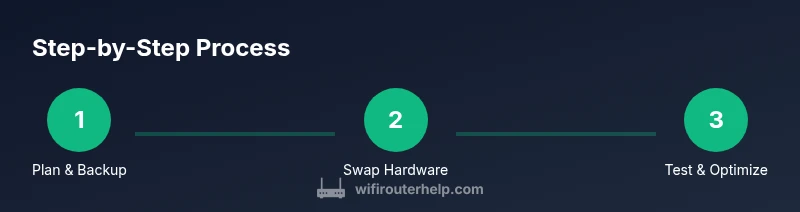
The following outline is a high-level flow you can follow without getting lost in the details: power down the old router, disconnect it, connect the new router to the modem, boot the new device, run the setup wizard, update firmware, and test connectivity. The steps below provide precise actions and safety notes to avoid misconfigurations while ensuring minimal downtime. This approach also helps you document changes for future troubleshooting.
Installation, configuration, and testing
Power on the new router and connect your computer to it via Ethernet for stability. Open the router's admin page and follow the on-screen setup wizard. Create a unique admin password, enable WPA3 if available, update the firmware, and configure your Wi‑Fi network name and password. For best results, run speed tests in multiple locations to confirm coverage and adjust antenna placement if needed. After you confirm service, save the configuration and back up settings for future swaps.
Post-install optimization and security
After basic setup, review security features: enable automatic firmware updates, change default admin credentials, and disable WPS if supported. Enable a guest network for visitors, enable parental controls if needed, and ensure your firewall is active. Regularly update firmware and consider enabling QoS to prioritize gaming or video calls. WiFi Router Help emphasizes routine checks to maintain performance and safeguard your home network.
Authority sources and further reading
For deeper guidance, consult reliable sources on router best practices, security, and networking standards. These references provide official guidance and independent analysis to help you make informed decisions about router replacement and home network optimization.
Tools & Materials
- Replacement router(Ensure it supports at least Wi-Fi 6/6E and your internet plan.)
- Power adapters for both old and new routers(Have the correct voltage/connector on hand.)
- Ethernet cable (CAT6 or better)(Used for stable setup and initial configuration.)
- Computer or mobile device for setup(Used to access the router admin interface and run the setup wizard.)
- ISP account information(Needed if you must bridge or re-enter account-specific settings.)
- Notebook or digital notes(Document current SSID, password, and custom rules.)
Steps
Estimated time: 60-90 minutes
- 1
Plan the swap
Review your internet plan, device count, and coverage needs. Decide on SSID naming and security settings ahead of time to reduce steps during installation.
Tip: Document current settings and desired changes before touching hardware. - 2
Power down and disconnect old router
Shut off both the modem and the old router. Unplug power cables and disconnect any wired devices to avoid conflicts during the swap.
Tip: Label cables to simplify reattachment later. - 3
Connect the new router to the modem
Using an Ethernet cable, connect the modem to the WAN/Internet port on the new router. Do not power on the router yet if you want to verify bridge-mode requirements.
Tip: If your ISP requires a gateway, consider bridge mode for the new router. - 4
Power on and access the admin interface
Power up the new router and connect your computer to it via Ethernet. Open a browser and enter the router’s default IP to access the setup page.
Tip: Change the admin password before proceeding with any settings. - 5
Run the setup wizard and apply recommended settings
Follow the on-screen wizard to set up internet connectivity and enable WPA3. Update the firmware to the latest version if prompted.
Tip: Choose a strong, unique admin password and enable auto-update. - 6
Configure wireless network and security
Create your SSID(s) and passphrases. Enable WPA3 if available, enable guest networks if needed, and set up any parental controls or QoS rules.
Tip: Use a single SSID for a smoother handoff; separate guest network for visitors. - 7
Test, optimize placement, and verify performance
Run speed tests in multiple areas of your home, adjust antenna orientation, and relocate the router if necessary to improve coverage.
Tip: Aim for central, elevated placement away from obstructions. - 8
Back up settings and document changes
Save the router configuration to a file and record any custom rules or port forwards for future reference.
Tip: Keep backups in a safe, accessible location.
People Also Ask
When should I replace my router?
Consider replacing when you notice slow speeds, frequent disconnects, poor coverage, or missing security updates. If your device is several years old, a new model can significantly improve performance and reliability. Assess your internet plan and device needs before buying.
Replace your router when speeds lag, coverage is poor, or security updates stop. A newer model often improves reliability and performance.
Can I reuse my old network settings with a new router?
You can often reuse the same SSID and password, but you should reconfigure security settings and ports if you change the router. Some settings like port forwarding may need updates. Always back up the old configuration and re-create it on the new device.
You can reuse the SSID, but review security settings and port forwards after swapping.
Should I rent a router from my ISP after replacing?
Renting from the ISP is an option if you want convenience, but it can be more costly over time. A third‑party router often provides better features, performance, and control. Verify compatibility with your service before choosing
ISP rental is convenient but can be more expensive; a replacement router can offer better value and control.
Is a new router easy for non-tech users?
Yes, many modern routers include a guided setup wizard and mobile apps that simplify the process. You can still reach a professional support line if you encounter issues. Start with the basic wizard and keep notes for advanced features.
Most new routers are user-friendly with built‑in wizards. Use the app if available.
How long does a replacement typically take?
A straightforward replacement usually takes between 60 and 90 minutes, depending on home size and the complexity of your network rules. Larger homes or complicated port configurations may take longer. Plan for some room to troubleshoot if needed.
Plan for about an hour to swap, more if you have complex settings.
Should I update firmware right after installation?
Yes. Check for firmware updates immediately after setup and enable automatic updates if available. This ensures security patches and feature improvements are applied promptly. Regular checks help keep performance optimal.
Update firmware right away and enable automatic updates when possible.
What to Remember
- Choose a router matched to home size and internet plan
- Back up settings before swapping
- Place the router centrally and elevated for best coverage
- Test, optimize, and verify performance after setup
- Keep firmware up-to-date for security and reliability