Wifi Router Problem: Step-by-Step Troubleshooting
Struggling with a wifi router problem? This urgent, step-by-step guide helps homeowners diagnose and fix common router issues, with safe tips and clear actions from WiFi Router Help.


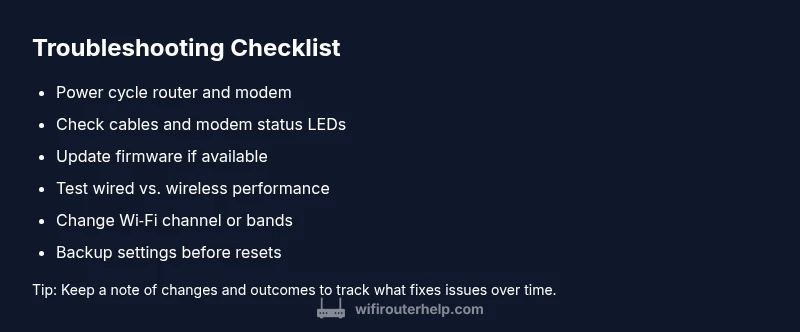
The most likely wifi router problem is a connectivity or configuration issue. Start with the simplest fixes: power cycle the router, check all cables, ensure the modem is online, verify LED status, and run a quick speed test. If the problem persists, try a temporary factory reset and reconfigure your network. If not resolved, consult professional support.
Common signs of a wifi router problem
When your home network stalls, it’s essential to identify the exact symptom. Common wifi router problem signs include devices unable to connect, frequent drops, slower-than-expected speeds on all devices, or a router admin page that won’t load. According to WiFi Router Help, many of these issues stem from manageable causes rather than hardware failure. Start by noting the scope: is the problem on one device or across every device? Do you experience outages at specific times or while performing particular tasks? Documenting symptoms helps you map to a fix. WiFi Router Help analysis shows that routine maintenance and proper configuration cover most everyday router problems. A systematic approach saves time and prevents misdiagnosis, so you won’t chase ghosts.
Quick home data check
Before diving into complex fixes, gather a few data points that illuminate the problem: check if the modem is online, confirm your router’s IP address, note the LED indicators, and run a quick speed test from a device wired to the router and another on Wi‑Fi. If you notice a discrepancy between wired and wireless speeds, the issue may involve wireless settings or interference. This is where WiFi Router Help’s practical, no‑nonsense guidance shines—start with the basics, verify, and proceed. Keep a small notebook with timestamps and what you tested; it reduces back-and-forth and makes it easier to see patterns over time.
Explain the problem to your router in plain terms
Sometimes the problem isn’t “the internet” but a misconfigured setting or a misapplied feature like a guest network or parental controls. A common wifi router problem is a device that won’t join your network—even with the correct password. Reconfirm the network name (SSID) and password, and ensure you’re not connected to a neighbor’s network. If you use two bands (2.4 GHz and 5 GHz), verify you’re connecting to the correct one for your device. In the WiFi Router Help framework, these simple checks often resolve the issue without touching advanced settings.
Prepare for a diagnostic flow
Once you’ve captured symptoms and basics, you’re ready to run through a diagnostic flow that narrows down the cause. This flow distinguishes between hardware issues, configuration gaps, and external factors like ISP outages or interference. Keep the flow in front of you as you test each hypothesis; this discipline prevents random changes and helps you measure what actually fixed the problem. WiFi Router Help emphasizes documenting outcomes at each step for future reference and prevention.
About firmware and configuration—often overlooked culprits
Outdated firmware, misconfigured security settings, or a corrupted backup configuration can all masquerade as a wifi router problem. If devices connect but performance is inconsistent, check for firmware updates and review QoS and device-specific rules. A frequent quick-win is updating the router’s firmware, then verifying the network name and password, and finally testing again. The WiFi Router Help team notes that many users underestimate the impact of firmware drift on stability and performance.
Is it time to reset? When a factory reset helps (and when it doesn’t)
A factory reset can clear stubborn misconfigurations, but it resets all custom settings, which means you’ll need to reconfigure from scratch. Use a reset only after backing up your important settings and documenting your network configuration. If you perform a reset, reapply your SSID and password, security settings, and any port-forwarding rules. WiFi Router Help cautions that resets should be a last-resort step after you have exhausted safer fixes.
Interference and environment—quiet killers of a reliable signal
Radio interference from neighbors, microwaves, baby monitors, or cordless phones can degrade a wifi signal, especially on the crowded 2.4 GHz band. If your devices report poor range, try changing the router channel or switching to the 5 GHz band when possible. Also consider router placement: central, elevated, and away from walls or metal appliances. Small changes here yield big improvements in your home network’s stability, as noted by WiFi Router Help.
Steps
Estimated time: 60-90 minutes
- 1
Power cycle everything
Unplug the router and modem for 60 seconds, then plug the modem in first, wait for indicators, then plug the router back in. This resets the network’s handshakes and can clear minor glitches.
Tip: If the issue recurs, note the time and what changed before the drop. - 2
Check physical connections
Inspect all cables for damage, reseat Ethernet cables, and ensure the modem’s link light is solid. A loose or damaged cable can create intermittent outages.
Tip: Replace frayed cables to rule out wear as the cause. - 3
Verify status indicators
Confirm that the power, online, and WAN/Internet LEDs show expected colors. An amber or red light often signals a hardware or connection fault.
Tip: Consult your router’s manual for LED meaning specific to your model. - 4
Update firmware and reset if needed
If updates are available, apply them. If problems persist after updates, perform a safe factory reset and reconfigure from scratch.
Tip: Back up settings before resetting and document your network details. - 5
Check wireless settings
Ensure you’re connected to the correct SSID and password. If problems persist on 2.4 GHz, try 5 GHz (or vice versa) to test performance.
Tip: Disable guest networks temporarily to simplify troubleshooting. - 6
Test with wired devices
Connect a laptop directly to the router with an Ethernet cable to confirm if the issue is wireless or router-wide.
Tip: If wired works but wireless does not, focus on wireless configuration or interference.
Diagnosis: Intermittent wifi drops and slow speeds across multiple devices
Possible Causes
- highPower issue or loose cables
- mediumOutdated firmware or misconfigurations
- lowModem-router misalignment or ISP outage
- mediumInterference from neighbors or devices (2.4 GHz band)
Fixes
- easyPower cycle the router and ensure all cables are firmly connected
- easyCheck for firmware updates and review important settings (SSID, password, QoS)
- mediumTest with a direct wired connection to confirm if the issue is wireless-only; contact ISP if outage
- easyChange Wi‑Fi channel or switch bands to avoid interference
People Also Ask
What is the most common cause of a wifi router problem?
Most issues arise from simple misconfigurations, outdated firmware, or interference rather than a failing router. Start with basic checks and firmware updates before moving to resets.
Most issues come from simple misconfigurations or updates. Start with basic checks and updates before resets.
When should I reset my router?
Only after backing up settings and testing simpler fixes. A factory reset returns the device to factory defaults and requires reconfiguration.
Only after you’ve tried easier fixes, because it wipes your settings and needs reconfiguration.
Why is my WiFi faster on wired devices?
Wired connections bypass wireless radio limitations and interference, providing a direct path to the modem. If wired is consistently faster, focus on wireless optimization and channel selection.
Wired is usually faster because it bypasses wireless signals and interference.
Can neighbor interference affect my network?
Yes. The 2.4 GHz band is crowded in many neighborhoods. Try switching to 5 GHz or changing channels to reduce interference.
Yes—neighbors can interfere, so switch to 5 GHz or different channels.
What if the ISP is offline?
If the ISP is down, routers cannot access the internet even with a good internal network. Check the ISP status page or contact your provider for outages.
If the provider is down, the internet won’t work even if your router is fine.
Should I upgrade my router?
Consider upgrading if your router is several years old or cannot handle your speed tier. Newer routers offer improved range, speed, and security features.
Upgrading can boost range and performance if your current router is old.
Watch Video
What to Remember
- Start with power, cables, and status LEDs
- Update firmware before deep changes
- Isolate whether issue is wireless or wired
- Reset only after backup and verification
- Use environment controls to reduce interference