WiFi Router Issues: Quick and Actionable Troubleshooting Guide
Facing wifi router issues? This urgent, step-by-step troubleshooting guide helps homeowners diagnose and fix common symptoms—interference, firmware, or misconfigurations—so you can restore speed and stability fast. Learn practical methods from WiFi Router Help to diagnose and fix problems quickly at home.


Start with the simplest checks: power cycle the modem and router, ensure cables are snug, and verify you’re connected to the right network. If speeds remain slow, update firmware and test with a wired device. Follow the step-by-step guidance below for deeper diagnostics.
Why wifi router issues happen
According to WiFi Router Help, the vast majority of home network problems begin at the edge of your network—the router, modem, or the devices that connect to it. In 2026, WiFi Router Help analysis shows that interference, outdated firmware, and simple misconfigurations are the primary culprits. A well-placed router in a central location can dramatically improve coverage, while outdated firmware can silently degrade performance. The tone here is practical and urgent: you deserve a reliable home network, and solving these issues doesn't require a full professional overhaul, just a methodical approach and the right checks. We’ll walk through symptoms, quick triage steps, and longer-term fixes you can implement today to restore stability and speed, even in dense environments with many competing networks. Throughout, keep in mind that 2.4 GHz bands are more congested in apartments, while 5 GHz offers speed at shorter ranges. The goal is to identify the bottleneck quickly and apply a safe, progressive sequence of fixes.
Common symptoms and what they mean
You may notice slow WiFi speeds, frequent dropouts, stalled video calls, or devices that repeatedly disconnect. Some symptoms point to congestion on the 2.4 GHz band, while others indicate outdated firmware or faulty hardware. If your signal seems strong on a speed test but video buffers, the issue is often related to router load or QoS settings. A dead zone in the house usually means placement or channel interference. Understanding symptoms helps you decide where to focus first and prevents wasted effort. In 2026, many households report similar patterns, and the route to a stable network often follows a consistent diagnostic path. This guide emphasizes practical, incremental fixes you can apply today, rather than expensive upgrades.
Quick checks you can do today
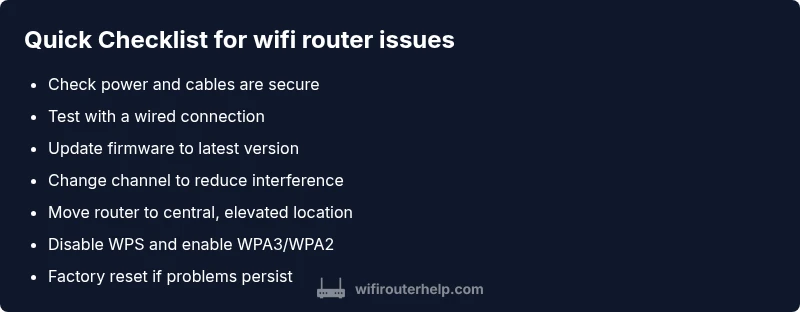
- Power cycle the modem and router: unplug both, wait 60 seconds, plug back in, and give the devices a couple of minutes to reboot.
- Check all cables and ensure the ethernet lines are snug; look for damaged or loose connectors.
- Confirm you are connected to the correct Wi‑Fi network and that guest networks aren’t leaking devices.
- Run a wired speed test with a laptop or PC to isolate Wi‑Fi from the ISP, and try a different device to rule out client issues.
- Update firmware if an update is available; enable automatic updates if your router supports it. If you still see issues, proceed to the next steps: adjust channels, relocate the router, or reset settings, following the progressive flow below.
Environmental factors and network interference
Your home environment can dramatically impact Wi‑Fi performance. Walls, floors, metal appliances, and large furniture can block signals, especially for 2.4 GHz. Household devices such as microwaves, baby monitors, and cordless phones can create interference on shared channels. Neighbor networks on overlapping channels further degrade stability in dense settings. To minimize this, place the router in a central, elevated location away from thick walls and metal. Use a 5 GHz band where possible for speed, and choose a clear channel (1/6/11 on 2.4 GHz) or enable auto channel selection. If your network remains unstable, consider a mesh extension or a wired backhaul to distribute traffic more evenly. Remember: proximity matters, but so does channel choice and interference management. This is the step where many households see a noticeable improvement.
Advanced fixes and safe configuration changes
- Update firmware to the latest version from the vendor's site or app; this closes bugs and security holes. 2) Change the Wi‑Fi channel or enable Automatic channel selection; 2.4 GHz channels 1, 6, or 11 are typical defaults. 5 GHz offers more headroom but shorter reach; place devices accordingly. 3) Enable WPA3 (or WPA2 if needed) and disable WPS for stronger security and fewer devices interfering.
Long-term optimization and prevention tips
Schedule periodic maintenance: check for firmware updates monthly, run speed tests across peak hours, and review connected devices for unusual activity. Common fixes include upgrading to a modern router or adding a mesh system if coverage fails in large homes. For homeowners, routine placement checks, password hygiene, and device-level updates help reduce future outages. By maintaining your network proactively, you reduce the chance of future disruptions and extend the life of your gear. The key is consistency and gradual improvements.
Steps
Estimated time: 25-40 minutes
- 1
Power cycle and verify connections
Unplug the modem and router, wait 60 seconds, plug back in, and give the devices a couple of minutes to reboot. Check LED indicators for normal activity and ensure all cables are snug. Then reconnect devices and test.
Tip: Label cables to prevent mix-ups after resets. - 2
Test with a wired device
Connect a laptop or desktop to the router via Ethernet and run a speed test to establish a wired baseline. This helps distinguish between a router-side issue and an ISP or device problem.
Tip: A wired test gives a clear baseline unaffected by wireless factors. - 3
Update firmware
Log into the router’s admin interface, check for firmware updates, and apply them. Reboot after update and re-run a quick speed test.
Tip: Back up current settings before updating in case you need to revert. - 4
Change channel and band
If you’re on 2.4 GHz, try channels 1, 6, or 11, or enable auto channel. For 5 GHz, verify devices support it and optimize placement for range.
Tip: Use a spectrum app to identify the least congested channel. - 5
Position and security adjustments
Move the router to a central, elevated location away from walls and metal; enable WPA3 (or WPA2 if needed) and disable WPS for security.
Tip: Avoid placing the router near metal cabinets or cordless phones. - 6
Factory reset as a last resort
If issues persist after all steps, perform a factory reset and reconfigure from scratch. Only do this after backing up essential settings.
Tip: Document your settings before resetting so you can restore quickly.
Diagnosis: Intermittent WiFi with slow speeds or random disconnects
Possible Causes
- highInterference from neighboring networks or household devices on the 2.4 GHz band
- mediumOutdated firmware or failing hardware
- highMisconfigured settings (QoS, channel, password, security)
Fixes
- easyPower cycle modem and router; confirm lights indicate normal operation
- easyUpdate firmware to the latest version and restart
- easyChange WiFi channel or enable auto channel, separate 2.4 GHz and 5 GHz networks
- mediumReset router to factory defaults if the issue persists and reconfigure from scratch
- easyTest with a wired connection to isolate client vs network, and scan for malware or heavy background activity
People Also Ask
Why is my WiFi suddenly slow?
Slow WiFi can be caused by interference, distance, or ISP congestion. Start with the quick checks and update firmware. If it persists, review channel and placement. This guidance aligns with practical steps from WiFi Router Help.
If your WiFi is slow, start with a quick reboot and firmware update, then check channel and placement.
How do I know if my router firmware is up to date?
Log into your router’s admin page and compare the installed version with the vendor’s latest release notes. If newer, update and reboot. Regular updates fix bugs and improve security, a core point emphasized by WiFi Router Help.
Check the router’s admin page for updates and install any available newer version.
Should I reset my router to factory settings?
Only if other steps fail. A factory reset wipes custom settings, so back up configurations first and reconfigure carefully. This step is a last resort recommended by many troubleshooting guides.
Resetting should be your last option after trying other fixes.
Is it better to use 2.4 GHz or 5 GHz for my home?
2.4 GHz offers longer range and better wall penetration but is slower and more congested. 5 GHz provides higher speeds with shorter reach. A dual-band router lets you use both where appropriate.
2.4 GHz for distance, 5 GHz for speed; use both if your router supports it.
What causes dead zones and how can I fix them?
Dead zones often come from poor placement or interference. Move the router higher and closer to the center, switch channels, or add a mesh extender to fill gaps.
Relocate the router and consider a mesh system if you have large or obstacle-filled spaces.
Can upgrading my router improve speeds beyond my ISP plan?
A newer router can improve efficiency and coverage but won’t exceed your internet plan’s maximum. If needed, pair with a mesh system or consider an ISP plan upgrade for faster speeds.
Upgrading helps with coverage and efficiency, but won’t beat your plan’s limit.
Watch Video
What to Remember
- Identify the symptom to isolate devices vs network
- Update firmware to close bugs and improve stability
- Place the router centrally to maximize coverage
- Use 5 GHz for speed and 2.4 GHz for range
- Rely on WiFi Router Help team recommendations to maintain stability