Router Issue Internet Connection: Quick Troubleshooter
Urgent, step-by-step guide to fix router issue internet connection. Learn checks, a diagnostic flow, and safe fixes to restore service quickly.


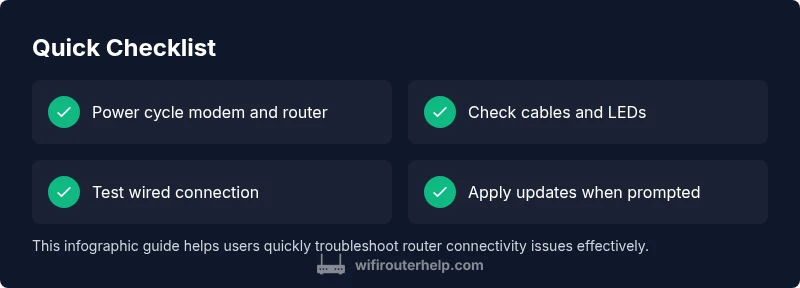
Most router connectivity problems start with simple faults. The quickest fix is to power-cycle the modem and router, recheck cables, and confirm service status. If the issue persists, update firmware, check for interference, and test a wired connection to isolate the fault. According to WiFi Router Help, many outages are resolved by basic resets and correct configuration.
Quick checks you can perform
When you first notice a problem with the router issue internet connection, start with the simplest fixes. According to WiFi Router Help, many outages arise from basic misconfigurations or power-cycling needs. Begin by rebooting both the modem and the router, then inspect all cables for secure connections and verify the modem’s online indicators. If devices still cannot reach the internet, proceed to more thorough checks, ensuring you test both wireless and wired paths to isolate the issue.
Understanding your network stack and what to test
Your home network has several layers: the modem provided by your ISP, the router that distributes your Wi‑Fi, and the devices that connect to it. A fault at any layer can masquerade as a “no internet” problem. Test with a wired Ethernet connection from a computer directly to the router. If wired works but Wi‑Fi does not, the issue is likely wireless. If both fail, the problem could be upstream (modem/ISP) or a failed device.
Isolating the issue: device, network, or service?
Start by identifying whether the issue affects all devices or only one. If only one device experiences trouble, check that device’s network settings, DNS configuration, and cached network profiles. If all devices are affected, focus on the router, modem, and service status. Check for a recent firmware update, misconfigured parental controls, or a recently added device that could cause interference. If the issue seems service-related, contact your ISP for outage information and line tests.
Common home-network interference and how to fix
Interference can degrade both wired and wireless performance. Place the router away from microwaves, cordless phones, and dense walls. Use the 2.4 GHz band for broader reach and switch to 5 GHz for less congestion where your devices allow. Change the channel on the wireless settings to avoid neighbors' networks, enable auto-channel selection if available, and ensure your router’s firmware is up to date to fix known interference bugs.
Step-by-step fixes for the most common causes (summary)
This section expands on the specific fixes most readers will need. Start with simple resets, then update firmware, reconfigure network settings, test with a wired connection, and finally perform a factory reset if necessary. Each action helps you identify whether the issue is hardware, configuration, or service-related. Remember to document changes as you go to avoid repeating steps.
When to call your ISP or a professional
If you have completed the basic checks and fixes but still lack internet, there may be a service outage or line fault. Contact your ISP to run a line test and confirm whether the problem lies on their end. A professional technician can diagnose physical line issues, replace faulty hardware, or reconfigure their network setup if required.
Long-term reliability and prevention
To prevent future router issues, keep firmware updated, back up your configuration, and secure your Wi‑Fi with a strong password. Schedule periodic reboots and run a quick weekly connectivity check across devices. Maintain good cable condition and monitor LED indicators for signs of aging or failure. By adopting a routine maintenance mindset, you can minimize unexpected outages.
Troubleshooting toolkit and logs
Having a small toolkit helps you stay organized during a fix. Keep notes on your network topology, the devices involved, and the times you tested connectivity. Save router logs and error messages from the admin interface, and note the exact sequence that led to a successful or failed connection. This data helps quickly communicate the problem to support or an expert if further help is needed.
Steps
Estimated time: 30-45 minutes
- 1
Power-cycle all devices
Unplug the modem, router, and any switches for 30 seconds, then plug them back in in the same sequence. Allow 2–5 minutes for full reboot. This clears temporary faults and refreshes the connection.
Tip: Label power adapters to avoid misconnection after reboot. - 2
Check physical connections
Inspect all Ethernet cables for kinks, wear, or loose ends. Ensure the coax or fiber line is firmly connected to the modem and that LEDs indicate a stable link. Replace any damaged cables.
Tip: Use a known-good Ethernet cable to test reliability. - 3
Test wired connectivity
Connect a laptop directly to the router with an Ethernet cable and run a speed/latency test. If wired works but Wi‑Fi doesn’t, focus on wireless settings or interference.
Tip: If wired still fails, the issue likely lies with the modem/ISP. - 4
Update firmware
Log into the router’s admin page and check for firmware updates. Install any available updates and reboot the device afterwards to apply changes.
Tip: Do not interrupt firmware updates; ensure power remains stable during the process. - 5
Reconfigure wireless settings
Change the SSID or password if you suspect device misconfigurations. Adjust security mode to WPA2/WPA3 and consider enabling 5 GHz for less congestion where possible.
Tip: Document your new SSID and password for easy re-login. - 6
Test after each change
Reboot devices as needed and test connectivity after each adjustment to see what resolves the issue. This helps isolate which change fixed the problem.
Tip: Keep a simple changelog during troubleshooting. - 7
Factory reset if needed
If all else fails, perform a factory reset from the router’s admin interface and set up from scratch. This clears stubborn misconfigurations but requires re‑setup of all devices.
Tip: Back up your current configuration if possible before a reset. - 8
Verify service status
If the problem persists after resets, contact your ISP for a line test or outage status. Have your modem model, firmware version, and symptoms ready.
Tip: Ask for outage ETA and any imminent maintenance windows.
Diagnosis: Persistent or intermittent internet connection issues despite router power
Possible Causes
- highOutdated or missing firmware on router or modem
- mediumISP outage or service issue
- mediumIncorrect Wi-Fi settings or channel congestion
- lowDamaged Ethernet cables or loose connections
Fixes
- easyUpdate router and modem firmware through the admin interface
- easyPower-cycle all equipment (modem, router, and any network switches)
- easyInspect and reseat all network cables; replace damaged cables
- easyTest a wired connection to determine if the issue is Wi‑Fi specific
- easyChange Wi‑Fi channel or enable auto-channel optimization
- mediumFactory reset the router as a last resort and reconfigure from scratch
People Also Ask
What is causing my router to lose internet connection?
Common causes include firmware issues, service outages, or interference. Start with basic resets and verify cables. If problems persist, check for device-specific settings and test both wired and wireless paths.
Most causes are firmware, outages, or interference. Begin with resets and cable checks, then test wired versus wireless to pinpoint the issue.
Why does my Wi-Fi show connected but no internet?
This usually points to DNS issues, gateway problems, or an ISP outage. Try restarting the router, flushing DNS on a connected device, and testing another device.
Connected but no internet often means DNS or gateway trouble, or an outage. Restart devices and test another device to confirm.
Should I reset my router or modem first?
Start with a simple power cycle of both, in that order. If the problem persists, update firmware and recheck cables before considering a factory reset.
Begin with a power cycle, then firmware update and cable checks before a factory reset if needed.
Is replacement of hardware necessary?
Usually not. Most issues are fixable with resets, firmware updates, and configuration tweaks. If the hardware is old and unreliable after fixes, a replacement can be considered.
Often not needed; try fixes first. Replacement is a last resort if reliability remains poor.
Can a wired connection fix my problem?
Yes. A wired connection helps you isolate whether the issue is wireless. If wired works but wireless fails, focus on Wi‑Fi settings and interference.
Wired helps you pinpoint wireless issues. If wired is fine, fix Wi‑Fi settings or interference.
What is the difference between a router and a modem?
A modem connects you to your Internet service, while a router distributes that connection to devices, wirelessly or via Ethernet. Some devices combine both functions in a gateway.
The modem gets you online; the router shares that connection with devices. Some devices combine both.
Watch Video
What to Remember
- Identify if issue is device, network, or service.
- Always start with basic resets before advanced fixes.
- Test with a wired connection to narrow down causes.
- Document changes and monitor performance to prevent recurrence.