Why Your Router Keeps Dropping Connection: A Quick Troubleshooting Guide
A fast, practical troubleshooting guide to stop dropped connections. Learn common causes, quick checks, and step-by-step fixes to stabilize home Wi-Fi and keep devices reliably connected.


Most drops come from simple, fixable causes: interference, weak Wi‑Fi signal, or outdated firmware. Start with a quick reboot, verify your modem is online, and run a speed test to rule out ISP issues. Update the router firmware, check all cables, and minimize interference by moving the router away from electronics and changing the wireless channel if needed. If it continues, escalate.
Why This Happens: A Quick Overview
If your Wi‑Fi keeps dropping, predictable patterns emerge once you step back. The most common culprits are interference, distance, and an aging router. The exact question many homeowners search is 'why router keeps dropping connection'—a sign that the problem often sits at the edge of the signal rather than the cloud. Start with the simplest explanation: a quick reboot can clear caches, reset the route table, and re-establish stable paths between devices and the internet. Then check for telltale signs that the line from your ISP is unstable, your modem is dropping registration, or your router is overheating.
Interference comes from other wireless devices (microwaves, baby monitors, cordless phones) and dense networks on overlapping channels. If your router is tucked behind a TV, inside a cabinet, or pointed at a metal surface, the signal strength will degrade quickly. On the other side, firmware glitches can cause the router to forget routes or mishandle devices that move between bands. Age matters too: most consumer routers perform best for 3–5 years; after that, you may see more drops, especially if you add new devices or higher-speed internet plans. Understanding these dynamics helps prioritize fixes.
Common Causes of Dropped Connections
- Interference and channel congestion: Other devices (microwaves, cordless phones, baby monitors) and neighboring networks on the same or overlapping channels can force repeated disconnects and slowdowns.
- Distance and physical barriers: Thick walls, floors, metal appliances, and furniture attenuate signals, especially on the 5 GHz band. A router tucked in a corner or behind a TV often underperforms.
- Aging hardware and overheating: Routers have a shelf life; aging ASICs and heat can throttle performance or reset temporarily.
- Firmware glitches: Outdated or buggy firmware can cause routing table issues, dropped DHCP leases, or unstable client handoffs between bands.
- Modem/ISP issues: An unstable upstream connection, outages, or an improperly configured bridge can masquerade as a router problem.
- Cable problems: Loose or damaged coax and Ethernet cables can cause intermittent drops or complete loss of link.
Quick Checks You Can Do Right Now
- Reboot everything: Power off modem and router, wait 60 seconds, then power back on. Give devices 2–3 minutes to reestablish links. This clears caches and renews DHCP leases.
- Check for outages: Visit your ISP status page or call support to confirm service stability in your area and verify your modem is registering correctly.
- Inspect cables and ports: Ensure all coax and Ethernet cables are firmly plugged in, not frayed, and seated in the right ports. If possible, test a different Ethernet port on the router.
- Rule out a weak wireless signal: Temporarily connect a device via Ethernet to the router. If wired performance is solid but Wi‑Fi remains unstable, focus on wireless optimization rather than the internet connection itself.
- Update firmware: Log in to the router’s admin panel and install any available updates. After updating, reboot and test again.
- Check NAT and bridge mode: If you have a separate modem and router, ensure you’re not running double NAT or in incorrect bridge mode, which can cause intermittent drops.
Deep Dive: Signal Quality, Interference, and Firmware
The 2.4 GHz band travels farther but is crowded; 5 GHz offers higher speeds but shorter reach. If your home is large or has many walls, the 2.4 GHz band may be essential, but it’s also more prone to interference. Aim for a clean channel (preferably 1, 6, or 11 on 2.4 GHz) and a reasonable channel width (20 MHz or 40 MHz on older devices). Ensure your firmware is current, as manufacturers frequently release stability fixes that address disconnects, DHCP lease issues, and client roaming problems. Consider enabling features like QoS to prioritize essential devices, and disable unused networks to reduce channel contention. If instability persists after firmware updates and smart channel selection, your router may be nearing the end of its practical life.
When to Call the Pros and What to Expect
If you’ve exhausted basic troubleshooting and still experience drops, it’s time to involve the professionals. Gather logs from the router and modem, note exact times of disconnects, and check for outage notices from your ISP. If the hardware is out of warranty or consistently unreliable, upgrading to a newer model or a mesh system can deliver a more reliable experience for busy households. A technician can verify line quality, test a bridge configuration, and confirm there are no service-level issues affecting stability.
Steps
Estimated time: 45-60 minutes
- 1
Power cycle all equipment
Unplug the modem and router, wait a full 60 seconds, then plug them back in starting with the modem. Allow 2–3 minutes for the modem to re-sync, then the router. This resets connections and clears minor faults that cause intermittent drops.
Tip: This simple reset often resolves many issues without touching settings. - 2
Check cables and modem status
Inspect coax and Ethernet cables for damage; reseat or replace as needed. Check the modem’s status lights for online/online-with-err status and use the ISP app or portal to confirm service health.
Tip: A loose cable is a common but overlooked cause. - 3
Update firmware
Log in to the router’s admin interface and install any available firmware updates. Reboot afterward and verify the internet connection is stable across devices.
Tip: Keep a small maintenance window for updates to avoid partial reboots. - 4
Test wired connection
Connect a laptop to the router with an Ethernet cable. If the wired connection is stable, the issue is likely wireless-specific; proceed with wireless tweaks.
Tip: Wired stability is the best baseline test. - 5
Optimize placement
Move the router to a central, elevated location away from walls, metal objects, and other electronics. A better placement often improves signal strength and reduces drops.
Tip: Avoid placing the router inside cabinets or behind TVs. - 6
Adjust wireless settings
On 2.4 GHz, pick a quiet channel (1, 6, or 11) and use 20 MHz width if needed. For 5 GHz, prefer channels with the least interference and consider enabling 80 MHz if your devices support it.
Tip: Auto-select or smart channel features can help, but manual tuning often yields better reliability. - 7
Check for double NAT / bridge mode
If you have a separate modem and router, ensure the devices are not creating a double NAT scenario. Use bridge mode or remove one device if needed.
Tip: Double NAT can break certain online games and VPNs. - 8
Assess hardware lifecycle
If stability remains poor after all fixes, the router may be aging. Consider a hardware upgrade or a mesh system for larger homes or dense networks.
Tip: Plan for future-proofing with a unit that supports current speeds.
Diagnosis: Intermittent or persistent drops in WiFi/internet connectivity across multiple devices
Possible Causes
- highISP outage or service degradation
- highLoose or damaged cables between modem and router or wall jack
- mediumOutdated firmware or buggy firmware on router/modem
- highSevere channel congestion or radio interference
- mediumRouter overheating or aging hardware
Fixes
- easyPower cycle modem and router; wait 60 seconds before powering back on
- easyUpdate firmware to the latest version from the manufacturer
- easyInspect and reseat all cables; replace damaged cables; test with a direct modem-to-router connection
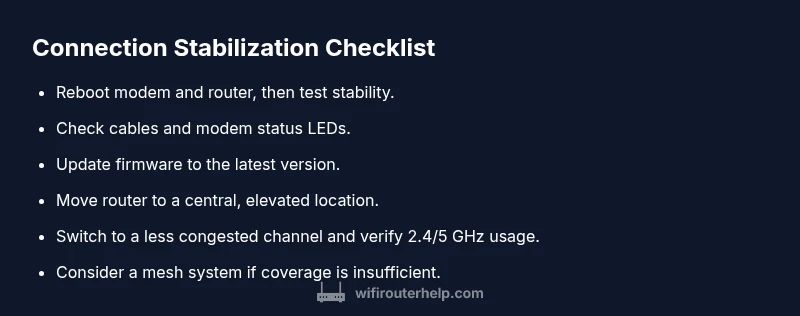
- mediumRelocate router to a central, elevated position; reduce interference; switch to a less congested channel
- hardIf drops persist, consider hardware upgrade or mesh system; consult ISP about line quality
People Also Ask
Why does my router keep dropping my Wi-Fi connection?
Interference, distance, outdated firmware, and upstream ISP issues are common culprits. Use targeted checks and step-by-step fixes to identify the root cause.
Interference, distance, and old firmware are typical causes. Follow the step-by-step fixes to pinpoint and fix the issue.
Should I reset my router to factory settings?
Factory resets can solve stubborn issues but erase custom settings. Back up configurations, then perform a reset if other fixes fail.
A factory reset can help when other steps fail. Be sure to back up your settings first.
Can a mesh system help with drops in a large home?
Yes. Mesh networks improve coverage in large or multi‑story homes and reduce dead zones, often solving persistent drops.
Yes. A mesh system can give you more reliable coverage across a large home.
How can I test if the problem is my ISP?
Run speed tests wired and wireless, check for outages on the ISP status page, and compare times of disconnects to reported service issues.
Run tests and check for outages to rule out the ISP as the cause.
Is updating firmware risky?
Firmware updates are essential for stability and security. Ensure power remains stable during the update and follow official instructions.
Firmware updates are important but follow safety steps, like keeping power steady during the update.
Watch Video
What to Remember
- Reboot devices to clear glitches and restore connections
- Update firmware and verify cables are secure
- Test wired vs wireless performance to isolate issues
- Consider placement and channel optimization before upgrading hardware