How to Fix a Router That Keeps Disconnecting: A Troubleshooting Guide
Struggling with a router that keeps disconnecting? This urgent troubleshooting guide covers quick fixes, diagnostics, and prevention tips to restore stable home WiFi.


Is your router constantly dropping connections? The most likely culprits are weak signal, channel interference, outdated firmware, or network congestion. Start with a quick reboot, check cables, and run a speed test. Then update firmware, switch to a less crowded channel, and consider a factory reset if problems persist. If it still fails, contact your ISP for deeper diagnostics.
Why "how come my router keeps disconnecting" happens
If you’re asking how come my router keeps disconnecting, you’re not alone. In many homes, flaky connections stem from signal quality problems, interference from neighboring networks, or outdated firmware. The WiFi Router Help team has analyzed thousands of home networks and consistently finds that signal quality and channel congestion are the primary culprits. Before you assume the worst, run through a quick baseline check to confirm if the issue is local to your setup or a wider service problem. This guide focuses on practical, actionable steps you can take today to restore stability.
According to WiFi Router Help, a methodical, staged approach reduces frustration and speeds up recovery. You’ll learn how to verify if the problem is in your home environment, your hardware, or your service provider, and you’ll gain confidence to tackle each layer without unnecessary tech jargon.
Common causes of disconnects
Understanding the root causes helps you prioritize fixes. The most frequent culprits are weak signal due to distance or obstacles, and interference from other Wi‑Fi networks on the same or nearby channels. Outdated firmware can introduce bugs that cause drops, while hardware faults (like a failing power adapter or overheating) are less common but not rare. Congestion on the network, such as many devices on the same router, can also trigger disconnects during peak usage. Finally, misconfigured settings (paradoxically, simple mistakes in QoS or parental controls) can manifest as unstable connections.
Quick at-home checks you can do now
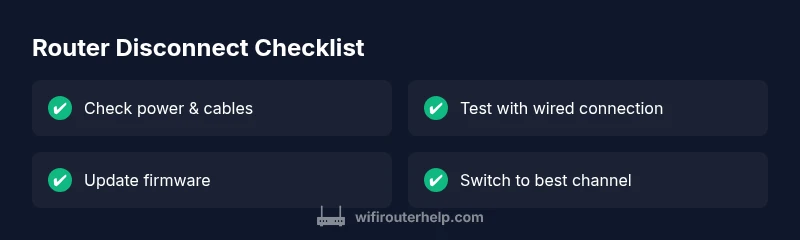
Start with the simplest steps and work your way up. Check that the router is powered on and the LEDs look normal. Re-seat all cables, including the power brick and Ethernet cables. Reboot the router and, if possible, try a wired Ethernet test to see if the problem is wireless-specific. Note the times of disconnects to identify patterns (revise: after heavy streaming, during gaming, or after a device reconnect). Run a quick speed test from a nearby device to establish a current baseline, and verify your device isn’t set to a static IP that's conflicting with DHCP.
Environmental and hardware factors that sabotage stability
Physical placement matters more than many realize. Place the router in a central, elevated spot away from walls, metal objects, and large appliances. Thick walls, metal shelving, and microwaves can degrade 2.4 GHz and 5 GHz signals. Nearby neighbors using strong networks can cause interference; using a Wi‑Fi analyzer app helps you pick the least congested channel. Heat and power issues also matter: ensure adequate ventilation and a stable power supply. If you recently added a smart plug or power extender, test with direct power to rule out supply quirks.
Diagnosing the root cause at home
A systematic diagnosis starts with the router’s status page. Look for signal strength, connected clients, and error logs. Use ping tests to measure latency and jitter between a device and the router, then run a local speed test to compare wired versus wireless performance. Check channel utilization with a network analyzer and try switching between 2.4 GHz and 5 GHz to see if one band remains more stable. If you notice a pattern (e.g., drops during streaming), it points toward bandwidth competition or QoS settings that might need adjustment.
Step-by-step fixes for the most likely causes
If you suspect interference or weak signal, relocate the router to a more central position and off the floor, then switch to the least congested channel or enable automatic channel selection. If the firmware is outdated, update to the latest version from the manufacturer’s site or app and reboot. For configuration issues, review DHCP settings, verify NAT type, and disable any questionable QoS rules or parental controls temporarily. If problems persist, perform a factory reset only after backing up settings.
Safety, warnings, and best practices when tuning your network
Always unplug the router before reconnecting power or swapping cables. Use official firmware sources to avoid bricking the device. Don’t overload the router with too many demanding devices; consider upgrading if you routinely hit the device’s performance ceiling. Keep a backup of your configuration before doing major changes. If you rely on smart home hubs, re-add them methodically after any reset to avoid reconfiguring everything from scratch.
Prevention: long-term stability tricks
Schedule regular firmware checks and apply updates promptly. If coverage gaps persist in a large home, consider a mesh system or a wired backhaul to stabilize performance. Use separate SSIDs for 2.4 GHz and 5 GHz to monitor each band’s behavior. Periodically review connected devices and remove idle clients. Finally, document your network changes so you can revert quickly if something goes wrong.
Steps
Estimated time: 45-60 minutes
- 1
Check power and reset
Unplug the router, wait 30 seconds, then plug back in. Check that the power light remains steady and that the device boots normally. This simple reset clears minor glitches that can cause drops.
Tip: A cold boot fixes many transient issues. - 2
Inspect cables and ports
Ensure all Ethernet cables are firmly seated at both ends and that the power adapter is the correct model. Damaged cables or loose connections are common sources of disconnects.
Tip: Swap in a known-good Ethernet cable to test. - 3
Test wired connection
Connect a device directly with an Ethernet cable to see if the problem occurs over wired as well as wireless. If wired is stable, the issue is likely wireless-related.
Tip: If wired works, focus on your Wi‑Fi settings first. - 4
Update firmware
Check the router’s admin page or companion app for firmware updates. Install the latest version and reboot to apply changes.
Tip: Only download updates from the manufacturer’s site or app. - 5
Optimize Wi‑Fi channel and band
Use a Wi‑Fi analyzer to identify the least congested channel. Consider using 5 GHz for closer devices and 2.4 GHz for farther ones.
Tip: Prefer auto-channel if you have a lot of nearby networks. - 6
Moderate your network load
Limit the number of high-bandwidth devices during critical tasks. Enable QoS only if you understand its impact on latency.
Tip: Document device priorities before enabling QoS. - 7
Factory reset if needed
If all else fails, back up your settings and perform a factory reset. Reconfigure gradually to identify which change fixed the issue.
Tip: Always back up settings before resetting.
Diagnosis: Intermittent Wi‑Fi disconnects across multiple devices
Possible Causes
- highWeak signal due to distance or obstacles
- high2.4 GHz and 5 GHz channel interference from neighbors
- mediumOutdated or buggy firmware
- lowFlaky power supply or overheating
Fixes
- easyMove router to a central, elevated location with fewer obstructions
- easySwitch to a less congested Wi‑Fi channel (or enable auto channel) and prefer 5 GHz when possible
- easyUpdate firmware to the latest version from the manufacturer
- mediumCheck power adapter and cooling; replace if power issues suspected
- mediumIf unresolved, perform a factory reset after backing up settings
People Also Ask
Why does my router disconnect randomly?
Random disconnects are usually caused by interference, distance, or firmware bugs. Start with core checks like rebooting, updating firmware, and testing with a wired connection to isolate the issue.
Random disconnects usually come from interference or firmware issues. Begin with basic checks, then update firmware and test with a wired connection to isolate the problem.
Is it safe to reset my router to factory settings?
Factory resets erase custom settings and saved passwords. Back up your configuration before resetting and reconfigure gradually to identify the fix.
A factory reset wipes your setup, so back up first and reconfigure step by step.
How can I check if interference is causing disconnects?
Use a Wi‑Fi analyzer app to see channel usage and choose a clearer channel. Testing both 2.4 GHz and 5 GHz helps identify the culprit.
A Wi‑Fi analyzer shows crowded channels; switch to a clearer channel and test both bands.
Will updating firmware fix disconnects?
Firmware updates often fix bugs and improve stability. Install only from the manufacturer and reboot after updating.
Yes. Updates frequently fix bugs and improve stability; install from official sources.
When should I contact my ISP about disconnects?
If you’ve ruled out home causes and drops continue, contact your ISP for a line test or service check.
If home fixes fail, contact your ISP for a line test.
Should I upgrade to a mesh network for reliability?
A mesh system helps in large homes or where coverage is patchy. Weigh costs against benefits and consider a staged upgrade.
Mesh networks can improve coverage in big homes; evaluate costs and needs.
Watch Video
What to Remember
- Check power and cables first to stabilize connections.
- Firmware updates can fix stability issues.
- Relocate the router for optimal signal.
- Switch to a less congested channel to reduce drops.
- Call your ISP if the problem persists after all at-home steps.